
What is a Company?
A company is a business or organization you engage with. Companies can be clients, partners, or prospects, forming the backbone of your CRM.
Features of a Company at Zhylar
- Stores all company details (industry, size, location)
- Tracks all interactions and documents
- Get a 360-degree view of the organization- contacts, deals, and transactions etc.
Company List View
- Log in to Zhylar
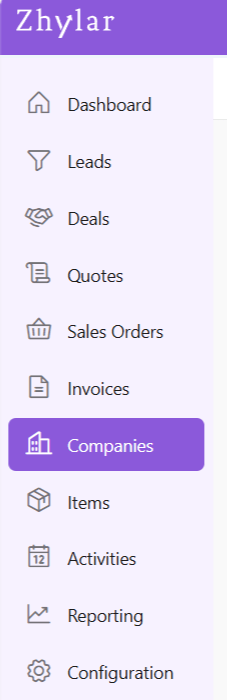
- Go to Left-hand navigation panel
- Go to Company
Here, you can find a list of all the companies added to the system.
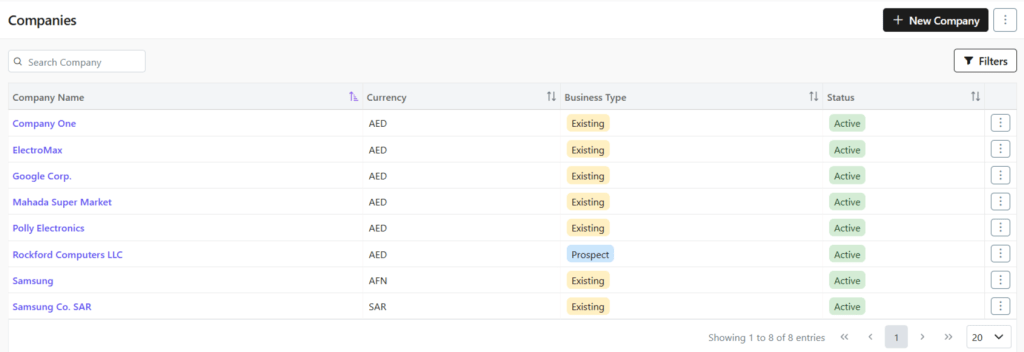
Viewing a Company Profile
To view the details of any company,
- Click any company name
- See complete company overview
- Basic information
- Recent activities
- Linked contacts/deals
Customer Type
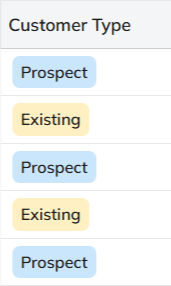
- A company is categorized as:
- Existing: A customer you’re already dealing with.
- Prospect: Each customer/company is marked as a “prospect” until an invoice is generated and payment is made for said company. Once payment is made, the company is marked as “existing”.
Search Filter
- Conduct a universal search across all fields through the search box.
- Or search/sort through Name/Phone no./Email/Currency/Customer Type/Status.

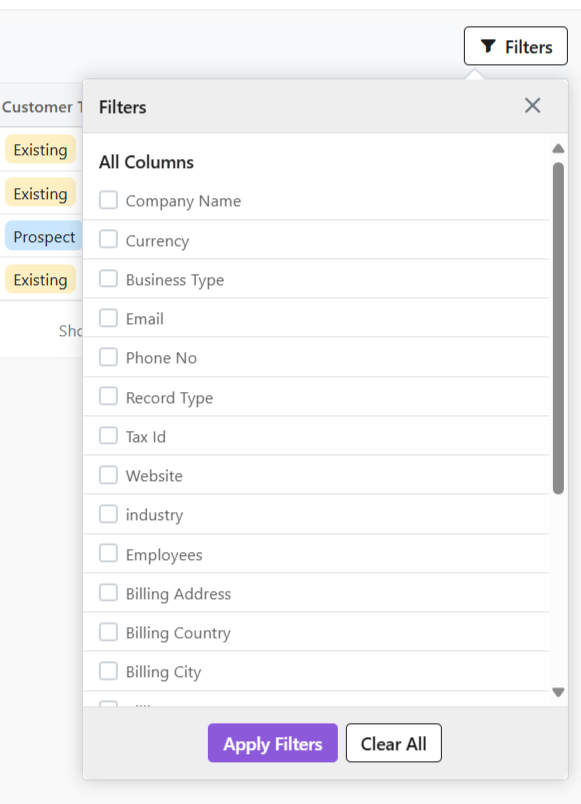
- Or, you can use the Filter button to filter your searches from a range of filters.
Managing Company Information
Adding New Companies
- Click “+ New Company”
- Fill out the data
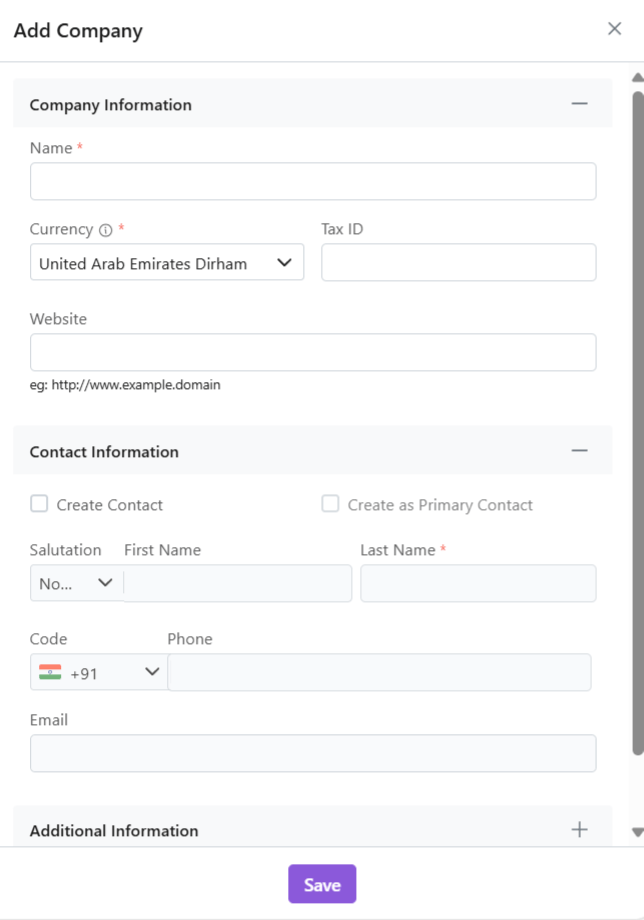
- Click “Save”
Also read about how to Import Companies on Zhylar.
Update Company Details
- Click ⋮ 3 dots
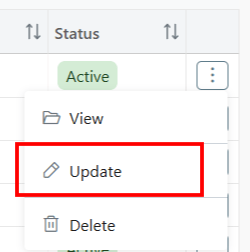
- Click on Update
- Make changes
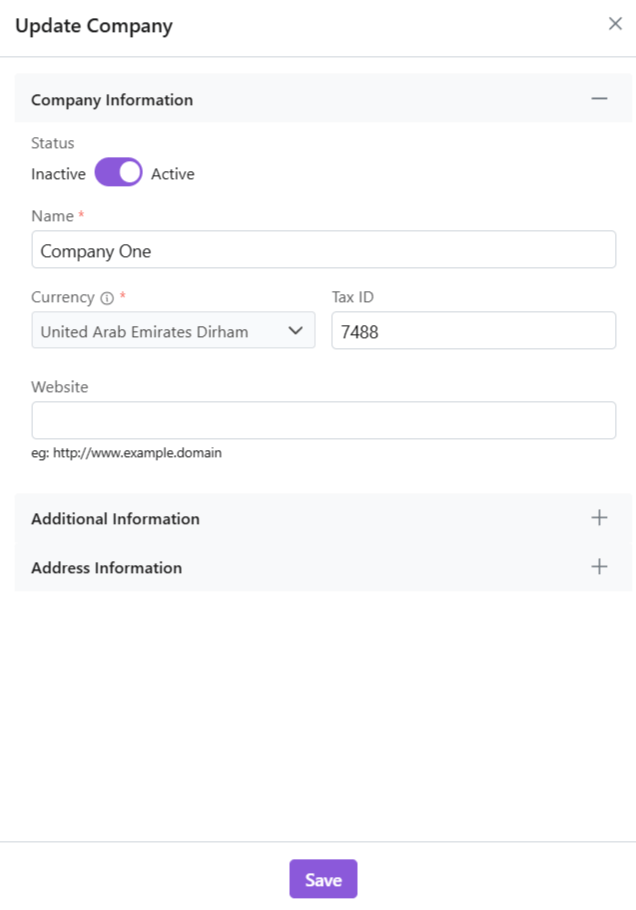
- Company currency cannot be changed/updated.
- Click “Save“.
Delete Company
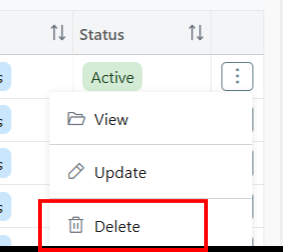
- Click ⋮ 3 dots
- Select Delete
- Provide confirmation.
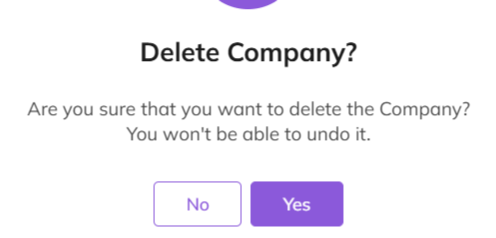
- The Company will be deleted successfully.
Company Details
- Click on any company to open and view details.
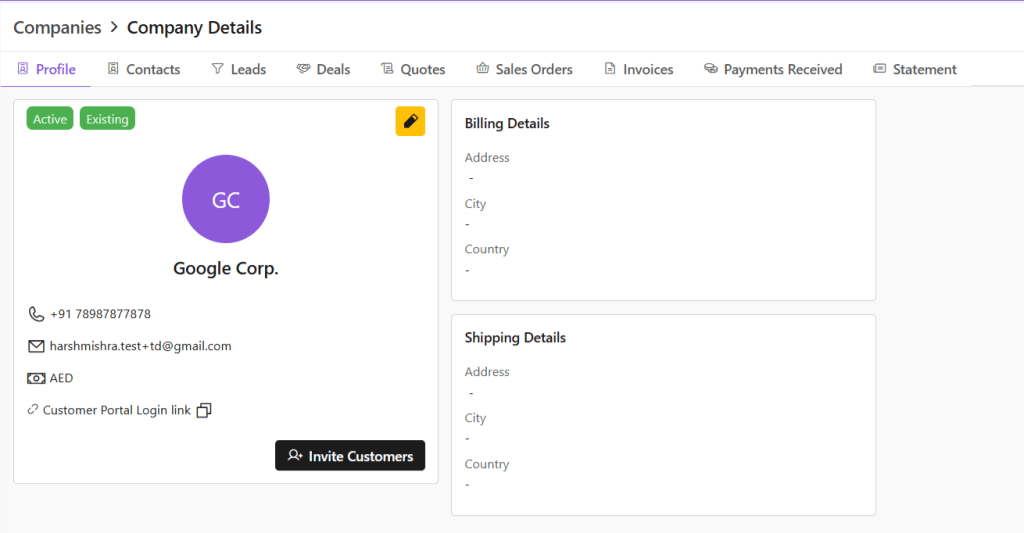
- Profile tab opens by default.
- Check all details of the company, e.g., status, customer type, etc.
- Click ✏️ Edit (yellow-highlighted pen) to edit details or invite customers directly.
- Switch tabs to check data in specific modules, e.g., contacts, leads etc.
Managing Contacts
A contact is an individual person associated with a company. This person might be a decision-maker, buyer, or support staff. Your team communicates with them during business interactions.
View Contacts
Click Contacts tab
- See all users added to the company
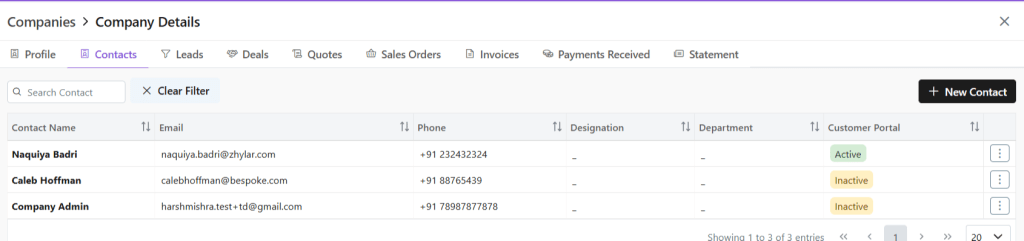
- Conduct universal search or filter by fields
Adding a New Contact
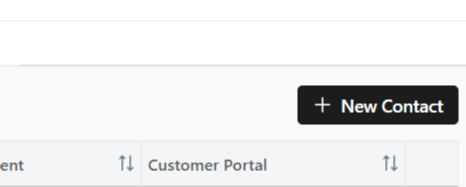
- Click “+ New Contact”
- Fill required data.
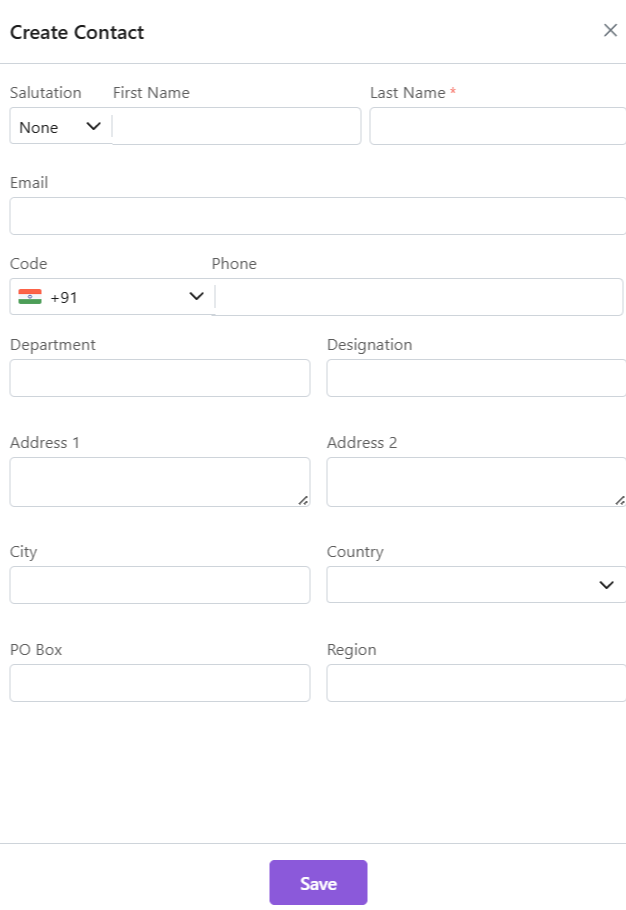
- Click “Save.”
Update Contact
- Click ⋮ 3 dots
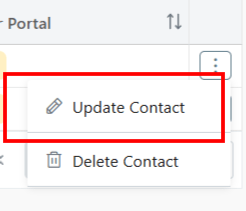
- Select Update
- Make changes
- Click Save.
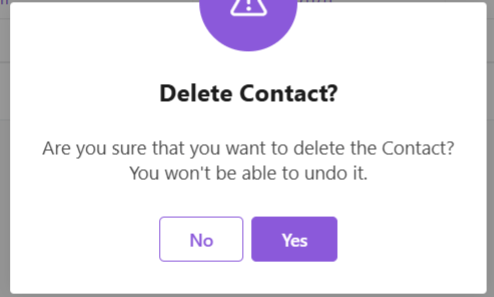
Delete Contact
- Delete: Click ⋮ 3 dots
- Select Delete
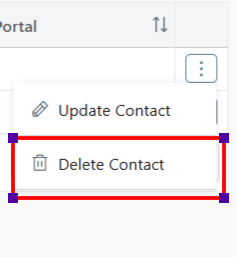
- Provide Confirmation.
Business Activities
Leads
- Click Leads tab
- View all potential opportunities
- Click lead name for details
- Conduct universal search or sort by fields in ascending or descending order.
Deals
- Click Deals tab
- See all active negotiations
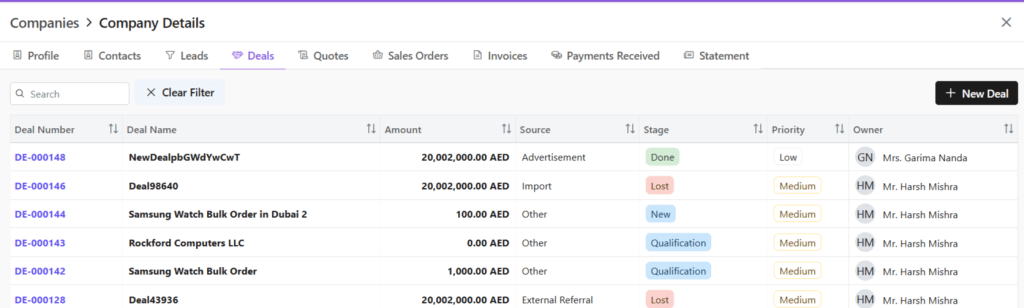
- Add New Deal:
- Click “+ New Deal”
- Fill required details.
- Save deal.
- Conduct universal search or sort by fields in ascending or descending order.
Quotes
- Click Quotes tab
- See all Quotes
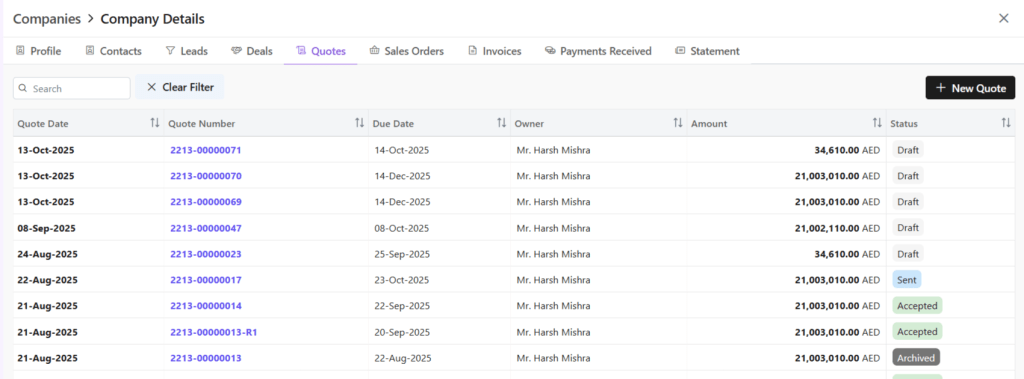
- Add New Quote:
- Click “+ New Quote”
- Fill required details.
- Save as draft or save and send quote.
- Conduct universal search or sort by fields in ascending or descending order.
Sales Orders
- Click Sales Order tab
- See all Sales Orders

- Add New SO:
- Click “+ New Sales Order”
- Fill required details.
- Save as draft or save and send quote.
- Conduct universal search or sort by fields in ascending or descending order.
Invoice
- Click Invoice tab
- See all invoices
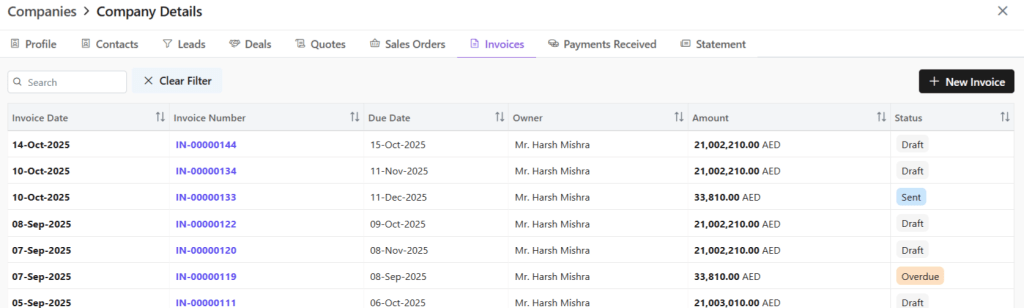
- Add New Invoice:
- Click “+ New Invoice”
- Fill required details.
- Save as draft or save and send invoice.
- Conduct universal search or sort by fields in ascending or descending order.
Payments Received
- Check financial transactions for this company.
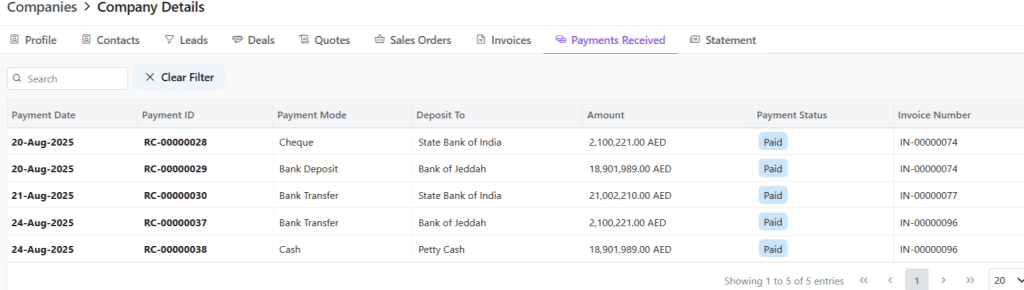
- Click on any payment document number to view all details.
- Redirected to Invoice module.
- Check all details for this invoice, timeline, notes, emails, etc.
Statement
Statement of accounts is a detailed summary of all financial transactions between a company and a customer. It covers a specific period and shows invoices, payments, credits, and the remaining balance.
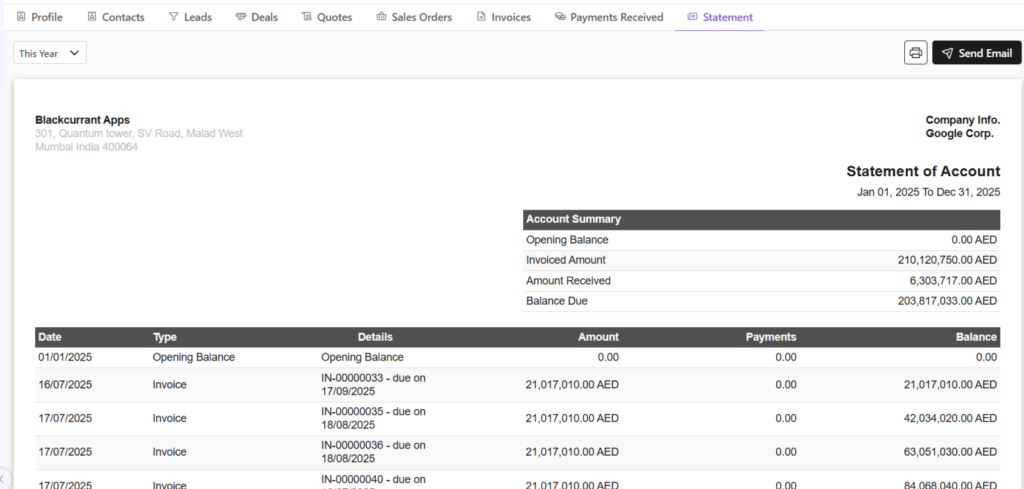
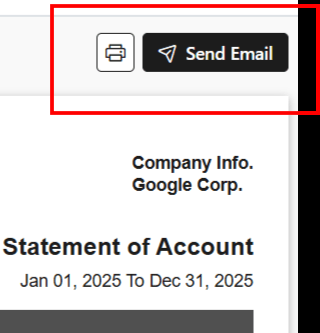
You can email the statement to your client by clicking on Send Email.
Discover how Zhylar can streamline your sales and elevate your business processes. Visit our website or book a demo today to experience the difference!
Also Read