
This guide is designed to help Zhylar partners understand how subscription management works within the platform. Your role as a business partner is critical to helping customers through the onboarding process, assigning a subscription plan, managing their subscriptions, and assisting them with any billing-related activities for end users.
Unlike self-service platforms where users directly purchase subscriptions, Zhylar follows a partner-driven subscription model. In this model, the Zhylar partner is responsible for assigning paid subscriptions to customers and providing any support needed through the duration of the subscription, such as assisting with upgrades, managing renewal activity, and providing customer support during the life cycle of the subscription.
This article covers everything partners need to know, including:
- Assigning subscriptions to existing users
- Onboarding and assigning plans to new users
- Understanding how self-sign-up organizations work
- Managing freemium and paid subscriptions
- Accessing invoices and billing information
- Making subscription payments
Use this guide as a reference for managing customer subscriptions efficiently within Zhylar.
How to Assign a Subscription to Existing Users
Partners can assign a subscription plan to users who already have an existing Zhylar account.
Steps to Assign a Subscription
- Log in to the partner portal.
- Navigate to the customer or organization management section.
- Search for the existing organization.
- Click on “Change Subscription” or “Renew Subscription” for an Organisation with an active plan, or
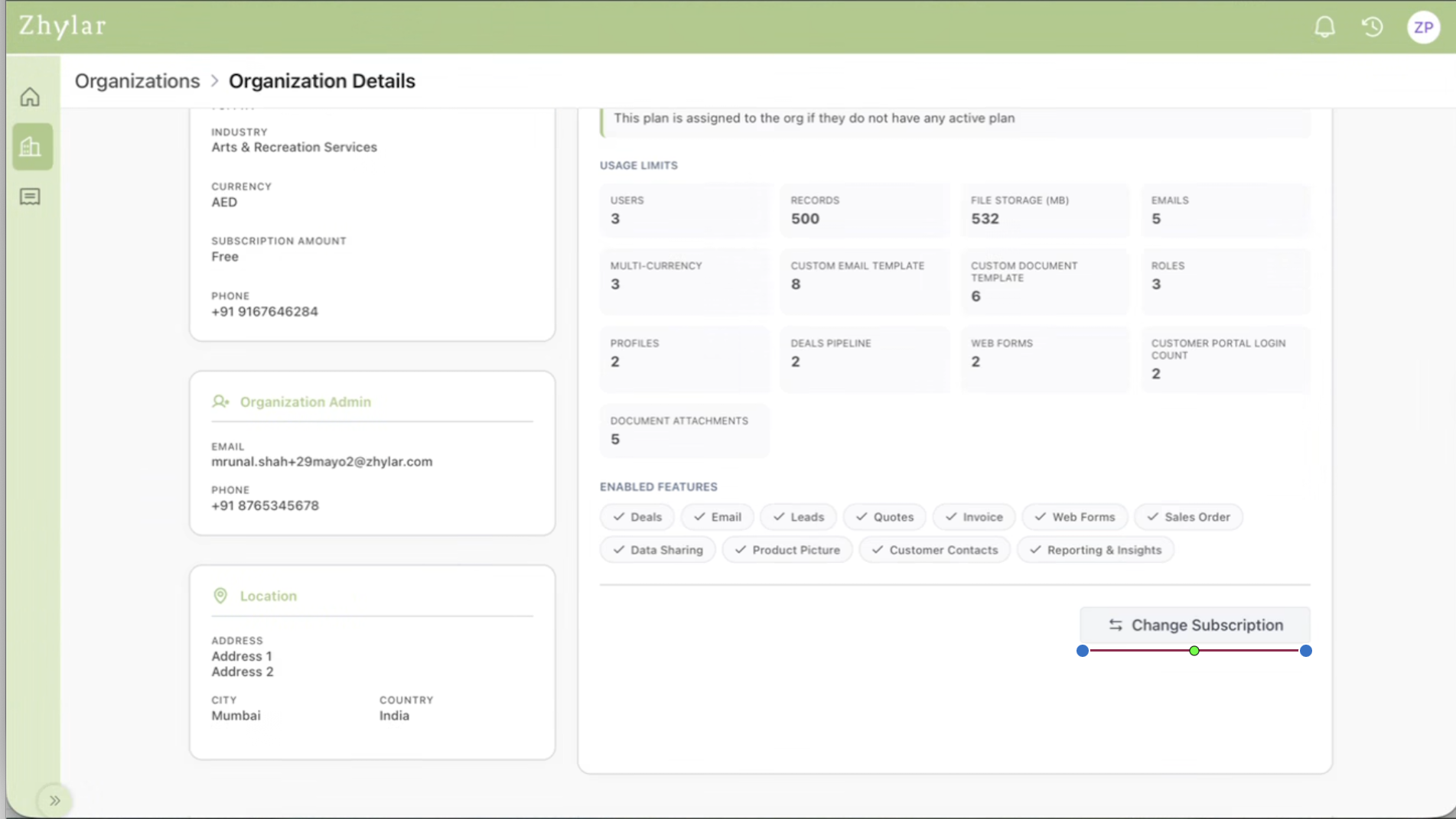
- Click on “Add Plan” in case no plan is assigned to the organisation previously.
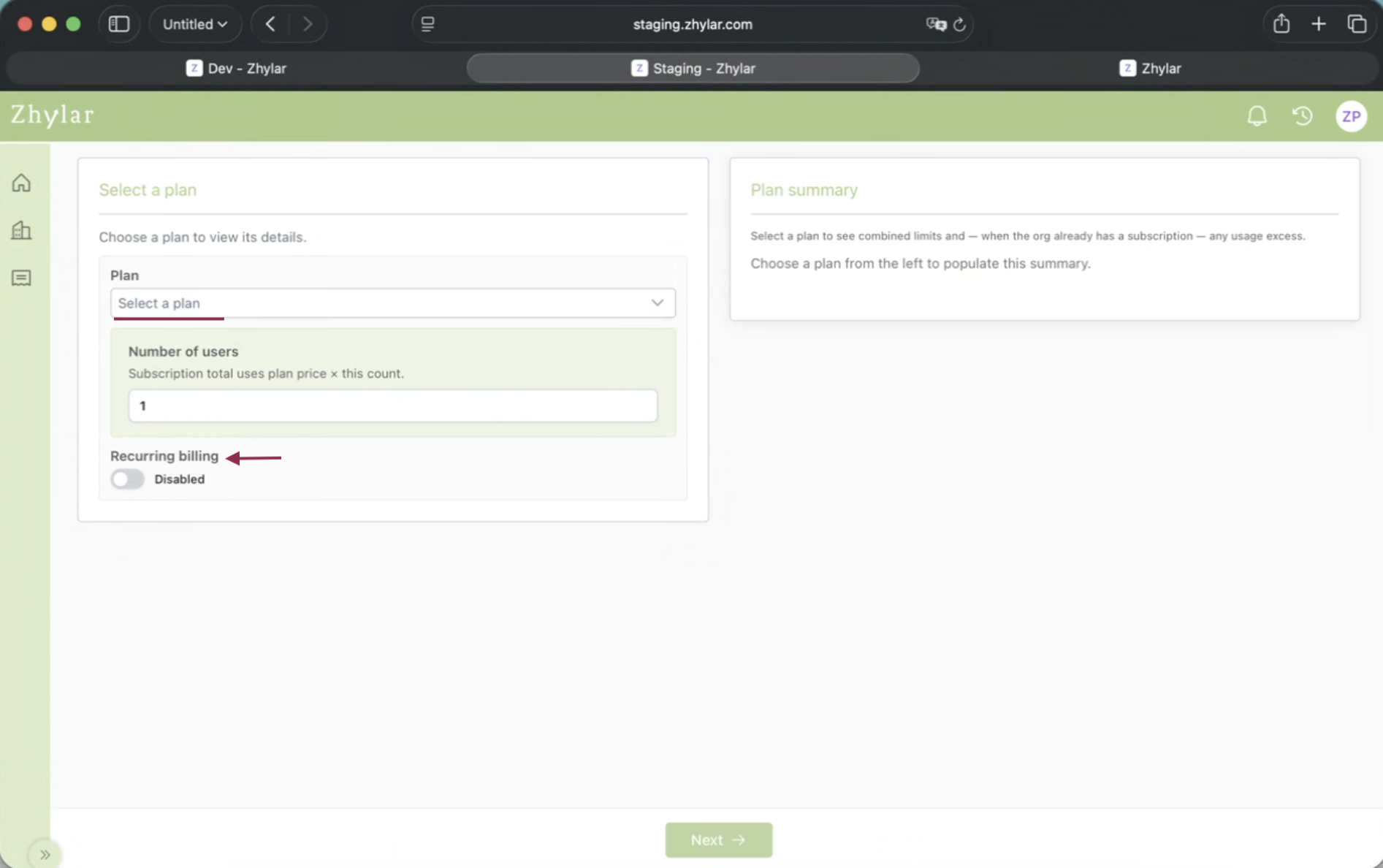
- Select the required subscription plan.
- Checkout & Pay for the subscription. If the payment goes through successfully, the system will assign the plan to the organization.
Please Note:
- The subscription start date will be set to payment date & it cannot be modified by Partner.
- Once assigned, the user will immediately receive access to the features and limits available in the selected plan.
How to Assign a Subscription to New Users
Partners can also onboard completely new users and assign subscriptions during the onboarding process.
Steps to Assign a Subscription to New Users
- Log in to the partner portal.
- Create a new customer or organization.
- Enter the required user and organization details.
- Select the subscription plan to be assigned.
- Checkout & Pay for the Subscription bought. If the payment goes through successfully, the system will assign the plan to the organization.
- Complete the onboarding process.
After onboarding is completed:
- Partner will have to “Sent Invite” to the organization admin
- The user will receive an activation email.
- The assigned subscription will already be active on the account.
Add-Ons Management
Add-Ons provide organizations with additional capabilities, limits, or functionality without requiring them to upgrade their entire subscription plan. Partners can assign Add-Ons to organizations in two ways.
Method 1: Adding Add-Ons During Onboarding
When onboarding a new organization, partners can assign Add-Ons as part of the subscription setup process.
Steps
- Create or onboard the new organization.
- Select the subscription plan to be assigned.
- Review the available Add-Ons.
- Select the required Add-On(s) based on the customer’s requirements.
- Complete the onboarding process.
- The selected Add-On(s) will be activated along with the subscription plan.
This allows organizations to start using the platform with all the features and limits they require from day one.
Method 2: Adding Add-Ons to an Existing Subscription
Partners can also add Add-Ons after a subscription has already been assigned to an organization.
This typically happens when an organization requires additional functionality, capacity, or resources after onboarding.
Steps
- Open the organization’s subscription details.
- Verify that the organization has an active paid subscription.
- Review the customer’s additional requirements.
- Select the required Add-On(s).
- Confirm the Add-On assignment.
- The Add-On will be activated immediately, and billing will be adjusted accordingly.
Important Eligibility Requirement
Before assigning an Add-On, partners must ensure that:
- The organization has an active paid subscription plan.
- Add-Ons cannot be assigned to organizations using the Freemium Plan.
- Add-Ons can only be purchased and activated on top of an active paid subscription.
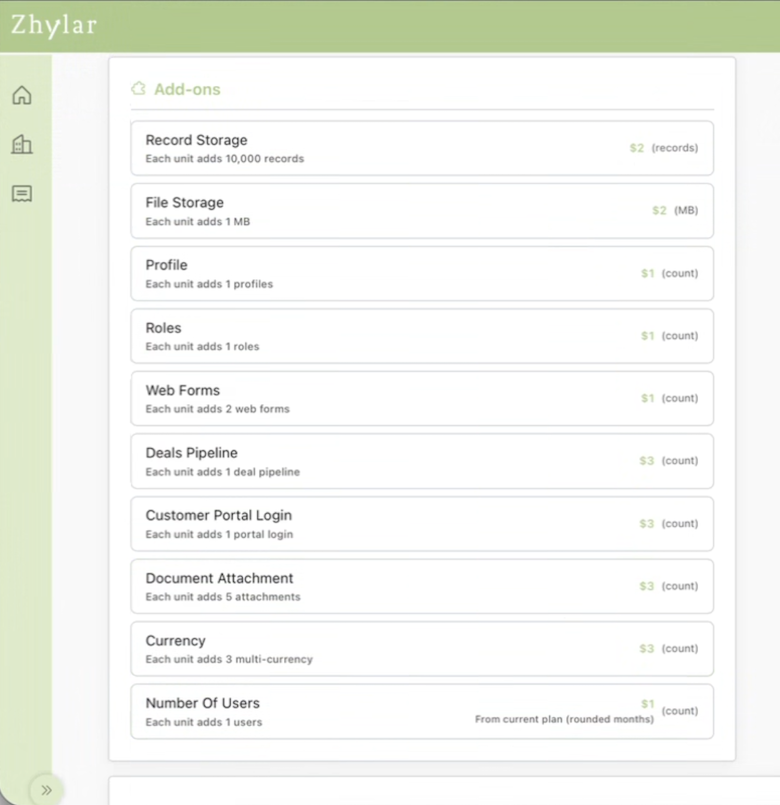
Add-On Pricing & Billing
Fixed Add-On Pricing
Each Add-On has a predefined fixed price. However, the amount charged depends on the remaining duration of the organization’s current billing cycle.
Pro-Rata Billing
Add-Ons are billed on a pro-rata basis based on the remaining period of the active subscription.
Example – Yearly Subscription
- Organization purchases a yearly subscription.
- Six months later, they request an Add-On.
- The Add-On will only be charged for the remaining six months of the billing cycle.
- The organization will not be charged for the full year.
Example – Monthly Subscription
- Organization purchases a monthly subscription.
- Midway through the month, they request an Add-On.
- Charges will be calculated based on the remaining duration of the billing cycle.
Minimum Billing Rule
If an Add-On is purchased very close to the subscription renewal date, the minimum billing period will still apply.
Example
If an organization purchases an Add-On with only one day remaining before subscription expiry, the organization will still be charged for one full month for that Add-On.
This ensures that Add-On billing remains aligned with the applicable subscription billing cycle.
What Happens to Self-Signed-Up End Users
Some users may create accounts directly through the free sign-up option available on the Zhylar login page.
These users:
- Are automatically onboarded into a free plan (yearly) organization.
- Can use Zhylar with freemium-level access.
- Cannot directly purchase a paid plan on their own.
If they want to upgrade:
- They must connect with Zhylar partner.
- The partner can then assign a paid subscription to their organization.
Note:
- The Free Signed up user/org. will always be assigned to Zhylar partner directly.
What Subscription is Assigned to Free Sign-Up Organizations
Organizations created through self-sign-up are automatically assigned the Freemium Plan with a Year validity.
About the Freemium Plan
The Freemium Plan allows users to:
- Explore Zhylar
- Access limited platform functionality
- Use the system without payment
This plan is intended for trial, evaluation, and exploration usage purposes.
Users who require advanced features or higher limits must be upgraded by a partner to the Standard Plan.
Where Can I Check My Invoices?
Partners can view all subscription invoices directly from the billing or invoicing section within the partner portal.
Invoice Details Include
- Invoice number
- Organization Name
- Subscription details
- Billing period
- Amount charged
- Payment status
- Due date
Partners can also download invoices for accounting or record-keeping purposes.
How Can I Pay for a Subscription?
Subscription payments are managed through the partner portal.
Steps to Make a Payment
- Log in to the partner portal.
- Go to a detail view for an Organisation where you would like to assign a subscription.
- Select a desired Plan
- Checkout the selected plan details
- Pay for the Plan and the addons
- Complete the payment using the available payment methods.
Once payment is successful:
- The subscription gets assigned and the Organization is activated
- In case of Renewal, the subscription remains active without interruption.
Additional Notes
Standard Plan Pricing
Zhylar’s paid subscription plan is called the Standard Plan.
Pricing
- $9/user/month — billed monthly
- $6/user/month — billed annually
Need Assistance?
For platform support, billing queries, or subscription-related assistance, please contact the Zhylar support team at enquiry@zhylar.com.
Frequently Asked Questions (FAQs)
Q) Can end users directly buy paid subscriptions?
No. End users cannot directly purchase paid subscriptions from the Zhylar platform. All paid subscriptions are managed and assigned through authorized Zhylar partners. If a user wants to upgrade from a free plan or purchase a paid subscription, they must contact a partner who will help them choose the appropriate plan and assign it to their organization.
Q) Can partners upgrade self-signed-up users?
Yes. Partners can upgrade users who initially created their accounts through the free self-sign-up process. Once the partner identifies the user or organization in the system, they can assign a paid subscription plan based on the customer’s business requirements. This allows self-signed-up users to move from the Freemium Plan to a Standard or higher-tier plan without needing to create a new account.
Q) What plan do self-sign-up users receive by default?
Users who register through the “Create Account” option on the Zhylar login page are automatically assigned the Freemium Plan. This free plan allows users to explore the platform and access basic features with limited functionality and usage limits. If users require advanced features or higher limits, a partner can later upgrade them to a paid subscription plan.
Q) Can partners assign subscriptions during onboarding?
Yes. Partners can assign subscription plans while onboarding new users or organizations into the platform. During the onboarding process, partners can select the required subscription tier and activate it immediately for the customer. This ensures that the organization receives access to the correct features, limits, and functionalities from the beginning itself.
Q) Can Add-Ons be assigned to Freemium Plan users?
No. Add-Ons can only be assigned to organizations with an active paid subscription. Organizations on the Freemium Plan must first upgrade to a paid plan before any Add-On can be activated.
Q) Can Add-Ons be added after onboarding?
Yes. Partners can add Add-Ons at any time during an active subscription period, provided the organization has an active paid plan.
Q) Are Add-Ons charged for the entire billing cycle?
Not always. Add-Ons are generally billed on a pro-rata basis according to the remaining duration of the organization’s subscription period, subject to the minimum billing rules applicable to the plan.
Q) Can invoices be downloaded?
Yes. Partners can access and download invoices directly from the billing or invoicing section within the partner portal. Invoice details typically include subscription information, billing period, payment status, invoice amount, and due dates. Downloaded invoices can be used for internal accounting, documentation, and record-keeping purposes.
Q) What happens if payment is not completed?
If payment is not completed within the applicable due period, the subscription may eventually expire based on Zhylar’s billing and subscription policies. Once expired, the account may move into a grace period where users can still access and export existing data, but certain operational activities and premium features may be restricted. Continued non-payment may result in further access limitations until the outstanding payment is cleared or the subscription is renewed.