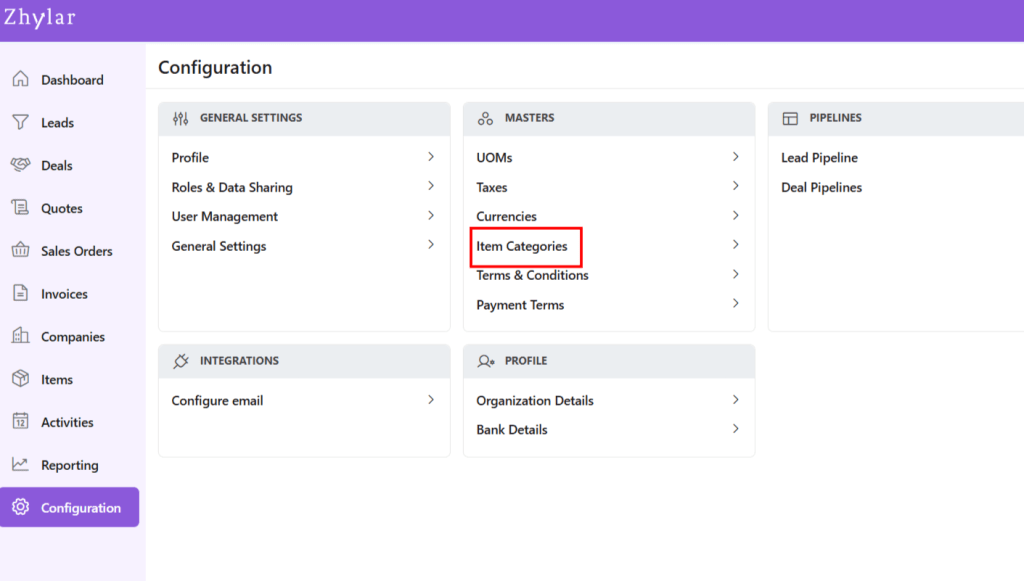
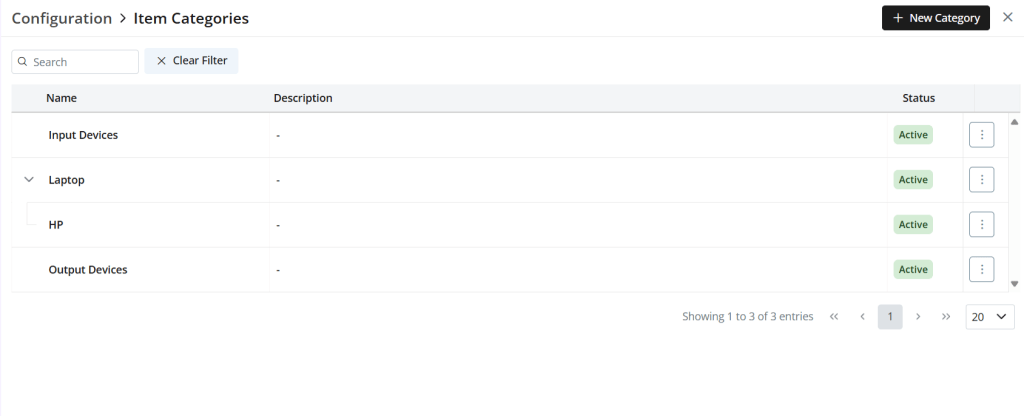
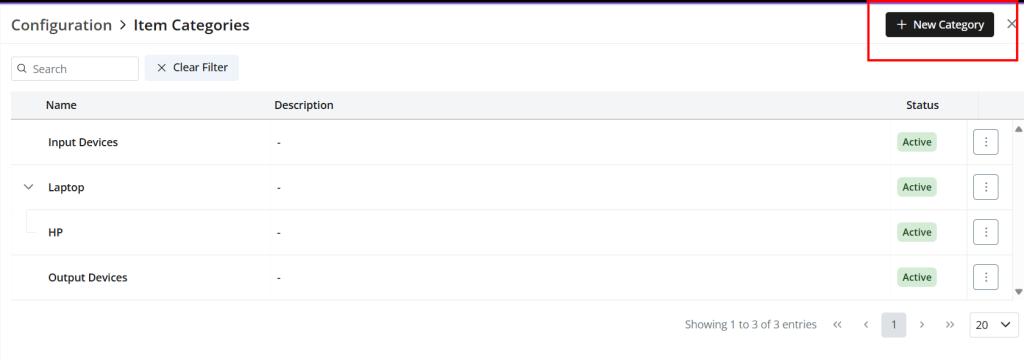
Item categories are an organizational tool used to group related products or services within a CRM system. They simplify catalog management, improve navigation, and are essential for efficient Configure, Price, Quote (CPQ) setups. Categorizing items logically enhances the sales process and ensures a better user experience for both teams and customers.
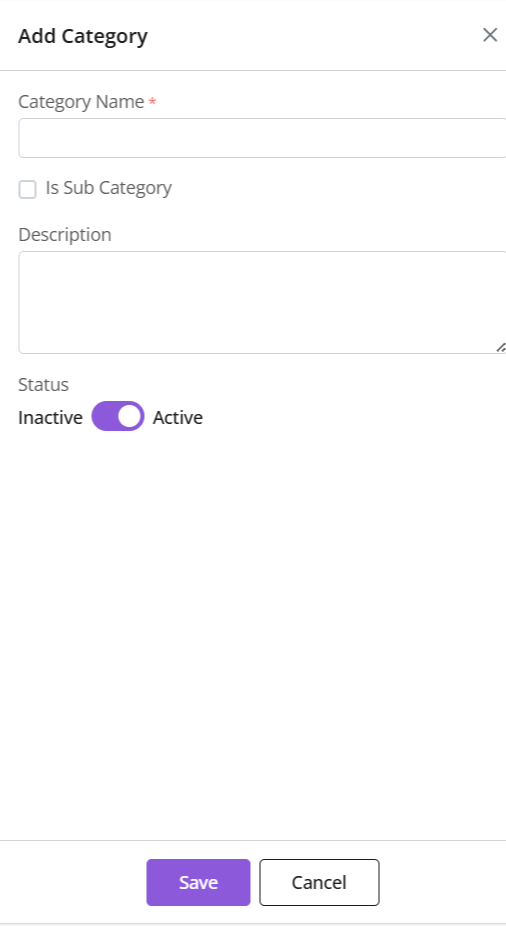
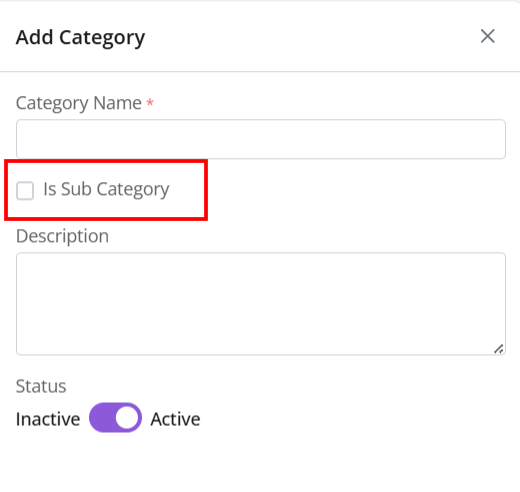
Sub-Category: If it is a category within a bigger category. If yes, a parent category must be tagged. (Refer section below).
Description: A brief description of the category
Status: Whether category is in use or not
Click “Save”
Sub-Category
A sub-category is a category within a bigger category.
To check a category as a sub-category, a parent category must be marked.
E.g., Parent Category: Laptops -> Sub-category: HP
Update Existing
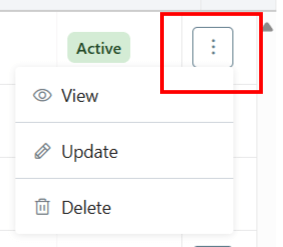
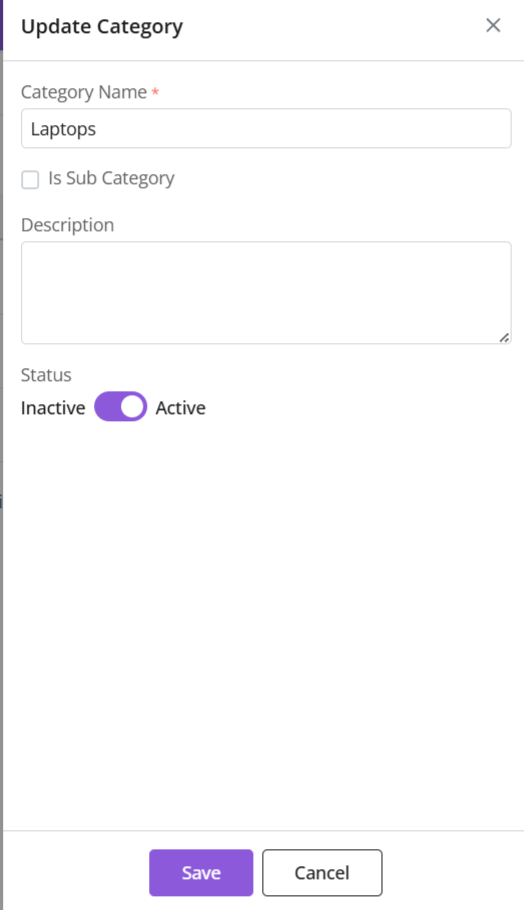
Click ⋮ 3 dots >Update→ Make changes
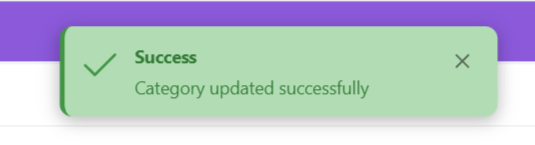
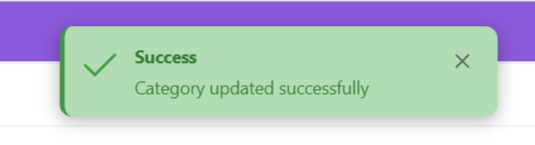
Click Save
Status
Toggle active/inactive status
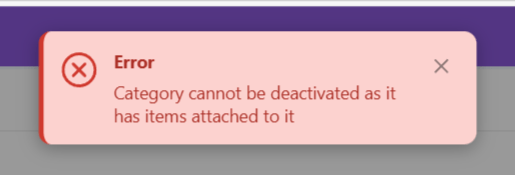
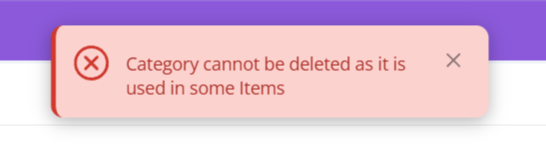
To mark inactive, category must not be associated with any item. Or you will receive an error message.
Make required changes to proceed.
Delete Category
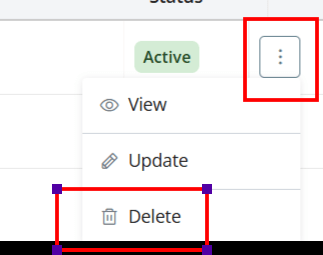
Click ⋮ 3 dots > Select Delete
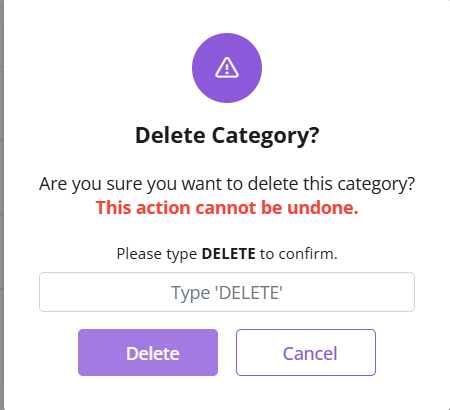
Type “DELETE” to provide confirmation.
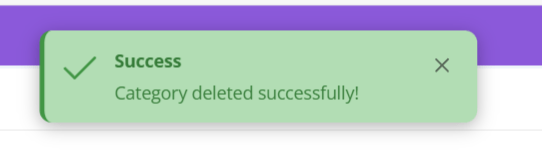
The Category will be deleted.
If category is associated with some Items, you will receive an error message.
Make requisite changes to proceed.
Please note: If a parent category is deleted before deleting sub-categories, the sub-categories will be automatically updated. They will be updated to become parent categories themselves.
Discover how Zhylar can streamline your sales and elevate your business processes. Visit our website or book a demo today to experience the difference!