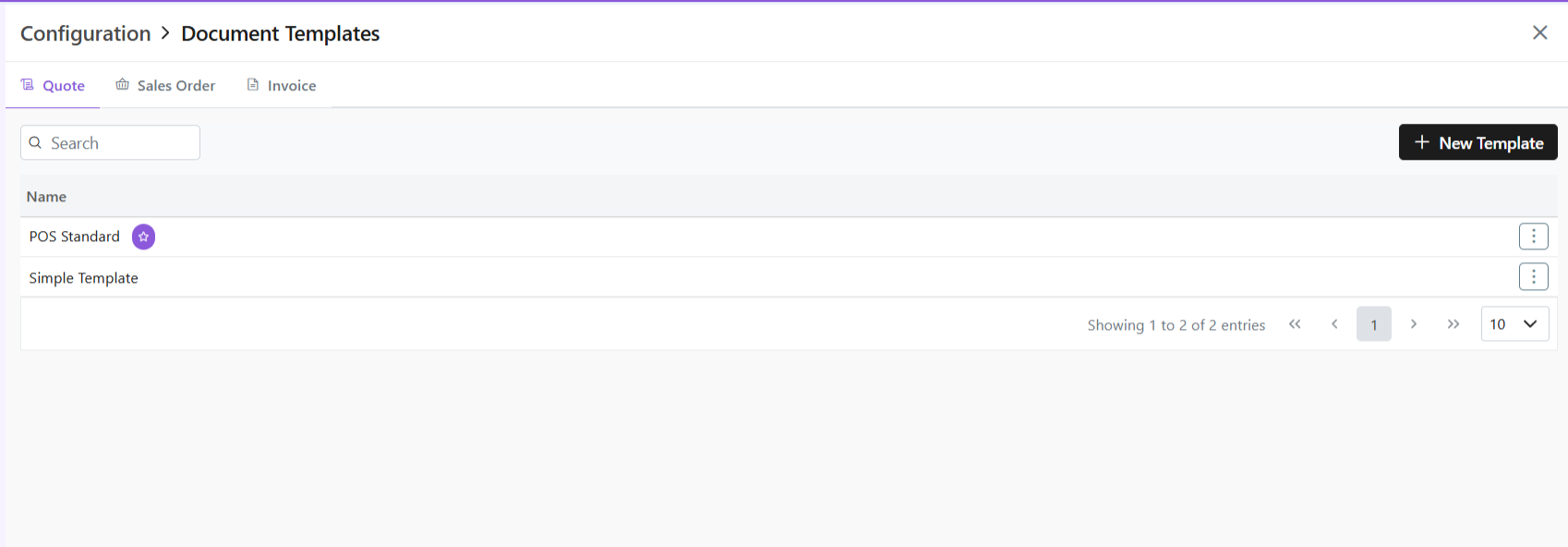
One template will be marked as default denoted by a white star in a purple circle.
Create New Template
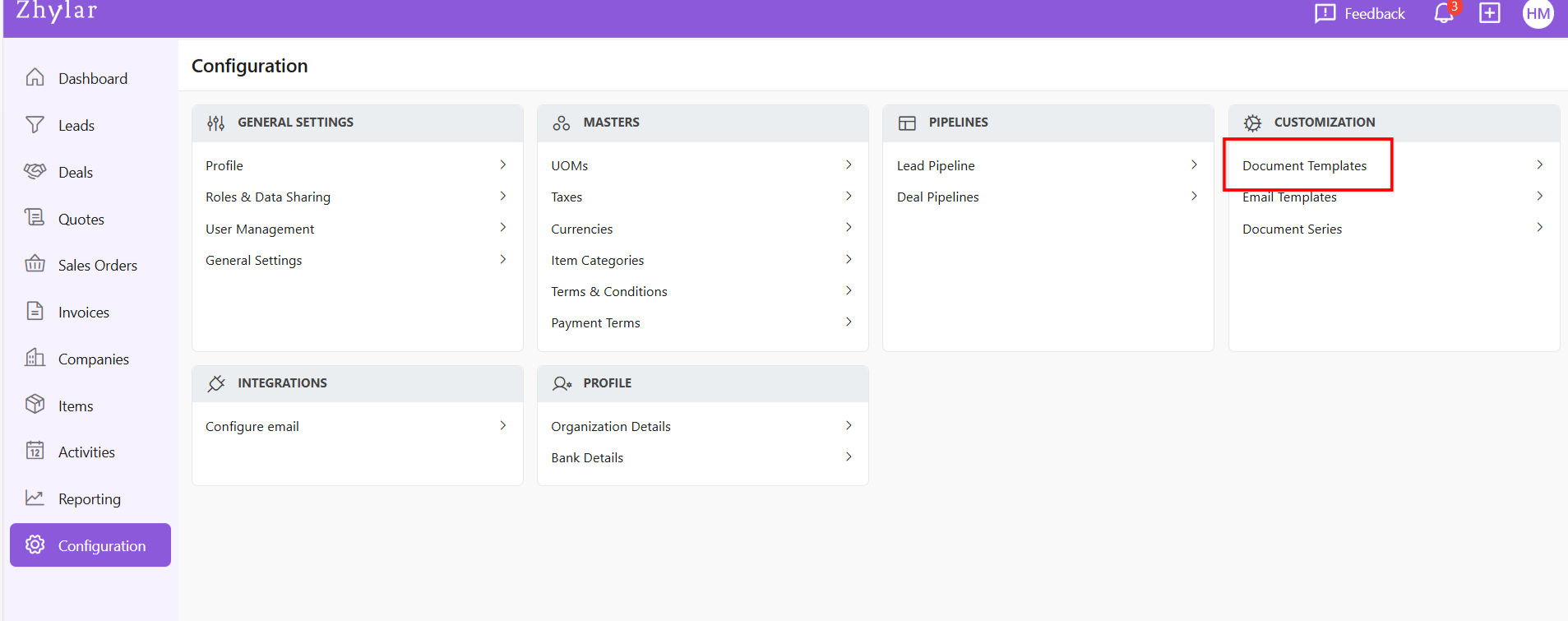
Click ” + New Template”
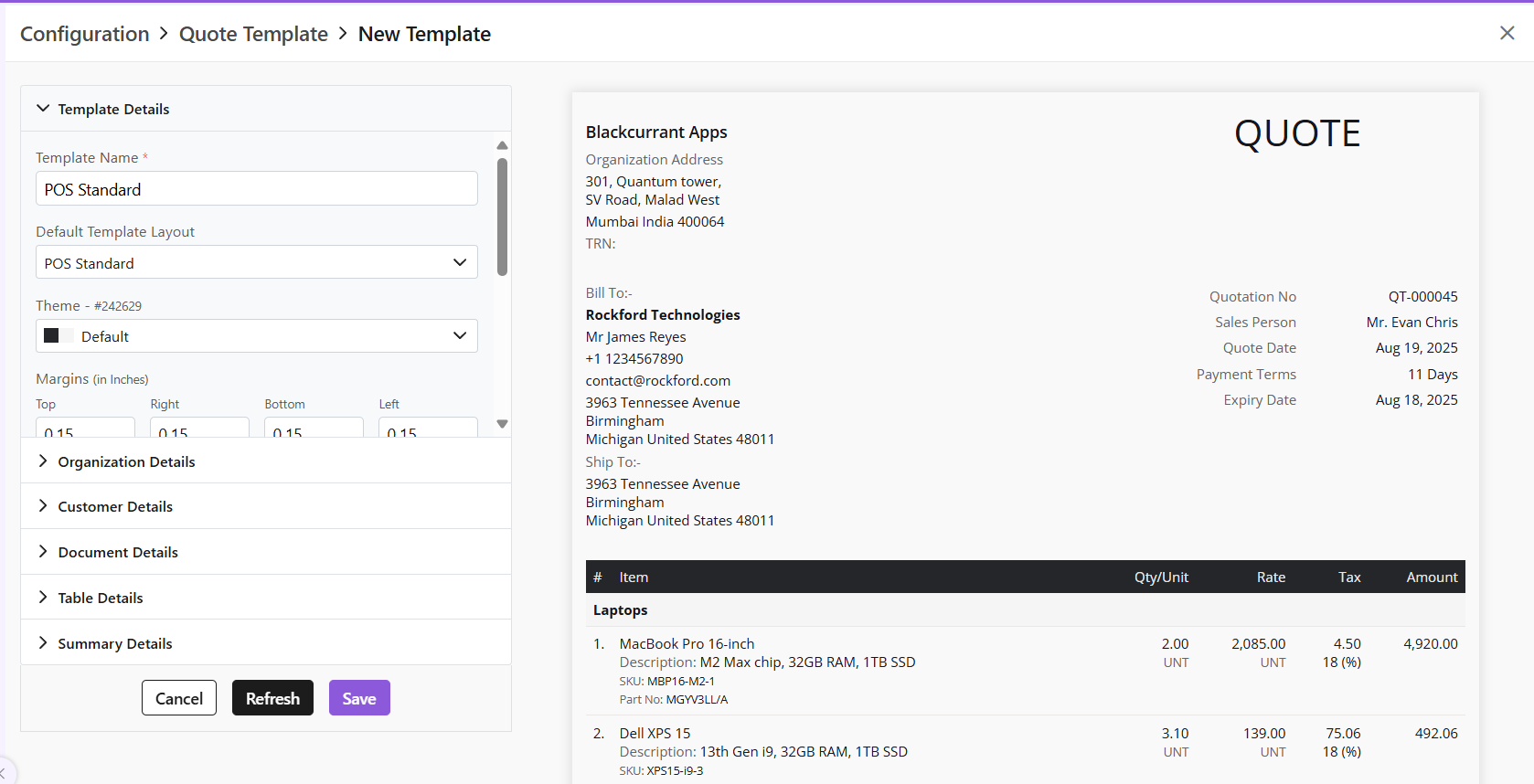
One pre-loaded templates will open for you.
If required, from the Default Template layout field, choose another template and begin.
Once template will be marked as a default template. This is the template that will be auto-applied to the document unless changed. This is indicated by a white star in a purple circle.
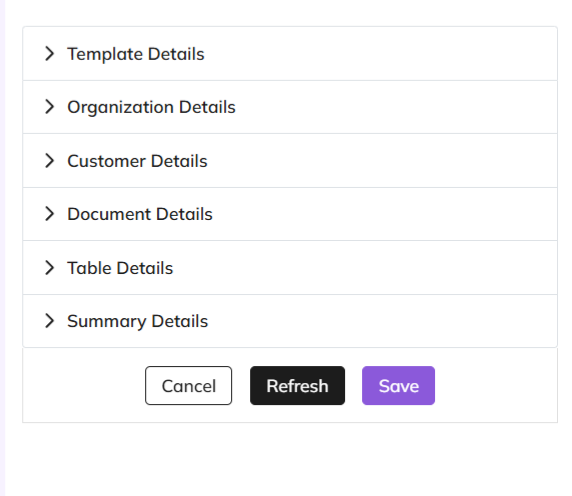
Customization in the following sections:
Template Details- basic layout of the document and major customizations in font, alignment, theme, etc.
Organization Details- Details of the seller’s organization
Customer Details- enter customer’s details
Document Details- enter data to be added on the document
Table Details- Information about the item and related details
Summary Details- Includes final payment details such as discount, T&C, shipping details etc.
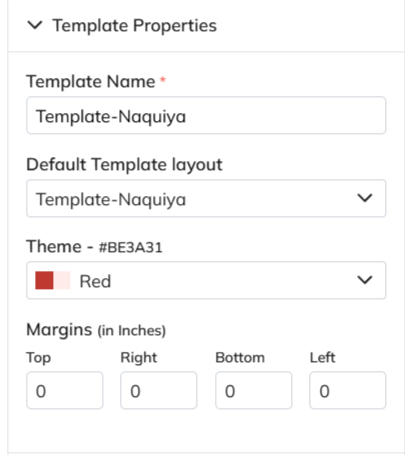
Template Properties
This is the blueprint of the document.
The template name is a mandatory field to be filled.
Add/edit basic details of the template; name, layout, etc.
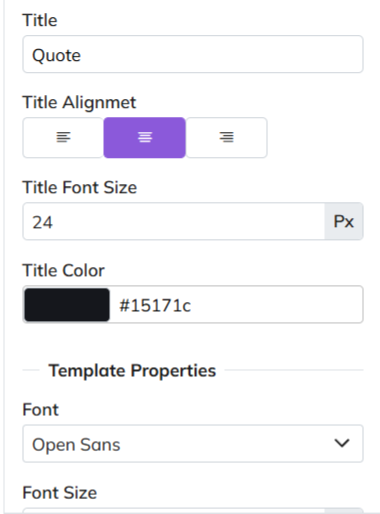
Template Design
Major stylistic customizations made in this section, such as font, font size, title color, etc.
All changes in this section are optional.
Template Information- Mandatory and Optional Fields
Template Information section covers the major information to be added to the document.
Mandatory fields carry basic data that must be provided on the document. They are:
Due Date
Quote/SO/Invoice Date
TRN (Transaction Reference Number)
Short-Code
Optional Fields
Other fields in this section are optional- Donated by a check box beside the field.
If checkbox is ticked, information must be provided for that field.
If checkbox is not ticked, that section will be removed from document.
Make adjustments and customizations.
After making changes, click “Refresh” if you want to preview
Click “Save” to confirm
Rename the template before you save. Or you will receive an error message.
This is because a pre-loaded template is used each time you click +New Template to begin customization.
Manage Templates
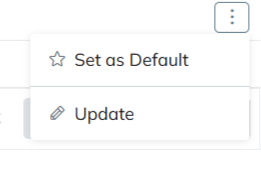
Mark as default
Click ⋮ 3 dots
Select Set as Default
Update Template
Click ⋮ 3 dots
Select Update
Make changes
Click Save
Please note
All templates share same creation/management workflow.
Custom templates created by users can be set as default.
Discover how Zhylar can streamline your sales and elevate your business processes. Visit our website or book a demo today to experience the difference!