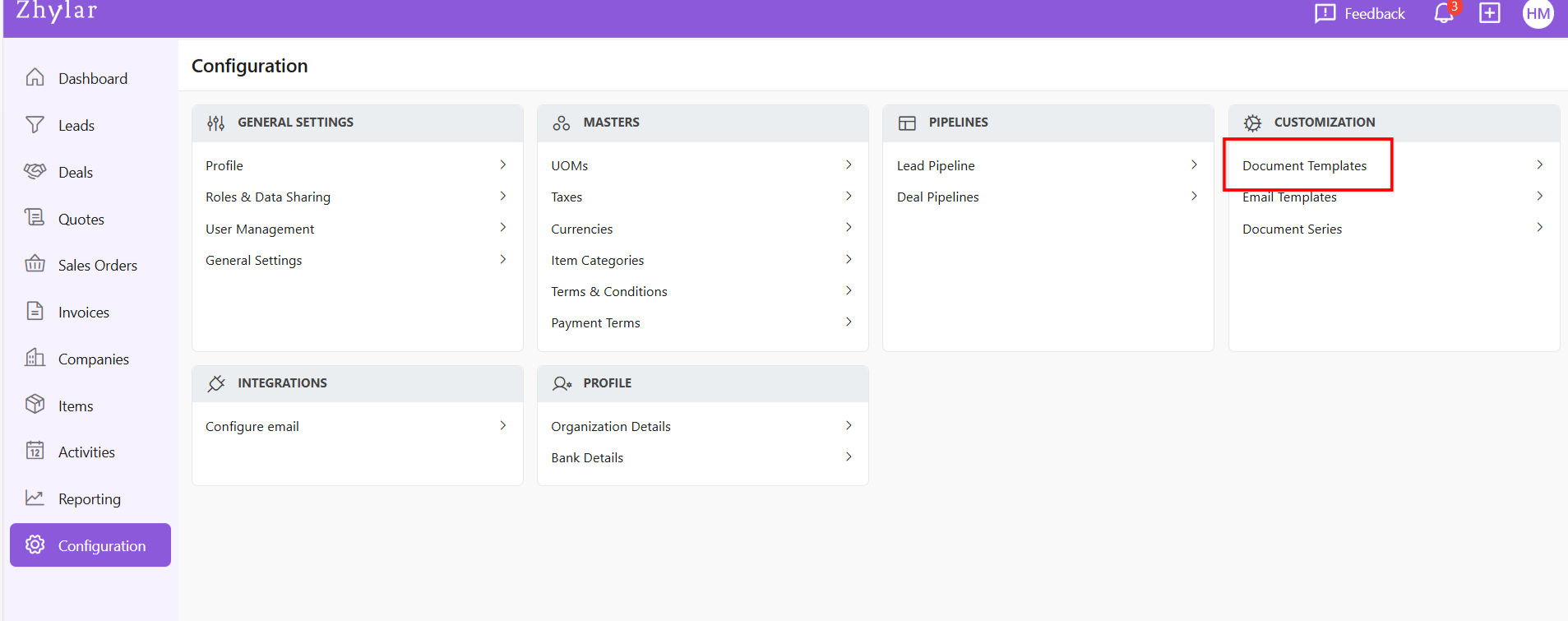
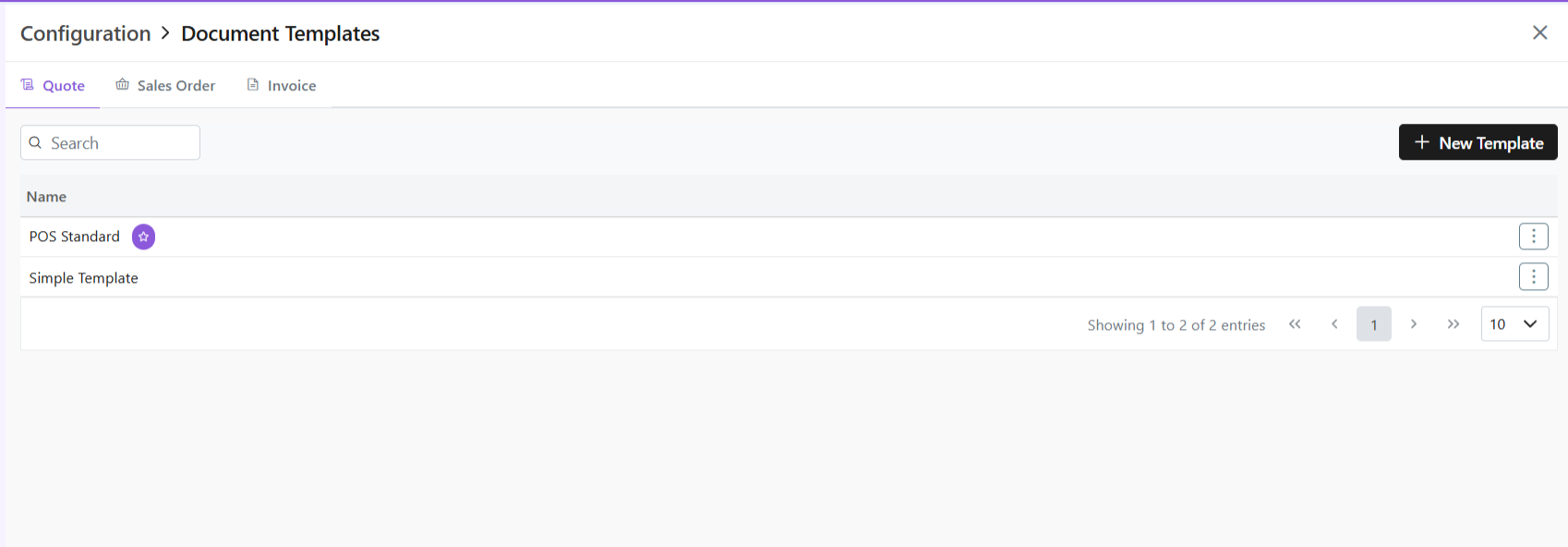
One template will be marked as default denoted by a white star in a purple circle.
Create New Template
Click ” + New Template”
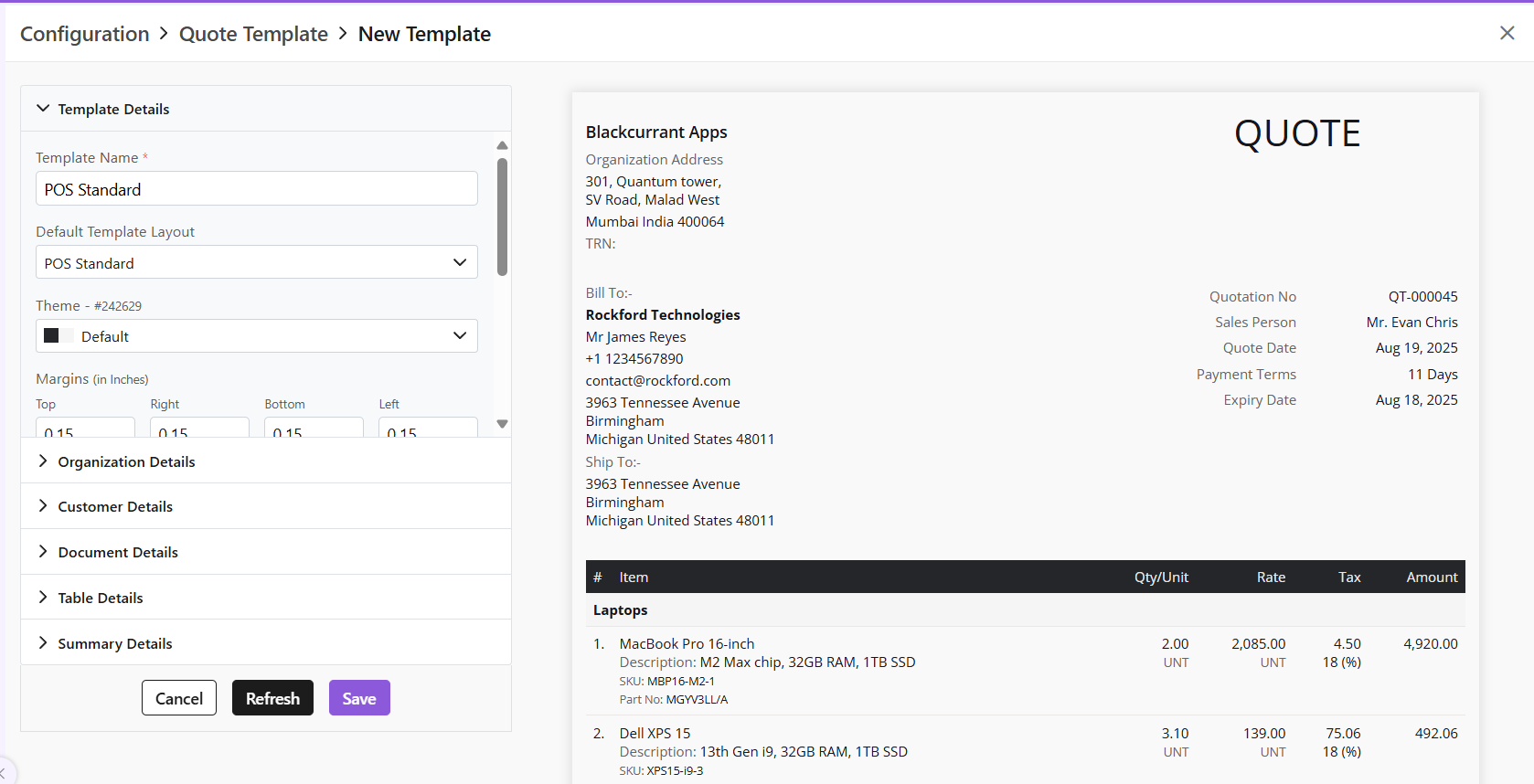
One pre-loaded templates will open for you.
If required, from the Default Template layout field, choose another template and begin.
Once template will be marked as a default template. This is the template that will be auto-applied to the document unless changed. This is indicated by a white star in a purple circle.
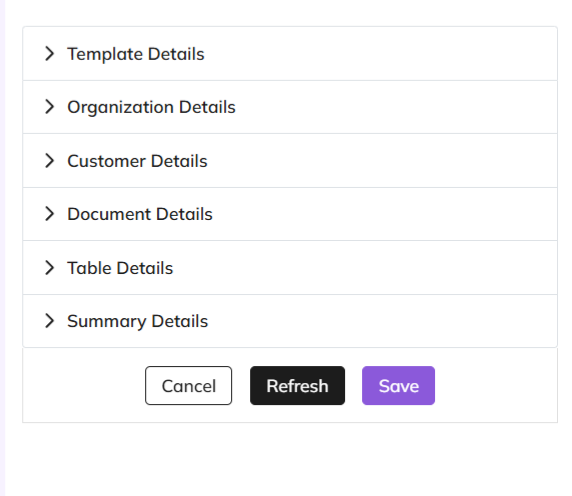
Customization in the following sections:
Template Details- basic layout of the document and major customizations in font, alignment, theme, etc.
Organization Details- Details of the seller’s organization
Customer Details- enter customer’s details
Document Details- enter data to be added on the document
Table Details- Information about the item and related details
Summary Details- Includes final payment details such as discount, T&C, shipping details etc.
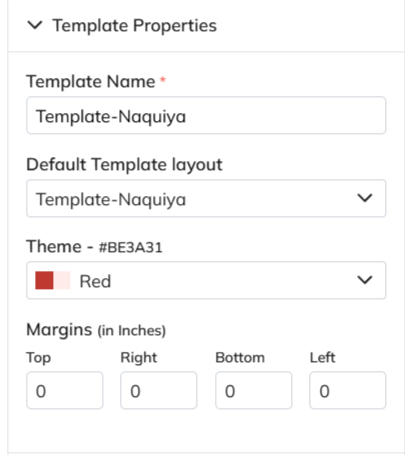
Template Properties
This is the blueprint of the document.
The template name is a mandatory field to be filled.
Add/edit basic details of the template; name, layout, etc.
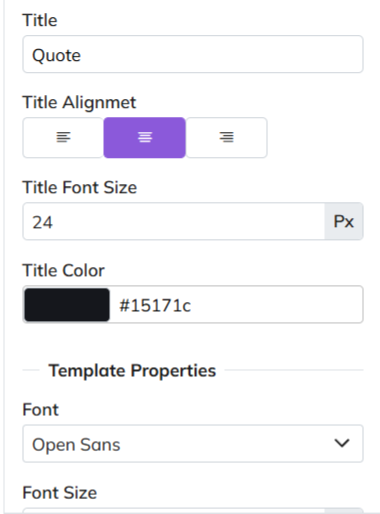
Template Design
Major stylistic customizations made in this section, such as font, font size, title color, etc.
All changes in this section are optional.
Template Information- Mandatory and Optional Fields
Template Information section covers the major information to be added to the document.
Mandatory fields carry basic data that must be provided on the document. They are:
Due Date
Quote/SO/Invoice Date
TRN (Transaction Reference Number)
Short-Code
Optional Fields
Other fields in this section are optional- Donated by a check box beside the field.
If checkbox is ticked, information must be provided for that field.
If checkbox is not ticked, that section will be removed from document.
Make adjustments and customizations.
After making changes, click “Refresh” if you want to preview
Click “Save” to confirm
Rename the template before you save. Or you will receive an error message.
This is because a pre-loaded template is used each time you click +New Template to begin customization.
Manage Templates
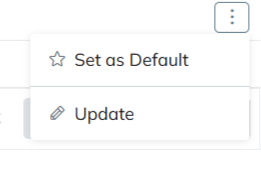
Mark as default
Click ⋮ 3 dots
Select Set as Default
Update Template
Click ⋮ 3 dots
Select Update
Make changes
Click Save
Please note
All templates share same creation/management workflow.
Custom templates created by users can be set as default.
Discover how Zhylar can streamline your sales and elevate your business processes. Visit our website or book a demo today to experience the difference!
Invoices are official documents generated after a sale is completed, detailing the products or services delivered along with payment terms. They help businesses track receivables, manage cash flow, and maintain financial accuracy. With Zhylar, invoices can be created directly from deals or sales orders. This ensures a seamless transition from closing a deal to collecting payment. Everything operates within one centralised system.
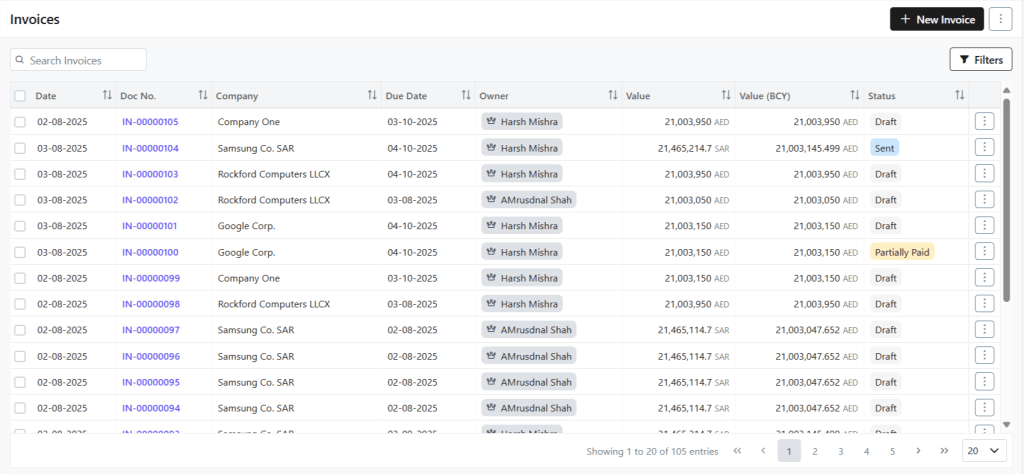
Here, a list of all the invoices added to the system will appear.
Getting Started
Add New Invoice
An Invoice can be added to the system in several ways.
Invoice Module
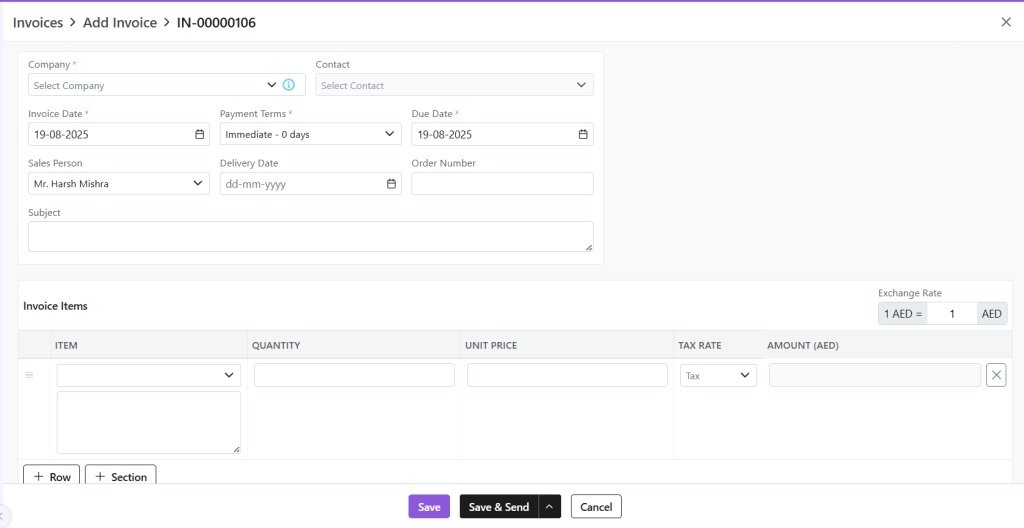
Click + New Invoice
A new page will open.
Fill out the required details.
Company: Select or add a company to whom this invoice is being sent
Contact: Add contact from that company
Owner: Owner is the person who created the document or to whom it is assigned
Invoice Date: Date on which invoice was created.
Payment Terms: Select or add payment terms
Due Date: Due date for payment
Subject: Optional field
Exchange Rate: Based on company selection, the exchange rate will be populated automatically. You can also manually adjust the exchange rate at the document level itself.
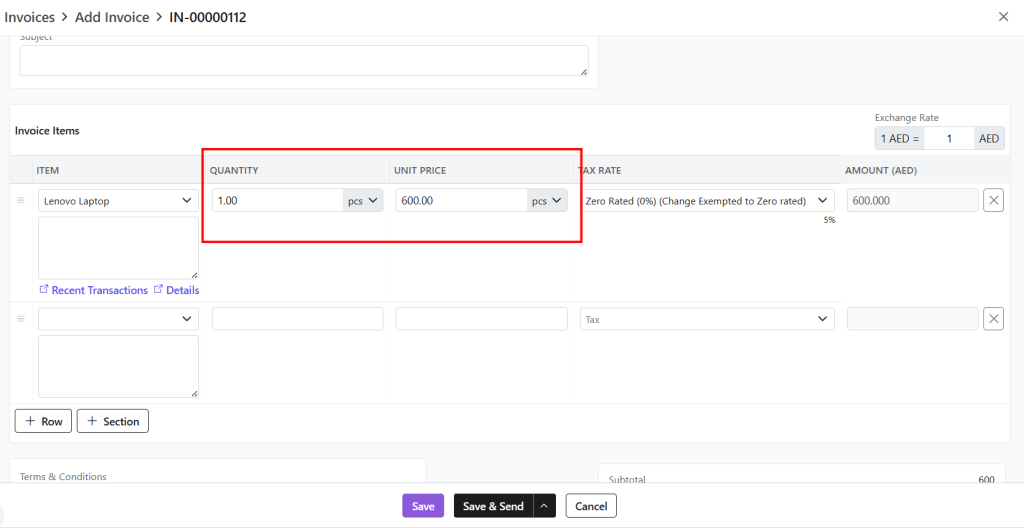
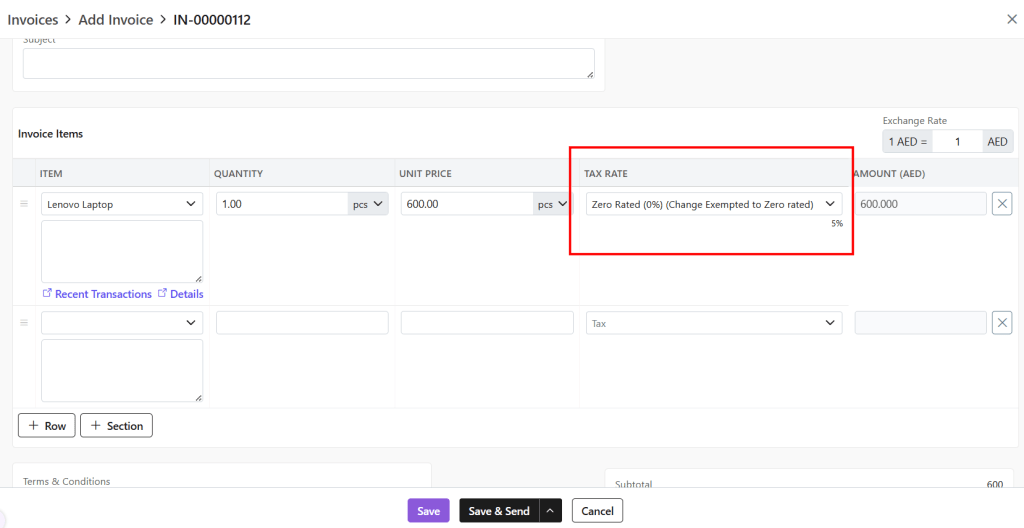
Invoice Items: Add items to the invoice with a single click.
Modify quantity and unit price
Zhylar supports the primary and secondary UOM concept. You can specify quantity in any of the primary or secondary UOM. Additionally, unit price can be specified in any of the primary or secondary UOM.
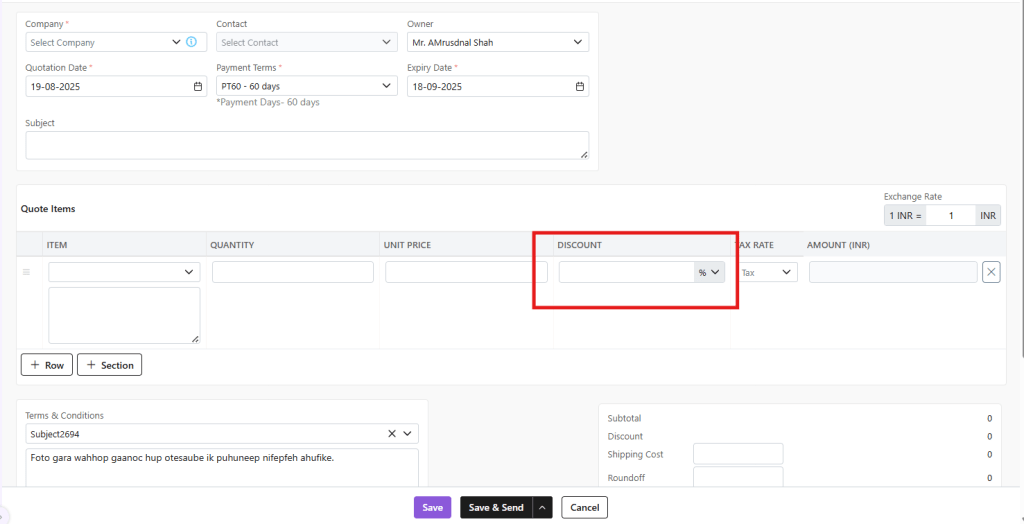
Discount: This field is visible only if line discounts are enabled for your organization. You can specify the discount either as a percentage or as a fixed amount.
Tax Rate: The tax will be preloaded based on the item selected. It is defined during the creation of the item. You still have the option to change the tax that is applied to the selected item.
Amount: Amount will be calculated based on Quantity * Unit Price – Discount
Terms & Conditions: T&C can be selected from the defined T&C templates or can be typed manually as per your need.
Notes: Any notes about the document to displayed to customer.
File Upload: This is to upload related files along with documents.
Save as Draft (edit later)
Save & Send (send immediately)
Shortcut (Header)
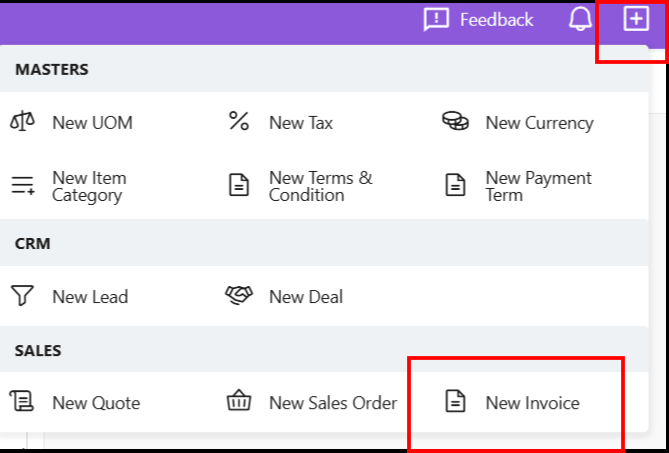
A new invoice can also be added by clicking the + sign next to the profile. All following steps remain the same.
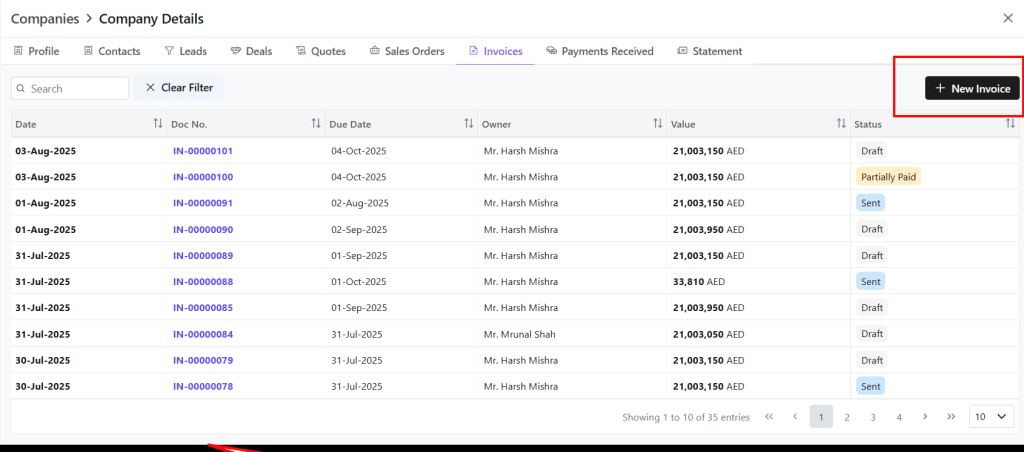
Companies Module
From the Companies module, click open the company to whom you want to send an Invoice.
Go to Invoice tab.
Select +New Invoice
From Deal
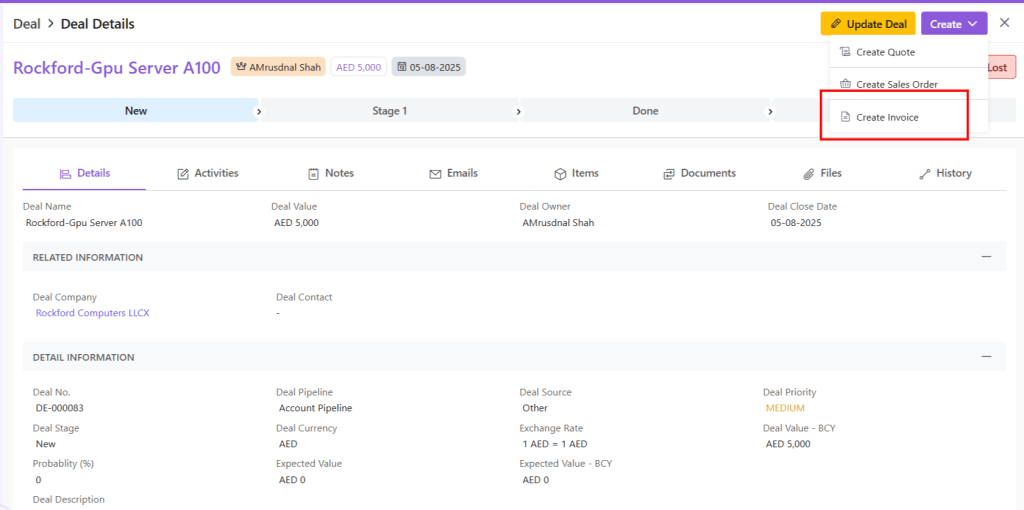
An Invoice can also be created from a Deal.
Go to Deals module.
Click open the Deal for which you want to make an Invoice.
Go to View Deal.
Click Create.
Select Create Invoice.
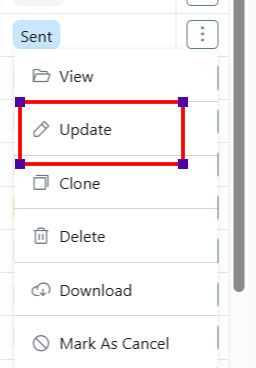
Update Invoice
Click on the ⋮ 3 dots
Select Update (or View)
Make changes
Save (draft) or Save & Send
An Invoice can be updated at any stage except if it is marked as Cancelled.
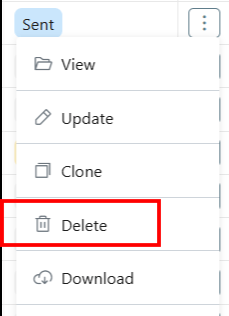
Delete Invoice
Meaning: Permanent removal, irreversible
Steps:
Click Delete (document can be deleted at any time)
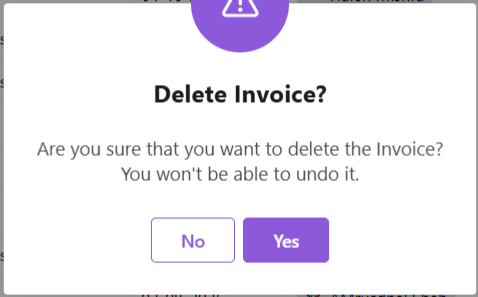
Confirm deletion prompt.
If invoice is linked with other modules, all interlinking will be deleted as well.
An Invoice against which some payment has been made, e.g., partially paid, cannot be deleted.
Clone Invoice
To clone an existing Invoice,
Click on the 3 dots at the end of the Invoice you want to clone.
Click on Clone.
Your Invoice will be cloned immediately and automatically.
Print/Download Invoice
To download/print an Invoice,
Open the Invoice you want to print/download.
Click on the 3 dots on the right-hand side.
Click on “Print” or “Download” depending on what you want to do.
Your download will begin automatically.
If you want to print, you can give the command.
Invoice Lifecycle (Stages & Actions)
An Invoice lifecycle refers to the complete journey of an invoice—from creation to closure. It starts in the Draft stage, moves to sent and progresses through Unpaid, Partial, Overdue, or Paid stages. Each stage reflects the invoice’s status and helps monitor payments and follow-ups efficiently.
Let us learn more in detail about the invoice life cycle in the Zhylar system.
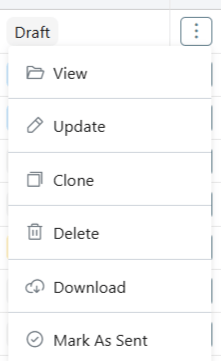
Draft Stage
An invoice has been created in your Zhylar system. It is not yet sent to the customer.
Available actions:
View: View the details of the document.
Update: Make changes to an existing invoice if required.
Clone: Make a copy of the deal that you can edit for further use.
Download: Download a copy of the invoice to your device in PDF format.
Delete: The invoice document is deleted from the system.
Mark as Sent: Sends the invoice to the customer, moving it to the next status.
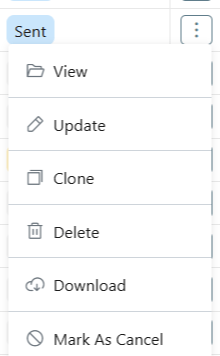
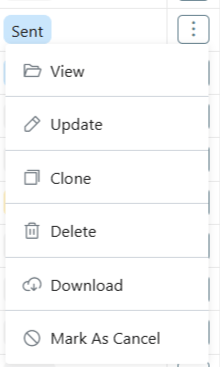
Sent
Invoice has been sent to the customer. (Awaiting response)
Available actions:
View: View the details of the document.
Update: Make changes to an existing invoice if required.
Clone: Make a copy of the deal that you can edit for further use.
Download: Download a copy of the invoice to your device in PDF format.
Delete: The invoice document is deleted from the system.
Mark as Rejected: The client has rejected this invoice.
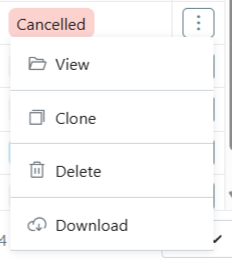
Cancelled
This invoice has been withdrawn internally. Invoice Cancellations are allowed after sending but before payment. A paid invoice cannot be cancelled.
Available actions:
View: View the details of the document.
Clone: Make a copy of the deal that you can edit for further use.
Download: Download a copy of the invoice to your device in PDF format.
Delete: The invoice document is deleted from the system.
Payment status
An invoice’s payment status indicates whether the full invoice amount has been paid, partially paid, or remains unpaid.
Partially Paid
Only a part of the total transaction amount has been paid.
Available actions:
View: View the details of the document.
Update: Make changes to an existing invoice if required.
Clone: Make a copy of the deal that you can edit for further use.
Download: Download a copy of the invoice to your device in PDF format.
Paid
The complete payment for the order has been processed.
Overdue
The due date for clearing the payment has been missed.
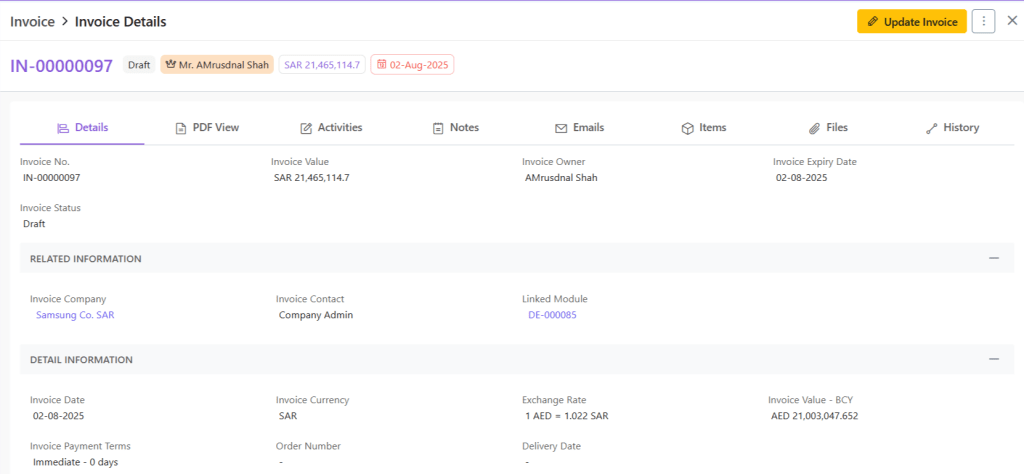
Invoice Details
When you click open any invoice, you will be provided with a wholistic inside-out-view of the invoice in your system. This includes:
PDF view– Final invoice layout
Activities: Add/Track activities like calls and meetings for this transaction
Notes– Make/Update notes
Emails– Show email history in reference to this invoice.
Items– All items added to this invoice.
Documents– SO/Invoice created from this invoice.
Files– Check files attached to this invoice.
History– Track creation/update history
Discover how Zhylar can streamline your sales and elevate your business processes. Visit our website or book a demo today to experience the difference!
Managing a sales cycle manually can be overwhelming. From capturing leads to sending invoices, every stage requires precision, timely follow-ups, and seamless coordination. The traditional approach often leads to inefficiencies, missed opportunities, and delayed payments.
Automation is transforming sales processes by reducing manual effort, eliminating errors, and accelerating deal closures. Businesses can streamline their entire sales journey by leveraging a robust CRM and CPQ system. This spans from the first customer inquiry to the final invoice.
The challenges of a manual sales cycle
Many businesses struggle with an unstructured sales process that leads to inefficiencies such as:
Missed follow-ups: Without automation, sales teams often forget to follow up on leads, reducing conversion rates.
Data inconsistencies: Manually updating customer information can result in errors, leading to miscommunication.
Time-consuming approvals: Pricing, discounts, and proposal approvals often require back-and-forth discussions, slowing down the sales process.
Delayed invoicing: Generating invoices manually can lead to billing errors and payment delays, affecting cash flow.
How automation streamlines the sales cycle
Automation enhances each stage of the sales cycle, ensuring a smooth transition from inquiry to invoice. Let’s break it down step by step:
1. Lead capture and qualification
Manually entering and tracking leads can be time-consuming. Automation helps by:
Capturing leads instantly from web forms, emails, and social media.
Scoring and qualifying leads based on predefined criteria, ensuring sales teams focus on high-potential prospects.
Automatically assigning leads to the right salesperson for quicker engagement.
2. Efficient deal and quote management
Once a lead is converted into a deal, automation ensures a streamlined workflow:
Pre-configured sales pipelines guide teams through each stage of the deal.
Automated pricing and discount approvals eliminate bottlenecks in CPQ processes.
Generating professional quotes in just a few clicks, reducing turnaround time.
3. Sales order creation and approval
Once a customer accepts a quote, automation speeds up order processing:
One-click conversion of quotes to sales orders eliminates redundant data entry.
Automated approval workflows ensure orders are reviewed and processed without delays.
Error-free order documentation improves accuracy and compliance.
4. Seamless invoice generation and payment tracking
Getting paid on time is crucial for any business. Automation helps by:
Auto-generating invoices based on approved sales orders, reducing manual effort.
Tracking due payments and sending automated payment reminders to customers.
Integrating with accounting tools like QuickBooks and Zoho Books for better financial management.
Why Zhylar is the ideal solution
At Zhylar, we understand the challenges of managing a sales cycle manually. That’s why we’ve built a powerful CRM + CPQ solution that:
Automates lead capture, deal tracking, and quote generation.
Offers seamless approval workflows to speed up sales orders.
Generates invoices instantly and integrates with accounting platforms.
Enhances efficiency with an intuitive interface and smart automation tools.
By using Zhylar, businesses can eliminate repetitive tasks, close deals faster, and maintain strong customer relationships—all while boosting revenue. Ready to transform your sales cycle? Let’s make it happen with Zhylar!