Pipeline Management- Deals

A deal pipeline (or sales pipeline) is a visual way to track where each deal is in your sales process. It’s divided into stages — for example:

  • NewQualifiedProposal SentClosed Won/Closed Lost

By moving deals through these stages, teams can:

  • Make sure no opportunity gets forgotten
  • See exactly how close they are to closing
  • Spot bottlenecks in the process
  • Through the multiple pipeline feature, Zhylar offers a flexible approach to managing the sales cycle.
  • Create multiple pipelines for different workflows
  • Each pipeline has:
    • Custom fields
    • Tailored stages
    • Role-based access
  • You can navigate to the deals pipeline in two ways:
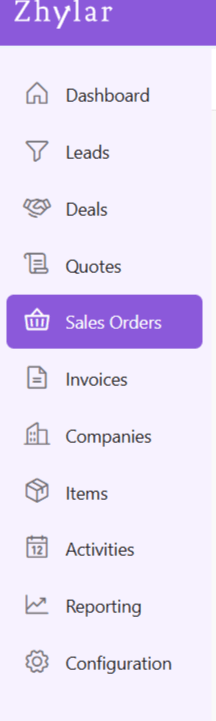
    • Go to the Left-hand navigation panel
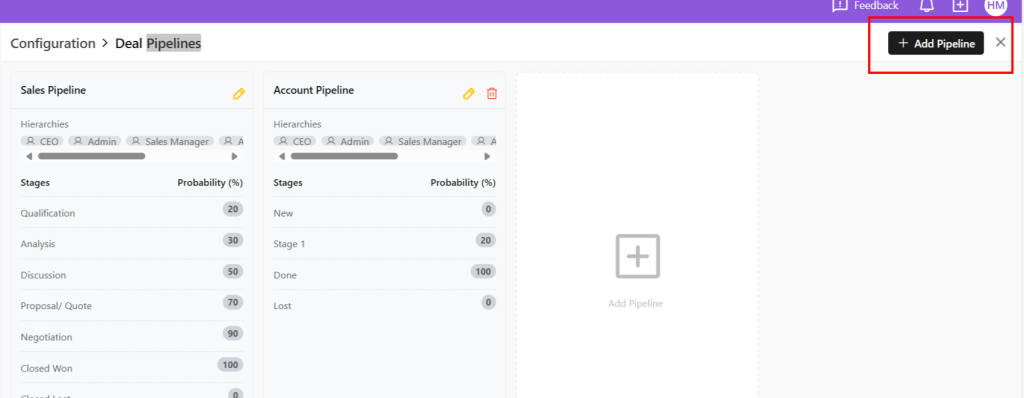
    • Go to Configuration
    • Under “Pipelines”, select Deal Pipelines
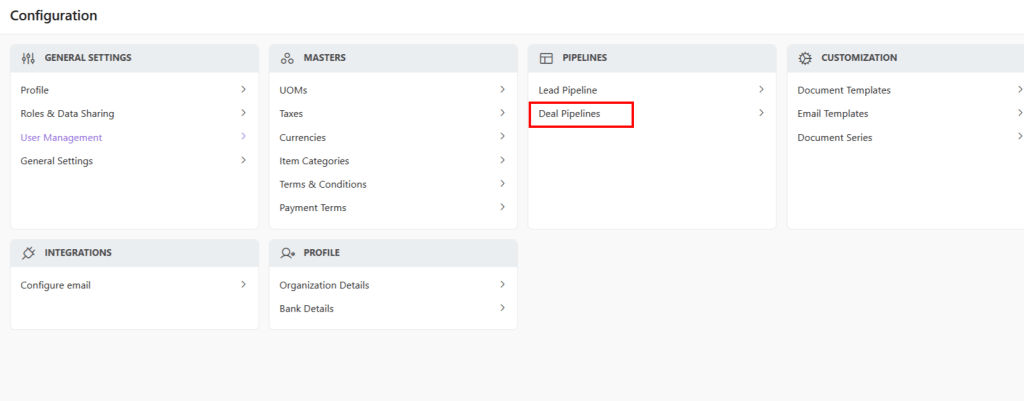
  • Alternately, go to the Left-hand navigation panel
  • Go to Deals
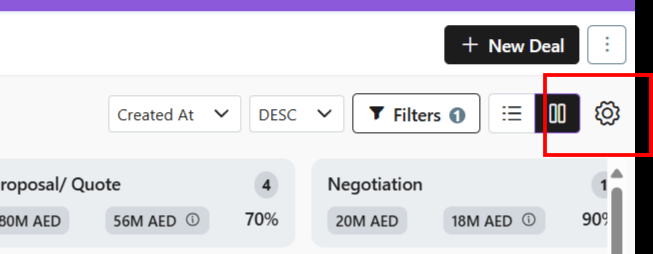
  • Quick Access: Click ⚙️ on Deals page

Creating Pipelines

  • Using either of the two aforementioned ways, go to Deal Pipelines
  • Click “Add Pipeline”
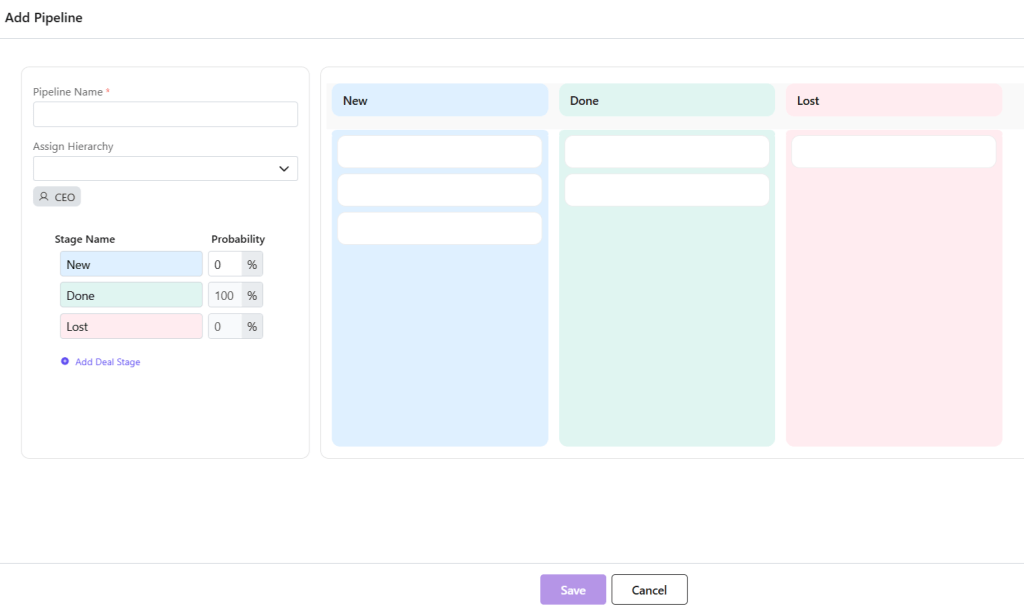
  • Configure:
    • Stages: Add/rename as needed
    • Probabilities: Set win % per stage
    • Click Save

Probability Scoring

  • Stage Value = Potential deal amount. E.g., 1000 AED
  • Stage Probability = Likelihood of closing E.g., 10%

Stages in a Pipeline

In Zhylar, you can create several Deal Pipelines. Within those pipelines, you can create stags.

  • Each Pipeline has three default stages
    • New
    • Done
    • Lost
  • Users can add and customize stages as required.
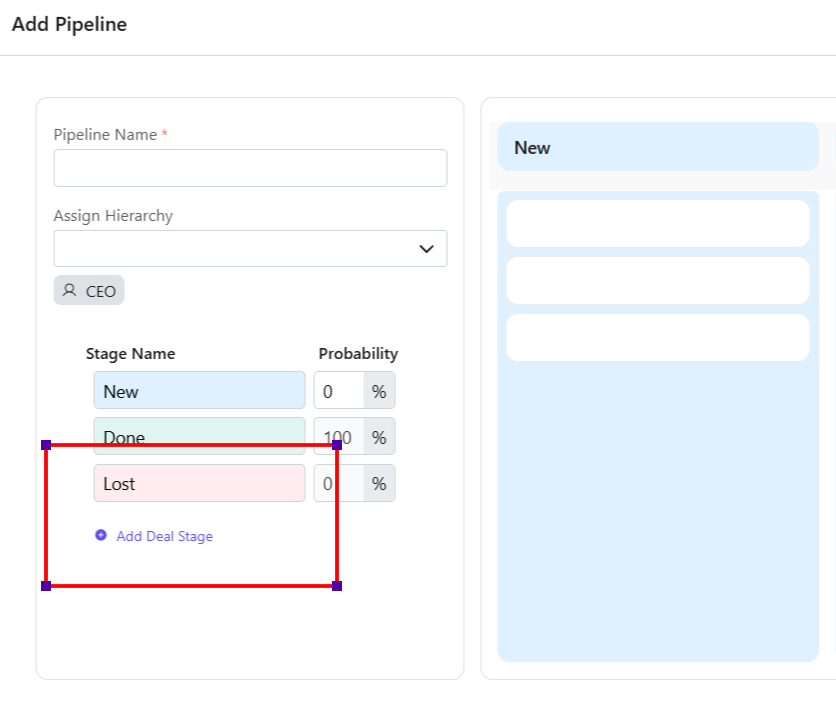
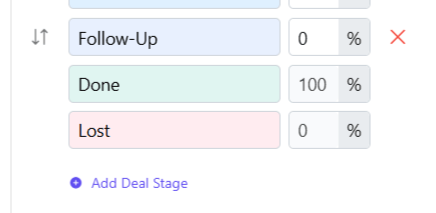
  • Click Add Deal Stage to add a new stage.
  • Give the stage a name.
  • You can shuffle the position of the stages that you add via drag and drop method.

Delete Added Stage

Users can only delete stages they have added, i.e., Default stages cannot be deleted.

To delete,

  • Click on the red cross.
  • You will be asked to transfer any existing leads from this stage to another stage.
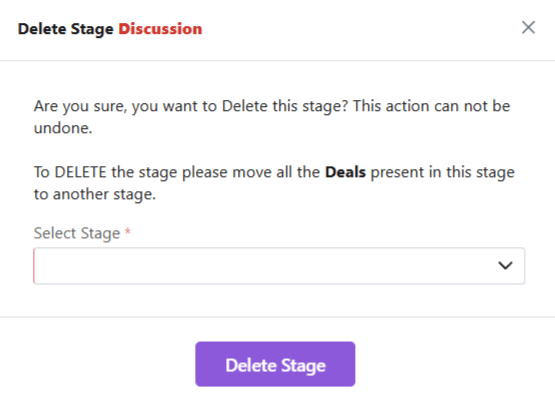
  • Once done, you can proceed to delete the stage.

Purpose

  • Prioritizes deals with higher probability of conversion
  • Focus on deals that generate more revenue, i.e., targeted effort
  • Take action on deals that require follow-up
  • Forecasts realistic revenue through probability and weighted value
  • Visualize the complete deal cycle as well as the position of each deal in the cycle.

Read all about the complete Deals Module before you proceed.

Also Read

Units of Measurement

General Settings

Basic Terminologies


From inquiry to invoice: How automation streamlines your sales cycle

Introduction

Managing a sales cycle manually can be overwhelming. From capturing leads to sending invoices, every stage requires precision, timely follow-ups, and seamless coordination. The traditional approach often leads to inefficiencies, missed opportunities, and delayed payments.

Automation is transforming sales processes by reducing manual effort, eliminating errors, and accelerating deal closures. By using a robust CRM and CPQ system, businesses can enhance their sales journey. This improvement spans from the first customer inquiry to the final invoice.

The challenges of a manual sales cycle

Many businesses struggle with an unstructured sales process that leads to inefficiencies such as:

  • Missed follow-ups: Without automation, sales teams often forget to follow up on leads, reducing conversion rates.
  • Data inconsistencies: Manually updating customer information can result in errors, leading to miscommunication.
  • Time-consuming approvals: Pricing, discounts, and proposal approvals often require back-and-forth discussions, slowing down the sales process.
  • Delayed invoicing: Generating invoices manually can lead to billing errors and payment delays, affecting cash flow.

How automation streamlines the sales cycle

Automation enhances each stage of the sales cycle, ensuring a smooth transition from inquiry to invoice. Let’s break it down step by step:

1. Lead capture and qualification

Manually entering and tracking leads can be time-consuming. Automation helps by:

  • Capturing leads instantly from web forms, emails, and social media.
  • Scoring and qualifying leads based on predefined criteria, ensuring sales teams focus on high-potential prospects.
  • Automatically assigning leads to the right salesperson for quicker engagement.

2. Efficient deal and quote management

Once a lead is converted into a deal, automation ensures a streamlined workflow:

  • Pre-configured sales pipelines guide teams through each stage of the deal.
  • Automated pricing and discount approvals eliminate bottlenecks in CPQ processes.
  • Generating professional quotes in just a few clicks, reducing turnaround time.

3. Sales order creation and approval

Once a customer accepts a quote, automation speeds up order processing:

  • One-click conversion of quotes to sales orders eliminates redundant data entry.
  • Automated approval workflows ensure orders are reviewed and processed without delays.
  • Error-free order documentation improves accuracy and compliance.

4. Seamless invoice generation and payment tracking

Getting paid on time is crucial for any business. Automation helps by:

  • Auto-generating invoices based on approved sales orders, reducing manual effort.
  • Tracking due payments and sending automated payment reminders to customers.
  • Integrating with accounting tools like QuickBooks and Zoho Books for better financial management.

Why Zhylar is the ideal solution

At Zhylar, we understand the challenges of managing a sales cycle manually. That’s why we’ve built a powerful CRM + CPQ solution that:

  • Automates lead capture, deal tracking, and quote generation.
  • Offers seamless approval workflows to speed up sales orders.
  • Generates invoices instantly and integrates with accounting platforms.
  • Enhances efficiency with an intuitive interface and smart automation tools.

By using Zhylar, businesses can eliminate repetitive tasks, close deals faster, and maintain strong customer relationships—all while boosting revenue. Ready to transform your sales cycle? Let’s make it happen with Zhylar!

Quote Revision

Quote revision lets you update or modify an existing quote when customer requirements change. You don’t need to start from scratch. You can duplicate the original quote and adjust it. This keeps track of all versions in one place. This ensures transparency, faster negotiations, and makes it easier to finalise and convert the approved quote into a sales order.

In the Zhylar system, please note:

  • Only a quote in sent stage can be revised.
  • Open Sent quote
  • Click Create Revision
  • Make changes
  • Update Quote (save draft)
  • Save & Send (resend)
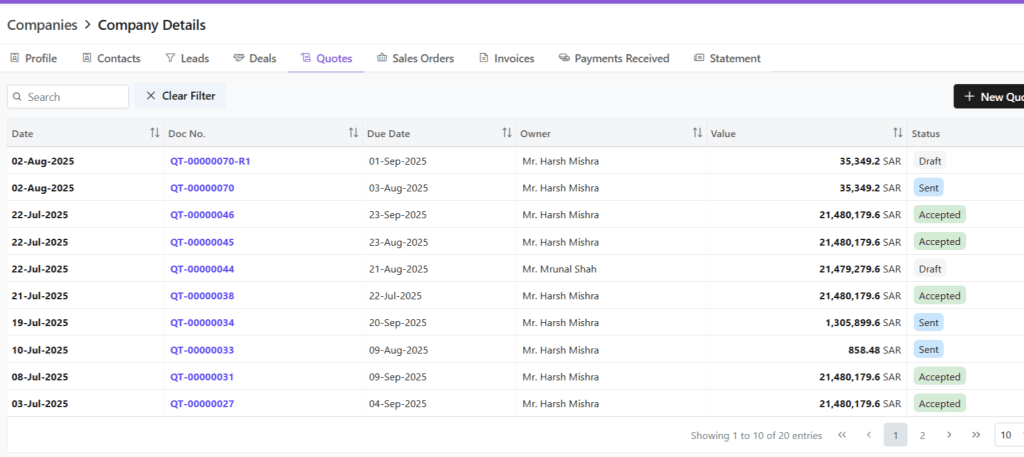
  • Revised versions will be denoted by R# following the document series code.
  • E.g., quote document with ID QT-0007 is revised thrice, the revised documents will be saved as:
    • QT-0007- R1
    • QT-0007-R2
    • QT-0007- R3
  • Quotes List View only shows the latest active version. Example: Accepted/Sent quotes appear.
  • All other versions will be moved to archive.
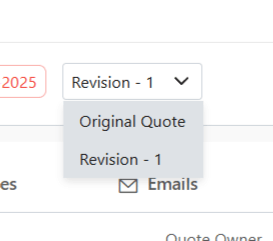
  • You can switch between quote versions in Quotes View tab.
  • To see all versions:
    • Go to Companies.
    • Click the relevant company.
    • Select the Quotes tab.
    • View all versions in list view
  • This is done to avoid clutter in main list.

Also Read

Quotes

Sales Orders