Document Series

What is a document series?

A Document Series is a structured numbering system applied to documents like invoices, quotes, and sales orders (e.g., INV-2025-001) to ensure consistency, efficient tracking, and easy communication.

Benefits of document series in CRM

  • Automatic sequential numbering
  • Professional document presentation
  • Easy organization and retrieval
  • Audit trails for all transactions
  • Ease of Continuity in case of Data Migration

Getting Started

Viewing Existing Series

  • Log in to Zhylar
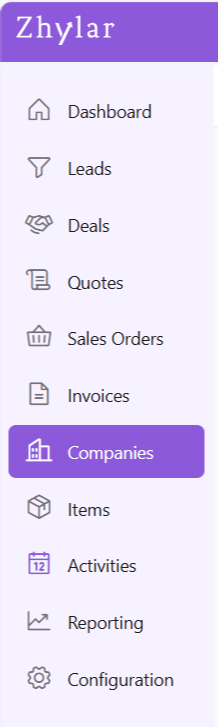
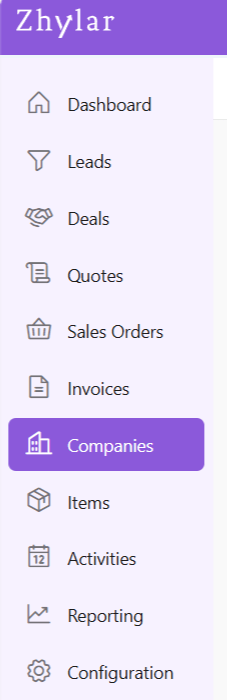
  • Go to Left-hand navigation panel
  • Go to Configuration
  • Under Customization, click on Document Series
Lists the document series for following modules:
  • Quote
  • Sales Order
  • Invoice
  • Transaction

Document Series Format

Basic Structure

  • Prefix: Constant identifier (e.g., “INV”, “QT”)
  • Suffix: Auto-incremented number (e.g., “00001”)
  • Final Format: [Prefix]-[Suffix] Example: INV-0001
  • Automatic ascending order:
    • Example of successive sales orders: `INV-0001` → `INV-0002 → INV-0003
    • No duplicate numbers allowed
    • Suffix cannot carry any alphabets.
How this works:
  • System applies prefix automatically
  • Number increments with each successive document

Update Series

  • Click on any series to edit format by clicking on the yellow pencil:
  • Make changes.
  • Click Save.
> Note: Changes only affect new documents – existing records maintain original numberings

Important Notes on Editing

  • Suffix Updates:
    • If changing current suffix (e.g., 0002 → 0012):
    • All future documents use new sequence (0013, 0014 etc.)
    • The numbers that have been skipped cannot be used in the future (0003-0011 in this example)
    • System will show an error if attempting to use skipped number
  • Prefix Updates:
    • Affects only new documents
    • Existing documents keep original prefix

How this works

  • Prefix auto-applies to new documents.
  • Suffix auto-increments.
  • Skipped numbers cannot be recovered – plan edits carefully.
Discover how Zhylar can streamline your sales and elevate your business processes. Visit our website or book a demo today to experience the difference!

Also Read

Web Forms General Settings Basic Terminologies

User Management

User management is a system that controls access to software or platforms. It assigns role-based privileges such as Admin or Sales Rep. It ensures that users have appropriate permissions based on their roles. This approach enhances data security. It prevents unauthorized access. It also supports regulatory compliance by maintaining control over who can view or modify specific information within the system.
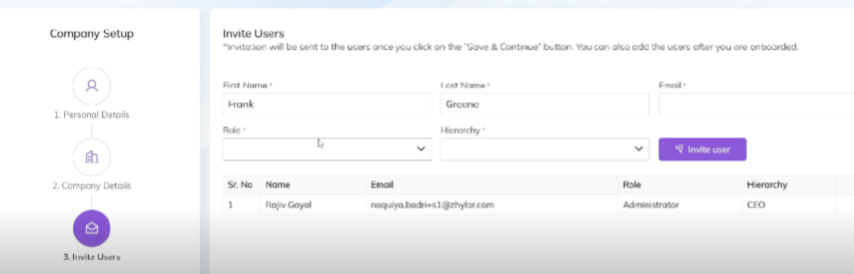
  • Organization Admin has the full system control (configurations/user access). Organization Admin is the CEO.
  • User Status– Tracks invitation (Pending → Active)
  • Password Reset– credential updates
  • Log in to Zhylar
  • Go to Left-hand navigation panel
  • Click on Configuration
  • Under General Settings tab, select User Management.
  • Click +New User”
  • Fill details
  • Save User”
    • To define Profile, add a new Profile from “Profile” module first, if required.
    •  When a new user is added, the status will automatically be updated as “Invited”.
    • Once the user accepts, the status will change to active.
  • Click ⋮ 3 dots
  • Select Update
  • Click Save.
  • Click ⋮ 3 dots
  • Select Change Password
  • “Set Password”
Note: Password can only be changed by the user or system administrator. This is only applicable for a User who has not yet accepted the invite email. The status will reflect Invited.
  • Click ⋮ 3 dots
  • Select “Resend Invitation” to invite user again (password reset email)
  • Organization Admin is the CEO.
  • Only users with specific permissions Can Create, Add, Update, Delete or Resend the Invitation to any user.
  • One email ID can be used to register one user only.
  • Permissions required for user modifications
  • Admins customize workflows/access per role.

Also Read

Currencies Roles and Data Sharing  

Roles and Hierarchies

In a CRM system like Zhylar, roles determine user data access levels. They assign permissions to each user within the organization. Roles ensure data privacy and control by allowing only authorized team members to view, edit, or manage specific records. With hierarchy-based roles, managers can oversee their team’s activities. Individual users focus only on the data relevant to their responsibilities. This setup maintains data security while allowing appropriate visibility based on roles and responsibilities.- Roles (what is your role in your org/designation) Zhylar implements top-down hierarchical role structure. A role in Zhylar decides two important things:
  • Position in company hierarchy – It shows who reports to whom (like CEO → Manager → Sales Rep)
  • Data access control – It defines what each user can see or edit on the Zhylar platform.
  • Log in to Zhylar
  • Go to Left-hand navigation panel
  • Click on Configuration
  • Under General Settings tab, select Roles & Data Sharing
  • When you click on Roles and Data Sharing, you will be taken to a new page.
  • Here, you can see all the roles added to the system. The hierarchy of roles is illustrated like a flow chart.
  • Click ⋮ 3 dots
  • Select View
  • Check details.
  • Click X on the top-right of the box to close.
  • To add a new role, click + New Role
  • Alternately, click on the 3 dots of the Role name under whom you want to add a new Role.
  • Select +Add
  • A side sheet will open.
  • Fill out the details.
  • Click Save.
  • The new role will be added.
Data Access:
 
Data Sharing for Peers: This determines if 2 or more persons are in the same role. They will be able to access each other’s data or not. For example, an organization may have 2 Sales Managers, they are considered peers. So, enabling or disabling this permission will determine if they can gain access (Read/Write/Update/Delete) to each other’s data or not.
  • Click ⋮ 3 dots
  • Select Update
  • Make changes.
  • Click Save.
  • Click ⋮ 3 dots
  • Select Delete
  • You will be required to transfer all associated users under this role to another role.
  • Once you have done the needful, click Save.
  • The role will be deleted successfully.
Note: Hierarchy + Roles = Secure yet collaborative access control.

Also Read

User Management  

Document Templates

Document Templates in Zhylar offer pre-designed formats ensuring consistency, saving time, reducing errors, and creating professional documents. Three default templates are provided for the following modules-
  1. Quotes- Outline proposed pricing/term + Speed up quote-to-invoice process
  2. Sales Order- Confirm purchase details + Streamline order management
  3. Invoice- Detail billing information + Track payments efficiently
  • Log in to Zhylar
  • Go to Left-hand navigation panel
  • Click on Configuration
  • Under Customization tab, select Document Template
  • You will automatically land on the Quotes tab.
  • Navigate to the tab required.
  • Few system templates available per module.
  • One template will be marked as default denoted by a white star in a purple circle.
  • Click ” + New Template”
  • One pre-loaded templates will open for you.
  • If required, from the Default Template layout field, choose another template and begin.
  • Once template will be marked as a default template. This is the template that will be auto-applied to the document unless changed. This is indicated by a white star in a purple circle.
  • Customization in the following sections:
    • Template Details- basic layout of the document and major customizations in font, alignment, theme, etc.
    • Organization Details- Details of the seller’s organization
    • Customer Details- enter customer’s details
    • Document Details- enter data to be added on the document
    • Table Details- Information about the item and related details
    • Summary Details- Includes final payment details such as discount, T&C, shipping details etc.
  • This is the blueprint of the document.
  • The template name is a mandatory field to be filled.
  • Add/edit basic details of the template; name, layout, etc.
  • Major stylistic customizations made in this section, such as font, font size, title color, etc.
  • All changes in this section are optional.
  • Template Information section covers the major information to be added to the document.
  • Mandatory fields carry basic data that must be provided on the document. They are:
    • Due Date
    • Quote/SO/Invoice Date
    • TRN (Transaction Reference Number)
    • Short-Code
  • Optional Fields
    • Other fields in this section are optional- Donated by a check box beside the field.
    • If checkbox is ticked, information must be provided for that field.
    • If checkbox is not ticked, that section will be removed from document.
  • Make adjustments and customizations.
  • After making changes, click “Refresh” if you want to preview
  • Click “Save” to confirm
  • Click ⋮ 3 dots
  • Select Set as Default
  • Click ⋮ 3 dots
  • Select Update
  • Make changes
  • Click Save

Please note

  1. All templates share same creation/management workflow.
  2. Custom templates created by users can be set as default.

Also Read

Document Series Quote Sales Order  

Data Sharing

In Zhylar CRM, data sharing means sharing records you own with another user. This allows users who cannot access those records to collaborate. It governs how records are shared between users within the organization. These records could be from leads, accounts, or deals module. It helps teams collaborate by sharing records with each other. Data sharing is applicable at organization level and is applied at module level. This means that data can be shared with all users of the organization, or with none at all. The organization admin decides this for specific modules. (Example: If data sharing is public read for leads, then all records within the leads module are visible to all organization users. This is only applicable to leads).

When data sharing is turned ON:

  • Other users can see records they don’t own.
  • Depending on sharing settings, they can also edit, update, or delete those records.
  • Teams can collaborate easily without waiting for the record owner.
Zhylar uses a top-down role structure. This means your data access depends on where you stand in the company hierarchy.

Default role assignment

  • The first user in Zhylar is the Org Admin– This is the business owner. By default, this role is named CEO.
  • All other roles are created under the CEO in a tree-like structure.
  • Role names can be changed to match your company (e.g., Manager, Sales Lead, Marketing Executive).
  • CEO (Org Admin – Root Level)

Role-level permission settings

Cross Role :- People with different role with same reporting role (example both COO & CFO reporting to CEO, so CFO & COO are cross roles) Peers:- People in same role are called peers (Example Sales intern role has 4 individuals in it so they are peers to each other) This determines the type of data access granted to the role (even when Data Sharing is turned off).

Data visibility for cross role

  • What it does: Lets people at the same level see each other’s data.
  • Example use cases:
    • Sales Reps can see each other’s deals and leads.
    • Marketing Coordinators can check campaigns of peers.
    • Managers can view work of other managers at the same level.
  • Access type: Read-only (can see but not edit).

Data sharing for peers

  • What it does: Lets people at the same level work together on each other’s data.
  • Example use cases:
    • Sales Reps can hand off accounts to each other.
    • Two Reps can manage deals together.
    • SDRs can share lead nurturing.
    • Managers can work together on projects.
  • Access type: Full access (create, edit, update, delete based on settings).

Data sharing configuration

Data Sharing controls how records (Leads, Deals, Accounts, Contacts, Quotes, Invoices, Cases) are shared. Below are permission available in data sharing
  1. Private
  2. Public Read
  3. Public (Read + Write)
  4. Public (Read + Write + Delete)

Private access

  • Only the record owner has full rights (create, read, update, delete).
  • Others cannot see it unless sharing is given.
  • Example use cases:
    • Sensitive client info.
    • Territory-based leads.
    • Commission-based deals.
    • Compliance rules.

Public access

  • Everyone in the company can see and sometimes edit the records.
  • Different permission levels:
    • READ: Everyone can view records.
    • READ + WRITE: Everyone can view + edit data.
    • READ + WRITE + DELTE: Everyone can view, add, and delete data.
Examples:
  • Public (READ): All leads are visible to all organization user for market research.
  • Public (READ + WRITE): All leads are visible to all organization user with Edit access for market research.
  • Public (READ + WRITE + UPDATE): All leads are visible to all organization user with Edit / Delete access.
Data Sharing Example

Example: Traditional Sales Organization

Hierarchy:
  • CEO → VP Sales → Sales Manager → Enterprise Sales Rep → Mid-Market Sales Rep
Role settings:
  • Enterprise & Mid-Market Sales Reps:
    • Can see data of other roles (If Cross Role = ON).
    • Cannot share their own data with same-level peers (If Peer Sharing = OFF).
  • Managers (Business owners, VP, Sales Manager):
    • Can see across roles (If Cross Role = ON).
    • Can share with peers at the same level (If Peer Sharing = ON).
Data sharing rules:
  • Leads → Private → Each rep keeps their own leads.
  • Opportunities (deals) → Public (READ + WRITE) → Teams can work together on deals.
  • Accounts → Public (READ) → Everyone can see accounts to get market knowledge.

Important points to remember

  • Data sharing rules are applicable across the entire organizational structure.
  • Changing role hierarchy instantly changes who can see what.
  • Changing data sharing rules affects both old and new records.
  • If you move a user to a new role, their access changes automatically.
  • Bulk uploads follow the current sharing rules.
  • Data Sharing rules supersede all other permissions.
  • A user without access to a particular module will not be impacted by data sharing changes. For example, if User A does not have access to the Leads module, turning data sharing on across the organization will not affect them at all.
Zhylar makes it easy to balance privacy (when you need control) and collaboration (when you need teamwork).

Also Read

User Management  

Item Categories

Item categories are an organizational tool used to group related products or services within a CRM system. They simplify catalog management, improve navigation, and are essential for efficient Configure, Price, Quote (CPQ) setups. Categorizing items logically enhances the sales process and ensures a better user experience for both teams and customers.
  • Log in to Zhylar.
  • Go to Left-hand panel
  • Click on Configuration
  • Under Masters, click on Item Categories
  • A new page will open.
  • All the items added to the system will be listed.
  • To add a new category, click “+ New Category”
  • A side sheet will open.
  • Enter details:
    • Category Name: Name of the Category
    • Sub-Category: If it is a category within a bigger category. If yes, a parent category must be tagged. (Refer section below).
    • Description: A brief description of the category
    • Status: Whether category is in use or not
  • Click “Save”
  • A sub-category is a category within a bigger category.
  • To check a category as a sub-category, a parent category must be marked.
  • E.g., Parent Category: Laptops -> Sub-category: HP
  • Click ⋮ 3 dots > Update→ Make changes
  • Click Save
  • Toggle active/inactive status
  • To mark inactive, category must not be associated with any item. Or you will receive an error message.
  • Make required changes to proceed.
  • Click ⋮ 3 dots > Select Delete
  • Type “DELETE” to provide confirmation.
  • The Category will be deleted.
  • If category is associated with some Items, you will receive an error message.
  • Make requisite changes to proceed.
Please note: If a parent category is deleted before deleting sub-categories, the sub-categories will be automatically updated. They will be updated to become parent categories themselves.

Also Read


Taxes

Taxes represent financial obligations on sales transactions. They are calculated automatically based on customer location, product type, and applicable tax laws like VAT or GST. Taxes are seamlessly integrated into quotes and invoices. This ensures accurate billing. It also ensures compliance with regional tax regulations across all sales documents.

Key Features

  • Automatic Calculation: Applies correct rates during quoting
  • Seamless Integration: Syncs with invoicing/billing

Managing Taxes

  • Log in to Zhylar.
  • Go to Left-hand panel
  • Click on Configuration
  • Under Masters, click on Taxes

Tax List View

Some default taxes are pre-loaded as listed below:
Add New Tax:
  • Click “+ New Tax”
  • Enter details
  • Name- Assign name to tax
  • Description- Explain the terms and policies of the tax.
  • Percentage- % of tax levied on certain item.
  • Status- If this tax is being used in the system at present or not.
  • Click Save

Add Tax to Item

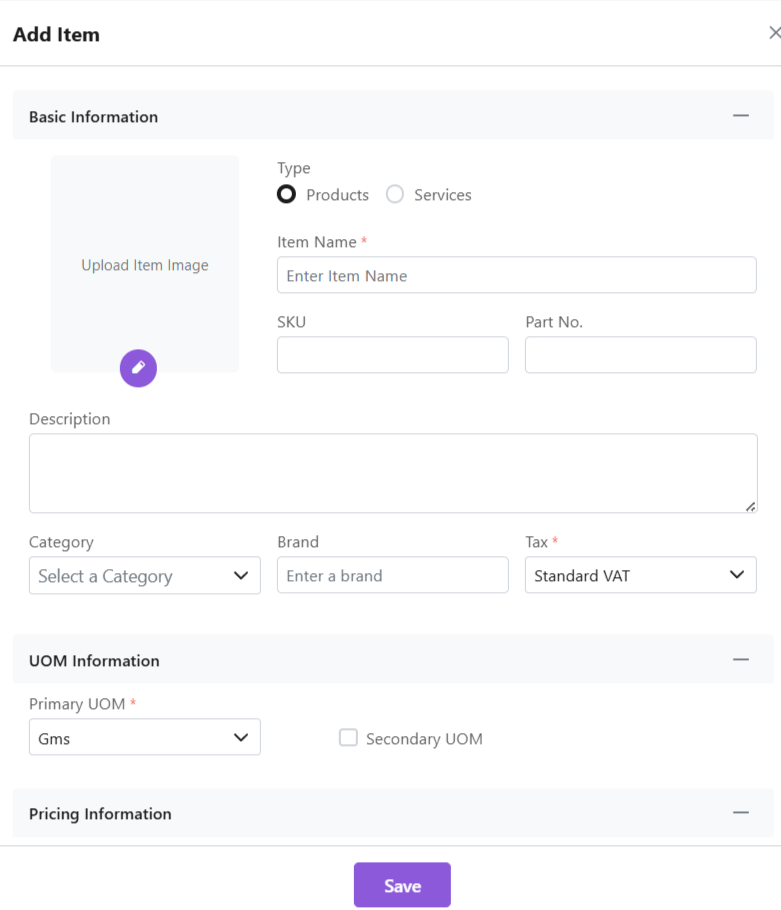
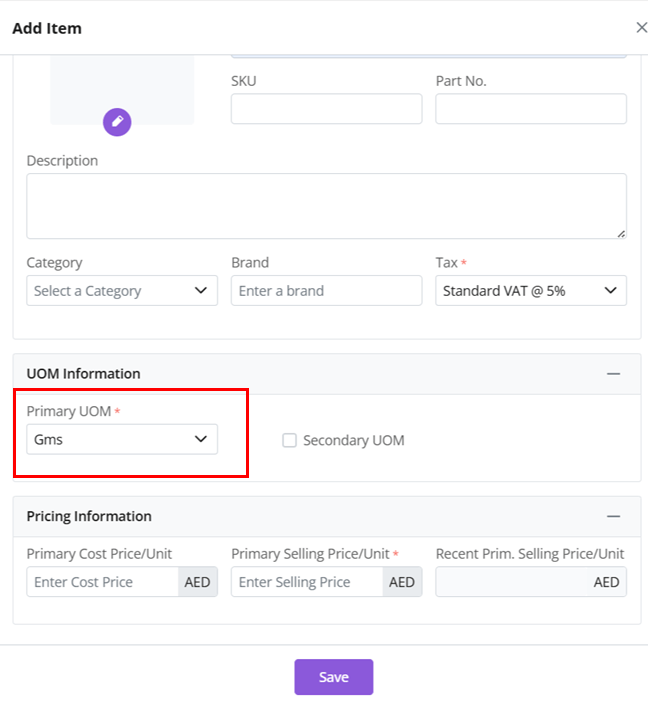
  • It will be auto applied when relevant item is added to any document.
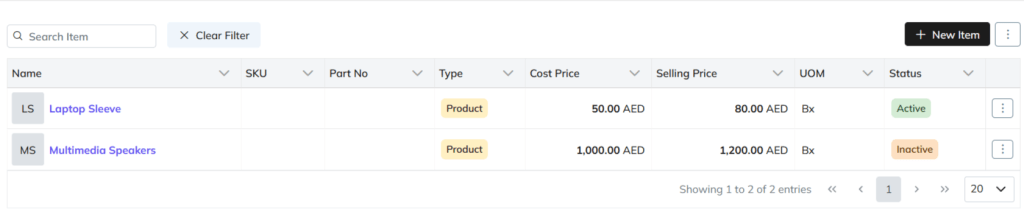
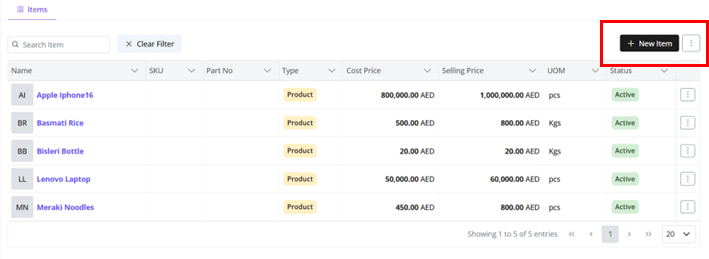
  • Read more about this feature in the items module.
Update Tax
  • Click ⋮ 3 dots > Update → Make changes → Save
  • Note: Tax Percentage and Tax Type cannot be updated.
  • Toggle between active/inactive status depending on whether tax is in use or not.
  • If tax is associated with items, you will receive an error message.
  • Make required changes to proceed.

Delete Tax

  • Click ⋮ 3 dots > select Delete’
  • Type “DELETE” to provide confirmation.
  • The tax will be deleted from the system.
  • If the Tax is associated with some other modules, then it cannot be deleted.
  • Delete relevant items to proceed, in order to delete the tax.

Also Read

Currencies

Currency defines the monetary unit used for transactions within the CRM. Zhylar supports multi-currency operations, enabling businesses to handle global deals efficiently. This feature is essential for accurate pricing, reporting, and financial consistency across international markets.
  • Log in to Zhylar.
  • Go to Left-hand panel
  • Click on Configuration
  • Under Masters, click on Currencies
  • You will be redirected to a new page.
  • All currencies added to the system will be listed.
The base currency is the default monetary unit used for all financial records, reports, and conversions in a CRM system. It serves as the reference point for converting other currencies.
  • It ensures consistency in revenue tracking.
  • Aids in financial analysis across multi-currency operations.
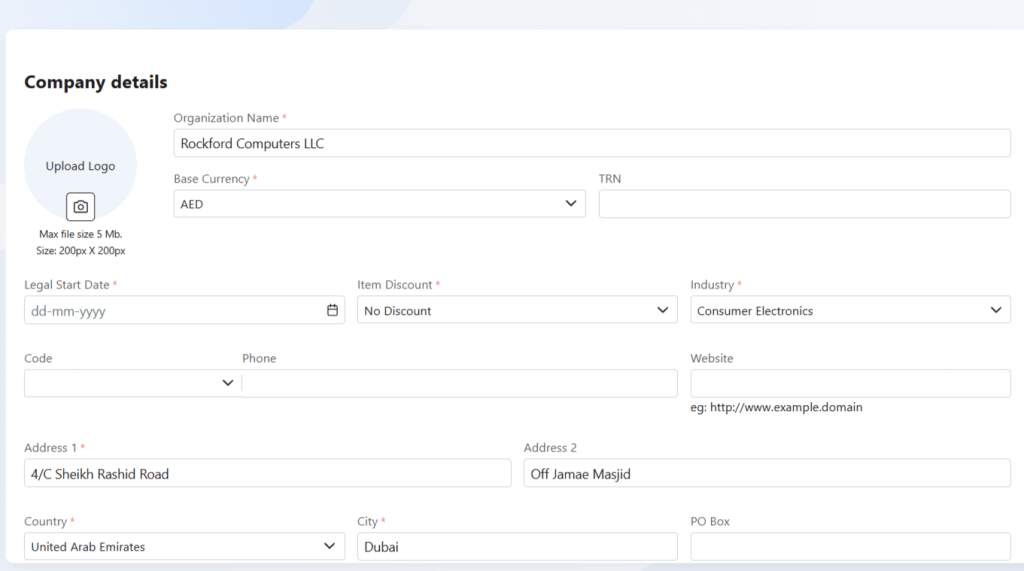
  • Base Currency is selected at the time of organization onboarding.
  • Base currency marked in purple.
  • This currency cannot be changed/deleted.
  • It cannot be marked inactive.
  • Click + New Currency
  • A side sheet will open.
  • Fill out the details
  • Name: Select currency name, e.g., United States Dollar
  • Currency code and symbol will be auto-selected, e.g., USD-$
  • Fetch Live Rate– The system API will generate the current exchange rate. This rate is between the organization’s base currency and the selected currency.
  • Decimals– Determines how many decimal points to be taken when writing amount. E.g., USD 300.25
  • Click Save
Note: Each currency must carry a unique name/code. Duplicates are not permissible in the system. This means, one currency can only be added to the system only once.
  • Conversion rate of the currency added vis-a-vis the base currency.
  • If Fetch Live Rate is on, system API will do the calculations for exchange rate automatically.
  • If Fetch Live Rate is off, an exchange rate can be entered manually.
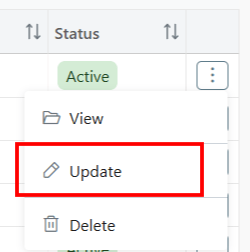
  • Click ⋮ 3 dots >
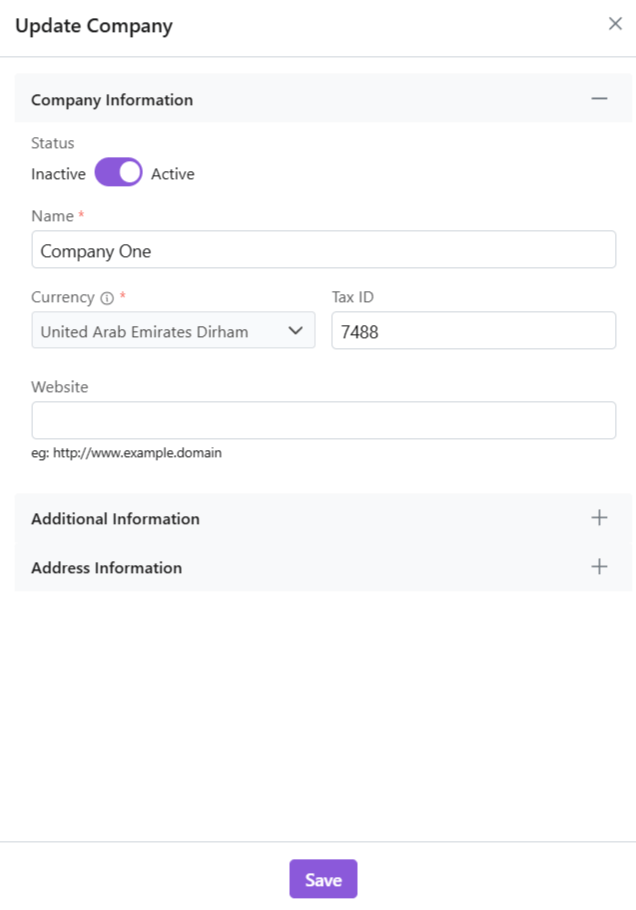
  • Select Update
  • Make changes
  • Toggle active/inactive status.
  • To mark inactive, currency must not be in use with any companies.
  • If marked inactive, fetch live rate is automatically turned off.
  • Click Save.
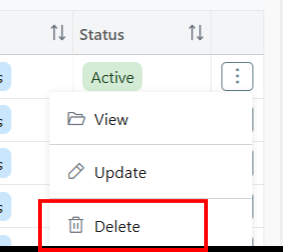
  • Click ⋮ 3 dots > Delete
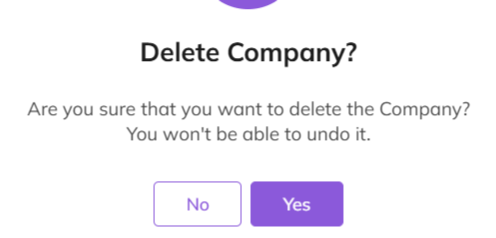
  • Type “DELETE” to provide confirmation.
  • The currency will be deleted.
  • If currency is associated with some Companies, you will receive an error message.
  • Make requisite changes to proceed.

Also Read

Units of Measurement General Settings Currencies

Terms & Conditions

Terms and Conditions in Zhylar govern’s terms of business transactions between customers and the business. These terms are applied to key sales documents such as quotes, sales orders, and invoices. They outline essential policies related to payment, delivery, and service, ensuring clarity and compliance in all business transactions.
Managing Terms & Conditions:

  • Log in to Zhylar.
  • Go to Left-hand panel
  • Click on Configuration
  • Under Masters, click on Terms and Conditions

T&C List View

  • Here, check a list of the Terms and Conditions added to the system.

Add New

  • Click “+ New Terms & Conditions”
  • Give the T&C a name.
  • Add description for details of the term. This description entails the conditions of the terms that you want to levy.
  • Select document type (Quote/SO/Invoice)
  • Enable “Is Default” for auto-application in documents (Quotes / SO / Invoice) .
    • Auto-applied T&C can be edited on the document.
  • Click Save.

Update

  • Click ⋮ 3 dots on the end
  • Make changes
  • Click Save
  • Make your changes.
  • Is Default: Toggle Yes or No to change
  • Status: If T&C is not in use it can be marked inactive.
    • A default T&C cannot be marked inactive. Remove default status to continue.
  • All fields can be updated except T&C Type.
  • Click Save.

Document Types

Type Purpose
Quote T&Cs Proposal-specific terms
Sales Order T&Cs Binding order terms
Invoice T&Cs Payment/delivery policies
Key Feature: Default T&Cs auto-apply to relevant documents.

Delete Term and Conditions

  • Click ⋮ 3 dots > Delete → Type “DELETE” to provide confirmation.
  • Provide confirmation to proceed.
  • The T&C will be deleted.
 

Payment Terms

Payment terms are the agreed-upon conditions between a buyer and a seller. These terms specify how and when payment should be made. They define due dates, applicable discounts, penalties for late payments, or instalment plans. In a CRM system, these terms are integrated into quotes, sales orders, and invoices. This integration helps streamline and standardize the payment process.
  • Log in to Zhylar.
  • Go to Left-hand panel
  • Click on Configuration
  • Under Masters, click on Payment Terms
  • Check the list of Payment Terms added to the system.
  • Click + New Payment Term
  • Enter details
  • Name- Name of payment term.
  • Days- The number of days within which payment term must be satisfied.
  • Toggle “Make Default” if needed.
  • Default payment terms are auto-applied to documents.
  • Click Save
  • Click ⋮ > Update
  • Make changes
  • Save

Please note

  • For quotes, payment terms is for reference purpose only. The expiry date has no implication on payment terms.
  • Global Use: Consistent payment policies
  • Click ⋮ > Select Delete
  • Type “DELETE” to provide confirmation.
  • Payment term will be deleted.
  • If Payment Term is associated with some other modules, e.g., Quotes, then it cannot be deleted.
  • You will receive an error message.
  • Delete relevant document first to proceed with deleting the payment term.

Also Read