The organization refers to the company or business that is using the Zhylar portal itself. This serves as the top-level account under which all users, modules, data, and customizations are managed. This setup ensures centralized control over user roles, data access, business settings, and operational workflows.
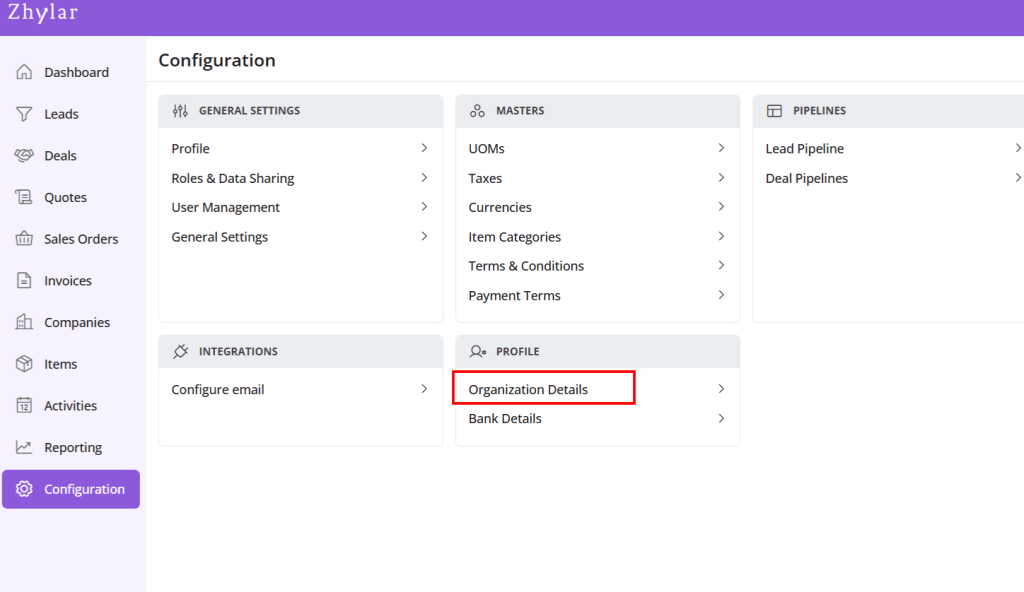
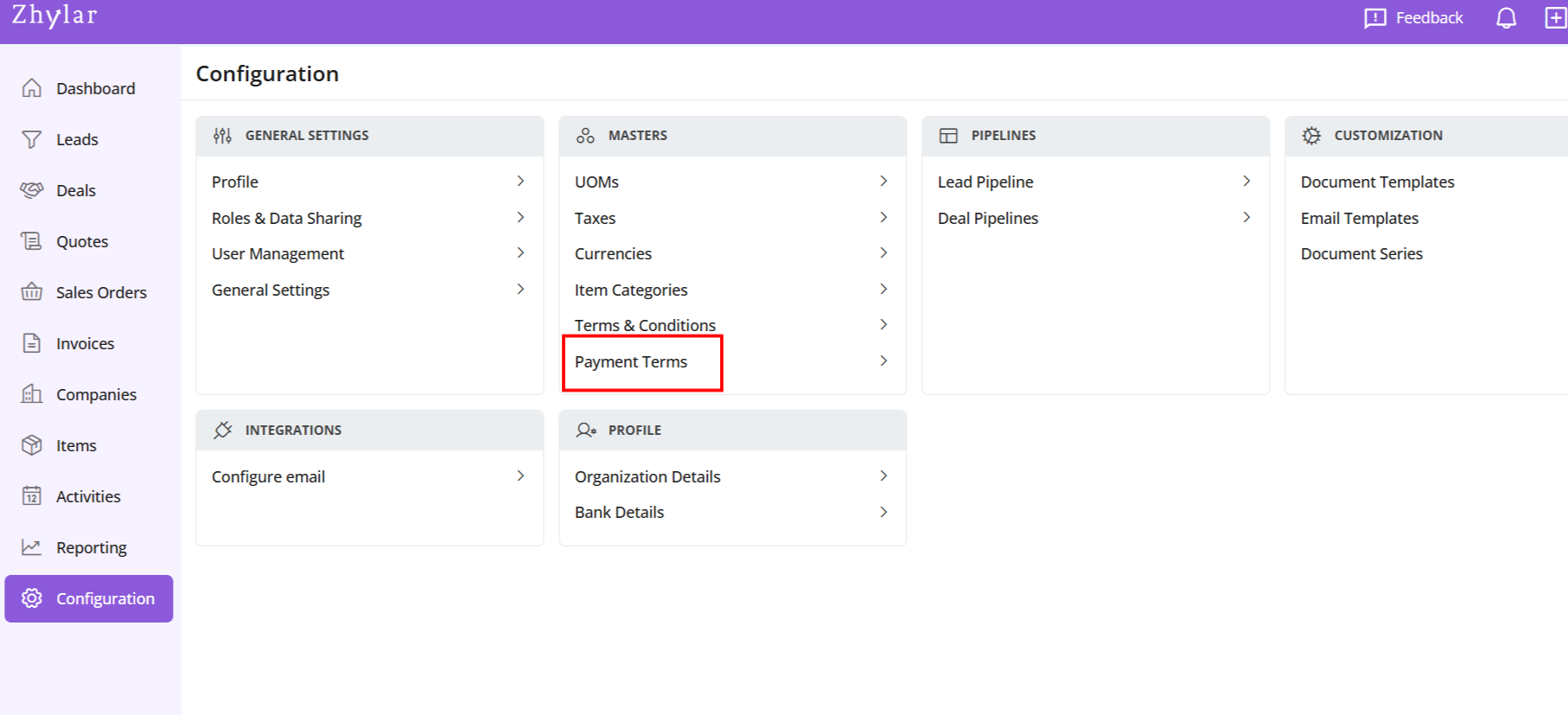
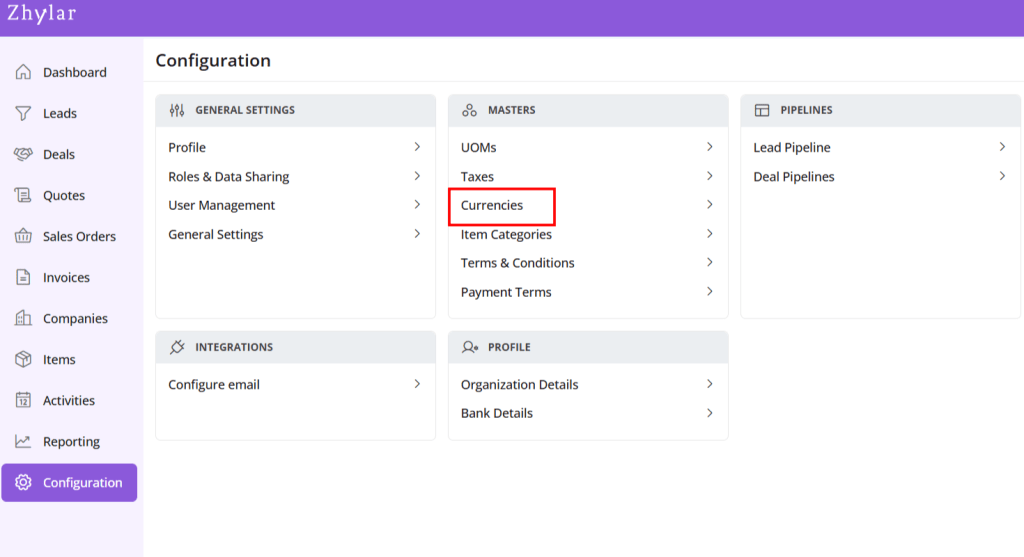
Under Profile section, select Organization Details
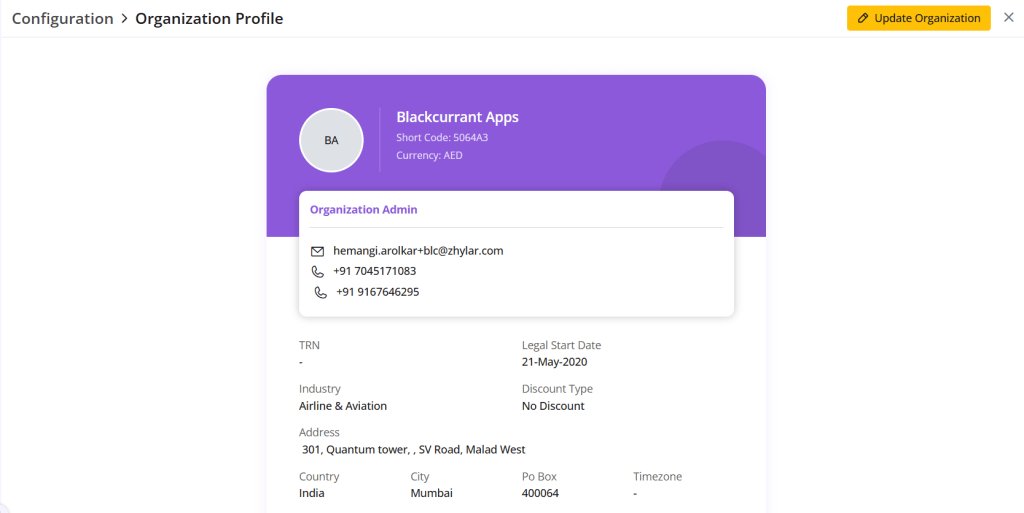
A new page will open for you.
View Organization details.
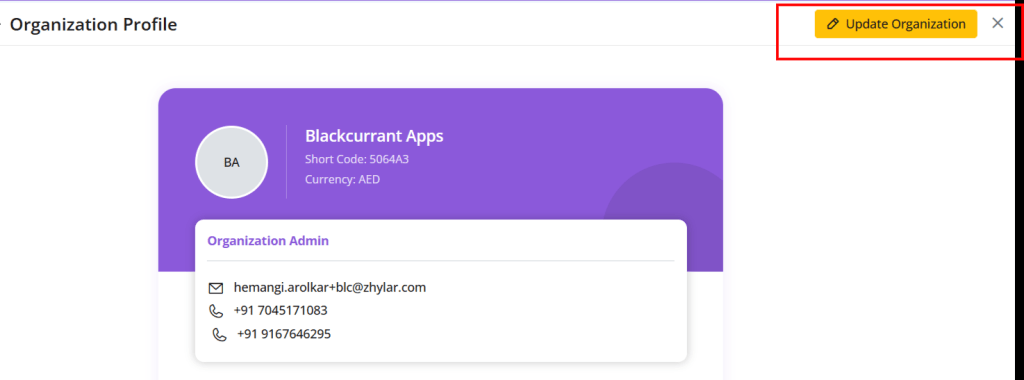
Update Organization
Click on the yellow button “Update Organization”.
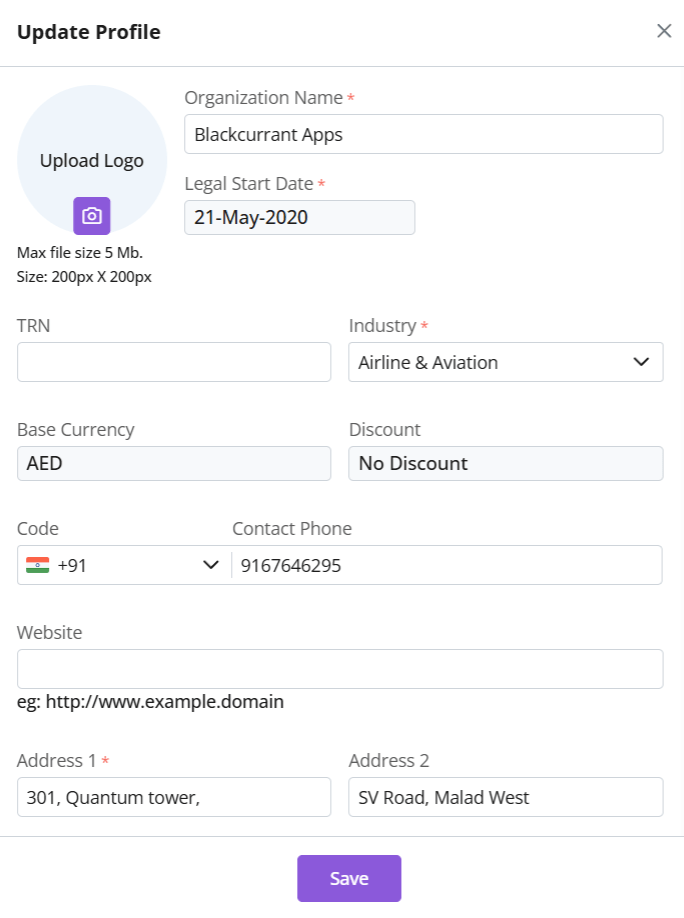
Make your changes.
The following details cannot be changed:
Legal start date
Base Currency
Discount
Click Save.
Discover how Zhylar can streamline your sales and elevate your business processes. Visit our website or book a demo today to experience the difference!
Recent transactions in Zhylar provide a quick view of an item’s latest activity. They show when, how, and at what price it was quoted or sold. They also show to whom it was sold. It tracks usage across quotes, sales orders, invoices, and even lost deals. This offers a 360-degree picture of the item’s sales history.
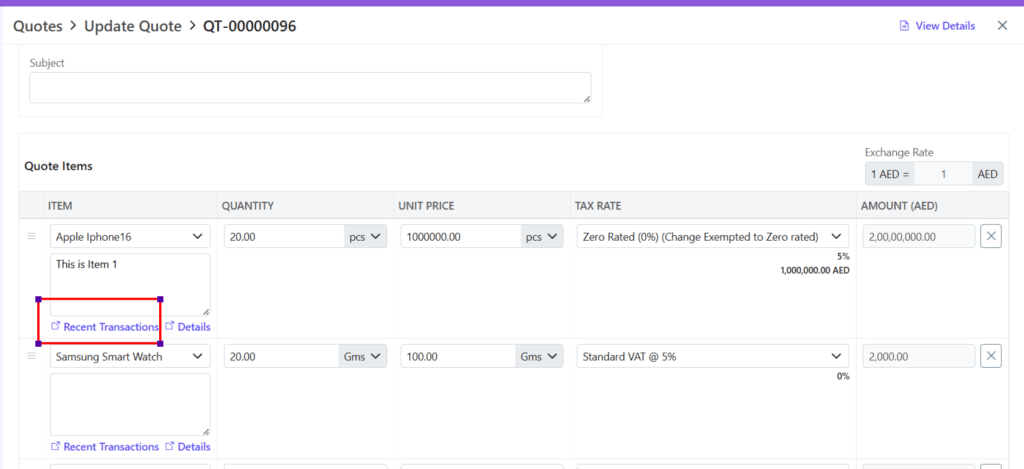
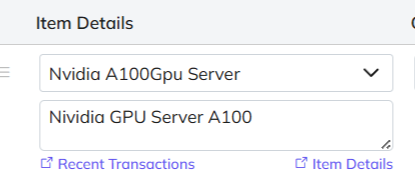
For new Quote, after adding item Click on Recent Transactions.
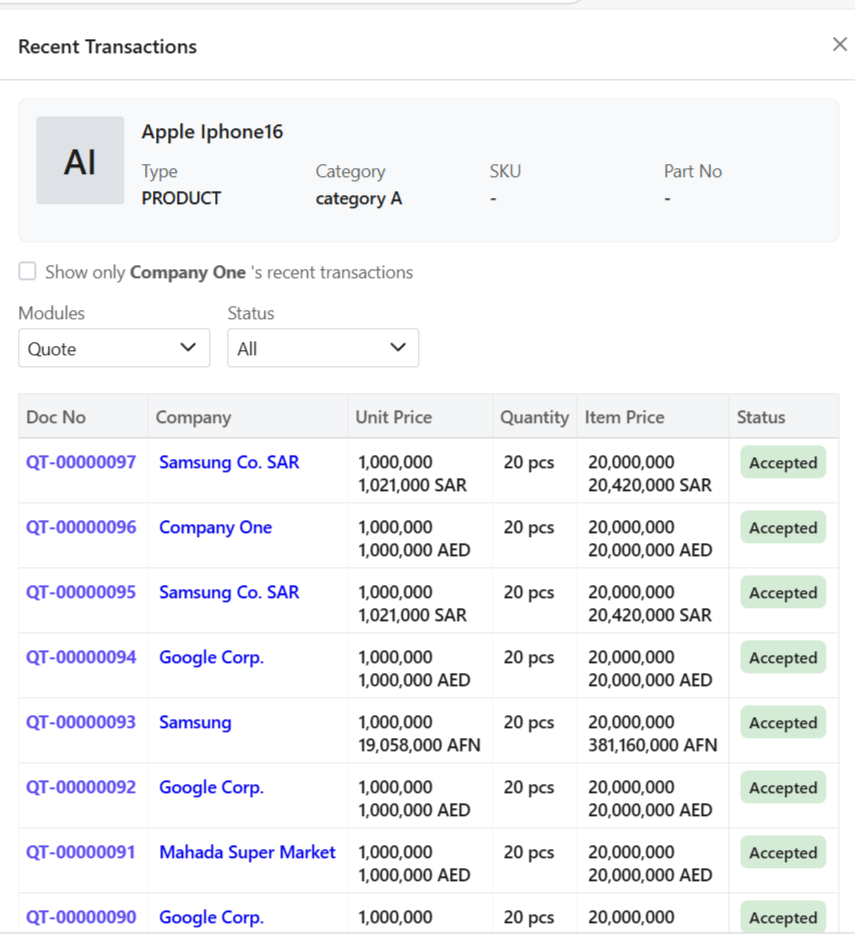
A side sheet will open.
The entire transaction history will be fetched.
Filter Search
Filter search to obtain best results:
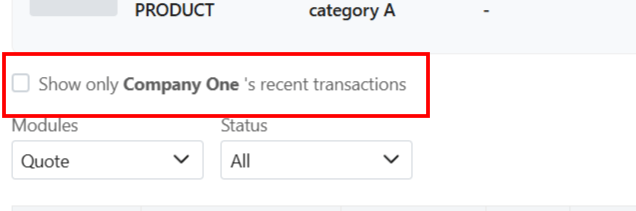
Via company
Tick the box to view transactions against that organization only.
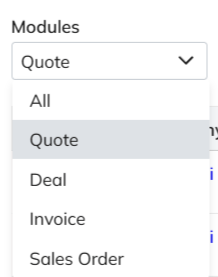
Via module
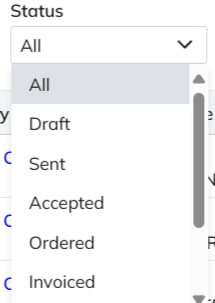
Via document status
Details
Recent transactions will show the following detail for each transaction.
Item Details
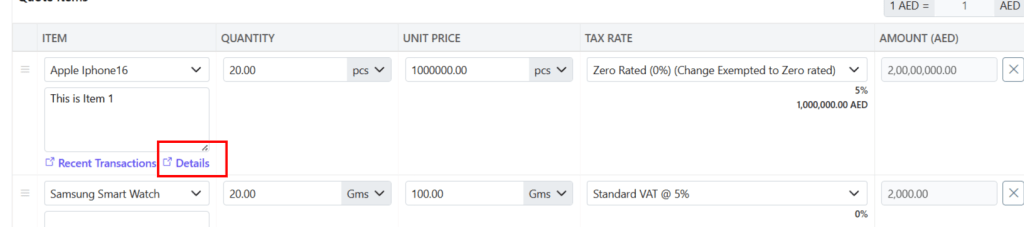
To simply view the item details,
Click on Details.
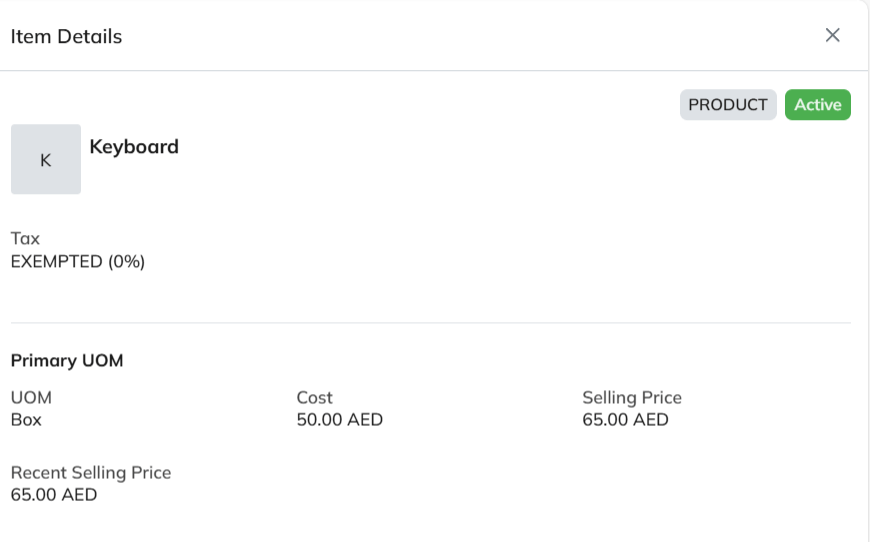
The details of the item will be visible to you.
Discover how Zhylar can streamline your sales and elevate your business processes. Visit our website or book a demo today to experience the difference!
In a CRM product, organization onboarding is the process of setting up a new company to use the system effectively. It involves configuring features, training users, importing data, and integrating workflows.
At Zhylar, onboarding tailors the CRM to an organization’s needs, including custom fields, workflows, and dashboards aligned with their processes.
The user whose credentials are being used will be added as the Organization Admin or CEO.
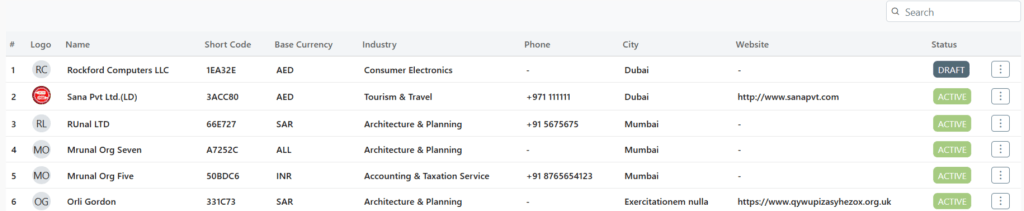
Click on “Add Organization”.
The status will show as draft initially. The user must be invited via email.
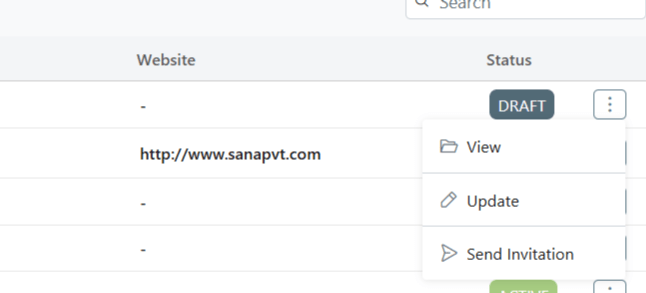
To send invitation, click on the 3 dots at the of the row.
Select “Send Invitation”
The user needs to go to their email to set up the account through the confirmation email sent. This email will be sent on the email ID provided by the user.
The link will redirect user to a password reset page. Reset your password proceed.
Add Organization
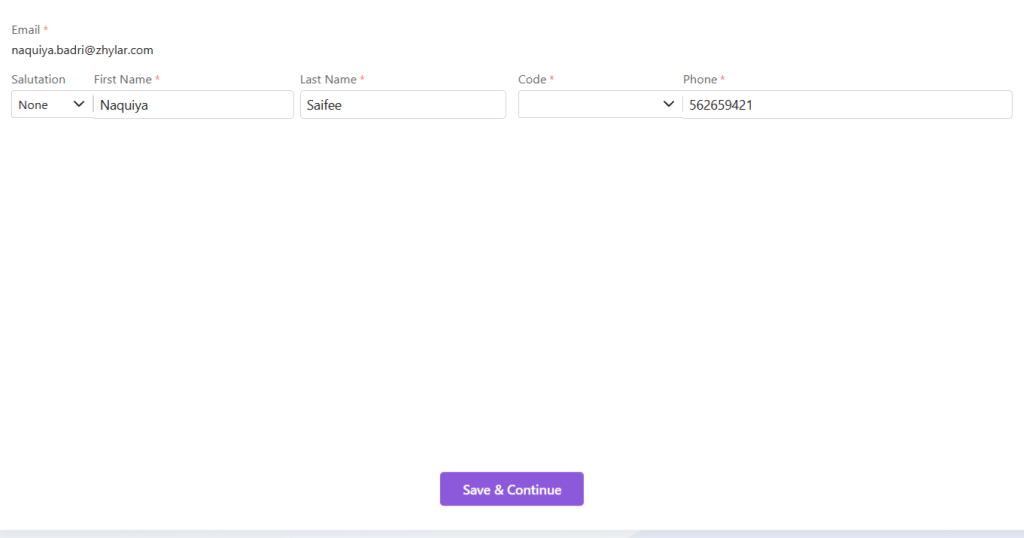
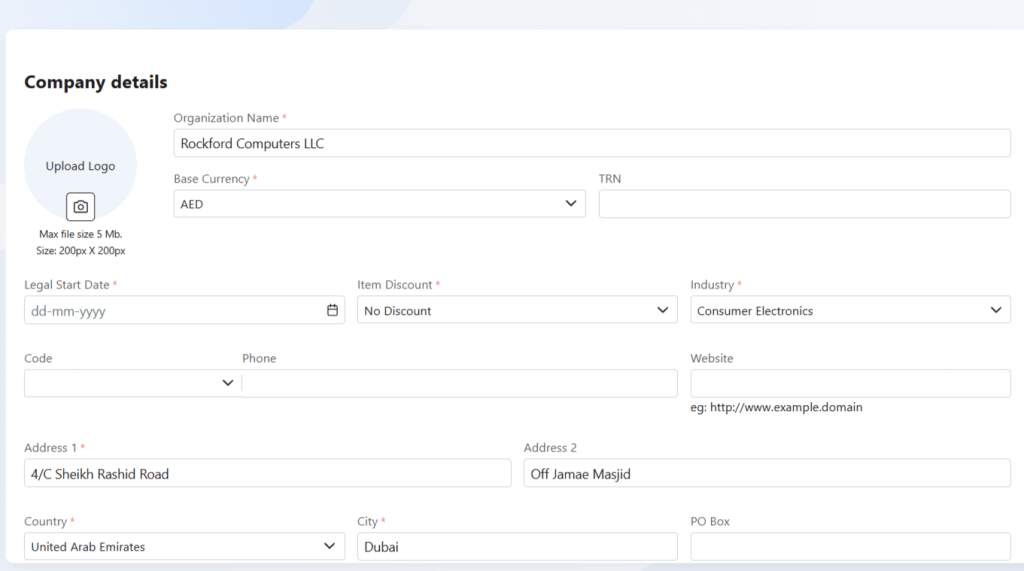
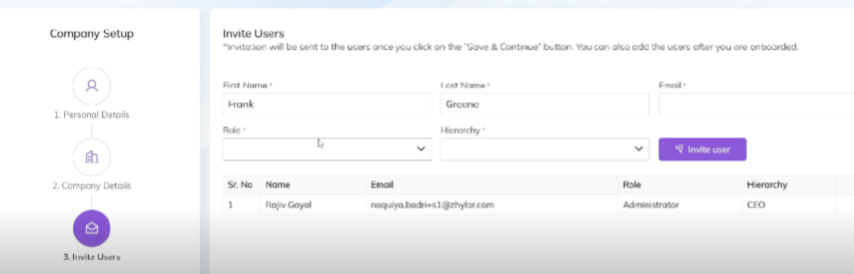
The organization onboarding can be done in 3 steps. The user must add the following:
Personal details- details of the Organization Admin himself/herself
Company details- details of your organization
Invite users- add your teammates and employees to join your organization on the Zhylar platform.
Under company details, please note the following:
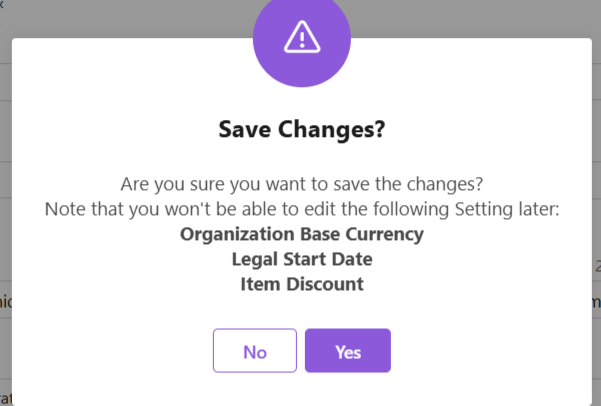
Critical Setup (Immutable Fields)
Field
Importance
Base Currency
All transactions recorded in this currency
Legal Start Date
Contractual reference point
Item Discount
Line/total/none
These cannot be changed post-setup.
Add user details
Insert email ID
Click “Send Invite”
Tracking:
Status: “Invited” → “Active”
Monitor via: Configuration > User Management
Post-Setup
Admin completes company/user profiles
Configure workflows/dashboards
Discover how Zhylar can streamline your sales and elevate your business processes. Visit our website or book a demo today to experience the difference!
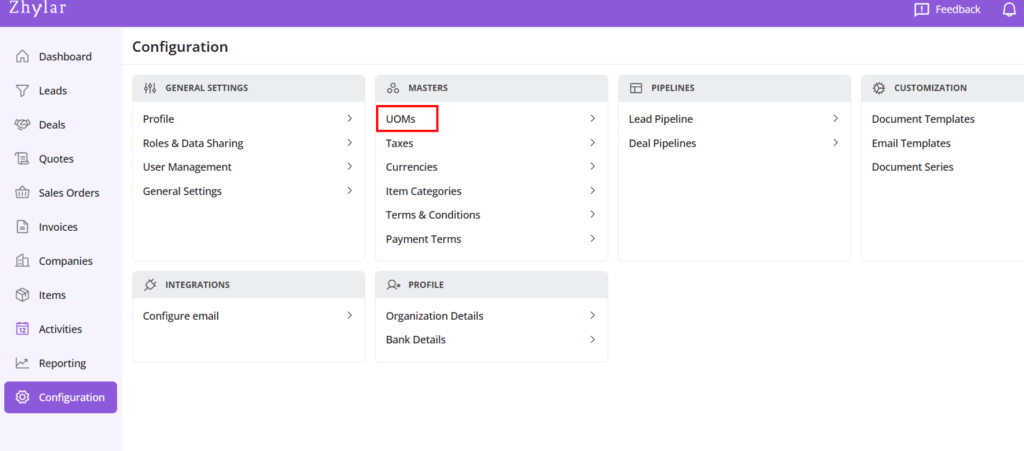
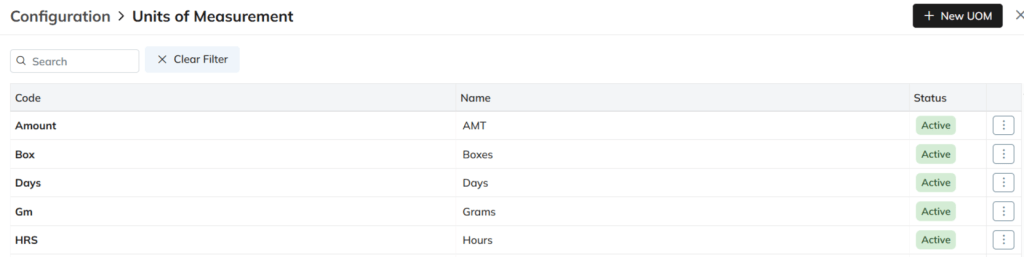
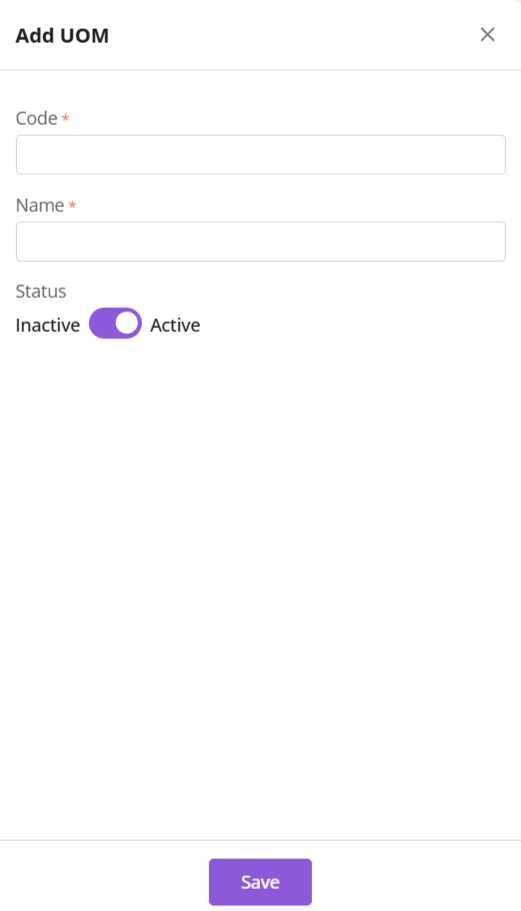
UOM or Units of Measurement refers to standardized units like kilograms, liters, or hours used to quantify products or services. It ensures accurate pricing, quoting, and inventory tracking across the CRM. UOMs are customizable to match specific business needs, making transactions more precise and consistent.
Duplicate UOM names or codes are not allowed. In case you enter a duplicate name or code, you will receive an error.
Click Save
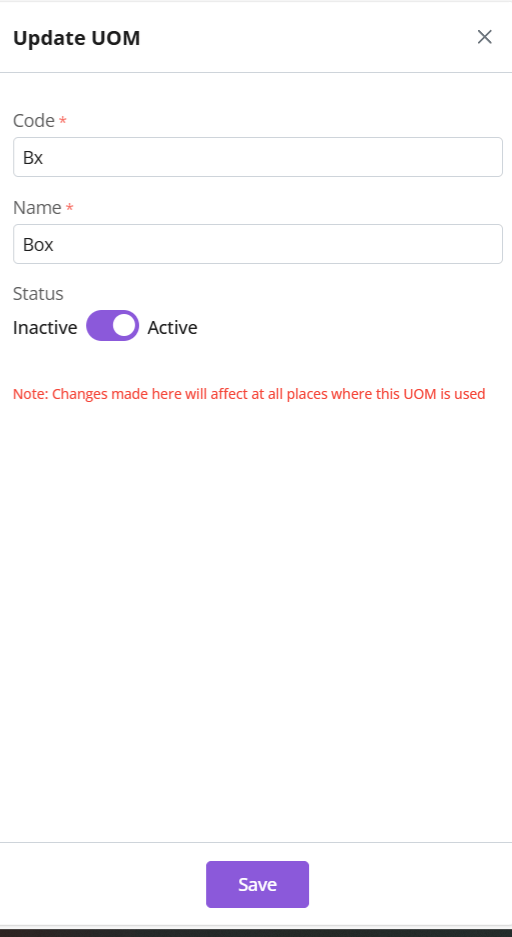
Update UOM
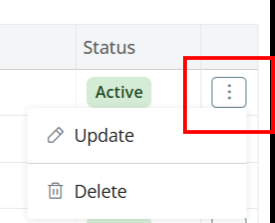
Click ⋮ 3 dots > Update → Edit → Save
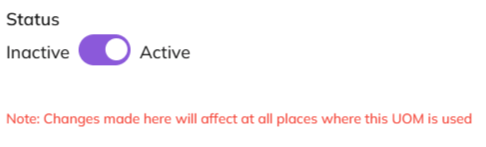
Status
Toggle UOM status from active to inactive.
To do so, you must ensure UOM is not associated with any item.
Click Save
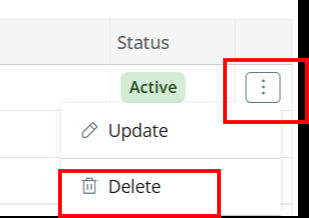
Delete UOM
Click ⋮ 3 dots > select Delete
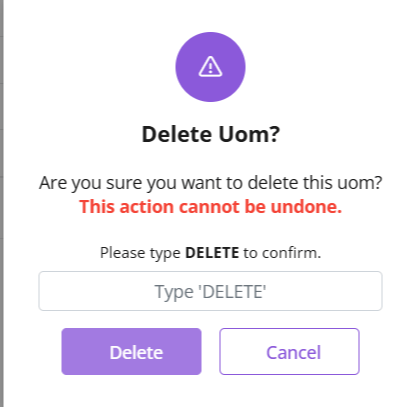
Type “DELETE” to provide confirmation.
The UOM will be deleted.
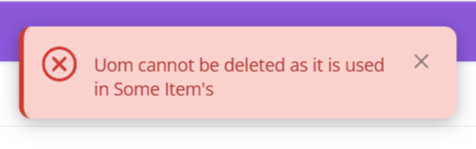
If the UOM is associated with any items, you will receive an error message
Discover how Zhylar can streamline your sales and elevate your business processes. Visit our website or book a demo today to experience the difference!
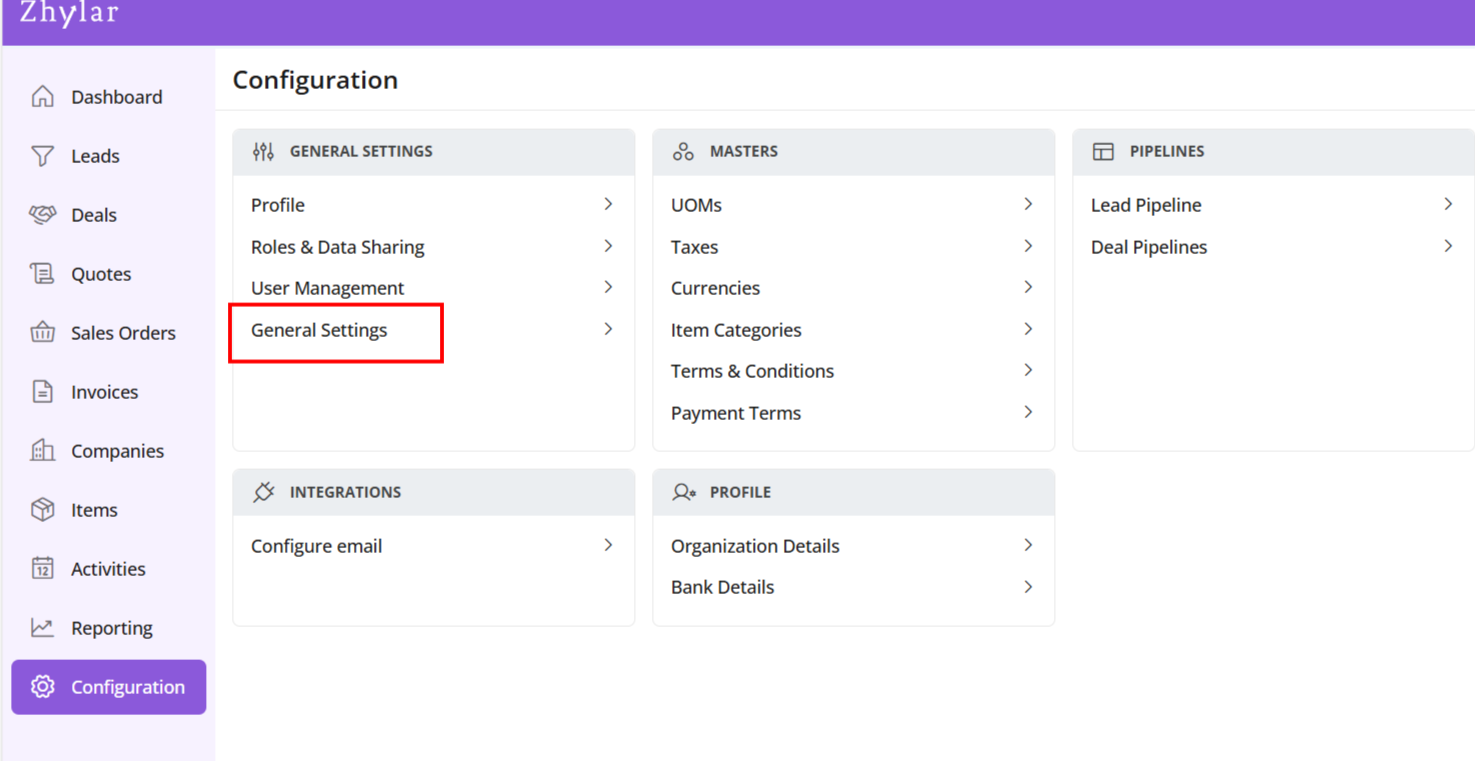
In the “Masters” column, click on “General Settings”.
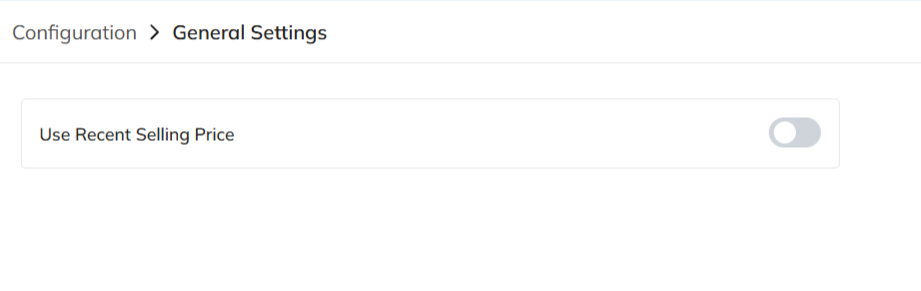
A new page will open for you.
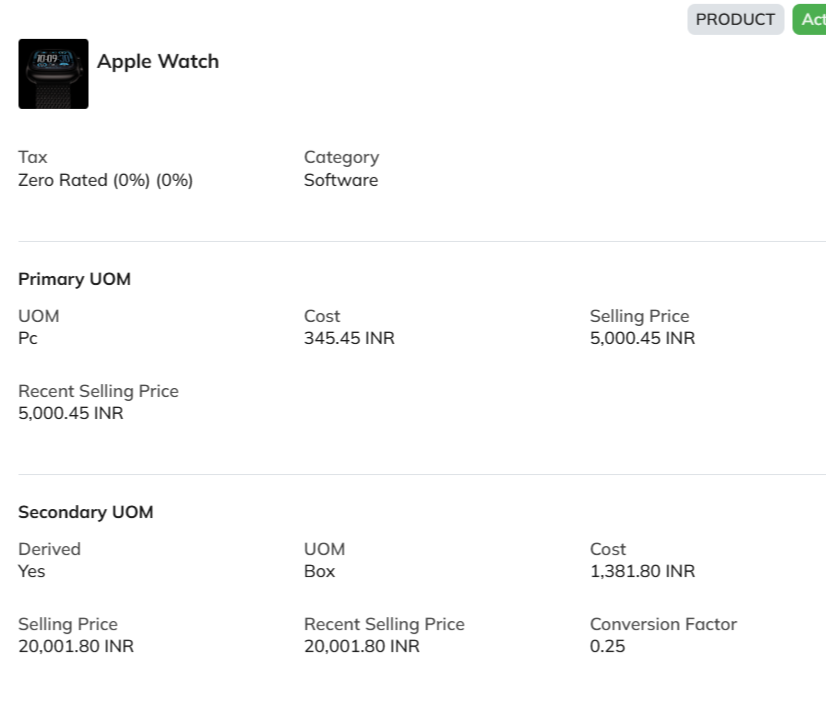
Here, you can turn on or turn off the “recent selling price” option.
View Recent Selling Price
When turned on, recent selling price is reflected under “Item Details” wherever an item is added in the following modules:
Deal
Quote
Sales Order
Invoice
Under the added item, select Item Details
The details will open.
The recent selling price reflects the price at which the item was sold the last time only. In comparison, the recent transaction reflects the entire transaction history of the product in the Zhylar system.
Discover how Zhylar can streamline your sales and elevate your business processes. Visit our website or book a demo today to experience the difference!
Payment terms are the agreed-upon conditions between a buyer and a seller. These terms specify how and when payment should be made. They define due dates, applicable discounts, penalties for late payments, or instalment plans.
In a CRM system, these terms are integrated into quotes, sales orders, and invoices. This integration helps streamline and standardize the payment process.
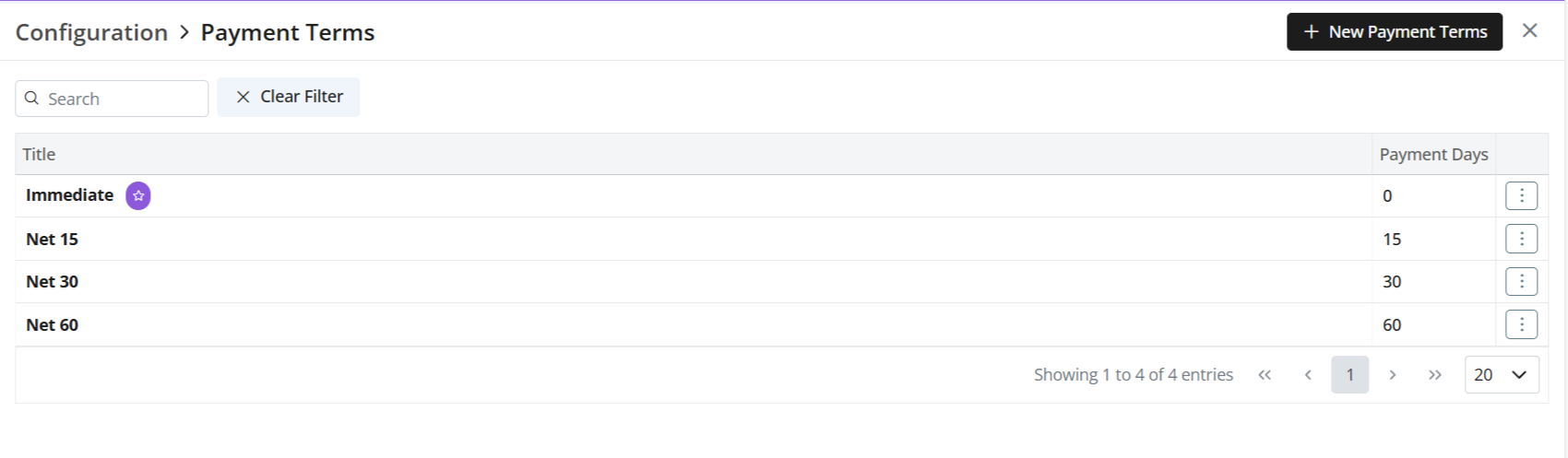
Check the list of Payment Terms added to the system.
Add New Payment Term
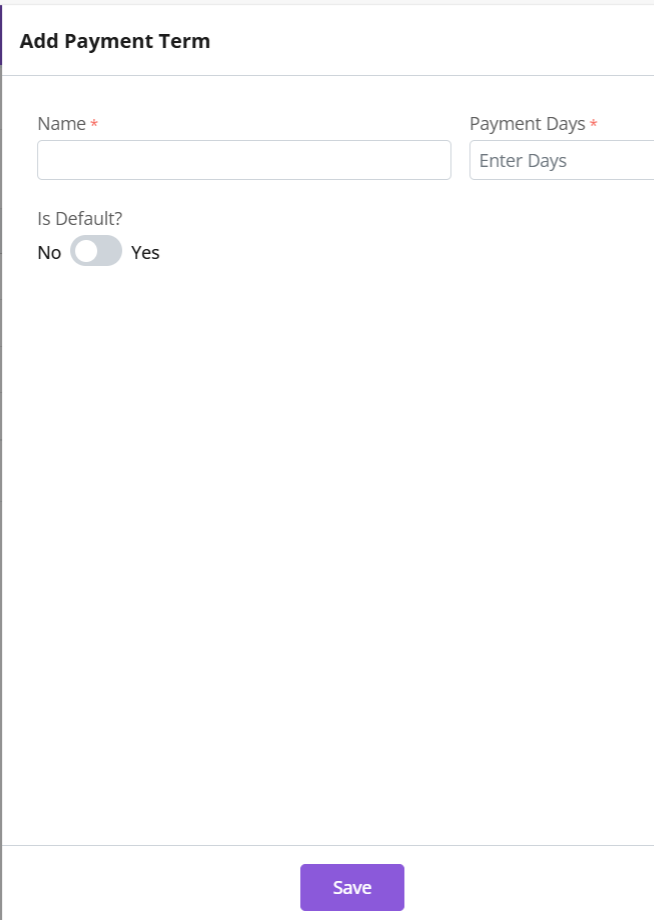
Click + New Payment Term
Enter details
Name- Name of payment term.
Days- The number of days within which payment term must be satisfied.
Toggle “Make Default” if needed.
Default payment terms are auto-applied to documents.
Click Save
Update Payment Term
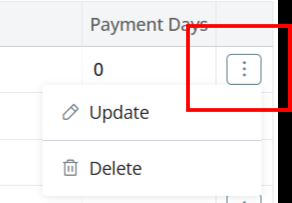
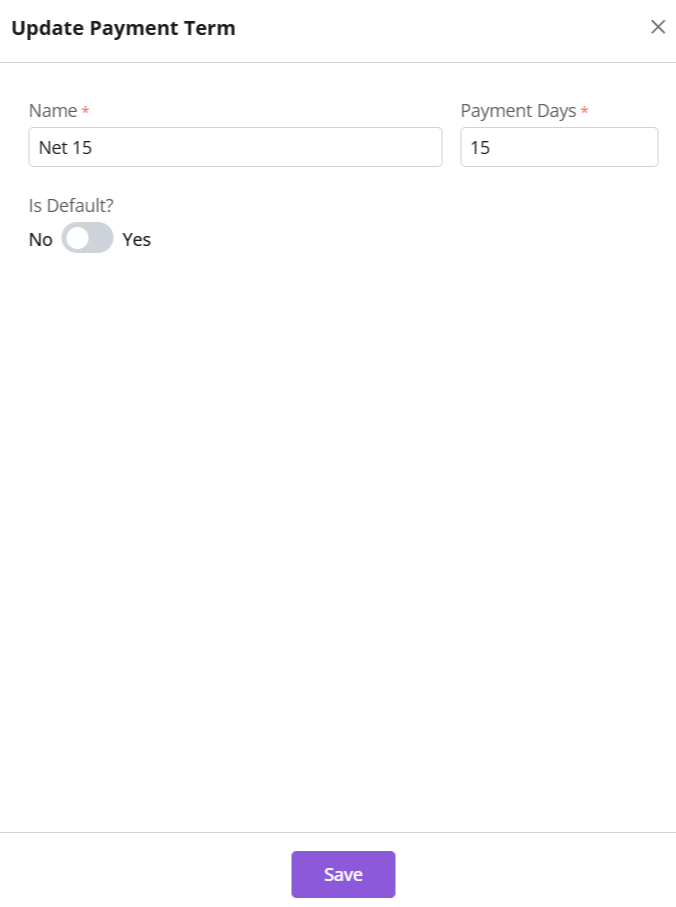
Click ⋮ > Update
Make changes
Save
Please note
Default Terms: Auto-applies to all documents. However, a user can still edit or change it as per the requirement in that particular document.
For SO and invoice, the “payment days” refers to the due date within which the payment should be received. E.g., the invoice must be cleared/paid in X number of days.
For quotes, payment terms is for reference purpose only. The expiry date has no implication on payment terms.
Global Use: Consistent payment policies
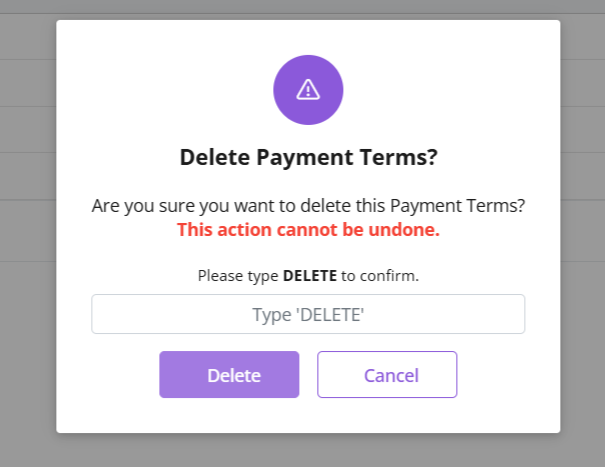
Delete Payment Term
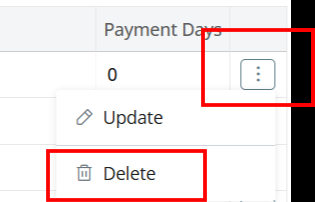
Click ⋮ > Select Delete
Type “DELETE” to provide confirmation.
Payment term will be deleted.
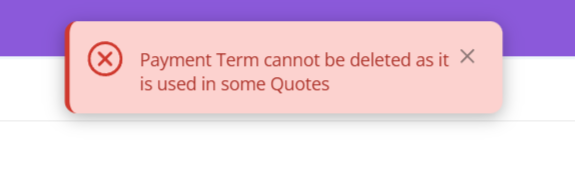
If Payment Term is associated with some other modules, e.g., Quotes, then it cannot be deleted.
You will receive an error message.
Delete relevant document first to proceed with deleting the payment term.
Discover how Zhylar can streamline your sales and elevate your business processes. Visit our website or book a demo today to experience the difference!
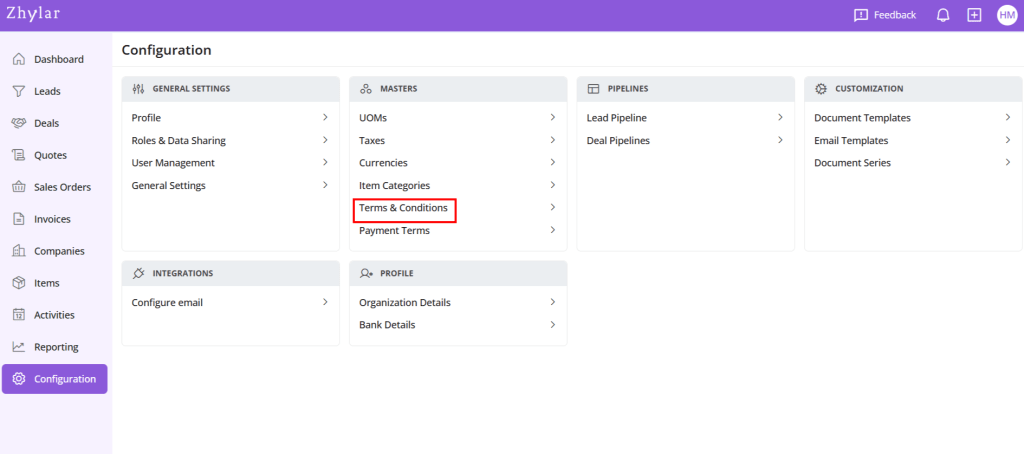
Terms and Conditions in Zhylar govern’s terms of business transactions between customers and the business. These terms are applied to key sales documents such as quotes, sales orders, and invoices. They outline essential policies related to payment, delivery, and service, ensuring clarity and compliance in all business transactions.
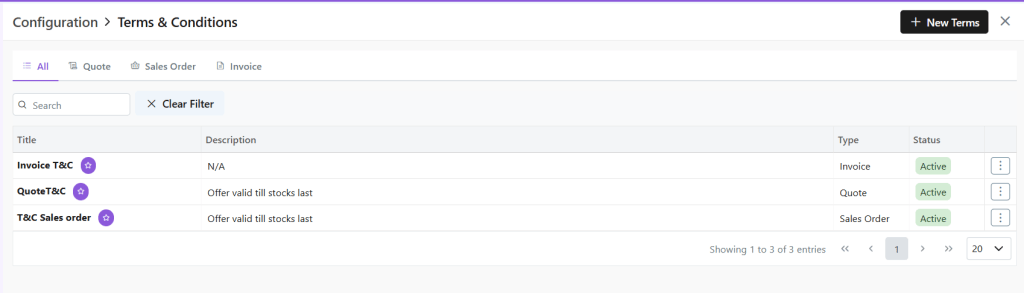
Here, check a list of the Terms and Conditions added to the system.
Add New
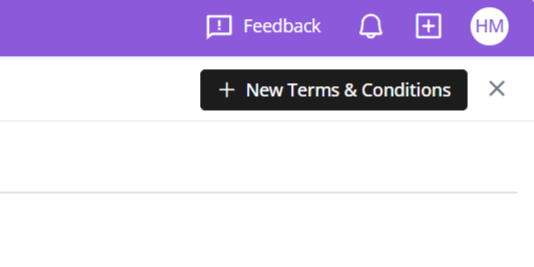
Click “+ New Terms & Conditions”
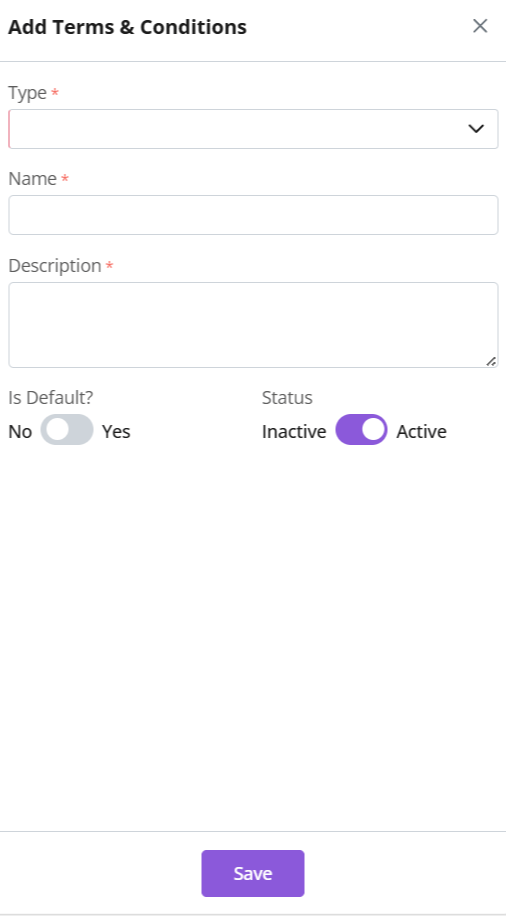
Give the T&C a name.
Add description for details of the term. This description entails the conditions of the terms that you want to levy.
Select document type (Quote/SO/Invoice)
Enable “Is Default” for auto-application in documents (Quotes / SO / Invoice) .
Auto-applied T&C can be edited on the document.
Click Save.
Update
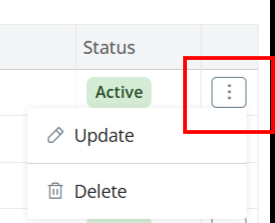
Click ⋮ 3 dots on the end
Make changes
Click Save
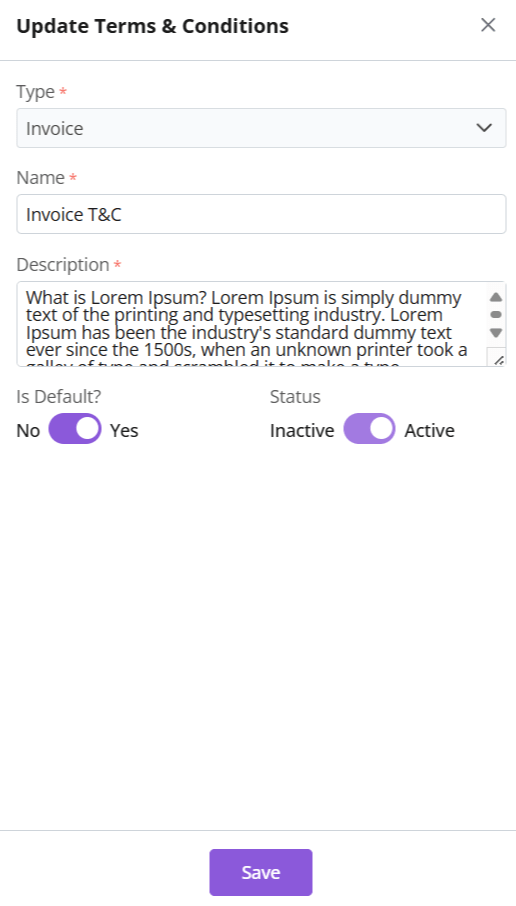
Make your changes.
Is Default: Toggle Yes or No to change
Status: If T&C is not in use it can be marked inactive.
A default T&C cannot be marked inactive. Remove default status to continue.
All fields can be updated except T&C Type.
Click Save.
Document Types
Type
Purpose
Quote T&Cs
Proposal-specific terms
Sales Order T&Cs
Binding order terms
Invoice T&Cs
Payment/delivery policies
Key Feature: Default T&Cs auto-apply to relevant documents.
Delete Term and Conditions
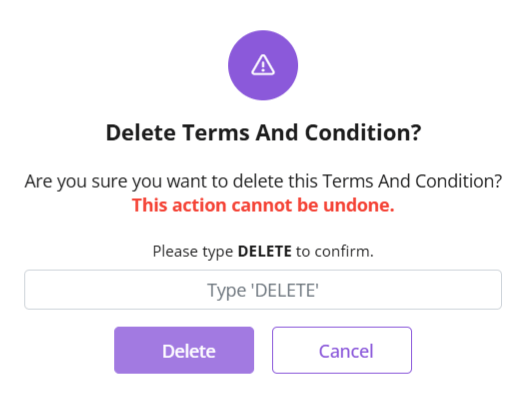
Click ⋮ 3 dots > Delete → Type “DELETE” to provide confirmation.
Provide confirmation to proceed.
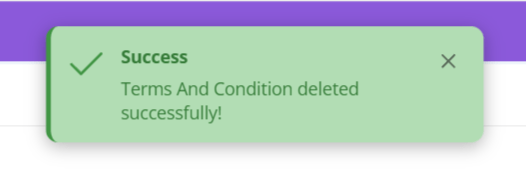
The T&C will be deleted.
Discover how Zhylar can streamline your sales and elevate your business processes. Visit our website or book a demo today to experience the difference!
Currency defines the monetary unit used for transactions within the CRM. Zhylar supports multi-currency operations, enabling businesses to handle global deals efficiently. This feature is essential for accurate pricing, reporting, and financial consistency across international markets.
All currencies added to the system will be listed.
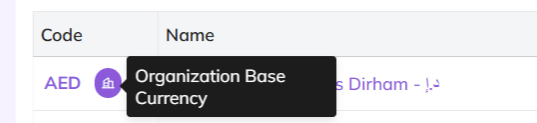
Organization Base Currency
The base currency is the default monetary unit used for all financial records, reports, and conversions in a CRM system. It serves as the reference point for converting other currencies.
It ensures consistency in revenue tracking.
Aids in financial analysis across multi-currency operations.
Base Currency is selected at the time of organization onboarding.
Base currency marked in purple.
This currency cannot be changed/deleted.
It cannot be marked inactive.
Add New Currency
Click + New Currency
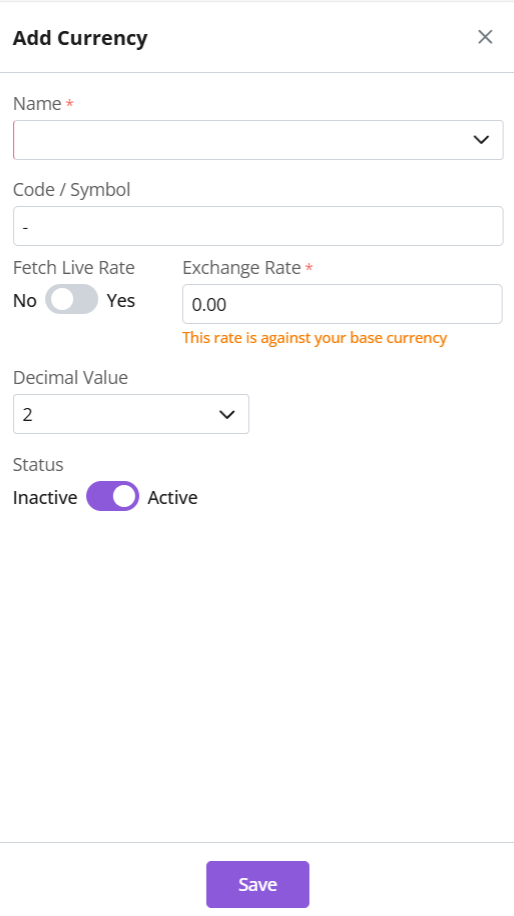
A side sheet will open.
Fill out the details
Name: Select currency name, e.g., United States Dollar
Currency code and symbol will be auto-selected, e.g., USD-$
Fetch Live Rate– The system API will generate the current exchange rate. This rate is between the organization’s base currency and the selected currency.
Decimals– Determines how many decimal points to be taken when writing amount. E.g., USD 300.25
Click Save
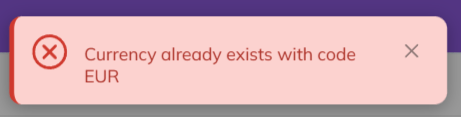
Note: Each currency must carry a unique name/code. Duplicates are not permissible in the system.
This means, one currency can only be added to the system only once.
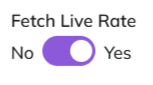
Fetch Live Rate
Conversion rate of the currency added vis-a-vis the base currency.
If Fetch Live Rate is on, system API will do the calculations for exchange rate automatically.
If Fetch Live Rate is off, an exchange rate can be entered manually.
Update
Click ⋮ 3 dots >
Select Update
Make changes
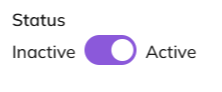
Toggle active/inactive status.
To mark inactive, currency must not be in use with any companies.
If marked inactive, fetch live rate is automatically turned off.
Click Save.
Delete Currency
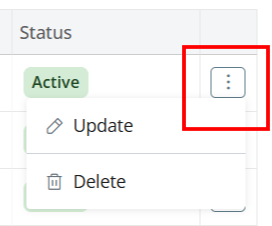
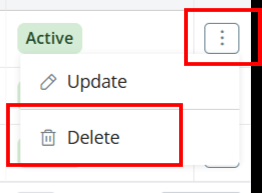
Click ⋮ 3 dots > Delete
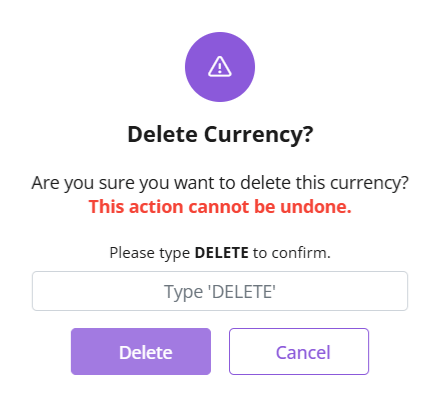
Type “DELETE” to provide confirmation.
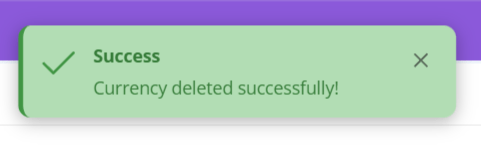
The currency will be deleted.
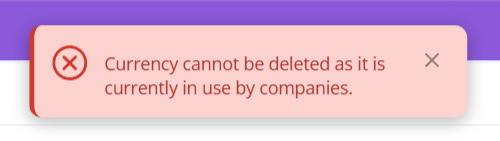
If currency is associated with some Companies, you will receive an error message.
Make requisite changes to proceed.
Discover how Zhylar can streamline your sales and elevate your business processes. Visit our website or book a demo today to experience the difference!
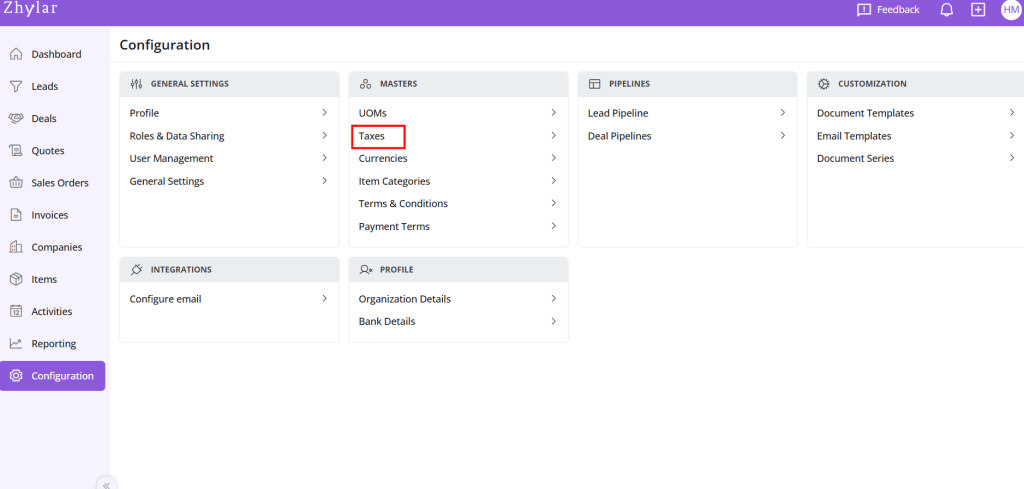
Taxes represent financial obligations on sales transactions. They are calculated automatically based on customer location, product type, and applicable tax laws like VAT or GST. Taxes are seamlessly integrated into quotes and invoices. This ensures accurate billing. It also ensures compliance with regional tax regulations across all sales documents.
Key Features
Automatic Calculation: Applies correct rates during quoting
Seamless Integration: Syncs with invoicing/billing
Some default taxes are pre-loaded as listed below:
Add New Tax:
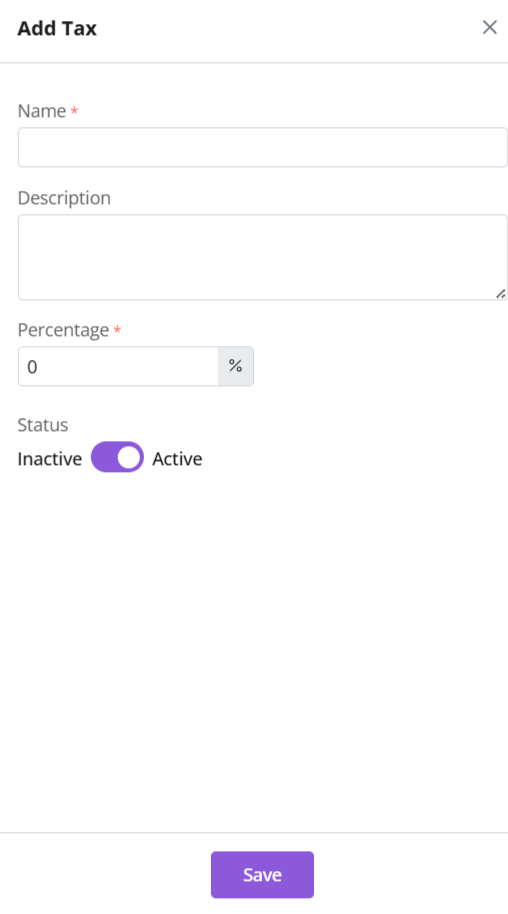
Click “+ New Tax”
Enter details
Name- Assign name to tax
Description- Explain the terms and policies of the tax.
Percentage- % of tax levied on certain item.
Status- If this tax is being used in the system at present or not.
Click Save
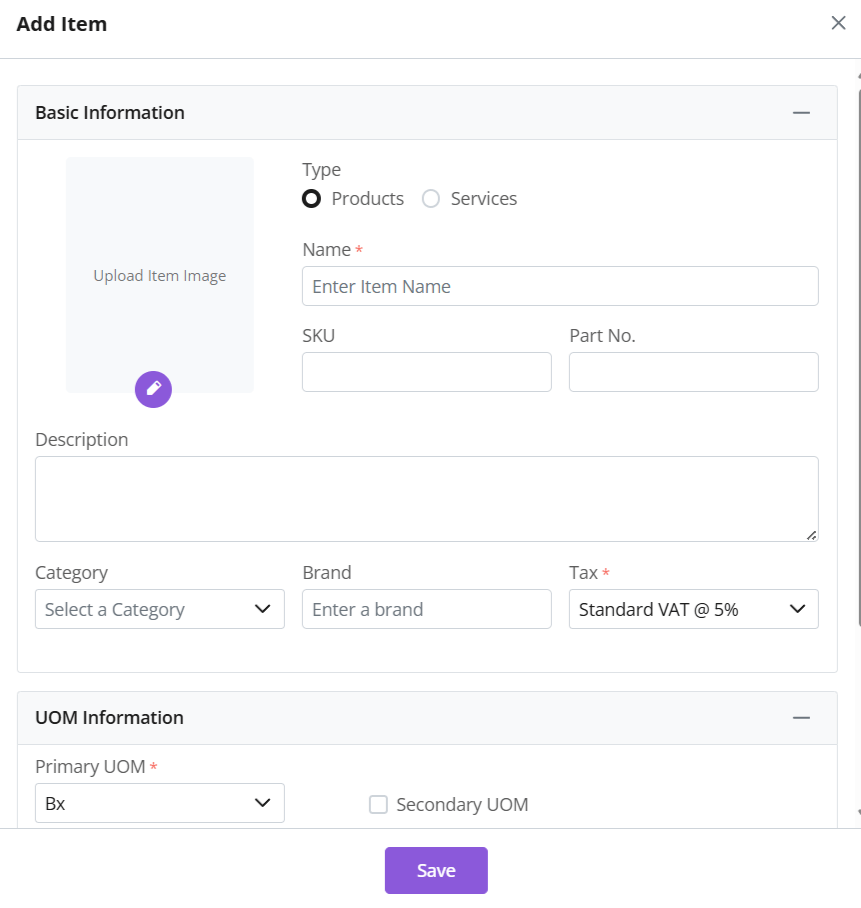
Add Tax to Item
A tax can be assigned to an item directly for direct use.
It will be auto applied when relevant item is added to any document.
Thus, different taxes can be used for different or specific items.
Read more about this feature in the items module.
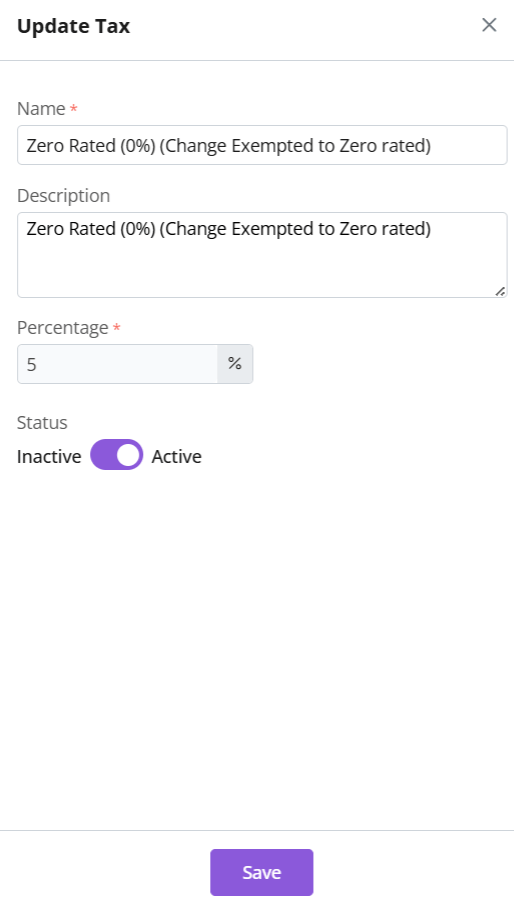
Update Tax
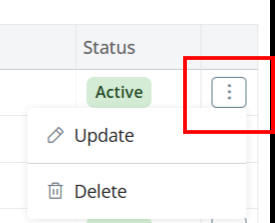
Click ⋮ 3 dots > Update → Make changes → Save
Note: Tax Percentage and Tax Type cannot be updated.
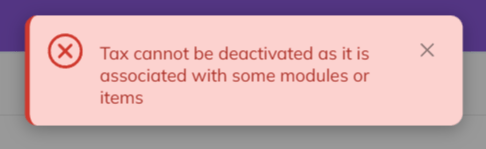
Toggle between active/inactive status depending on whether tax is in use or not.
If tax is associated with items, you will receive an error message.
Make required changes to proceed.
Delete Tax
Click ⋮ 3 dots > select Delete’
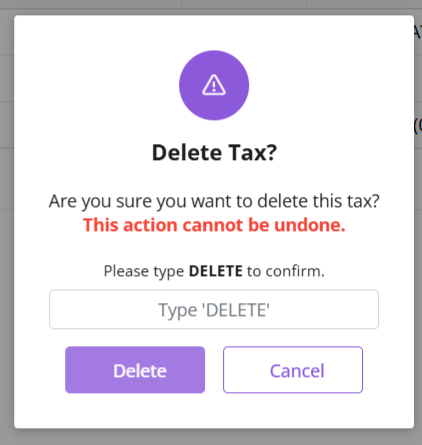
Type “DELETE” to provide confirmation.
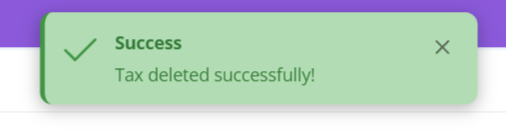
The tax will be deleted from the system.
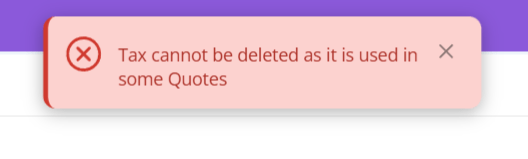
If the Tax is associated with some other modules, then it cannot be deleted.
Delete relevant items to proceed, in order to delete the tax.
Discover how Zhylar can streamline your sales and elevate your business processes. Visit our website or book a demo today to experience the difference!
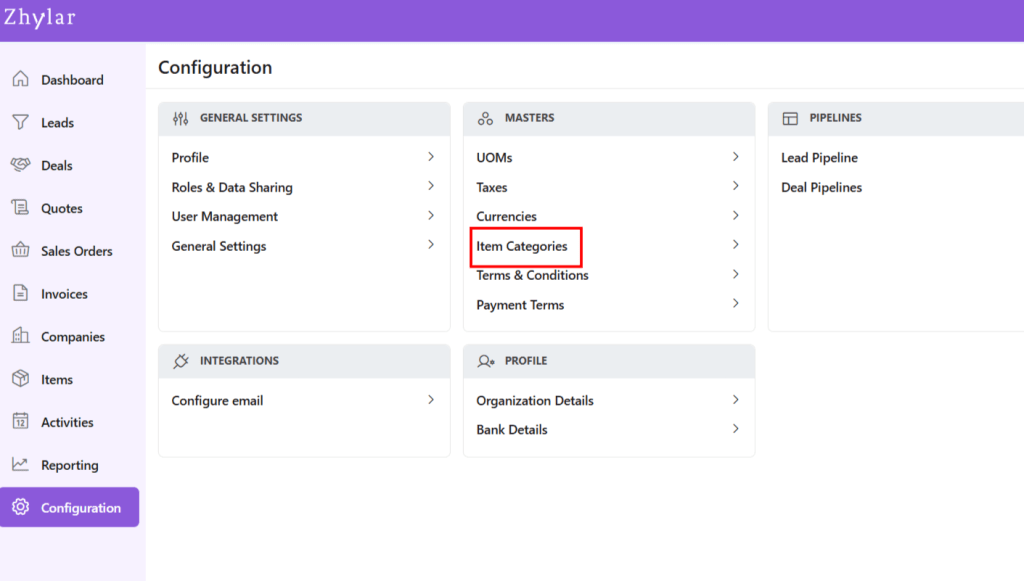
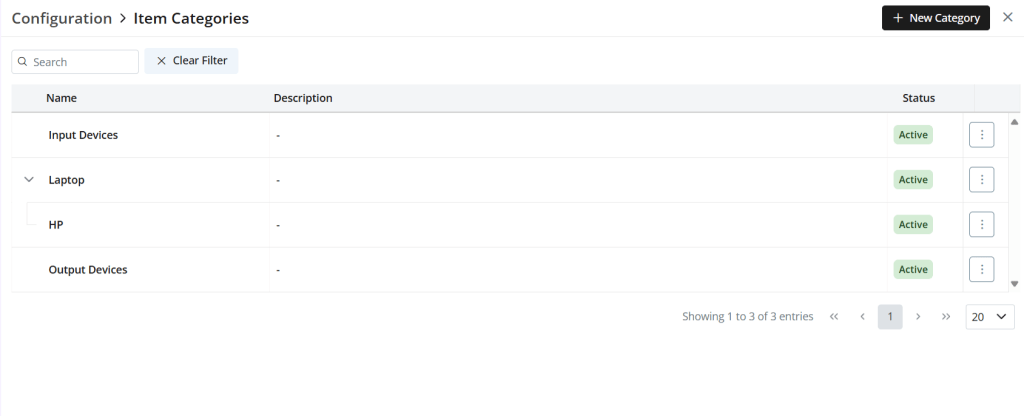
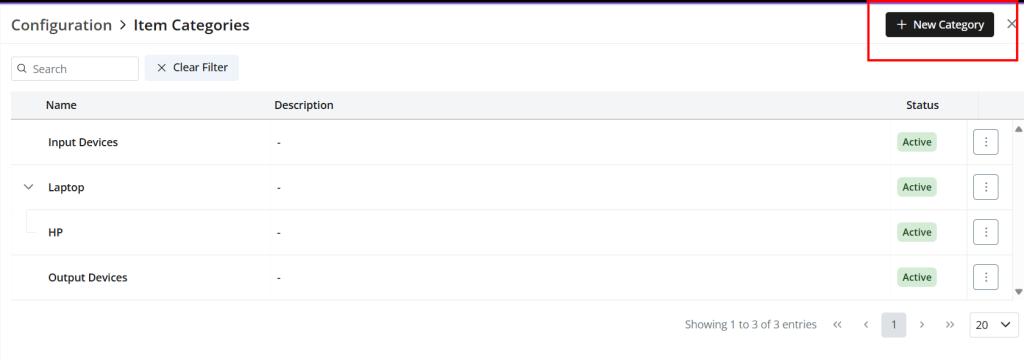
Item categories are an organizational tool used to group related products or services within a CRM system. They simplify catalog management, improve navigation, and are essential for efficient Configure, Price, Quote (CPQ) setups. Categorizing items logically enhances the sales process and ensures a better user experience for both teams and customers.
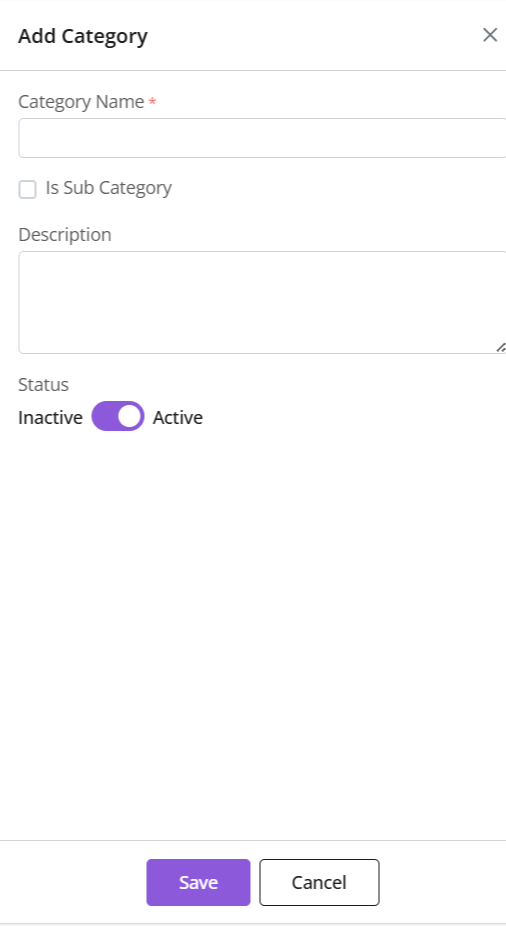
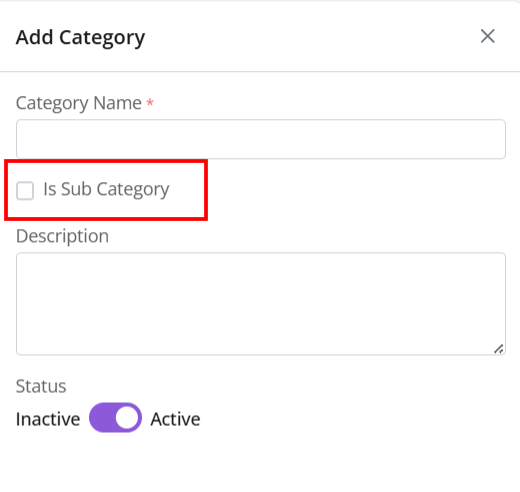
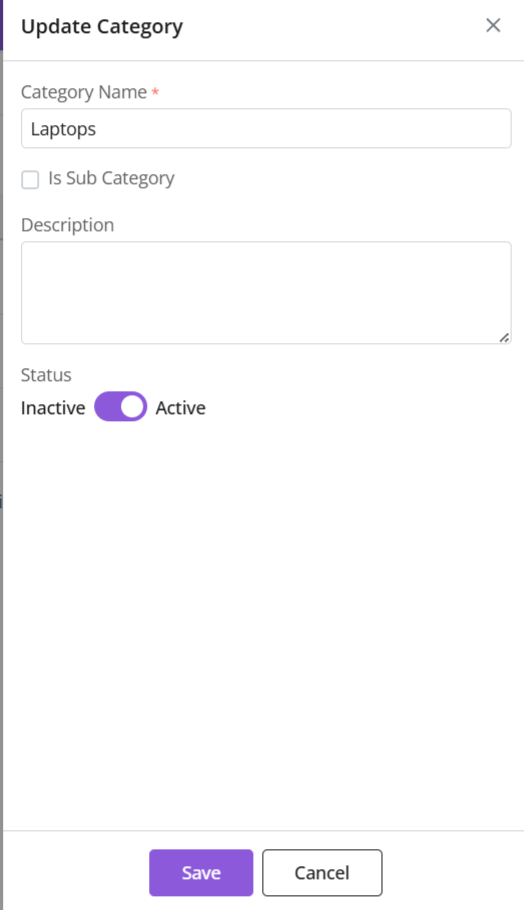
Sub-Category: If it is a category within a bigger category. If yes, a parent category must be tagged. (Refer section below).
Description: A brief description of the category
Status: Whether category is in use or not
Click “Save”
Sub-Category
A sub-category is a category within a bigger category.
To check a category as a sub-category, a parent category must be marked.
E.g., Parent Category: Laptops -> Sub-category: HP
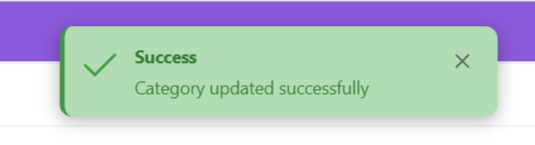
Update Existing
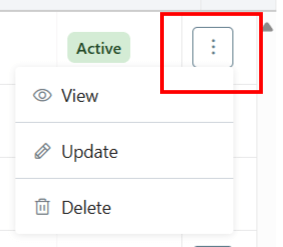
Click ⋮ 3 dots >Update→ Make changes
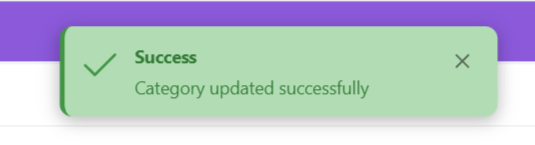
Click Save
Status
Toggle active/inactive status
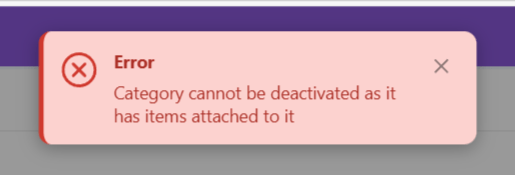
To mark inactive, category must not be associated with any item. Or you will receive an error message.
Make required changes to proceed.
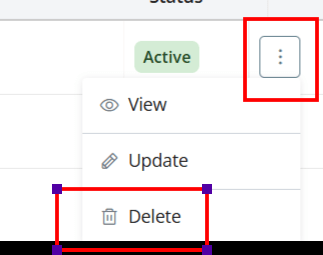
Delete Category
Click ⋮ 3 dots > Select Delete
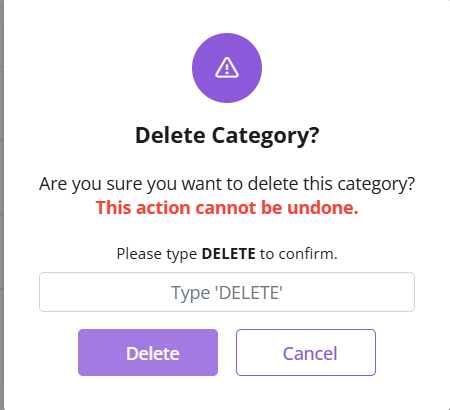
Type “DELETE” to provide confirmation.
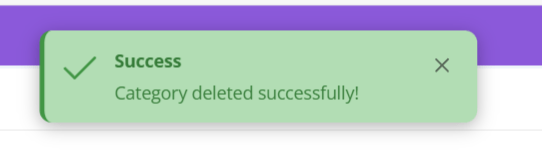
The Category will be deleted.
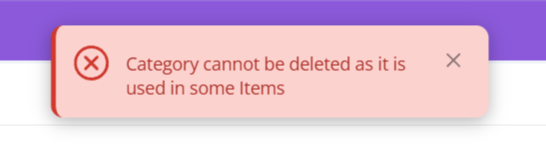
If category is associated with some Items, you will receive an error message.
Make requisite changes to proceed.
Please note: If a parent category is deleted before deleting sub-categories, the sub-categories will be automatically updated. They will be updated to become parent categories themselves.
Discover how Zhylar can streamline your sales and elevate your business processes. Visit our website or book a demo today to experience the difference!