Quote

Quotes are formal price proposals you create and share with customers based on their requirements. A quote includes details like products or services, quantities, discounts, taxes, and total value. With Zhylar, you can generate, revise, and send quotes directly from deals. This helps you respond quickly to customers and manage negotiations. It also allows you to move smoothly towards order confirmation.

Getting Started

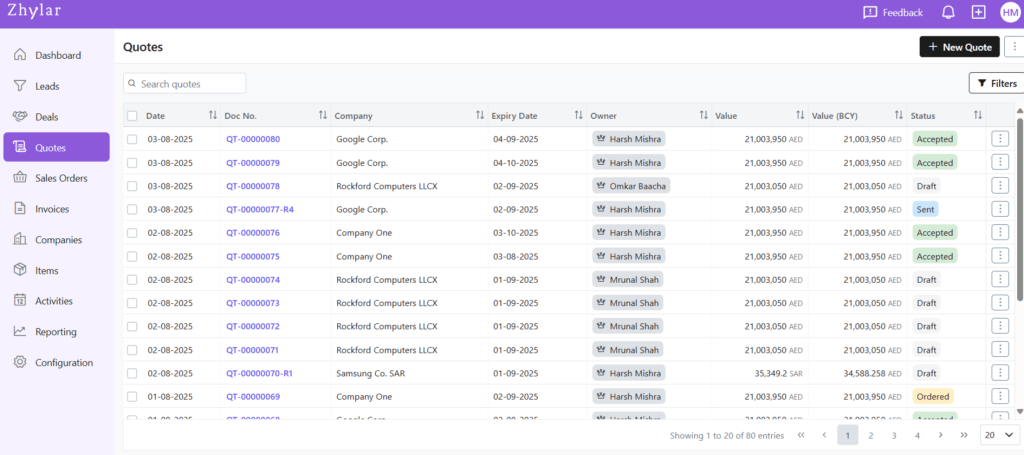
View All Quotes

  • Log in to Zhylar
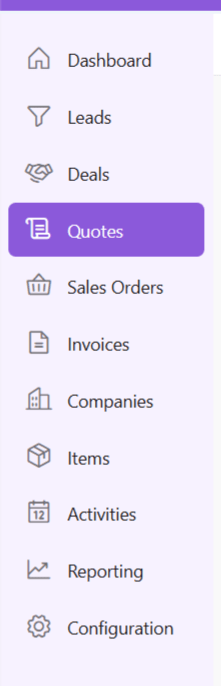
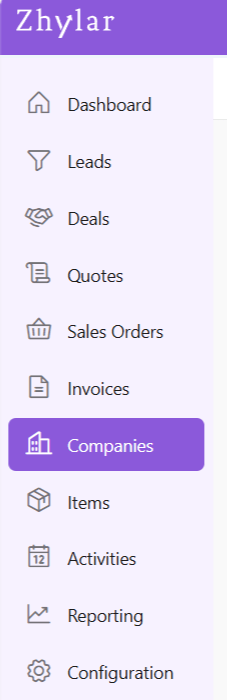
  • Go to Left-hand navigation panel
  • Click on Quotes
  • Check the list of quotes in the system
A Quote can be added to the system in several ways.

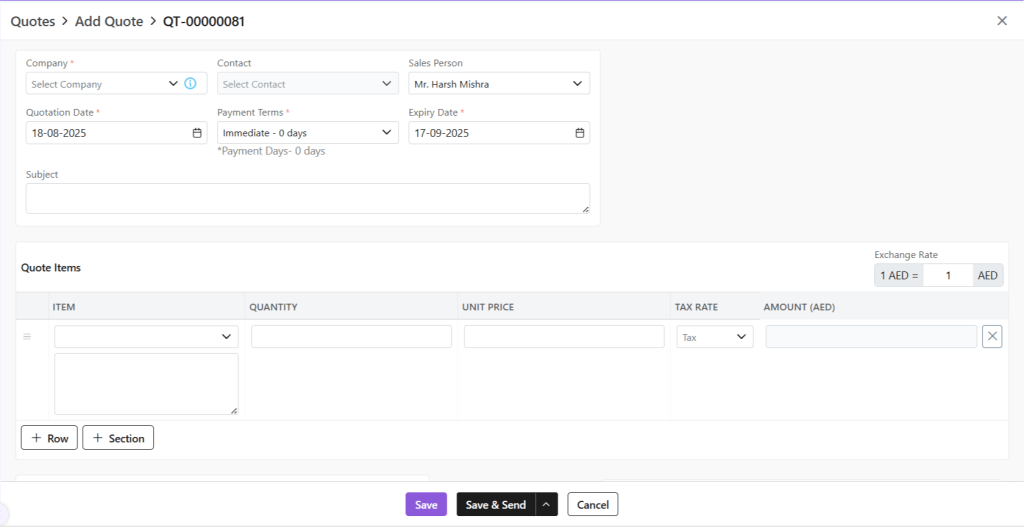
  • Click + New Quote
  • Fill required details
  • Fill out the required details
    • Company: Select or add a company to whom this quote is being sent
    • Contact: Add contact from that company
    • Owner: Owner is the person who created the document or to whom it is assigned
    • Quotation Date: Date on which quote was created.
    • Payment Terms: Select or add payment terms
    • Expiry Date: The date on which the quote will expire (client must respond before expiry date)
    • Subject: Optional field
    • Exchange Rate: Based on company selection, the exchange rate will be calculated automatically. You can also manually adjust the exchange rate at the document level itself.
    • Quote Items: Add items to the quotation with a single click, selecting items from the product catalogue
    • Modify quantity and unit price
      • Zhylar supports the primary & secondary UOM concept. You can specify quantity in any of the primary or secondary UOM. The unit price can also be specified in any of the primary or secondary UOM.
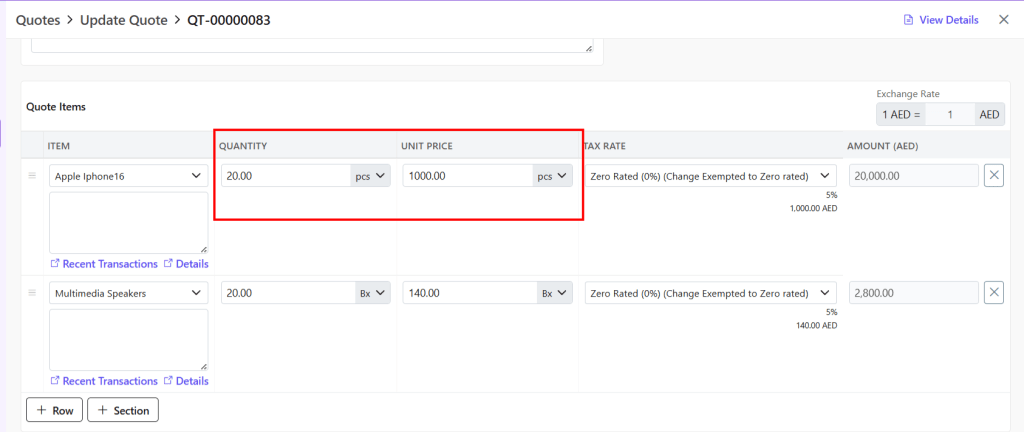
  • Where Secondary UOM has been added, you can click on the downward facing arrow. Select which UOM you want to use for this Quote.
  • Discount: This field is visible only if line discounts are enabled for your organization. You can specify the discount either as a percentage or as a fixed amount
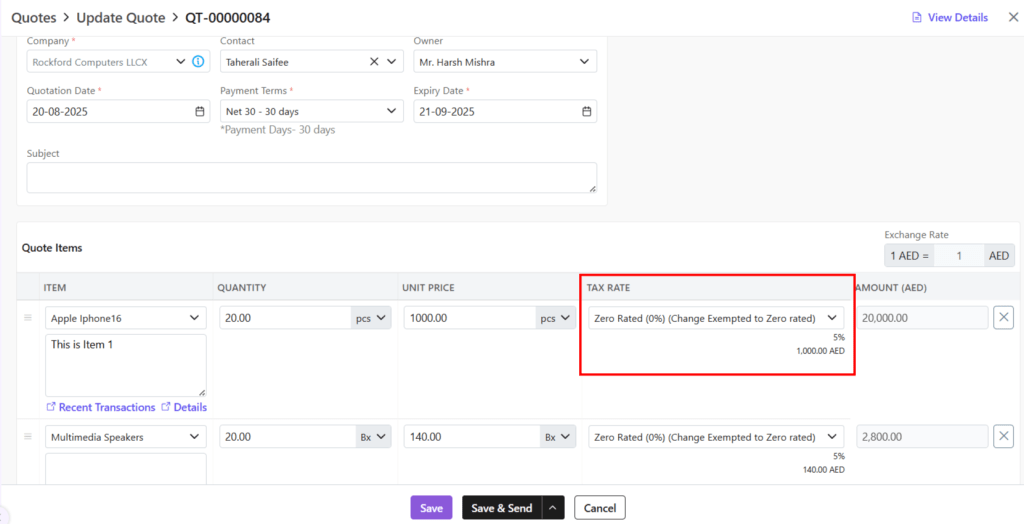
  • Tax Rate: The tax will be pre-loaded based on the item selected. It is defined during the creation of the item. However, you still have the option to change the tax that is applied to the item selected.
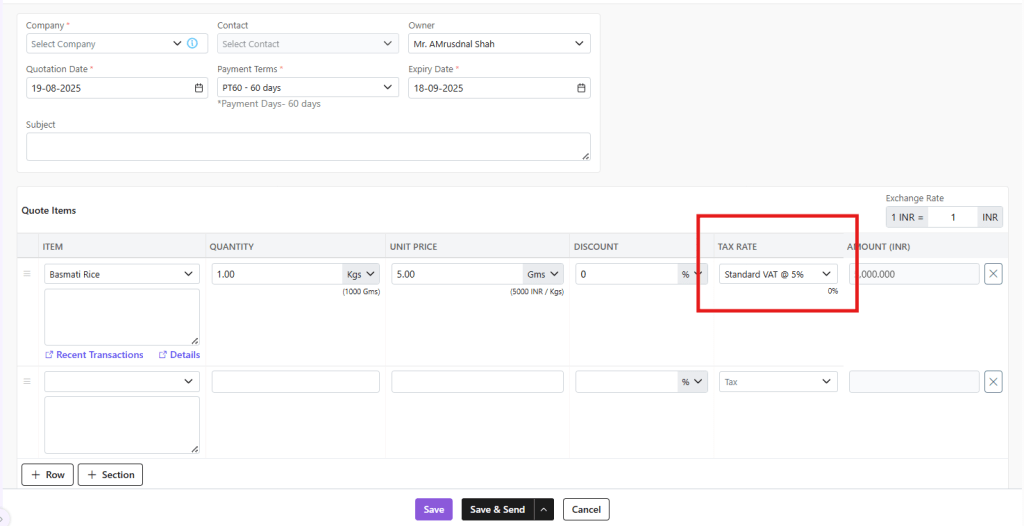
  • Amount: Amount will be calculated based on Quantity * Unit Price – Discount
  • Terms & Conditions: You can select T&C from the defined T&C templates. Alternatively, you can type them manually as per your need.
  • Notes: Any notes about the document to displayed to customer.
  • File Upload: This is to upload related files along with documents.
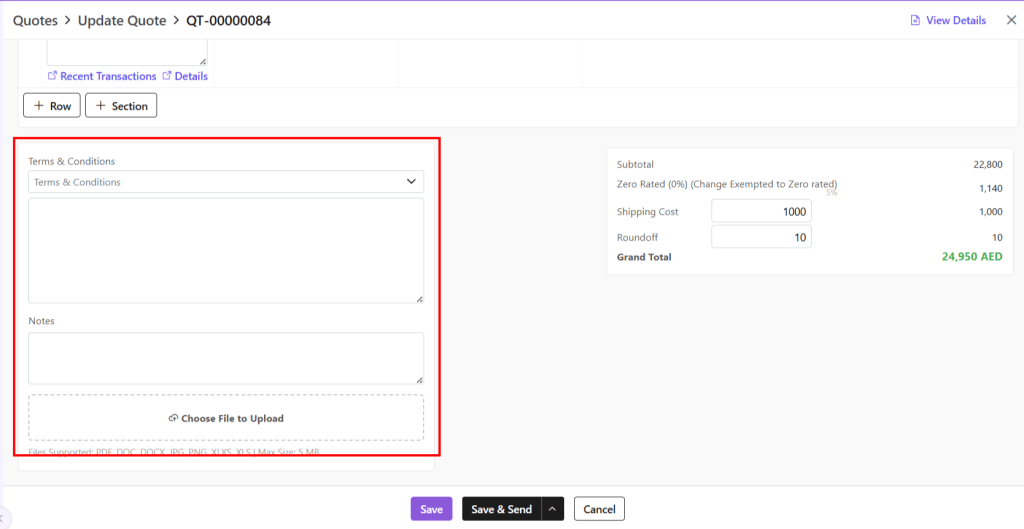
  • Save as Draft (edit later)
  • Save & Send (send immediately)

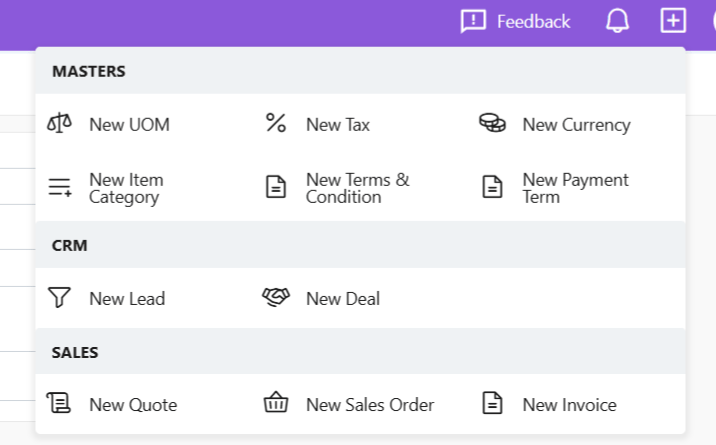
A new quote can also be added by clicking the + sign next to the profile. All following steps remain the same.
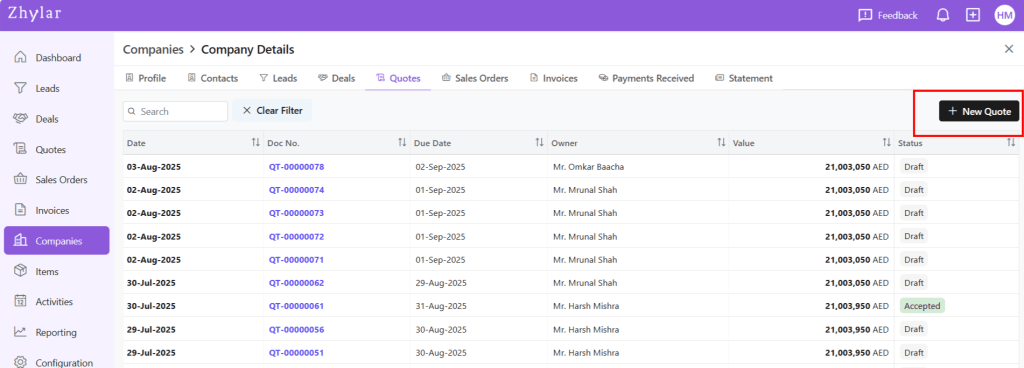
  • From the Companies module, click open the company to whom you want to send a Quote.
  • Go to Quotes tab.
  • Select +New Quote

From Deal

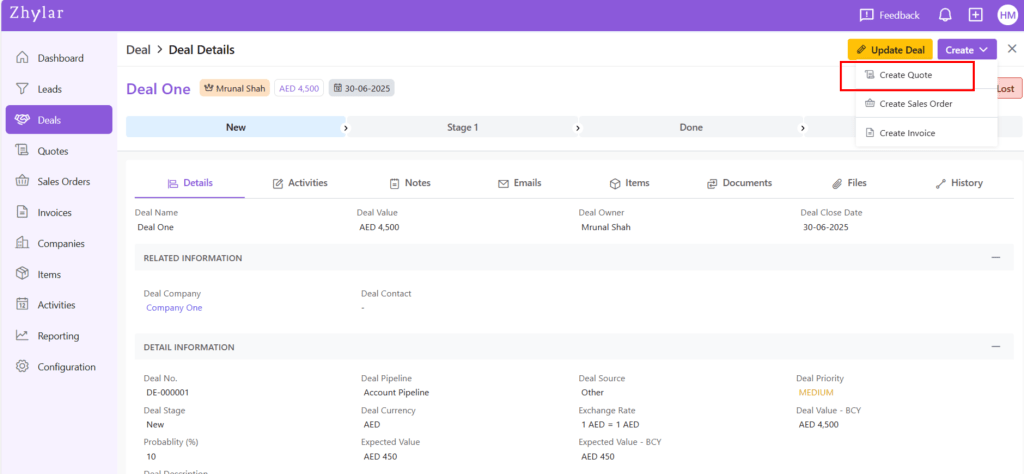
A Quote can also be created from a Deal.

  • Go to Deals module.
  • Click open the Deal for which you want to make a Quote.
  • Go to View Deal.
  • Click Create.
  • Select Create Quote.

Update Quote

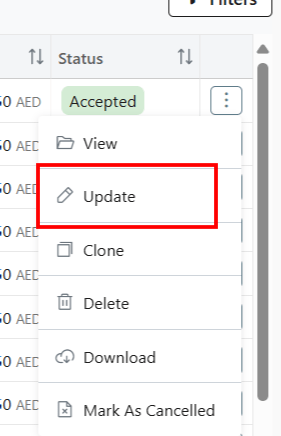
  • Click on the ⋮ 3 dots
  • Select Update (or View)
  • Make changes
  • Save (draft) or Save & Send
  • A Quote can be updated at any stage except if it is marked as Rejected or Cancelled.

Delete Quote

  • Meaning: Permanent removal, irreversible
  • Steps:
    • Click Delete (document can be deleted at any time)
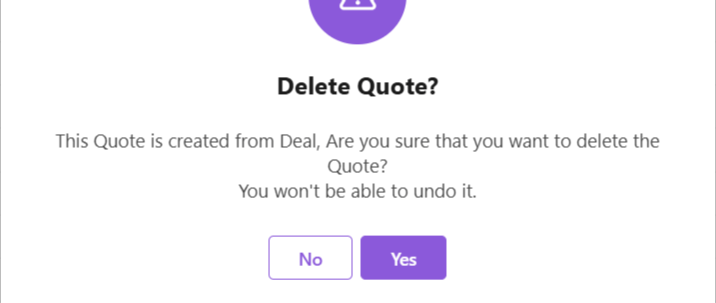
  • Confirm deletion prompt.
  • If Quote is linked with other modules, all interlinking will be deleted as well.

Quote Lifecycle (Stages & Actions)

Defines stages from creation to acceptance, rejection, invoicing, or deletion. Teams can thus streamline quotations and prevent manual errors.

Draft Stage (Unsent)

  • Meaning: Prepared quote has not been sent
  • Actions:
    • View: Check quote details
    • Update: Edit if needed
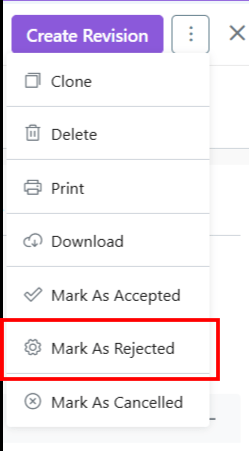
    • Clone: Make a copy (can be edited)
    • Download: Save as PDF to your device
    • Mark as Sent: Send to customer
    • Delete: Remove if not required

Sent (Awaiting Response)
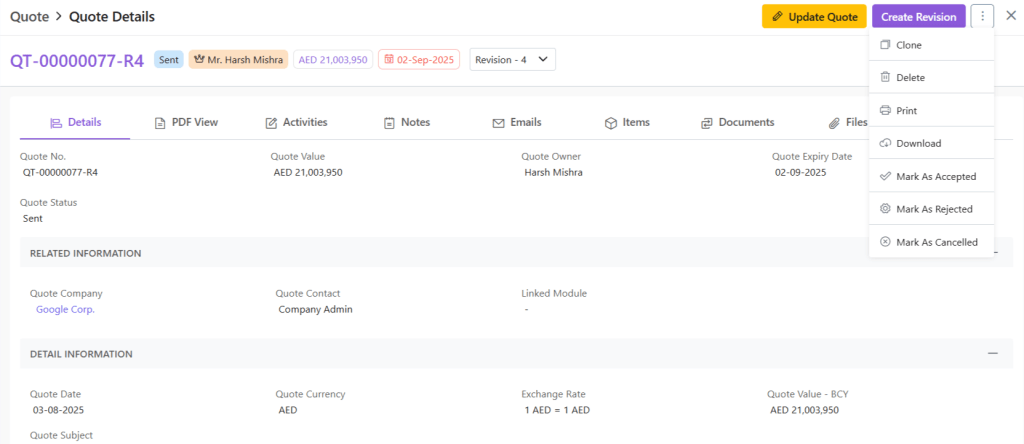
  • Meaning: Sent to customer, pending reply
  • Actions:
    • View/Update/Clone/Download/Delete
    • Mark as Accepted: Customer has agreed
    • Mark as Rejected: Customer has declined
    • Mark as Cancelled: Offer withdrawn internally

Accepted (Customer Approved)
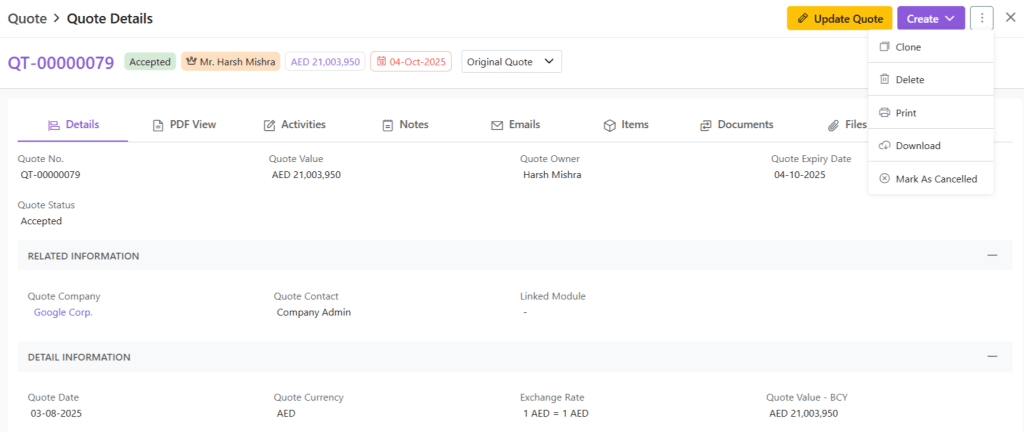
  • Meaning: Quote approved by customer
  • Actions:
    • View/Update/Clone/Download/Delete
    • Convert SO: Create sales order
    • Convert to Invoice: Bill directly > No SO created
    • Mark as Cancelled: Revoke post-approval

Ordered (Sales Order Created)
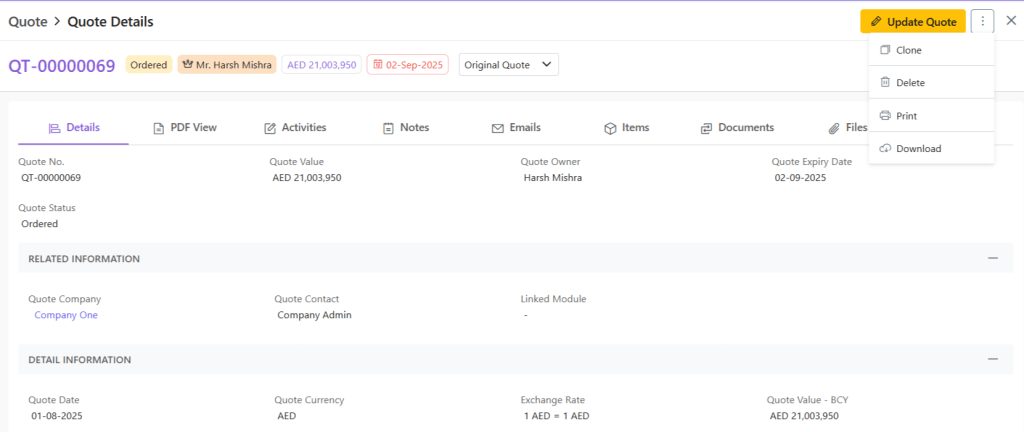
  • Meaning: Quote → Sales Order
  • Actions: View/Update/Clone/Delete/Download

Invoiced (Billed to Customer)
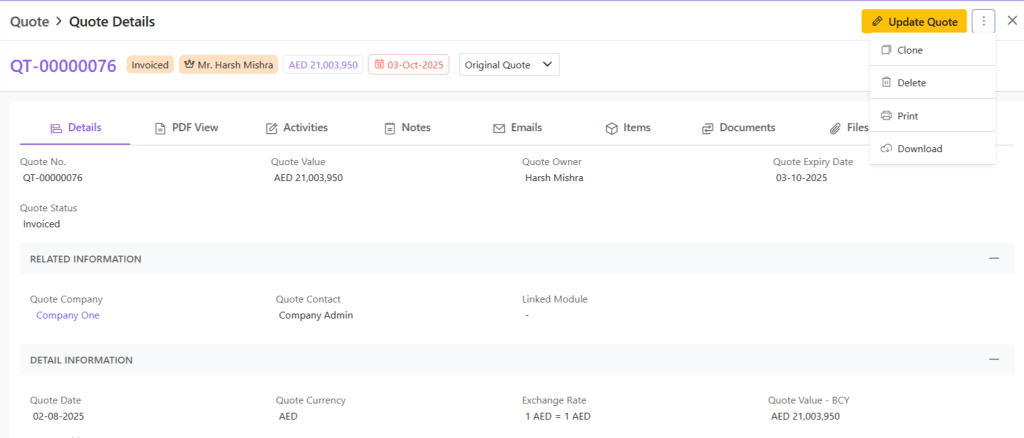
  • Meaning: Quote → Invoice directly
  • Actions: View/Update/Clone/Delete/Download

Rejected (Customer Declined)

  • Meaning: Quote refused, status cannot be changed
  • Actions: View/Update/Clone/Download/Delete

Cancelled (Withdrawn by Seller)
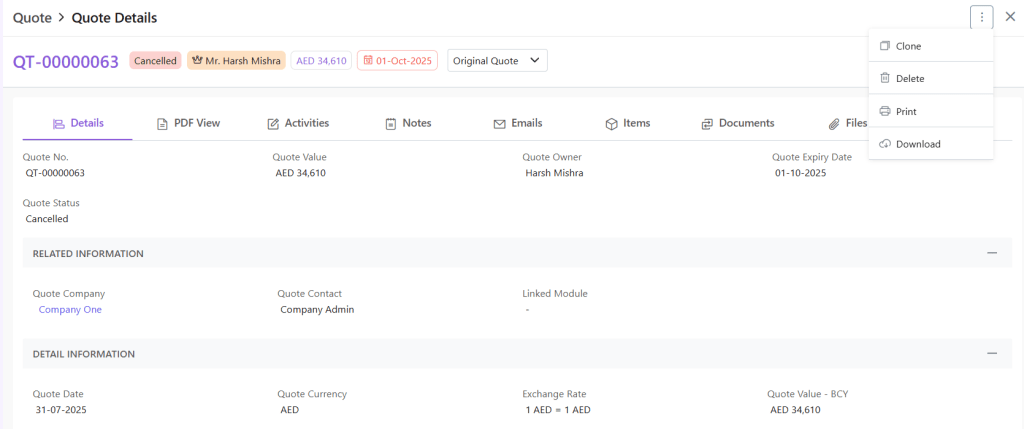
  • Meaning: Offer revoked internally, status cannot be changed
  • Actions: View/Update/Clone/Download/Delete

Quote Revision

On the Zhylar platform, you can make Quote Revisions. Read about how to make and maintain Quote Revisions in detail.

Clone a Quote

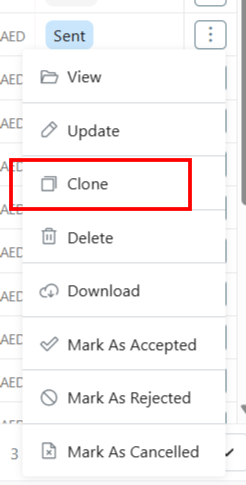
  • Click ⋮ 3 dots > Clone
  • Copy created instantly. You can edit it before saving/sending.
  • Clone can be edited and/or sent out immediately.
  • A clone can be created at any stage.

Print/Download Quote

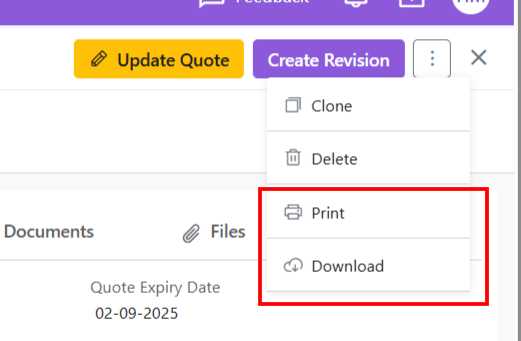
  • Click on ⋮ 3 dots > Print/Download
  • Document saved to device in PDF format

Mark as Rejected/Final

  • Click ⋮ 3 dots > Mark as Rejected/Final
  • Final quotes → SO/Invoice
  • Rejected status is permanent

Sorting and Filter

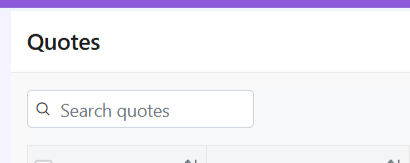
  • Universal Search
    • Use search bar for quick searches
    • Finds matches across all fields
  • Sorting
    • Click column headers to sort by:
      • Date
      • Doc No
      • Company
      • Expiry Date
      • Sales Person
      • Amount
      • Status

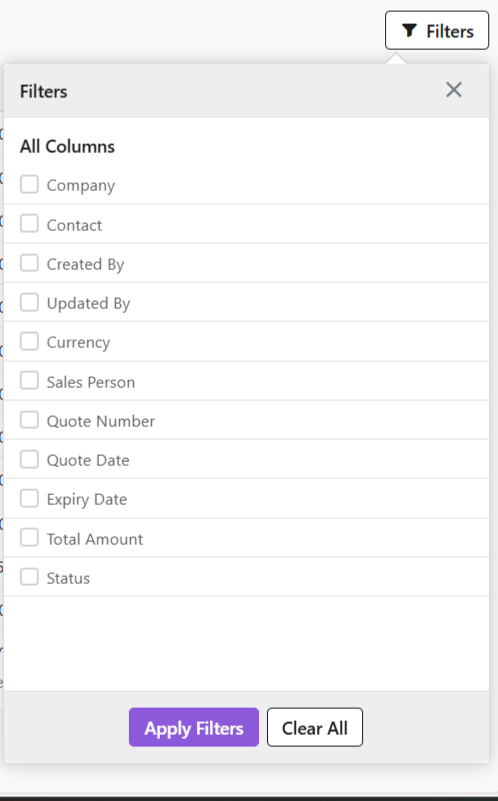
Filter

For a more detailed search, use the Filter button to get precise results.
Quote Templates

  • Quote templates are pre-designed formats. They auto-fill customer and other details. This enables fast, error-free quote generation. These templates save time and accelerate sales. (template document to be linked)

Quote Details

When you click open any quote, you will be provided with a wholistic inside-out-view of the quote in your system. This includes:
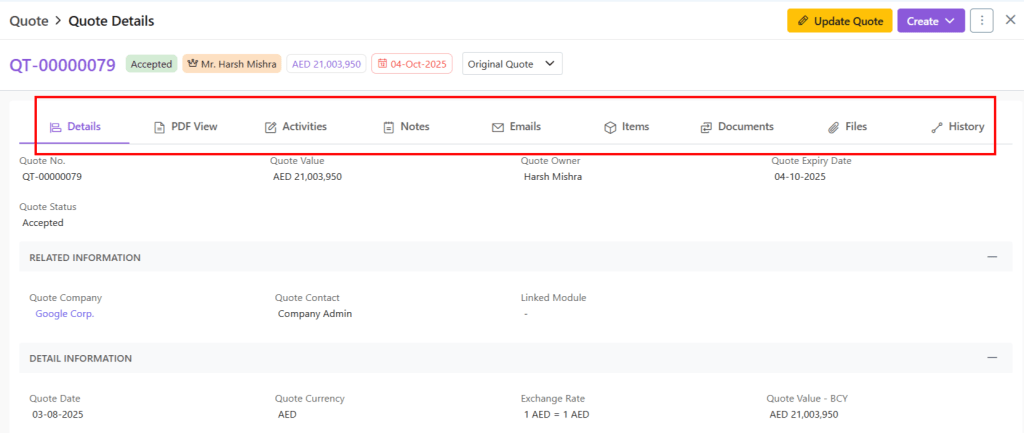
  1. Activities: Add/Track activities like calls and meetings for this transaction
  2. Notes– Make/Update notes
  3. Emails– Show email history in reference to this quote.
  4. Items– All items added to this quote.
  5. Documents– SO/Invoice created from this quote

Please note

  • Quote can be deleted at any stage.
  • Deleted quotes cannot be restored
  • Cancelled ≠ Rejected (internal vs. customer action)

Also Read

User Management

Currencies

Roles and Data Sharing

Roles and Hierarchies

In a CRM system like Zhylar, roles determine user data access levels. They assign permissions to each user within the organization. Roles ensure data privacy and control by allowing only authorized team members to view, edit, or manage specific records. With hierarchy-based roles, managers can oversee their team’s activities. Individual users focus only on the data relevant to their responsibilities. This setup maintains data security while allowing appropriate visibility based on roles and responsibilities.- Roles (what is your role in your org/designation)

Zhylar implements top-down hierarchical role structure. A role in Zhylar decides two important things:

  • Position in company hierarchy – It shows who reports to whom (like CEO → Manager → Sales Rep)
  • Data access control – It defines what each user can see or edit on the Zhylar platform.
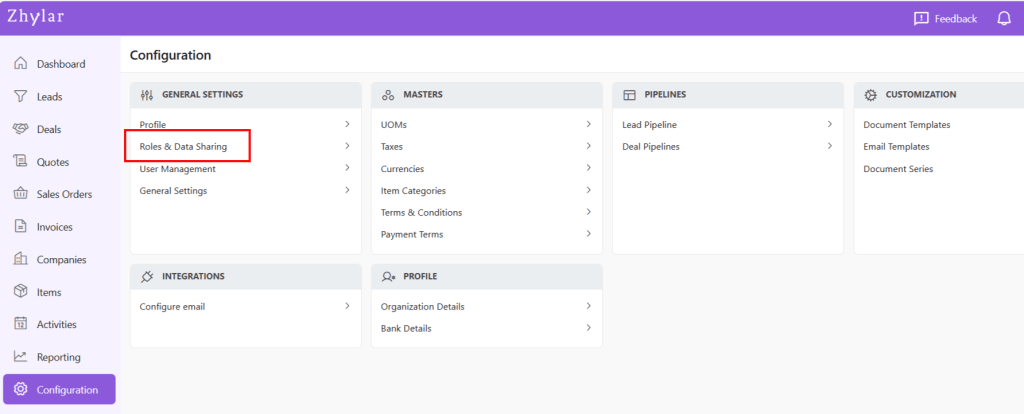
  • Log in to Zhylar
  • Go to Left-hand navigation panel
  • Click on Configuration
  • Under General Settings tab, select Roles & Data Sharing
  • When you click on Roles and Data Sharing, you will be taken to a new page.
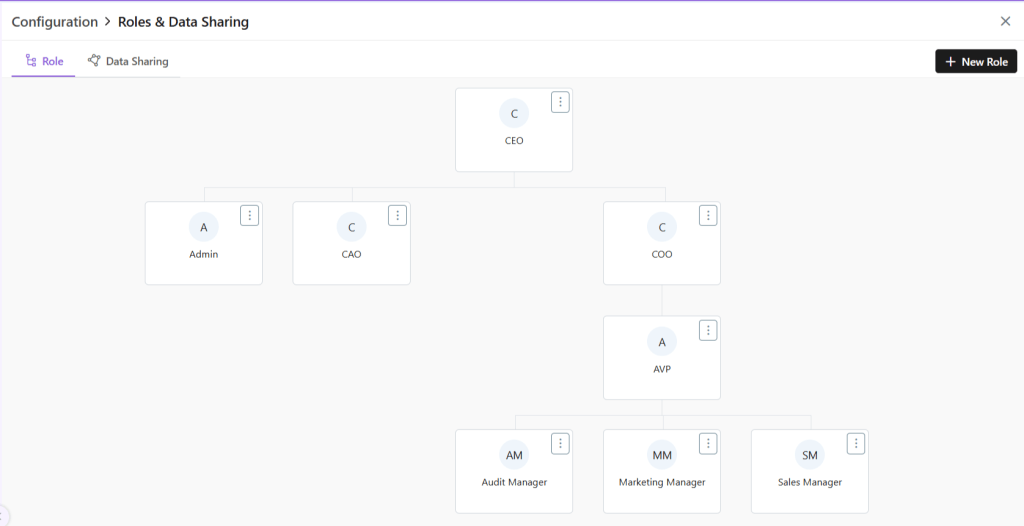
  • Here, you can see all the roles added to the system. The hierarchy of roles is illustrated like a flow chart.
  • Click ⋮ 3 dots
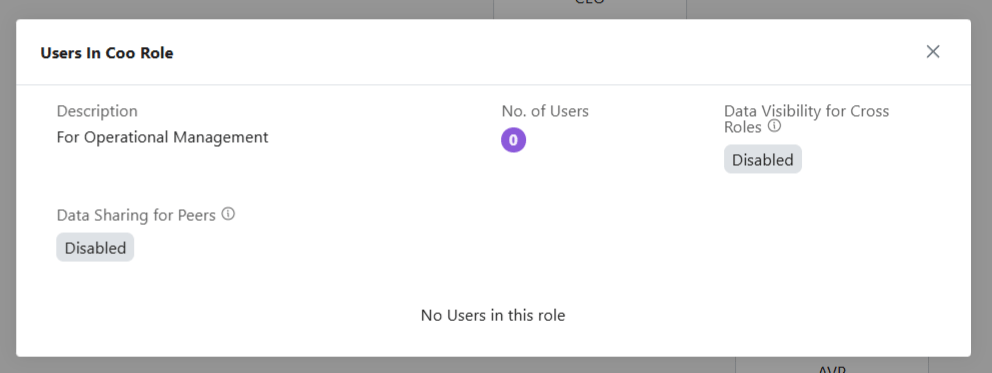
  • Select View
  • Check details.
  • Click X on the top-right of the box to close.
  • To add a new role, click + New Role
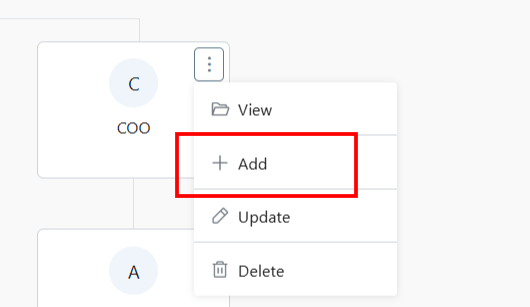
  • Alternately, click on the 3 dots of the Role name under whom you want to add a new Role.
  • Select +Add
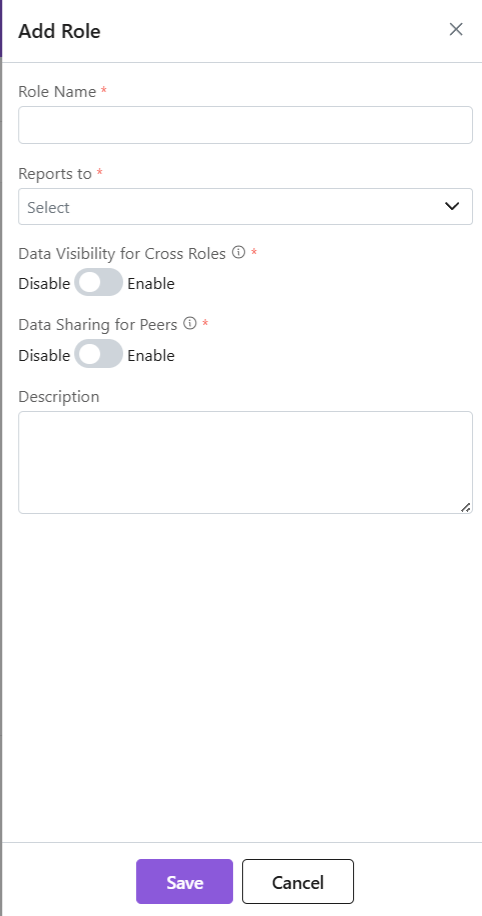
  • A side sheet will open.
  • Fill out the details.
  • Click Save.
  • The new role will be added.

Data Access:

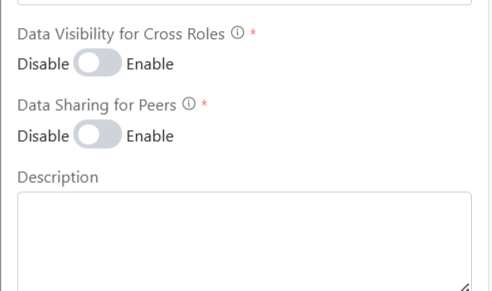
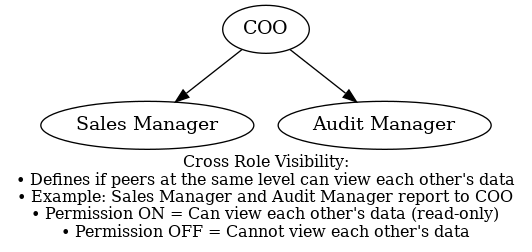
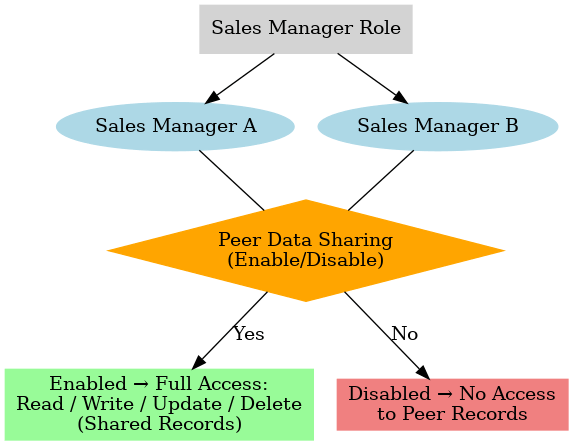
Data Sharing for Peers: This determines if 2 or more persons are in the same role. They will be able to access each other’s data or not. For example, an organization may have 2 Sales Managers, they are considered peers. So, enabling or disabling this permission will determine if they can gain access (Read/Write/Update/Delete) to each other’s data or not.

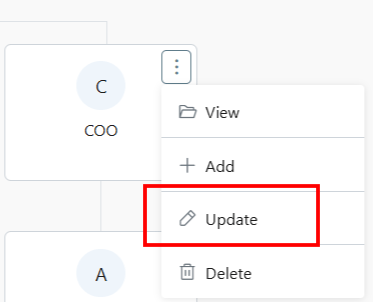
  • Click ⋮ 3 dots
  • Select Update
  • Make changes.
  • Click Save.
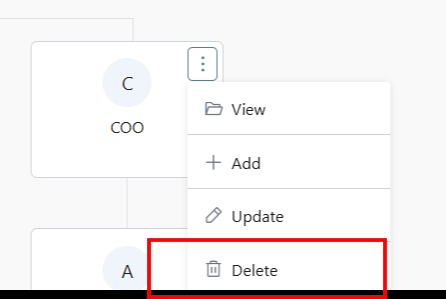
  • Click ⋮ 3 dots
  • Select Delete
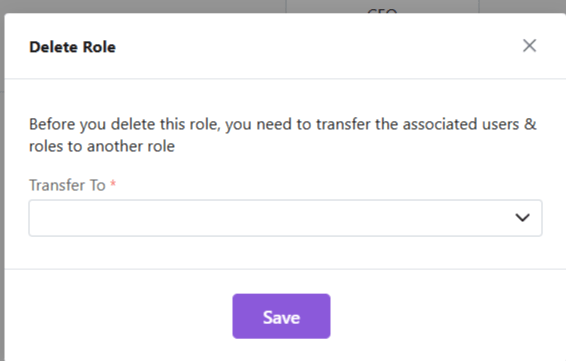
  • You will be required to transfer all associated users under this role to another role.
  • Once you have done the needful, click Save.
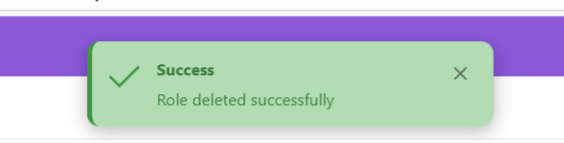
  • The role will be deleted successfully.

Note: Hierarchy + Roles = Secure yet collaborative access control.

Also Read

User Management

User Management

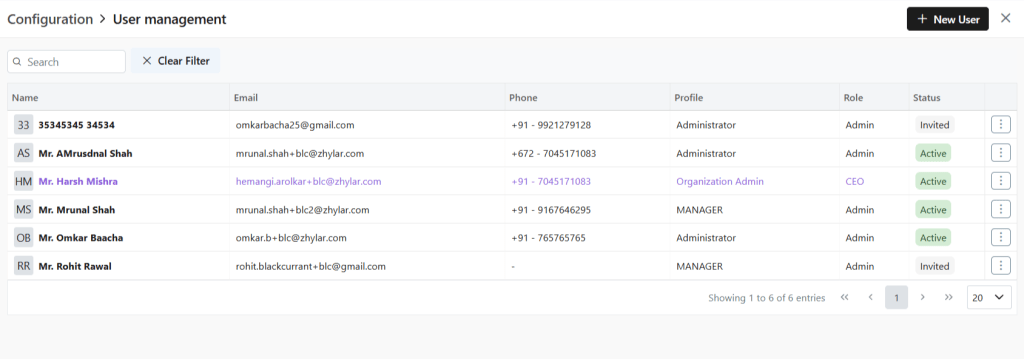
User management is a system that controls access to software or platforms. It assigns role-based privileges such as Admin or Sales Rep. It ensures that users have appropriate permissions based on their roles. This approach enhances data security. It prevents unauthorized access. It also supports regulatory compliance by maintaining control over who can view or modify specific information within the system.

  • Organization Admin has the full system control (configurations/user access). Organization Admin is the CEO.
  • User Status– Tracks invitation (Pending → Active)
  • Password Reset– credential updates
  • Log in to Zhylar
  • Go to Left-hand navigation panel
  • Click on Configuration
  • Under General Settings tab, select User Management.
  • Click +New User”
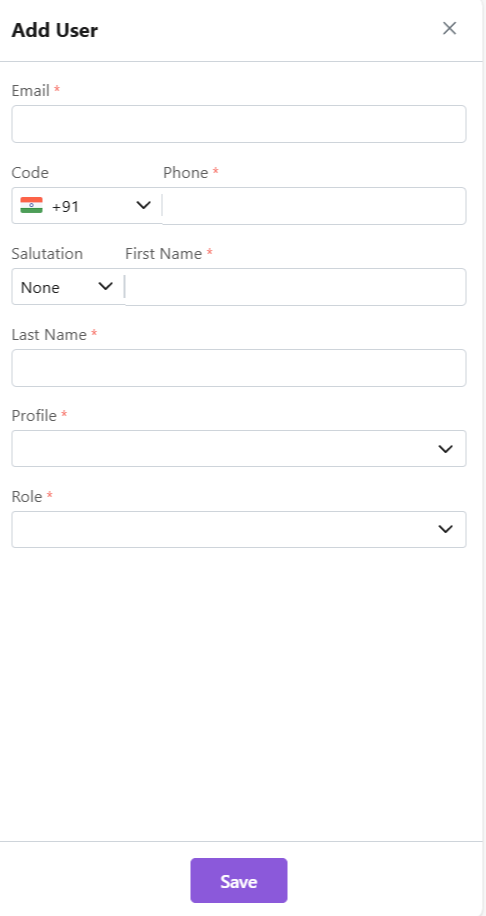
  • Fill details
  • Save User”
    • To define Profile, add a new Profile from “Profile” module first, if required.
    •  When a new user is added, the status will automatically be updated as “Invited”. 
    • Once the user accepts, the status will change to active.  
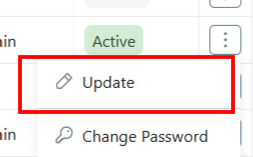
  • Click ⋮ 3 dots
  • Select Update
  • Click Save.
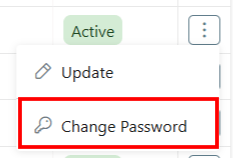
  • Click ⋮ 3 dots
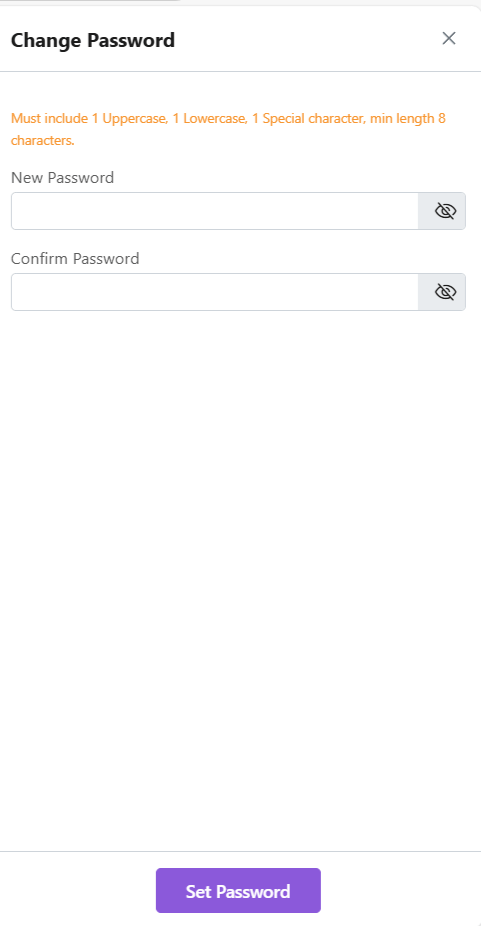
  • Select Change Password
  • “Set Password”

Note: Password can only be changed by the user or system administrator.

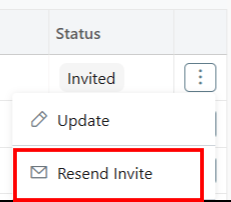
This is only applicable for a User who has not yet accepted the invite email. The status will reflect Invited.

  • Click ⋮ 3 dots
  • Select “Resend Invitation” to invite user again (password reset email)
  • Organization Admin is the CEO.
  • Only users with specific permissions Can Create, Add, Update, Delete or Resend the Invitation to any user. 
  • One email ID can be used to register one user only.
  • Permissions required for user modifications
  • Admins customize workflows/access per role.

Also Read

Currencies

Roles and Data Sharing

User Login  

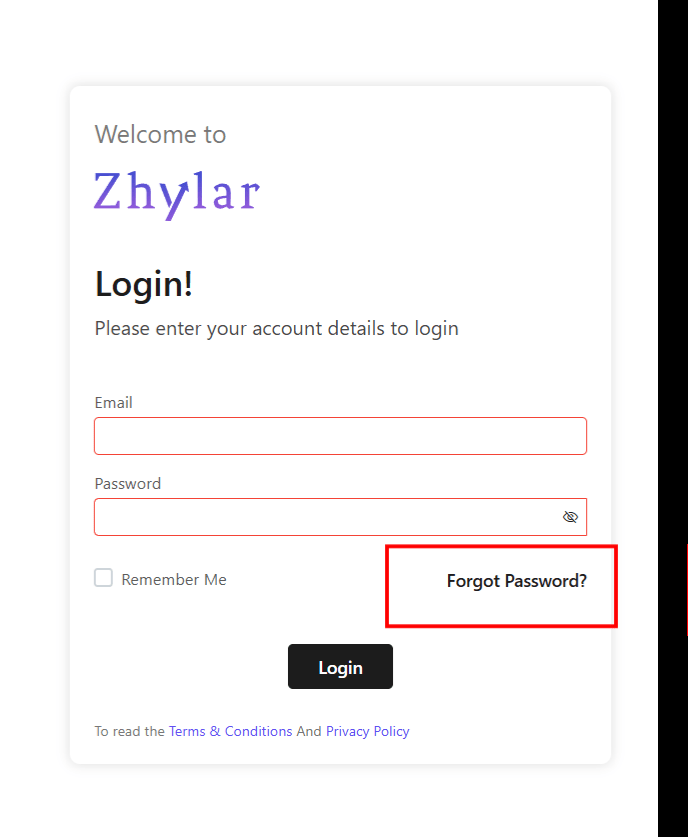
To log in to your Zhylar account;  

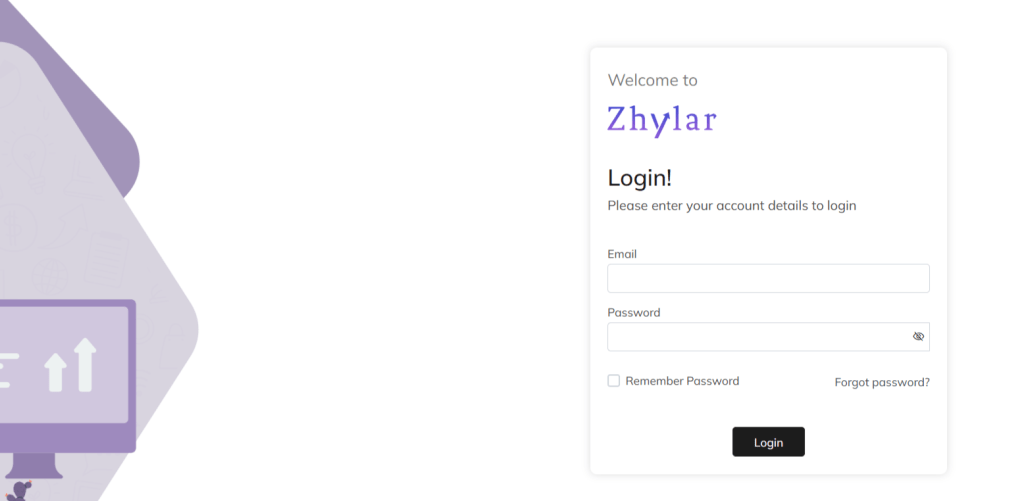
  1. Log in to Zhylar
  1. Log in with your ID and Password. 
  2. For easy login in every time, check the Remember Password box.

If you have forgotten your password; 

  1. Click on “Forgot password”. 
  1. You will be redirected to a password reset option. 

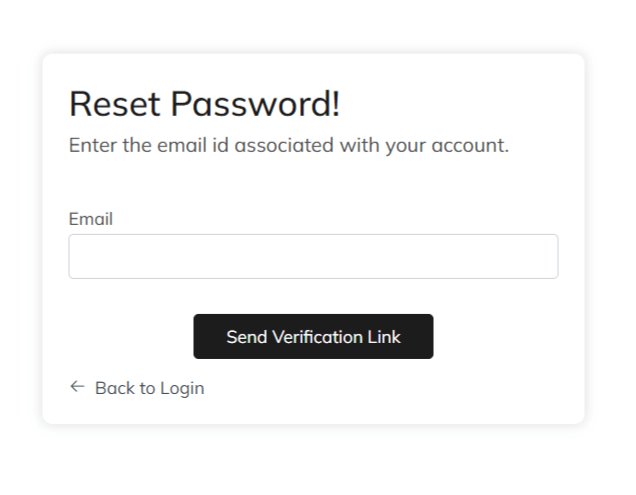
To reset your password; 

  1. You will be redirected to a new page. 
  1. Enter the ID associated with your account.  
  1. Click on “Send Verification Link”. 
  1. Open the inbox of the ID you have entered.  
  1. Click on the link received.
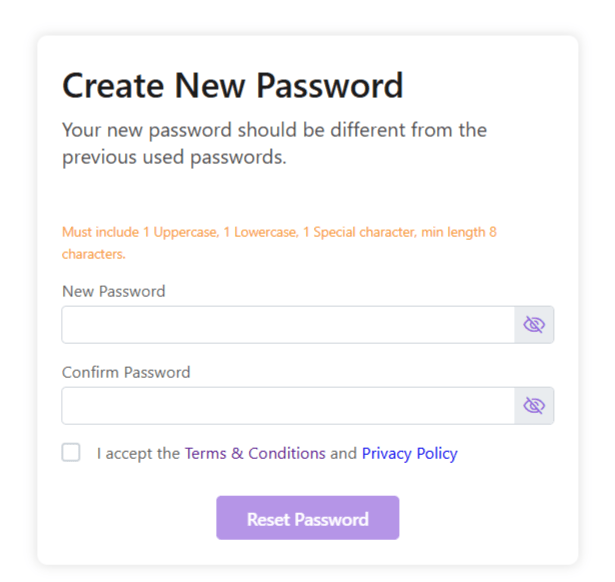
  2. You will be redirected to a new page.
  1. Enter new password.
  2. Accept the Terms & Conditions and Privacy Policy
  3. Click Reset Password.
  4. Your password will be reset. Login and begin using Zhylar!
  5. Make a note on your device for future reference.

Units of Measurement

General Settings

Currencies

Companies

What is a Company?

A company is a business or organization you engage with. Companies can be clients, partners, or prospects, forming the backbone of your CRM.

Features of a Company at Zhylar

  • Stores all company details (industry, size, location)
  • Tracks all interactions and documents

Company List View

  • Log in to Zhylar
  • Go to Left-hand navigation panel
  • Go to Company

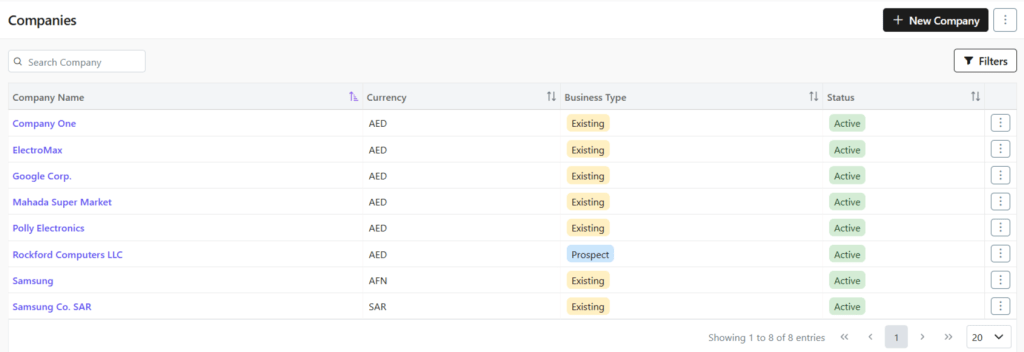
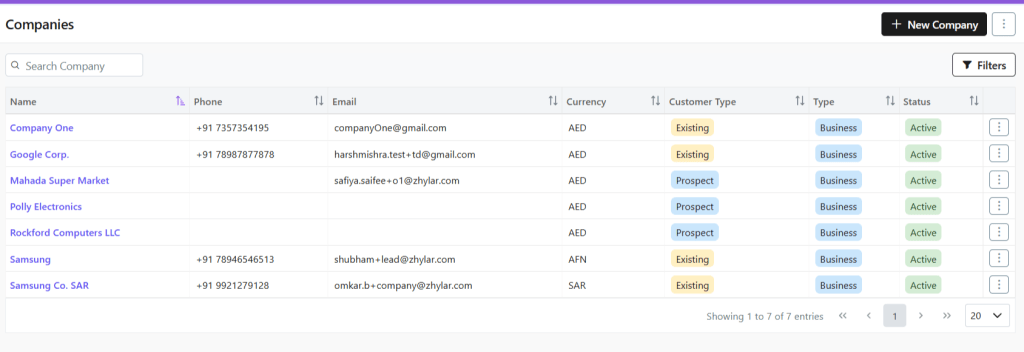
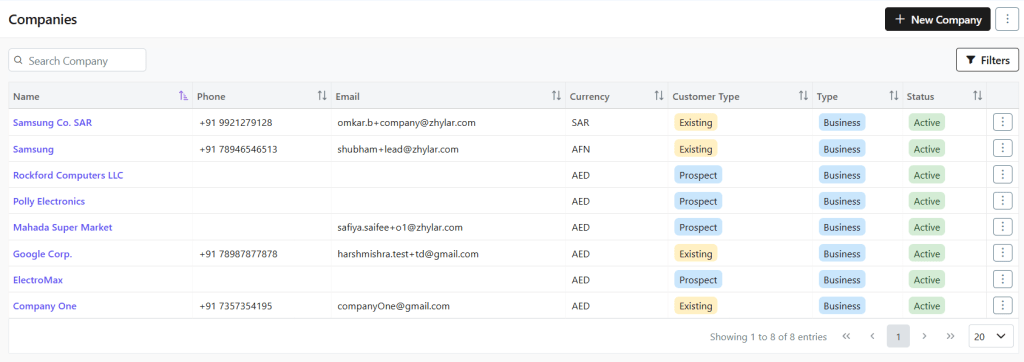
Here, you can find a list of all the companies added to the system.

Viewing a Company Profile

To view the details of any company,

  • Click any company name
  • See complete company overview
    • Basic information
    • Recent activities
    • Linked contacts/deals

Customer Type

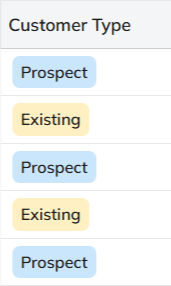
  • A company is categorized as:
    • Existing: A customer you’re already dealing with.

Search Filter

  • Conduct a universal search across all fields through the search box.
  • Or search/sort through Name/Phone no./Email/Currency/Customer Type/Status.
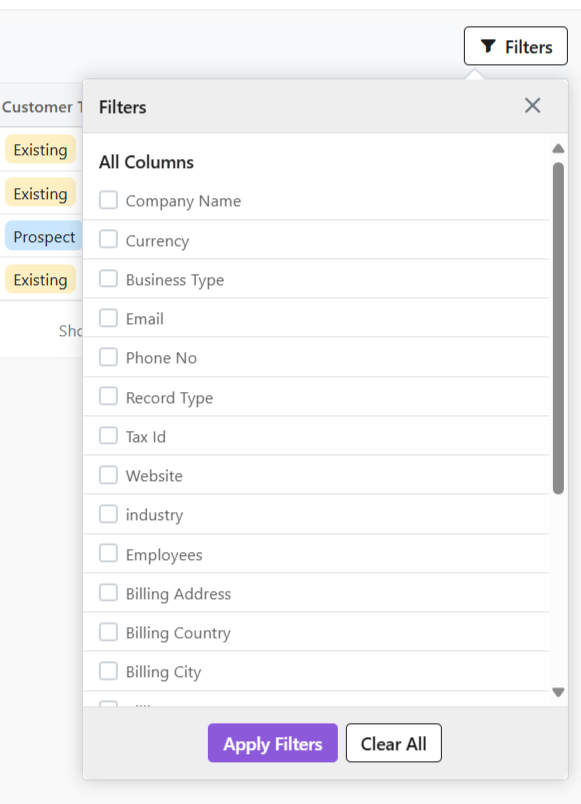
  • Or, you can use the Filter button to filter your searches from a range of filters.

Managing Company Information

Adding New Companies

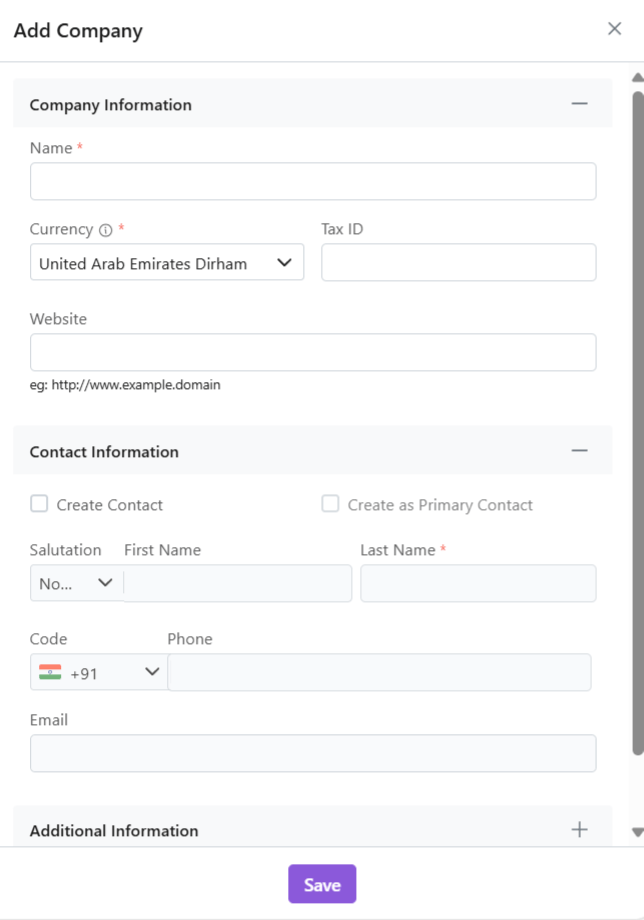
  • Click “+ New Company”
  • Fill out the data
  • Click “Save”

Also read about how to Import Companies on Zhylar.

Update Company Details

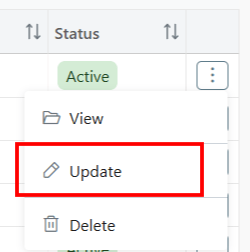
  • Click ⋮ 3 dots
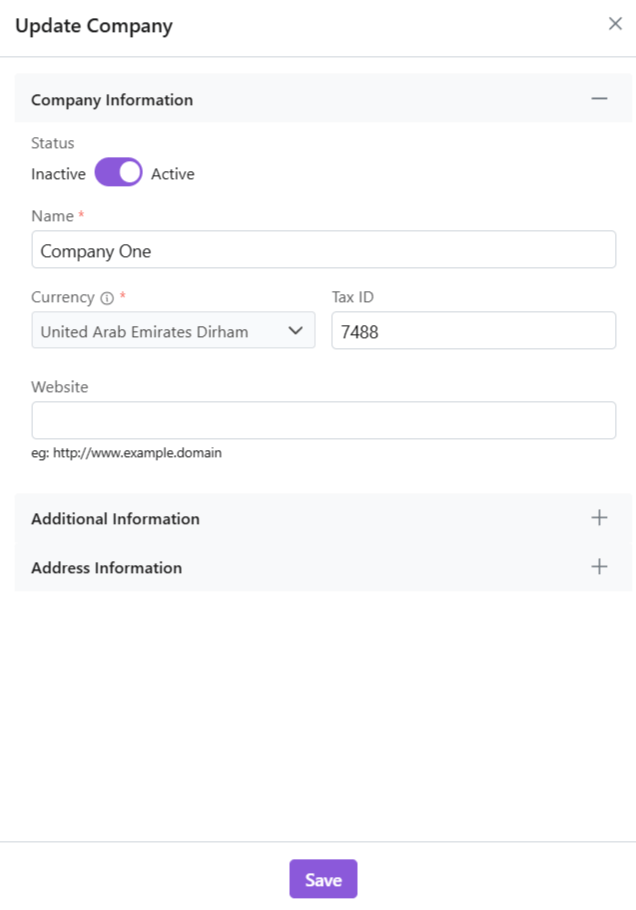
  • Click on Update
  • Make changes
  • Company currency cannot be changed/updated.
  • Click “Save“.

Delete Company

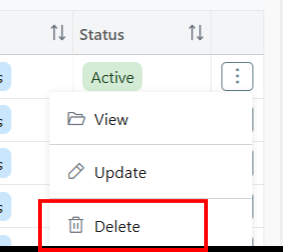
  • Click ⋮ 3 dots
  • Select Delete
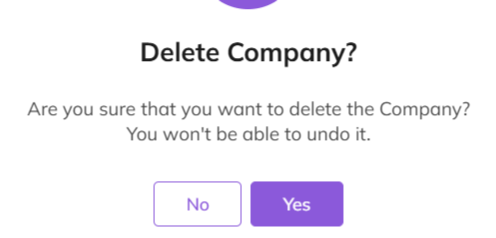
  • Provide confirmation.
  • The Company will be deleted successfully.

Company Details

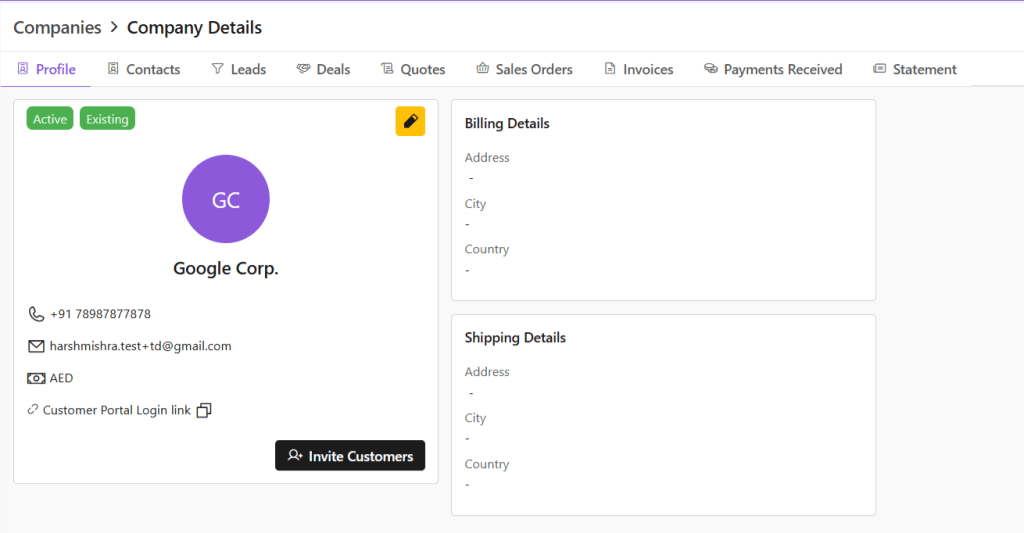
  • Click on any company to open and view details.
  • Profile tab opens by default.
  • Check all details of the company, e.g., status, customer type, etc.
  • Click ✏️ Edit (yellow-highlighted pen) to edit details or invite customers directly.
  • Switch tabs to check data in specific modules, e.g., contacts, leads etc.

Managing Contacts

A contact is an individual person associated with a company. This person might be a decision-maker, buyer, or support staff. Your team communicates with them during business interactions.

View Contacts

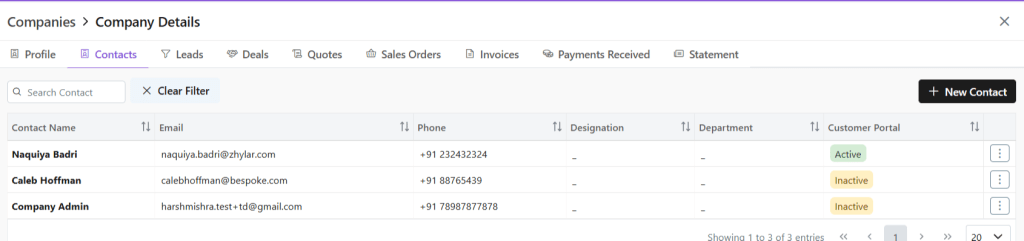
Click Contacts tab

  • See all users added to the company
  • Conduct universal search or filter by fields

Adding a New Contact

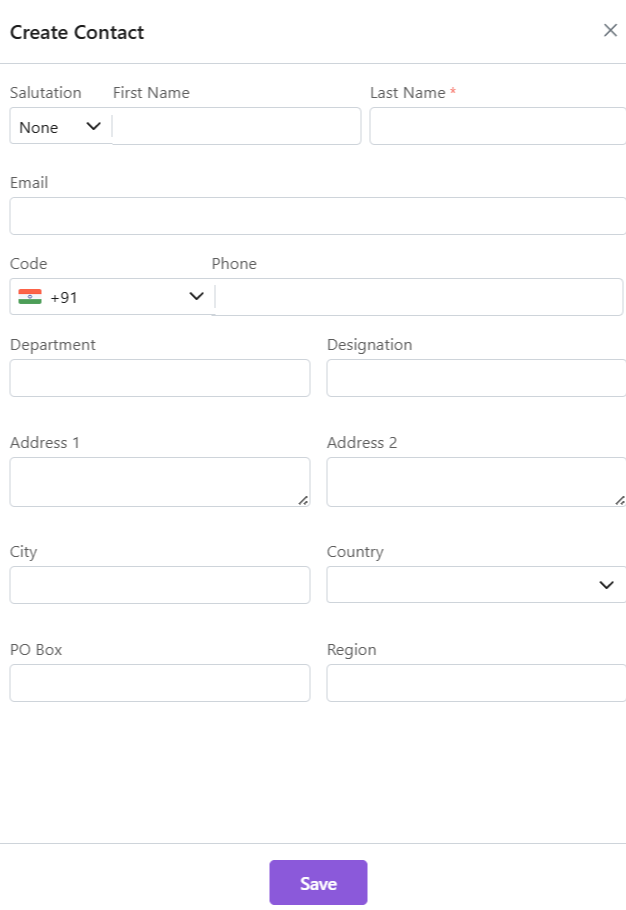
  • Click “+ New Contact”
  • Fill required data.
  • Click “Save.”

Update Contact

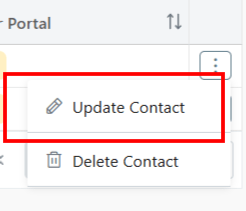
  • Click ⋮ 3 dots
  • Select Update
  • Make changes
  • Click Save.

Delete Contact

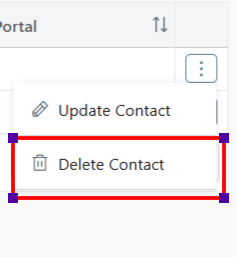
  • Delete: Click ⋮ 3 dots
  • Select Delete
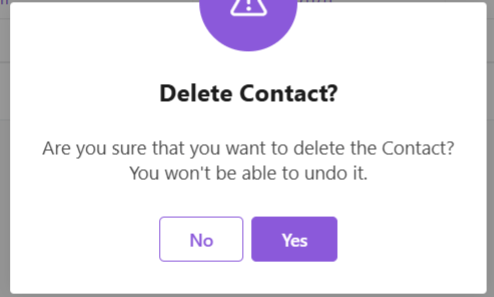
  • Provide Confirmation.

Business Activities

Leads

  • Click Leads tab
  • View all potential opportunities
  • Click lead name for details
  • Conduct universal search or sort by fields in ascending or descending order.

Deals

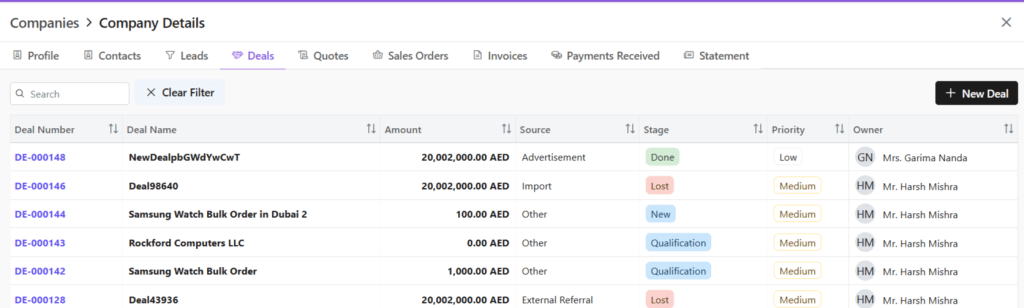
  • Click Deals tab
  • See all active negotiations
  • Add New Deal:
    • Click “+ New Deal”
  • Fill required details.
  • Save deal.
  • Conduct universal search or sort by fields in ascending or descending order.

Quotes

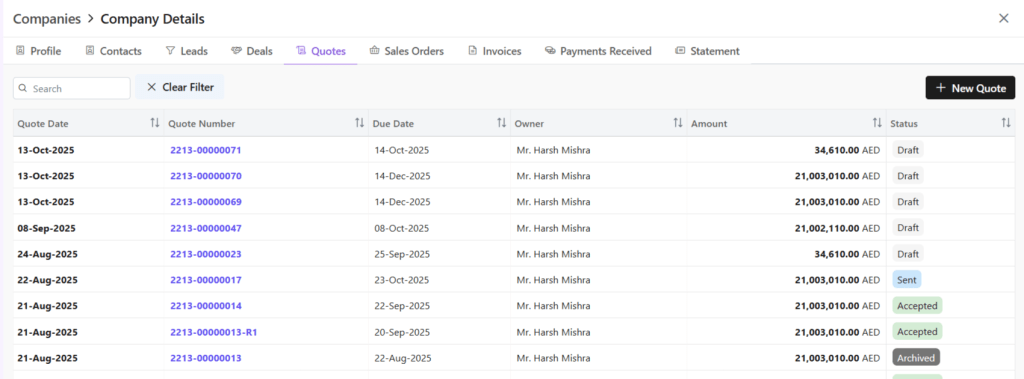
  • Click Quotes tab
  • See all Quotes
  • Add New Quote:
    • Click “+ New Quote”
  • Fill required details.
  • Save as draft or save and send quote.
  • Conduct universal search or sort by fields in ascending or descending order.

Sales Orders

  • Click Sales Order tab
  • See all Sales Orders
  • Add New SO:
    • Click “+ New Sales Order”
  • Fill required details.
  • Save as draft or save and send quote.
  • Conduct universal search or sort by fields in ascending or descending order.

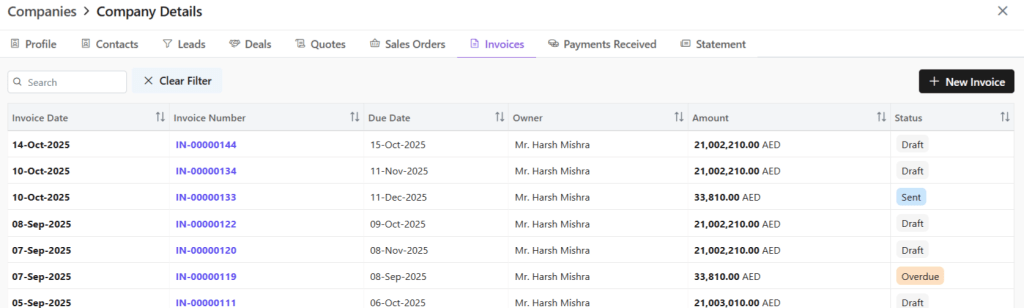
Invoice

  • Click Invoice tab
  • See all invoices
  • Add New Invoice:
    • Click “+ New Invoice”
  • Fill required details.
  • Save as draft or save and send invoice.
  • Conduct universal search or sort by fields in ascending or descending order.

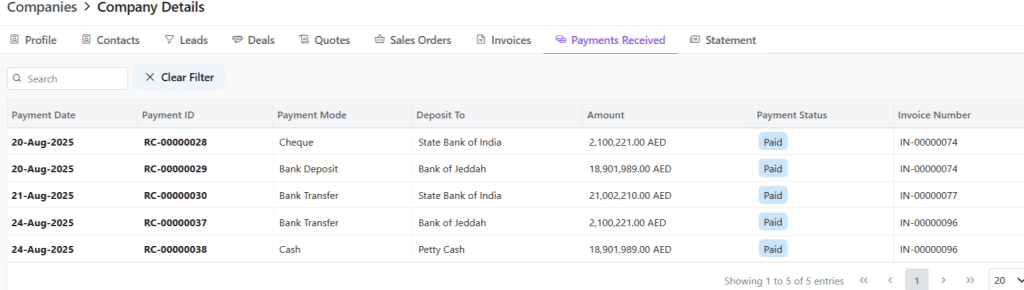
Payments Received

  • Check financial transactions for this company.
  • Click on any payment document number to view all details.
  • Redirected to Invoice module.
  • Check all details for this invoice, timeline, notes, emails, etc.

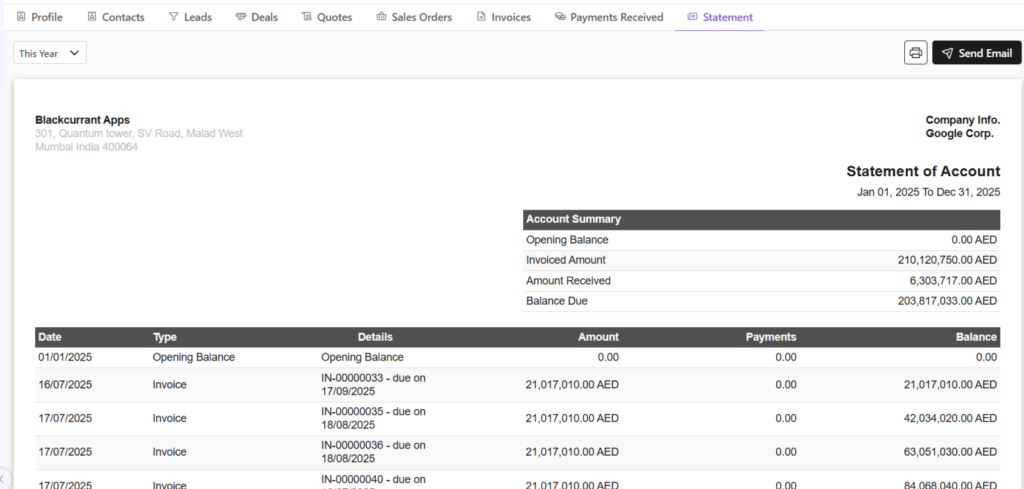
Statement

Statement of accounts is a detailed summary of all financial transactions between a company and a customer. It covers a specific period and shows invoices, payments, credits, and the remaining balance.

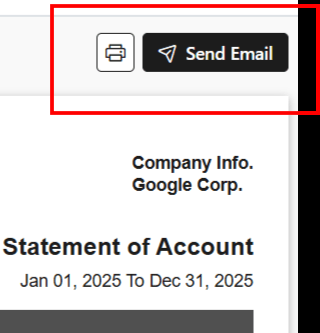
You can email the statement to your client by clicking on Send Email.

Also Read

Web Forms

Import Contacts

Import Companies

Document Series

What is a document series?

A Document Series is a structured numbering system applied to documents like invoices, quotes, and sales orders (e.g., INV-2025-001) to ensure consistency, efficient tracking, and easy communication.

Benefits of document series in CRM

  • Automatic sequential numbering
  • Professional document presentation
  • Easy organization and retrieval
  • Audit trails for all transactions
  • Ease of Continuity in case of Data Migration

Getting Started

Viewing Existing Series

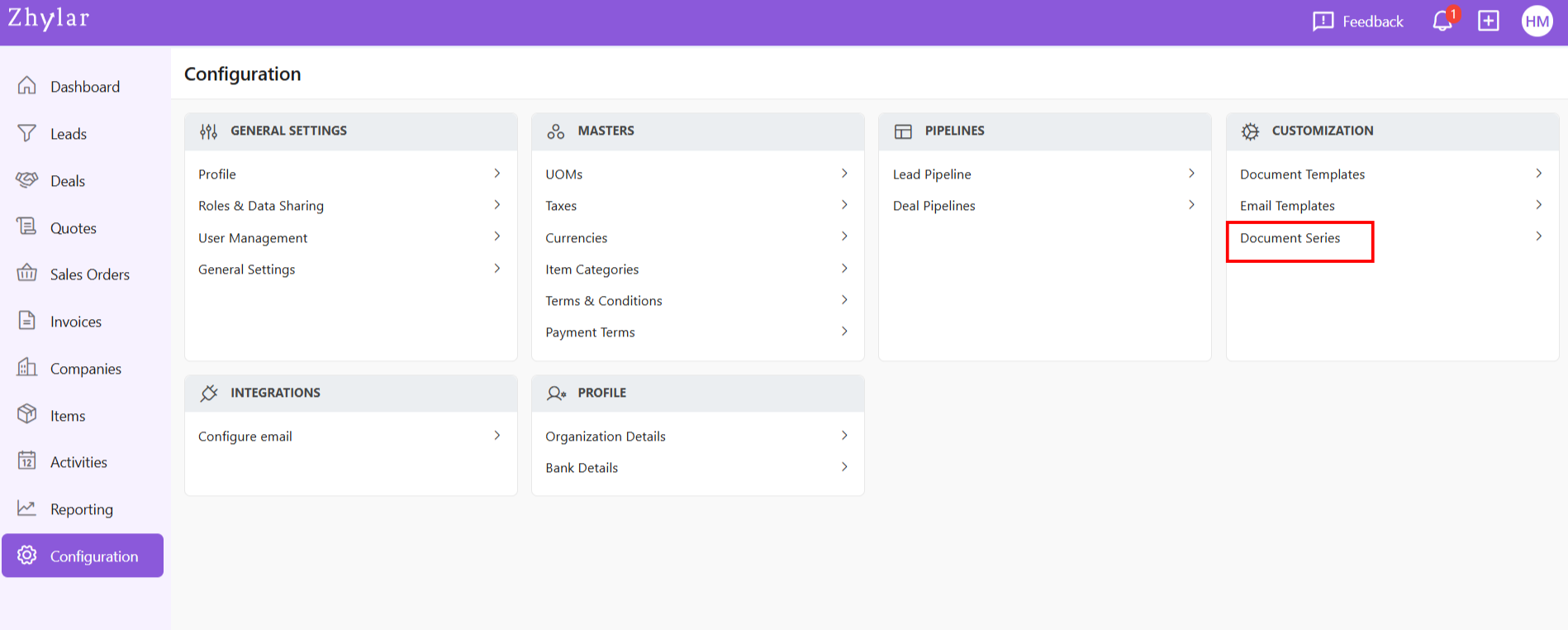
  • Log in to Zhylar
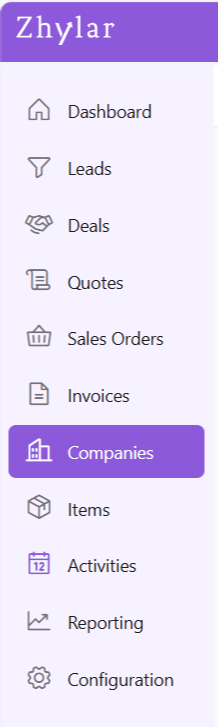
  • Go to Left-hand navigation panel
  • Go to Configuration
  • Under Customization, click on Document Series

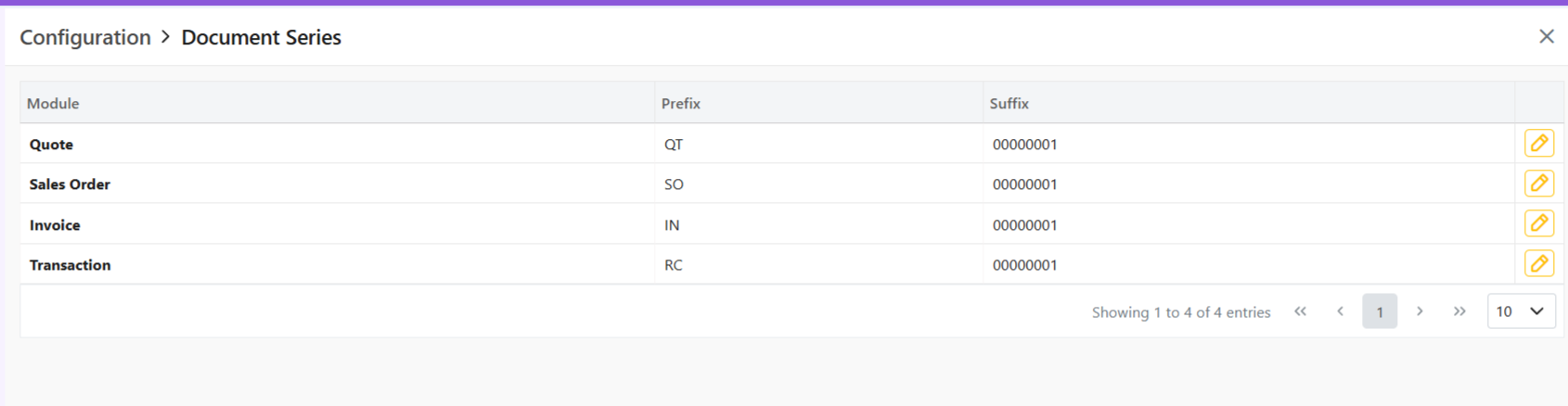
Lists the document series for following modules:

  • Quote
  • Sales Order
  • Invoice
  • Transaction

Document Series Format

Basic Structure

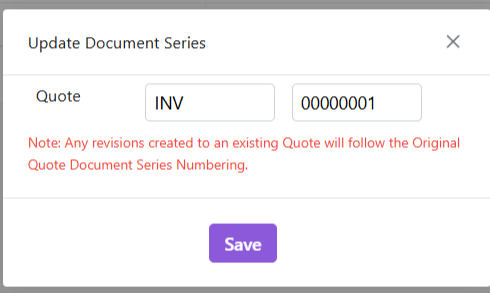
  • Prefix: Constant identifier (e.g., “INV”, “QT”)
  • Suffix: Auto-incremented number (e.g., “00001”)
  • Final Format: [Prefix]-[Suffix]
    Example: INV-0001
  • Automatic ascending order:
    • Example of successive sales orders: `INV-0001` → `INV-0002 → INV-0003
    • No duplicate numbers allowed
    • Suffix cannot carry any alphabets.

 How this works:

  • System applies prefix automatically
  • Number increments with each successive document

Update Series

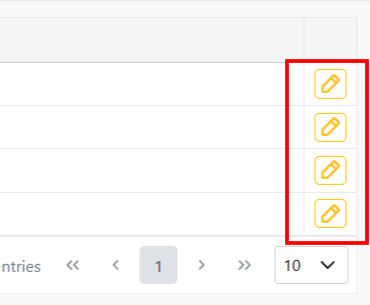
  • Click on any series to edit format by clicking on the yellow pencil:
  • Make changes.
  • Click Save.

> Note: Changes only affect new documents – existing records maintain original numberings

Important Notes on Editing

  • Suffix Updates:
    • If changing current suffix (e.g., 0002 → 0012):
    • All future documents use new sequence (0013, 0014 etc.)
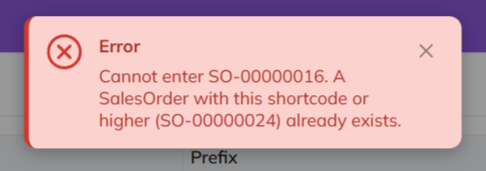
    • The numbers that have been skipped cannot be used in the future (0003-0011 in this example)
    • System will show an error if attempting to use skipped number
  • Prefix Updates:
    • Affects only new documents
    • Existing documents keep original prefix

How this works

  • Prefix auto-applies to new documents.
  • Suffix auto-increments.
  • Skipped numbers cannot be recovered – plan edits carefully.

Discover how Zhylar can streamline your sales and elevate your business processes. Visit our website or book a demo today to experience the difference!
Also Read

Web Forms

General Settings

Basic Terminologies

Import Contacts

Contacts in a CRM system are individual people your business interacts with, such as customers, prospects, or partners. They store key details like name, phone number, email, and job title. Each contact is linked to companies (accounts), deals, and activities. This linkage allows your team to track every conversation and interaction in one place. It enhances better relationship management.

Importing Contacts to Zhylar Platform

  • Log in to Zhylar
  • Go to Left-hand navigation panel
  • Click on Companies
  • The Companies list view will open.
  • From the top-right hand corner, click ⋮ 3 dots beside +New Company
  • Select Import Contacts.
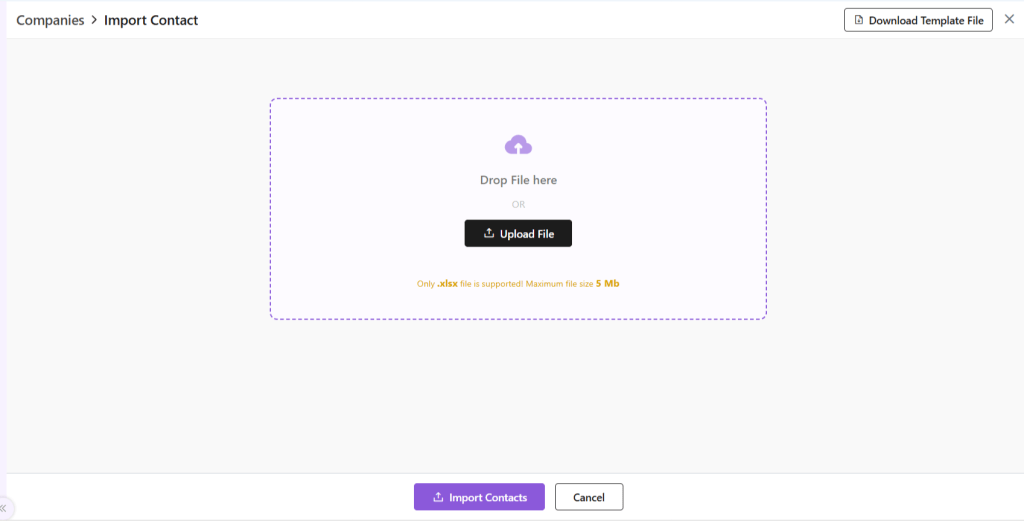
  • You will be taken to a new page.
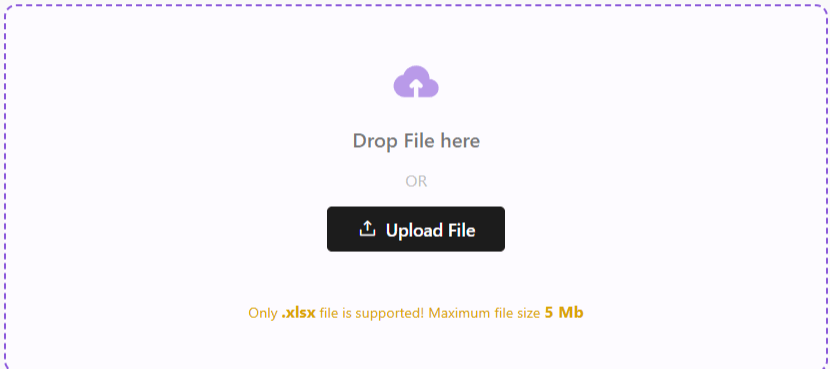
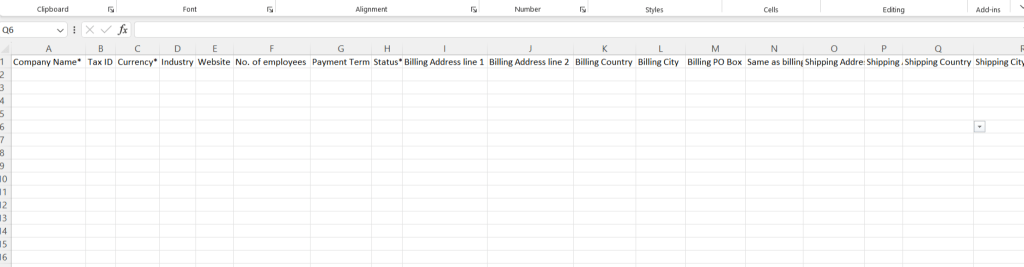
  • Upload a file in .xlsx format with the details of your leads.
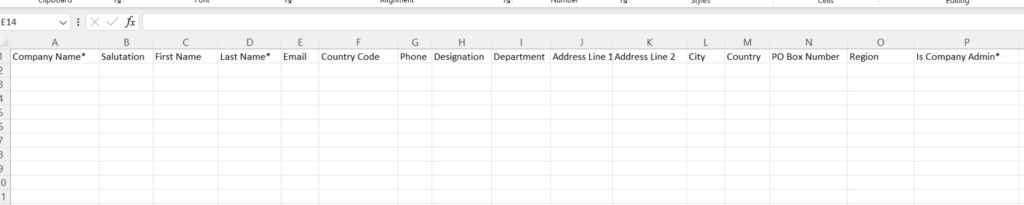
  • If file is not ready, Download Template File from the right-hand corner.
  • Fill out the data in the filed provided.
  • All fields marked in * are mandatory.
  • For some fields, entry can be punched manually.
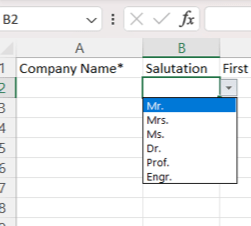
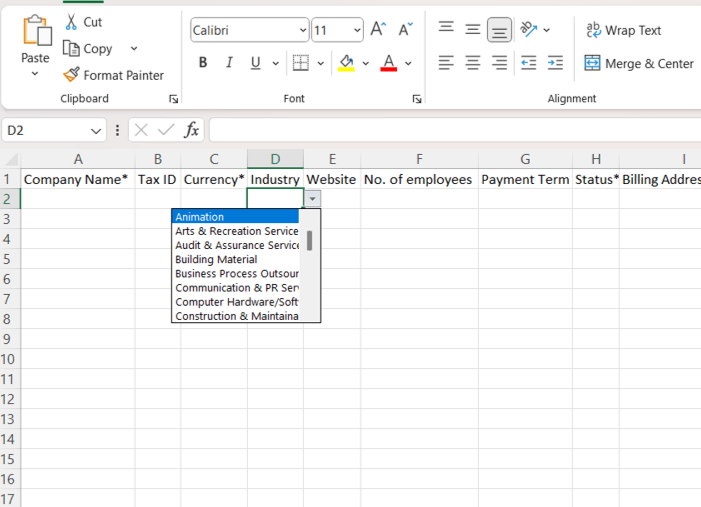
  • For others, such as salutation, country and such, a drop-down arrow will be there. You can select one of the pre-filled values.
  • Once done, upload this file back in the space provided by clicking on the Upload File button.
  • Click Import Contacts.
  • Your Contacts will be added to the system.
  • Click on Go to All Contacts to go to Contact List View page.
  • You can now see this newly added company in the list view.
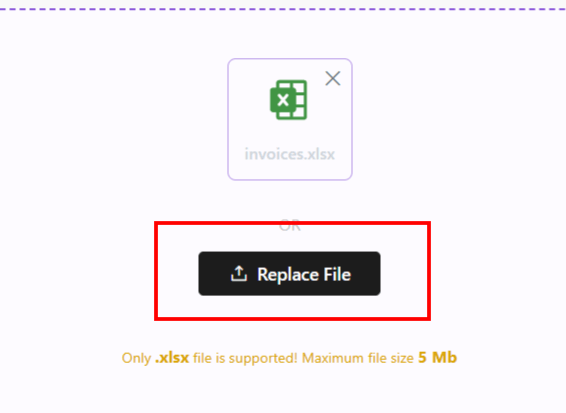
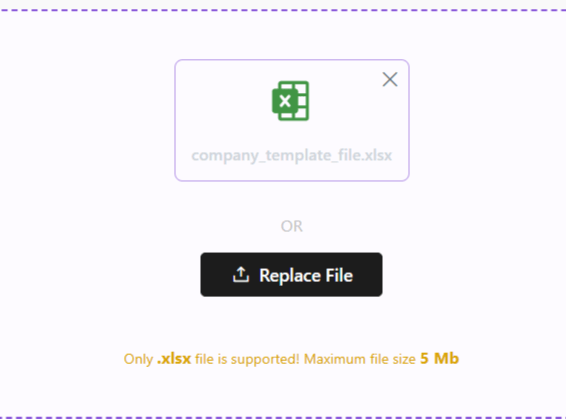
  • In case there is an error with the file upload, simply click Replace File and try again.

Once your Contacts have been imported, you can now proceed. Read about how to navigate through the Companies module at Zhylar.

Also Read

Web Forms

General Settings

Basic Terminologies

Import Companies

In Zhylar, importing customers allows you to bring all your existing customer data into one secure, centralised database. You can include names, contact details, purchase history, and account information. This data comes from external sources like spreadsheets, CSV files, or other software. This ensures your team has organised, up-to-date information to manage relationships effectively and deliver personalised service.

  • Log in to Zhylar
  • Go to Left-hand navigation panel
  • Click on Companies
  • The Companies list view will open.
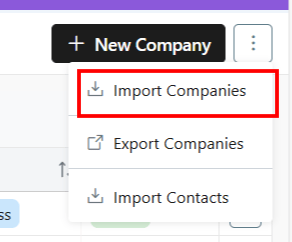
  • From the top-right hand corner, click ⋮ 3 dots beside +New Company
  • Select Import Companies.
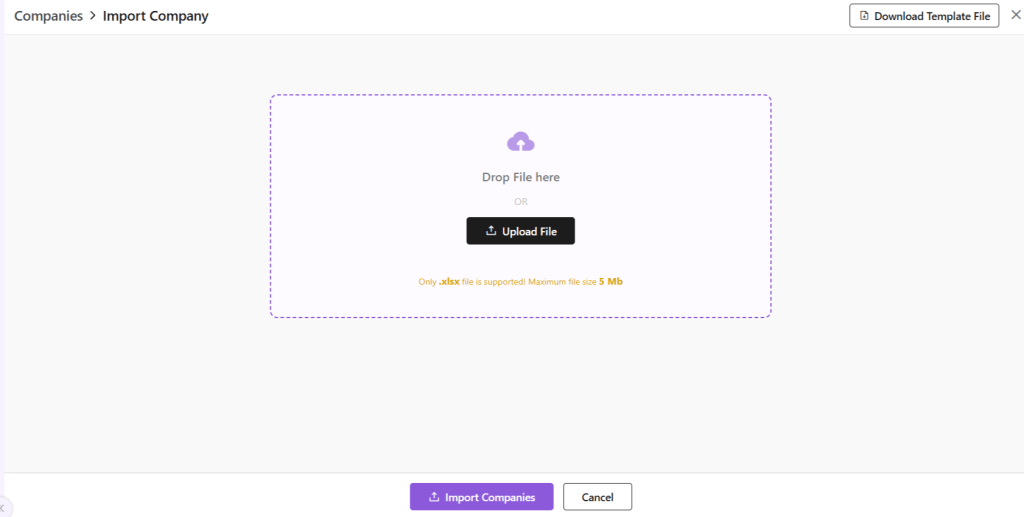
  • You will be taken to a new page.
  • Upload a file in .xlsx format with the details of your Companies.
  • If file is not ready, Download Template File from the right-hand corner.
  • Fill out the data in the filed provided.
  • All fields marked in * are mandatory.
  • For some fields, entry can be punched manually.
  • For others, such as country code, industry and such, a drop-down arrow will be there. You can select one of the pre-filled values.
  • Once done, upload this file back in the space provided.
  • Click Import Companies.
  • Your Companies will be added to the system.
  • Click on Go to All Companies to go to Company List View page.
  • You can now see this newly added company in the list view.
  • In case there is an error with the file upload, simply click Replace File and try again.

Once your Companies have been imported, you can now proceed. Read about how to navigate through the Companies module at Zhylar.

Also Read

Web Forms

General Settings

Basic Terminologies

Tasks

In a CRM system like Zhylar, tasks are activities or to-dos. They are linked to leads, deals, or contacts. These tasks help teams stay on top of their sales process. Tasks can include follow-up calls, meetings, sending proposals, or reminders for payment collection. They ensure accountability. They prevent missed opportunities. They keep every team member aligned by clearly defining what needs to be done, by whom, and by when.

Getting Started

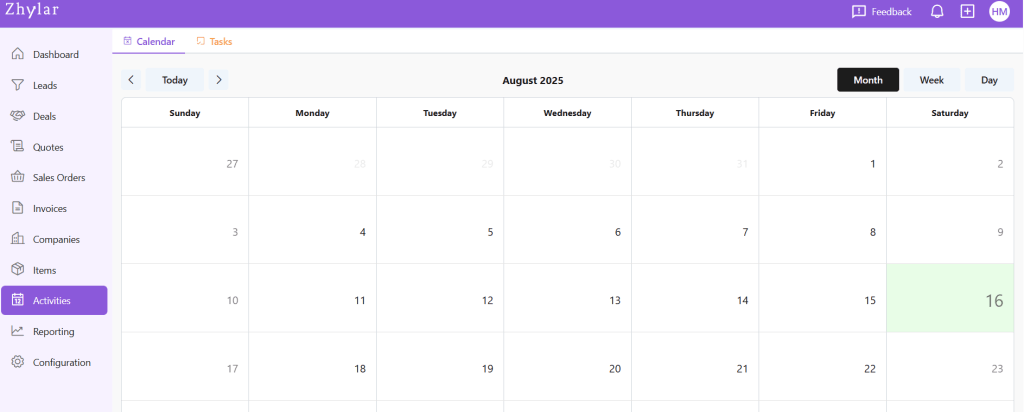
  • Move to Task
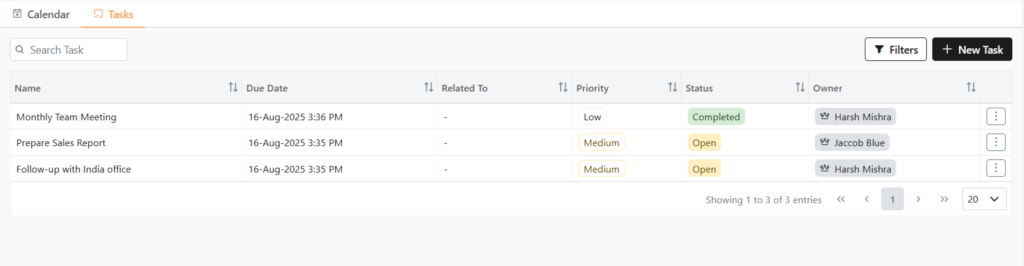
  • Here, you can find a list of all Tasks added to the system.
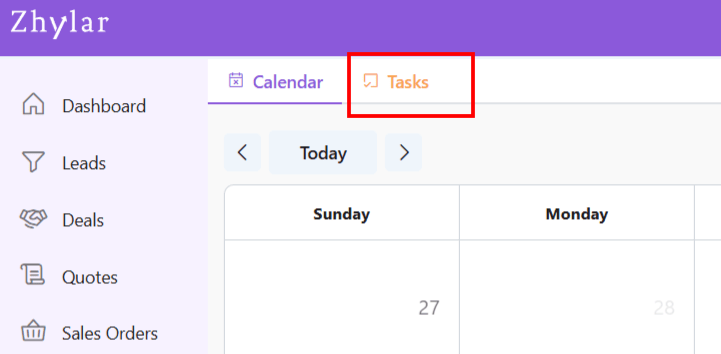
  • A task can be added by moving to the Tasks panel.
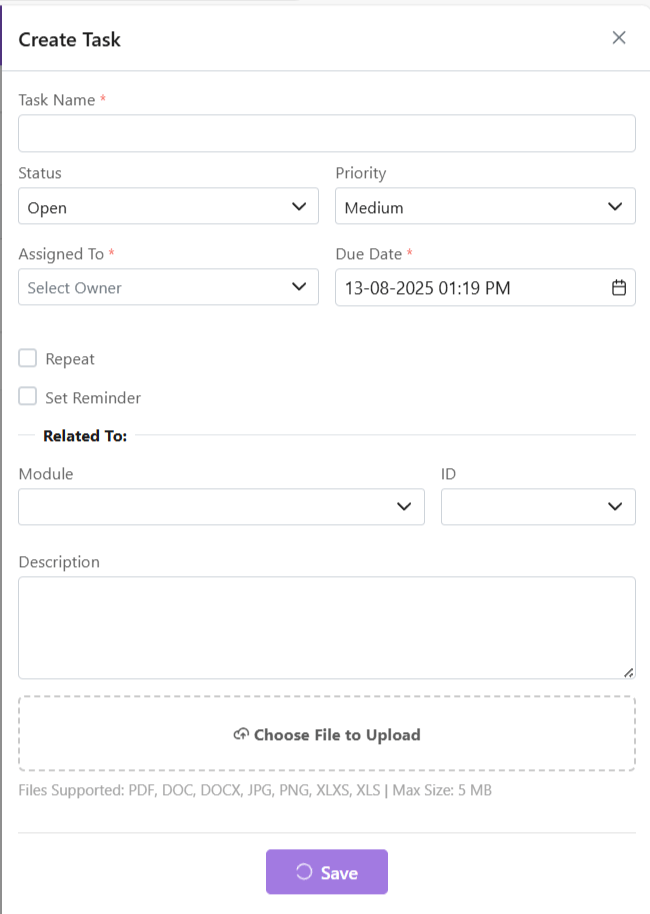
  • Click on +New Task
  • Fill details.
  • You must give the task a name, assign an owner and set a due date. These fields are mandatory.
  • Set to repeat if required.
  • Set reminder if required.
  • Click Save.

Filter Tasks

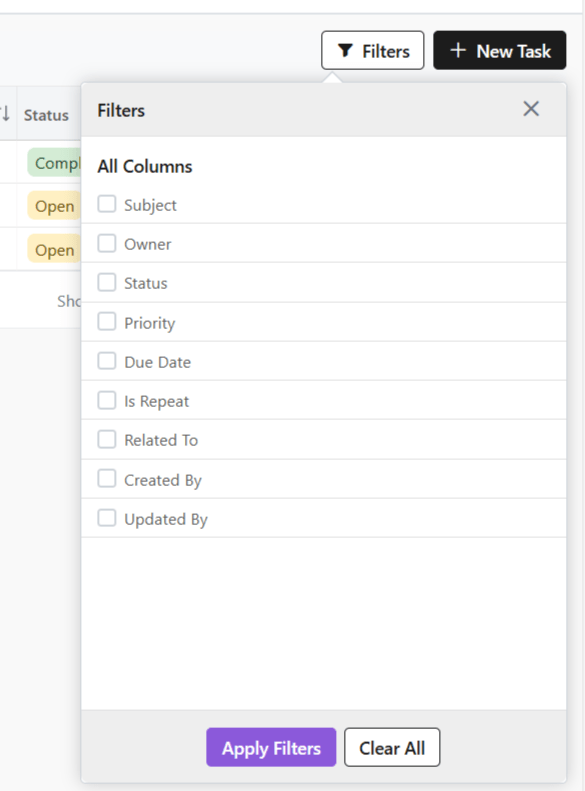
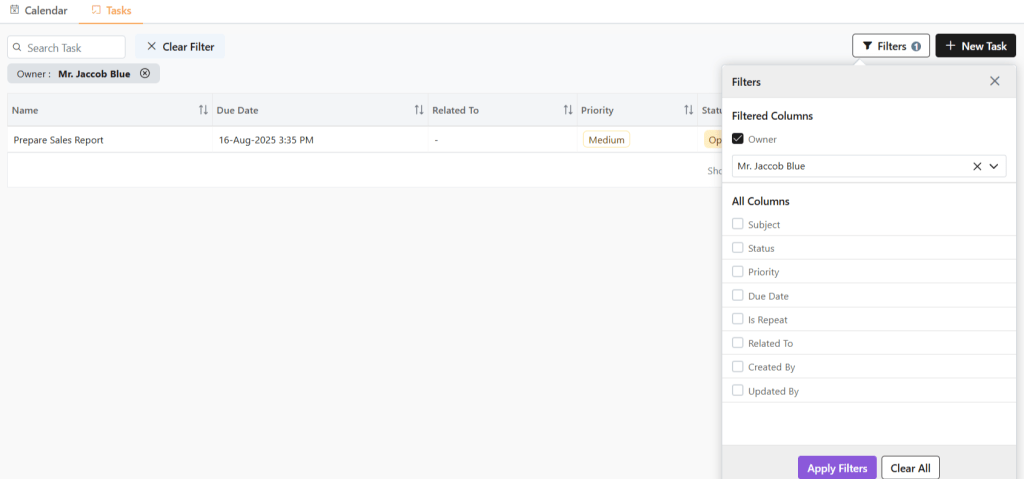
You can filter tasks for easy search by clicking on the Filters button.

  • For example, owner filter is selected. Under which, user Jaccob Blue is selected.
  • Now, you will only see tasks whose owner Jaccob Blue is.
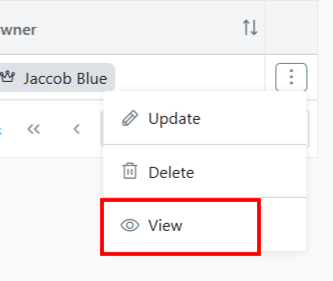
  • To check the details of any activity, click ⋮ 3 dots
  • Select View.
  • The details will be visible to you.
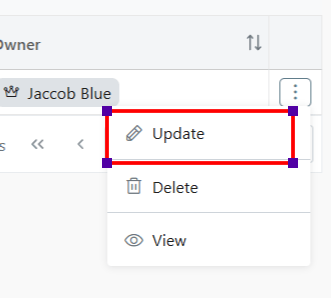
  • Click ⋮ 3 dots
  • Select Update
  • Make changes.
  • Click Save.
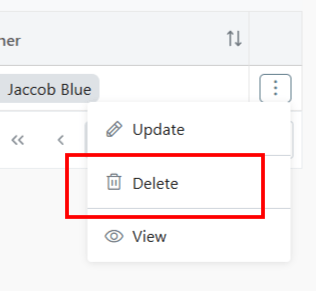
  • Click ⋮ 3 dots
  • Select Delete
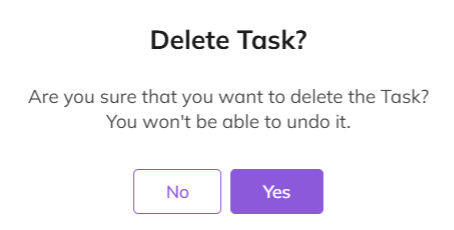
  • Provide confirmation.
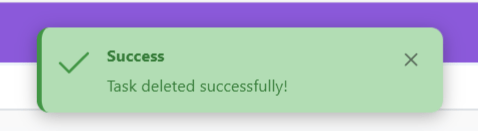
  • Your task will be deleted successfully.

Also Read

Web Forms

General Settings

Basic Terminologies

Pipeline Management- Deals

A deal pipeline (or sales pipeline) is a visual way to track where each deal is in your sales process.
It’s divided into stages — for example:

  • NewQualifiedProposal SentClosed Won/Closed Lost

By moving deals through these stages, teams can:

  • Make sure no opportunity gets forgotten
  • See exactly how close they are to closing
  • Spot bottlenecks in the process
  • Through the multiple pipeline feature, Zhylar offers a flexible approach to managing the sales cycle.
  • Create multiple pipelines for different workflows
  • Each pipeline has:
    • Custom fields
    • Tailored stages
    • Role-based access
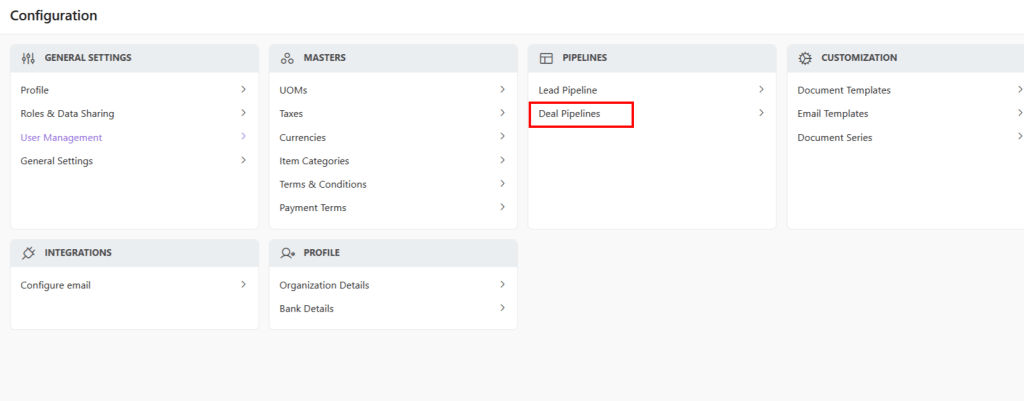
  • You can navigate to the deals pipeline in two ways:
    • Go to the Left-hand navigation panel
    • Go to Configuration
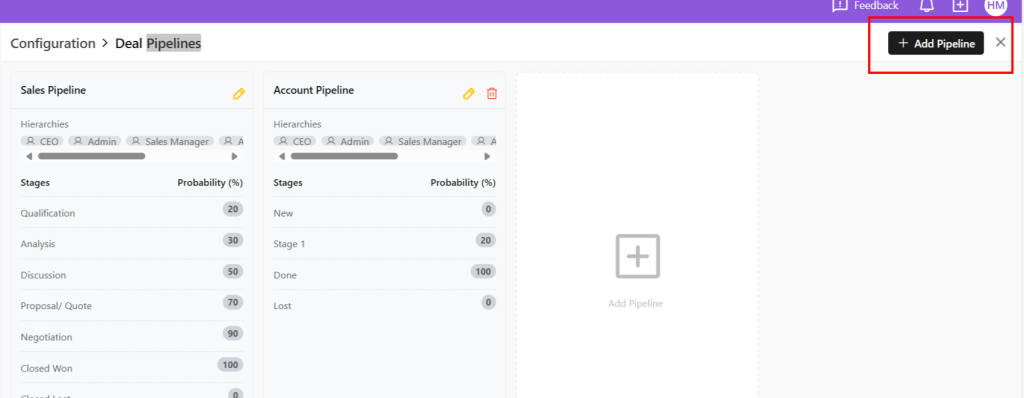
    • Under “Pipelines”, select Deal Pipelines
  • Alternately, go to the Left-hand navigation panel
  • Go to Deals
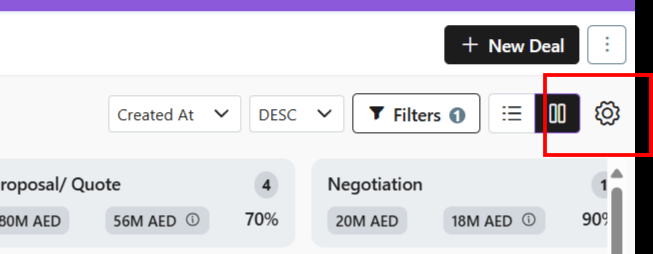
  • Quick Access: Click ⚙️ on Deals page

Creating Pipelines

  • Using either of the two aforementioned ways, go to Deal Pipelines
  • Click “Add Pipeline”
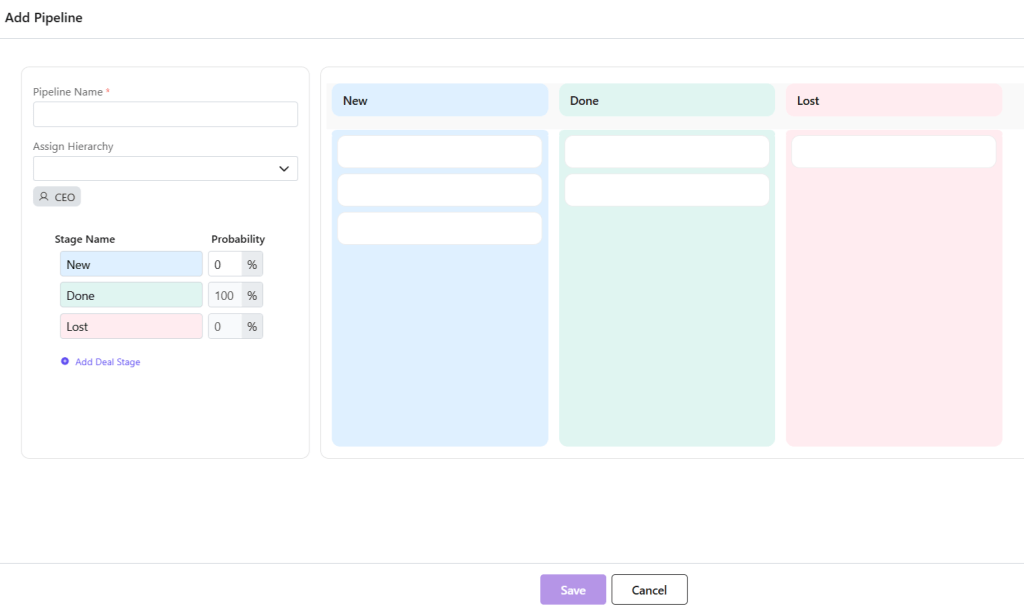
  • Configure:
    • Stages: Add/rename as needed
    • Probabilities: Set win % per stage
    • Click Save

Probability Scoring

  • Stage Value = Potential deal amount. E.g., 1000 AED
  • Stage Probability = Likelihood of closing E.g., 10%

Stages in a Pipeline

In Zhylar, you can create several Deal Pipelines. Within those pipelines, you can create stags.

  • Each Pipeline has three default stages
    • New
    • Done
    • Lost
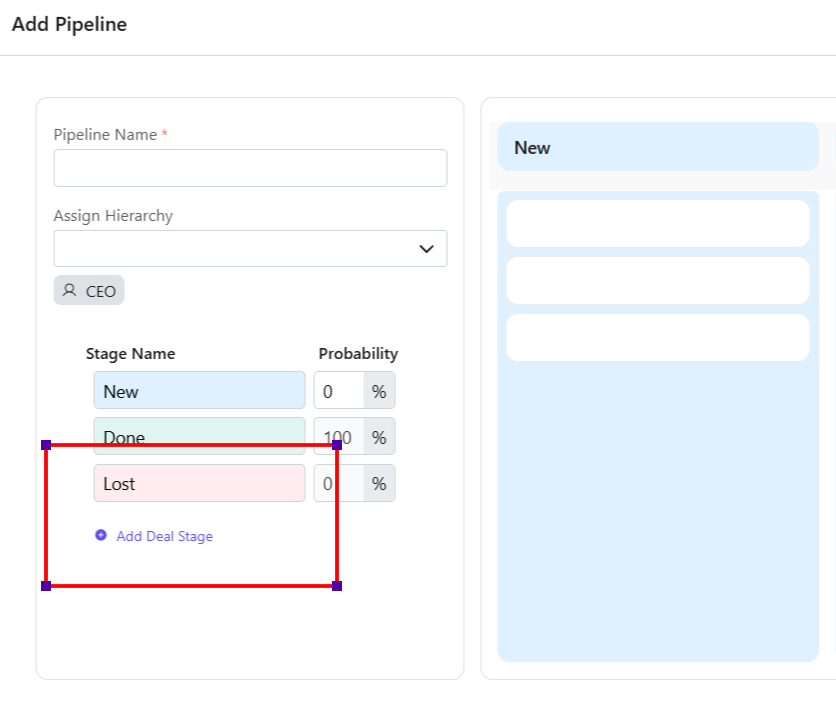
  • Users can add and customize stages as required.
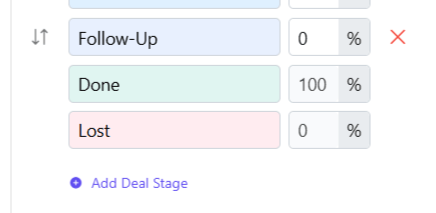
  • Click Add Deal Stage to add a new stage.
  • Give the stage a name.
  • You can shuffle the position of the stages that you add via drag and drop method.

Delete Added Stage

Users can only delete stages they have added, i.e., Default stages cannot be deleted.

To delete,

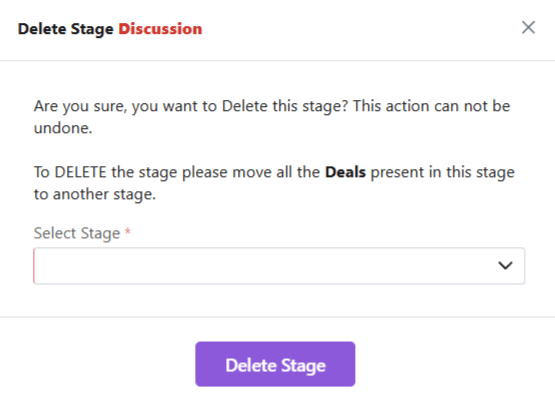
  • Click on the red cross.
  • You will be asked to transfer any existing leads from this stage to another stage.
  • Once done, you can proceed to delete the stage.

Purpose

  • Prioritizes deals with higher probability of conversion
  • Focus on deals that generate more revenue, i.e., targeted effort
  • Take action on deals that require follow-up
  • Forecasts realistic revenue through probability and weighted value
  • Visualize the complete deal cycle as well as the position of each deal in the cycle.

Read all about the complete Deals Module before you proceed.

Also Read

Units of Measurement

General Settings

Basic Terminologies