
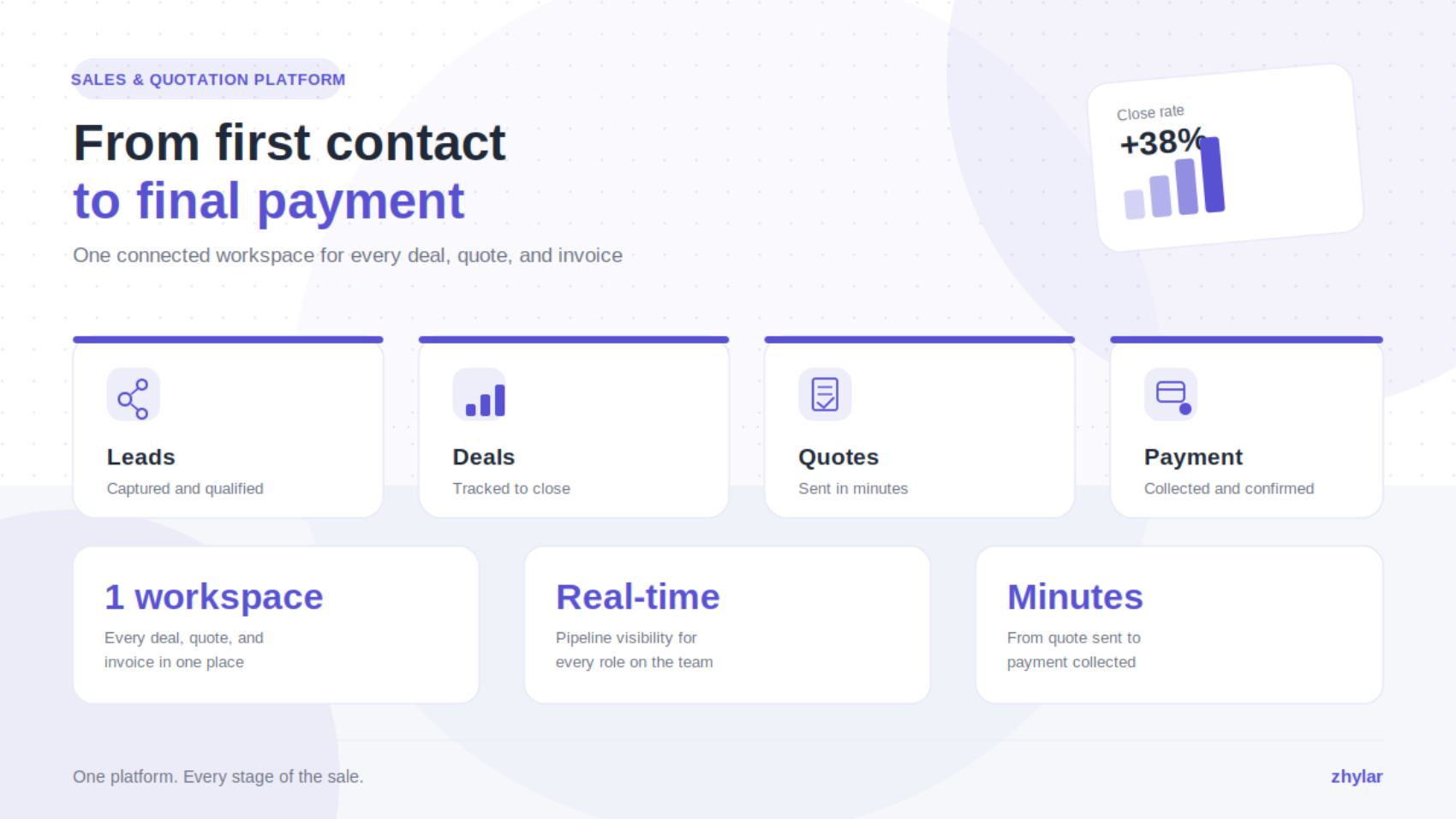
Why Modern Businesses Need an Integrated Sales Automation Platform
In the last several years, the sales landscape has changed significantly.
Today’s buyers expect quick responses, personalised interactions, accurate quotations, and seamless purchasing experiences. Sales teams, on the other hand, have to process more requests, reduce the amount of time it takes to complete sales, and ensure revenue growth on a consistent basis.
However, many growing businesses continue to rely on disconnected systems to manage these activities. Customer information gets collected in spreadsheets, quotations are created manually, follow-up calls are monitored by means of emails, and invoices get processed in separate accounting software.
Initially, these workarounds may seem manageable. However, as the number of customers increases, the complexity rises as well.
Delayed quotations, missed follow-ups, duplicate customer records, inconsistent pricing, and poor pipeline visibility become everyday challenges that slow down sales and impact revenue.
The biggest issue isn’t generating more leads.
Rather, it is about handling the entire customer journey in the right way—from first inquiry all the way to the final payment.
This is the reason modern companies adopt integrated Sales Automation Platforms and Revenue Operations (RevOps) strategies that integrate each step in the sales cycle in lieu of treating each process independently.
Zhylar has been built around this principle.
More than a CRM, Zhylar is a complete Sales and Quotation Platform that unifies lead management, sales pipeline management, quotation creation, interaction with customers, sending invoices, tracking payments, and reporting into one connected ecosystem.
Whether you’re a business owner, sales manager, or sales executive, Zhylar enables your team to work smarter, collaborate better, and scale sales without increasing operational complexity.
Improve Customer Acquisition with Lead Management Software
Every successful customer relationship starts with a lead.
Today, businesses receive inquiries from various sources. These range from websites and web forms to digital advertisement campaigns, referrals, calls, exhibitions, and social media.
Managing these enquiries manually often creates confusion. Duplicate records, delayed assignments, and inconsistent follow-ups make it difficult to maintain momentum during the early stages of the sales process.
Capture Leads from Multiple Channels
Zhylar acts as intelligent Lead Management Software, automatically centralising customer enquiries from multiple touchpoints into a single workspace.
Instead of searching through emails or spreadsheets, your sales team can immediately access customer information, assign leads to the right representatives, and track every interaction from the very beginning.
Qualify and Prioritise High-Value Prospects
Not every lead deserves the same level of attention.
Zhylar enables your team to qualify prospects, prioritise promising opportunities, and maintain complete visibility throughout the customer acquisition journey.
Build a More Efficient Sales Funnel
Because customer information flows seamlessly into the next stage of the sales process, your team avoids duplicate data entry while building a structured and efficient sales funnel.
Close More Deals with Sales Pipeline Management
Generating leads is only valuable if they convert into customers.
Once you qualify a lead, it turns into a sales opportunity that must be monitored throughout the whole process of closing.
Track Every Opportunity in One Place
The Zhylar Sales Pipeline Management system allows you to move opportunities along clearly defined stages.
Sales representatives can monitor deal values, expected closing dates, customer interactions, and next actions from one central dashboard.
Improve Revenue Forecasting with Pipeline Visibility
For sales managers, complete pipeline visibility makes forecasting significantly more accurate.
Instead of relying on manual reports or assumptions, managers can identify stalled opportunities, monitor conversion rates, evaluate team performance, and forecast revenue using real-time business data.
Identify Sales Bottlenecks Before They Affect Revenue
Many businesses believe they need more leads.
In reality, revenue is often lost because qualified opportunities remain inactive for too long.
Through improved opportunity management and pipeline visibility, you can not only easily identify such bottlenecks but also eliminate them.
Respond Faster Using Quotation Management Software
In today’s competitive market, speed directly influences buying decisions.
Customers often choose businesses that respond quickly with accurate and professional quotations.
Preparing quotations manually not only consumes valuable time but also increases the likelihood of pricing errors, inconsistent branding, and version confusion.
Generate Accurate Quotes in Minutes
As an integrated Quotation Management Software, Zhylar lets sales departments create professional quotations in a blink of an eye based on the already available customer and product data.
This eliminates repetitive work while ensuring that quotations made are accurate and consistent.
Maintain Version Control Throughout Negotiations
Customer requirements frequently evolve during negotiations.
With Zhylar, there is no need to create new documents every time since the software keeps all the quotations and versions history and helps make amendments easily.
Improve Customer Confidence Through Professional Quotations
Faster responses, accurate pricing, and professionally presented quotations help build customer trust while shortening the overall sales cycle.
Strengthen Relationships with Customer Communication Management
Successful sales depend on consistent communication.
It’s not price alone that causes a company to lose customers.
More often than not, deals go astray due to delayed follow-ups, missed meetings, or fragmented conversations that are stored in different systems.
Never Miss a Follow-up
Zhylar allows teams to plan calls, meetings, reminders and follow-ups in relation to every customer.
Each commitment can be tracked accurately and easily.
Centralise Emails, Calls and Meetings
With integrated email tracking and activity management, the history of every communication with the customer is kept in one place.
Sales representatives always understand previous discussions before speaking with customers.
Deliver Consistent Customer Experiences
Centralisation of communications provides for efficient internal collaboration as well as consistency of experience offered to clients.
Simplify Your Quote-to-Cash Process
Winning a deal is only one part of the sales journey.
Administrative tasks post-sale and other matters can cause delays in cash flow and lessen efficiency in operations.
Convert Quotations into Invoices
Zhylar simplifies the quote to cash process by allowing conversions of accepted quotes into invoices directly.
This drastically reduces repetitive information input while improving accuracy.
Track Payments Without Switching Systems
Businesses have the ability to check the status of invoices and see if payments were received or not through a single platform.
Multiple currencies can also be used in invoice creation which means customers from other countries can be served easily.
Improve Cash Flow Through Connected Operations
By connecting quotes, invoices, and payment Zhylar makes it easier for companies to enhance their cash flow.
Make Better Decisions with Sales Analytics and Reporting
Every day sales teams contribute to business statistics
Therefore, the real competitive advantage lies in knowing how to use it.
Monitor KPIs in Real Time
Zhylar provides interactive dashboards that track revenue, pipeline health, how quotations are going, how many leads are converted and how many sales activities have been achieved in real time.
Turn Data into Revenue Insights
Managers can not be guided by assumptions anymore; thanks to data analysis they can identify the most effective channels, understand the development of sales and make smart business decisions.
Forecast Business Growth with Confidence
Accurate reports enable companies to use their resources more efficiently, to increase the volume of sales and to forecast development prospects more accurately.
Why Businesses Are Choosing Revenue Operations Platforms
In today’s world, businesses understand that CRM, quotation software, invoice systems, and reporting solutions are not separate from one another.
They understand that the different phases of the customer journey are related.
Break Down Operational Silos
Disconnected applications create duplicate work, inconsistent customer information, and reduced collaboration.
A single platform does away with siloed systems, while offering companies a single version of the truth.
Prepare for AI-Powered Sales and Automation
As organisations adopt Sales Automation, AI-powered CRM, and Revenue Operations (RevOps), businesses with disconnected systems will increasingly struggle to remain competitive.
Future-Proof Your Sales Strategy
Future-ready businesses aren’t simply investing in more software.
They’re investing in an integrated platform that contributes to more collaboration, streamlining the workflow, and allowing them to see the full picture of the customer journey.
Why Zhylar Is More Than a CRM—It’s a Sales Enablement Platform
Businesses don’t grow by adding more applications.
Success lies in having the right systems that run smoothly in tandem to help while keeping the entire flow of the process at optimum levels.
Zhylar combines Lead Management Software, Sales Pipeline Management, Quotation Management Software, Customer Communication Management, Quote-to-Cash, Sales Analytics and Reporting, and Sales Automation into one integrated platform.
Instead of managing disconnected tasks, your team manages one continuous customer journey, from prospect to payment.
The result is faster sales cycles, stronger customer relationships, improved collaboration, more accurate forecasting, and predictable revenue growth.
If your business is interested in discovering how to implement new technology into operations, Zhylar has got what it takes.
Because your company does not just need another CRM system but a complete Sales and Quotation platform that transforms a business into a profitable money-making machine.
Frequently Asked Questions (FAQs)
1. What is a Sales and Quotation Platform?
A Sales and Quotation Platform is a software solution that allows companies to manage the whole sales cycle – from lead generation and opportunity tracking to quotation, communication, invoicing, and payment.
that are capable of managing only separate steps in the sales cycle, an integrated platform for sales and quotations connects all the stages of the course. The sales team can operate better, decrease the manual job done by them, increase accuracy, and have all the needed information from lead generation to payment.
Platforms, such as Zhylar, enable companies to manage the process of lead generation, sales pipeline tracking, quotations, invoicing, and reporting in the same place.
2. How does quotation management software improve sales efficiency?
With quotation management software, companies can produce precise quotes more quickly, eliminate human errors, prevent pricing mistakes, and stay updated about changes done to quotations. As a result, it allows sales representatives to act promptly and enhance the experience of their clients during the buying process.
3. Why is lead management important for growing businesses?
Lead management enables businesses to collect, acquire, monitor and convert prospects properly. The system performs timely follow-ups and enhances productivity of sales.
4. What is the difference between a CRM and a Sales Enablement Platform?
CRM is responsible for the management of clients’ data and communication, while the Sales Enablement Platform plays a role of helping in the sales processes by incorporating CRM, automation, quotes, analytics and workflows into an integrated solution for sales.
5. How does a Quote-to-Cash process help businesses grow?
The Quote-to-Cash process aids in the unification of quotes, invoicing, and payment transactions in one workflow. As a result, it allows a business to reduce its waiting times, enhance its cash flow visibility, and efficiently transition from securing a deal to earning revenue.
6. What features should a Sales and Quotation Platform include?
The Sales and Quotation Platform must have a full range of features such as lead management, sales pipeline tracking, quotes creation and sending, communication with customers, invoicing, reporting, automation, and integration of tools to manage the entire sales lifecycle.
7. How can sales automation software improve customer conversion rates?
Sales automation tools will enable companies to reply faster, automate follow-ups, monitor the work with customers, and focus on the most promising leads. Thus, it will increase effectiveness in sales and the likelihood of converting leads into customers.