
Optimizing the Tech Stack_ A CEO’s Guide to Software Consolidation (1)

Optimizing the Tech Stack: A CEO’s Guide to Software Consolidation

Every growing business eventually hits the same wall: a tech stack that has quietly become bigger than the business itself. What started as a handful of tools to solve specific problems , a CRM here, a project tracker there, a separate invoicing app, a marketing automation platform, has ballooned into a sprawling patchwork of subscriptions that no one fully understands anymore. This phenomenon has a name: SaaS bloat, and it is quietly draining budgets, productivity, and morale in companies of every size. 

For CEOs and IT leaders, consolidating their software is now an essential part of the strategy and a key driver of long-term growth. In this guide, we’ll discuss why SaaS bloat occurs, how to recognize it in your own organization, and give you a step-by-step framework for consolidating your IT stack without hindering the business processes that depend on them. 

What Is SaaS Bloat, and Why Does It Happen? 

SaaS bloat occurs when multiple redundant, overlapping, or underused software subscriptions are accumulated across an organization. These do not typically happen intentionally, but as a result of many individual reasonable decisions in isolation that make sense at the time: 

  • The sales team adopts a CRM tool to track all the leads they’ve acquired. 
  • Marketing signs up for a separate email automation tool 
  • The customer support team brings in its own ticketing platform 
  • The finance team adds their own invoicing and billing solution 
  • HR onboards a standalone scheduling or payroll app 

Each decision makes sense in isolation. But multiply this across departments and years, and most mid-sized companies end up managing dozens of disconnected platforms, many of which duplicate functionality, none of which talk to each other cleanly, and all of which come with their own login credentials, support tickets, and renewal dates. 

Numerous industry studies have indicated that the average mid-sized company now uses well over 100 SaaS applications, and a significant number of the licenses go completely unused every month. Therefore, the cost of software sprawl is not only the cost of the tools themselves, but also the complexity of managing all of them. 

The Real Cost of an Unoptimized Tech Stack 

When leadership teams evaluate their tech stack, they often focus only on the visible line item: the monthly or annual subscription fee. But the true cost of SaaS bloat runs much deeper. 

  1. Direct Financial Waste: Redundant tools mean redundant spend. Paying for three different platforms that each offer basic CRM, reporting, and communication features is far more expensive than paying for one integrated solution that does all three well.
  2. Data Fragmentation: When customer data lives in one tool, sales pipeline data lives in another, and support history lives in a third, no one in the organization has a single, reliable view of the customer. This fragmentation leads to poor decision-making, inconsistent customer experiences, and missed revenue opportunities.
  3. Productivity Drain: Employees waste hours every week switching between tools, manually re-entering data, and reconciling information that should already be connected. This “app-switching tax” is one of the most underestimated productivity killers in modern workplaces.
  4. Security and Compliance Risk: Every additional SaaS vendor is another potential point of failure. More logins mean more passwords to manage, more data-sharing agreements to track, and more surface area for a security breach or compliance gap. 
  5. Onboarding and Training OverheadNew employees need to learn a growing list of disconnected systems just to do their jobs. This slows down time-to-productivity and increases the burden on internal training resources.

Signs Your Organization Is Ready for Software Consolidation 

Wondering if your organization has reached a point of no return? Look for these common warning signs: 

  • Different departments have adopted different platforms for the same processes.  
  • Leaders don’t have a way to get a unified, real-time view of company performance without having to manually aggregate data from multiple sources.  
  • Employees often ask the question, “Which tool has that data?”  
  • The finance department is having a tough time keeping track of the spend on software. 
  • Licensing audits indicate that a significant portion of the paid seats go unused. 
  • Integration between tools relies on manual workarounds, spreadsheets, or fragile third-party connectors 

If several of these resonate, it’s a strong indicator that your SaaS optimization efforts are overdue. 

A Practical Framework for Consolidating Your Tech Stack 

Software consolidation should never be a rushed, all-at-once overhaul. It works best as a structured, phased process. 

Step 1: Audit Everything 

Before you can consolidate, you need visibility. You must create a complete list of all active software subscriptions in your organization, as well as their owning department, monthly cost, number of users, and what they do. This audit alone often reveals immediate, low-risk savings from unused or duplicate licenses. 

Step 2: Map Functions, Not Just Tools 

Rather than comparing tools feature-by-feature, map out the core business functions your organization needs to support customer relationship management, sales pipeline tracking, marketing automation, support ticketing, invoicing, and reporting. This function-first approach makes it much easier to spot where a single, well-designed platform could replace three or four narrow point solutions. 

Step 3: Prioritize Integration and a Unified Data Layer 

The biggest benefit of consolidation is not only saving on subscription costs but also eliminating data silos altogether. Having sales, customer and support data in one system means that businesses have an up-to-date and accurate view of the company in real-time, thus saving time and increasing efficiency by eliminating the need for reconciliation. 

Step 4: Evaluate Regional Fit, Not Just Global Brand Recognition 

Many of the best-known global SaaS platforms are built for enterprise-scale operations in mature markets, which means they often come with pricing, support models, and feature sets that don’t map well onto the realities of a growing regional business. When evaluating a regional alternative to expensive global platforms, look closely at local support responsiveness, pricing transparency, and how well the platform understands the specific compliance and operational context of your market. 

Step 5: Pilot Before You Migrate 

Select one department or function for a pilot test of the consolidated solution prior to full-scale implementation across the company. This minimizes risk, highlights issues impacting adoption at an early stage, and creates champions who can help sell the implementation. 

Step 6: Plan the Migration and Sunset Old Tools Deliberately 

Data migration needs to be carefully planned and executed, including a clear designation of who owns the process and the date on which migration will take place. Additionally, it is important to put a hard deadline for the decommissioning of legacy tools, as consolidation will only be helpful once the old subscriptions are fully terminated, not just deprioritized. 

Why an All-in-One Platform Changes the Equation 

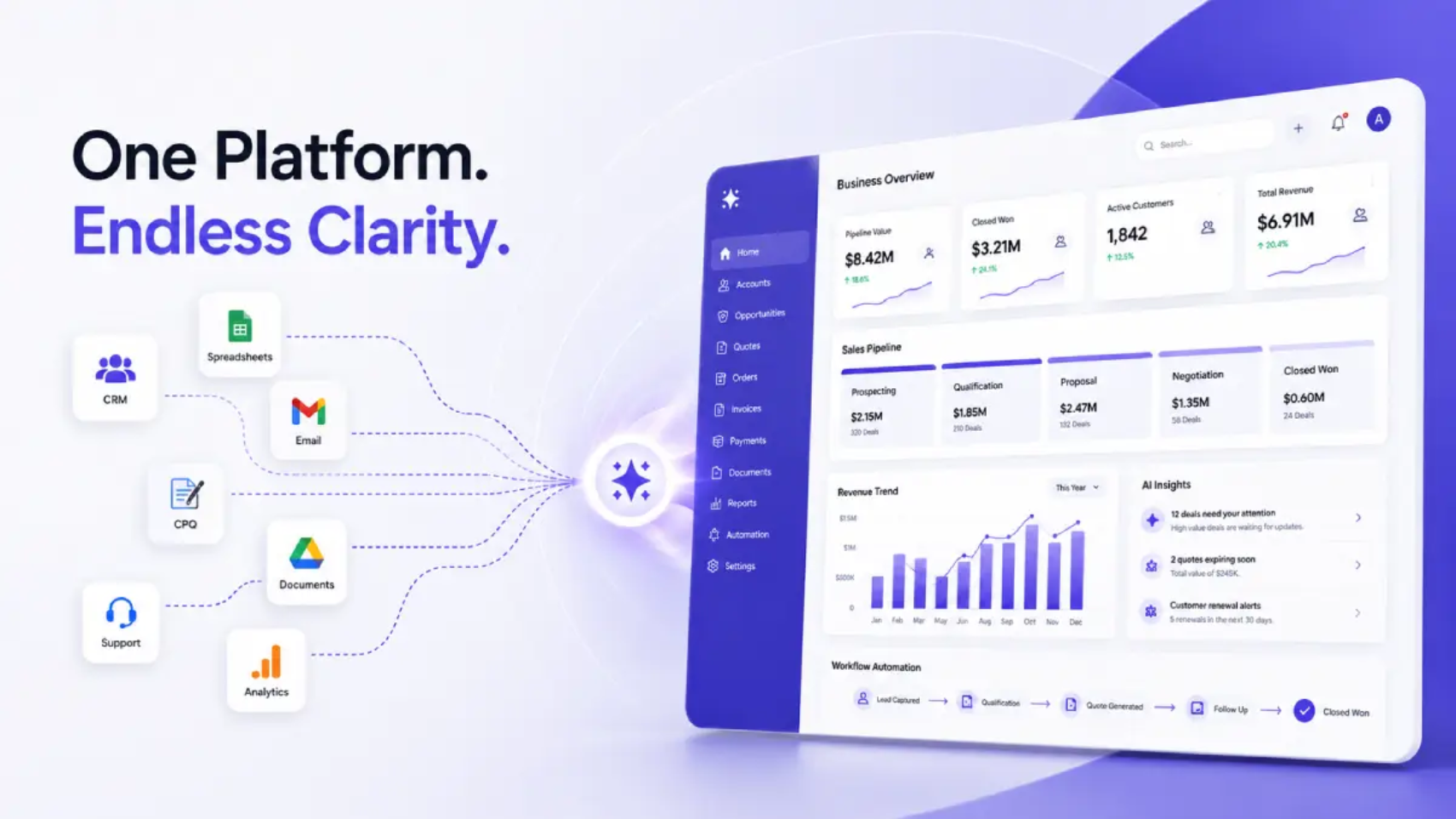
The most effective way to eliminate SaaS bloat in the long term is not just to terminate individual services, but rather to re-examine the architecture of the technology stack as a whole. Instead of combining multiple individual software solutions, innovative companies are now relying on one integrated platform that combines customer relationship management, sales tracking, communication, and reporting in one system. 

This kind of all-in-one approach offers several distinct advantages over a fragmented multi-vendor stack: 

  • One version of the truth about customers and business data means no need for data reconciliation 
  • Transparent pricing versus numerous irregular renewal dates and variable payments 
  • Streamlined training because people need to learn only one interface and not several tools 
  • Easier vendor management due to the reduction of contacts 
  • Embedded reporting which allows executives to see the situation without switching over between different software solutions. 

This is especially true for enterprises located in regional and emerging markets. Indeed, many CEOs have realized that using a location-specific and integrated CRM solution can give them the essential features of three to four global platforms at much lower prices and with the type of responsive support that large global companies usually cannot provide. The result is a leaner, more connected tech stack that scales with the business instead of working against it. 

Making the Business Case to Your Board 

When discussing a software consolidation plan to your board or leadership team, frame it around three measurable outcomes: 

  1. Cost reduction — state the direct savings obtained through termination of redundant licenses. 
  2. Productivity gains — estimate hours saved per employee per week from reduced app-switching and manual data entry 
  3. Risk reduction — explain how using fewer vendors and maintaining a smaller amount of data will lead to better security and compliance. 

A well-documented audit (Step 1 above) gives you the hard numbers needed to make this case convincingly. 

Final Thoughts 

SaaS bloat is a common inefficiency that is also one of the easiest to remedy. Those companies that approach software consolidation as part of a strategy, rather than a simple cleanup task, have a better chance of going leaner and gaining better visibility into their data. 

For CEOs who are looking at their tech stack this year, the question wouldn’t be whether they should consolidate, but how quickly they can build a compelling internal case, select the appropriate unified platform, and implement a migration that will create an opportunity for their company to grow. 

Frequently Asked Questions 

1. What is SaaS bloat, and how do I know if my company has it?

SaaS bloat refers to the situation where a company has more software subscriptions than it needs, often with overlapping functionalities. Signs of SaaS bloat usually include various departments using different tools for the same job, having unused licenses, and not having an easy way to get a consolidated view of the company data. 

2. How much money can software consolidation actually save? 

The savings depend on the company, but audits could often reveal unused licenses and applications that contribute significantly to the total expenditure of the company in terms of SaaS. Additionally, indirect savings from software consolidation also take place through reduced training costs, simpler interoperability, and improved efficiency than before. 

3. Is software consolidation risky for an established business?

It carries some risk if rushed, which is why a phased approach — audit, pilot, migrate, sunset — is recommended. Piloting a consolidated platform with one department before a company-wide rollout significantly reduces disruption. 

4. How long does a typical tech stack consolidation project take?

The timelines depend on the complexity of the organization but it is generally true that mid-sized companies carry out audits and pilot projects in some months while the process of full migration usually lasts from two up to six months depending on data complexity. 

5. What should I look for in an all-in-one CRM platform?

Look for a platform that unifies core functions like sales, customer data, communication, and reporting; offers transparent, predictable pricing; and provides support that understands your specific market and compliance requirements. 

6. Should smaller businesses worry about SaaS bloat, or is it only a large-enterprise problem?

SaaS bloat is relevant to a variety of companies. It is interesting to note that both small and medium companies are usually more affected by it since the extra budget for software is bigger in relation to their budget. 

7. Are global SaaS platforms always the best choice over regional alternatives?

Not always. Global solutions are most often designed for big business requirements and features, pricing schemes, and support services that might not meet the demands of regional companies. A regional application may present personalized features, on-ground support, and a better pricing scheme. 

8. What is the first step a CEO should take to startoptimizing their tech stack?  

The first thing to do would be to perform a software audit to reveal all running subscriptions along with the costs, the person in charge, and the utilization metrics of a given service. This creates the visibility needed to make informed consolidation decisions. 
The Silent Profit Killer Analyzing the Cost of Administrative Friction (1)

The Silent Profit Killer: Analyzing the Cost of Administrative Friction

UAE businesses in 2026 are currently facing one of the most dynamic and competitive environments seen in recent years. Rising customer expectations, growing operational costs, increasing pressure for faster service delivery, and the rapid adoption of AI-driven technologies are changing how organizations compete. 

For SMEs and growing enterprises, efficiency is no longer just an operational goal; instead, it has evolved into a critical requirement for most organizations. 

However, while many organizations are primarily focused on generating revenue, reducing their marketing costs, or expanding their sales pipelines, one of the largest threats to their profitability often goes unrecognised: Administrative Friction. 

Administrative friction is not just an inconvenience for organizations that are implementing digital transformation initiatives in the UAE but is rapidly becoming a major competitive disadvantage for those involved in these initiatives. 

What Is Administrative Friction and Why It Matters 

Administrative friction refers to the unnecessary complexity that is inherent in most of your routine processes. Things such as manual data entry, redundant approvals, disconnected systems, delayed communication between departments, and others. While each of these activities individually may not seem like a problem, together they slow down performance significantly. 

Let’s understand this with a simple example:  

Consider a typical workflow: The sales team produces quotes manually, sends the quote for approval via email, waits for response/feedback, revises the document, and then forwards them to clients. 

Now multiply this same process for many employees, hundreds of sales quotes, multiple departments and thousands of operational transactions occurring every month. 

The result is: 

  • Slower response times, 
  • Longer revenue cycles, 
  • Bottlenecks in the approval process, 
  • Operational confusion and errors, 
  • Lost sales opportunities, 

This “small operational delay” quickly accumulates to have a negative effect on: 

  • Profitability, 
  • Scalability, 
  • Employee productivity, 
  • Customer satisfaction, 
  • Organizational agility. 

Administrative friction cannot be viewed as simply an operations issue. It is a constraint on your ability to grow your business. 

Why Administrative Friction Has Become a Strategic Risk in 2026 

The business landscape has changed dramatically in the last several years. 

Modern businesses are expected to: 

  • Work quickly, 
  • Operate efficiently, 
  • Provide customized customer experiences, 
  • Adhere to regulations, and 
  • Expand their operations without incurring additional administrative overhead. 

The UAE government’s fast-paced digital economy and smart business initiatives continue to push businesses to enhance their operational systems. 

Businesses that continue relying on fragmented systems and manual workflows are increasingly struggling due to: 

  • reduced operational visibility, 
  • inconsistent data, 
  • delayed decision-making, 
  • higher employee burnout, 
  • and slower rates of scalability. 

Meanwhile, competitors adopting: 

  • automated AI solutions, 
  • integrated CRM ecosystems, 
  • cloud-based workflows, 
  • and real-time analytics 
  • are driving large-scale productivity 

Digital maturity is creating a widening divide between highly functional and fragmented operationally based organisations. 

The Hidden Cost of Inefficiency 

Many organizations minimize or fail to see the actual costs of inefficiencies. Industry research demonstrates that a large number of employees are spending the majority of their time doing repetitive administrative work when they could be engaged in much more effective use of their time, by engaging in activities that are much more profitable. 

Productivity Loss

The time that is used to perform manual tasks can be redirected to performing revenue-generating tasks. For example: sales teams spend a lot of time on creating and reworking proposals instead of closing deals. 

Revenue Leakage

Delays in getting approvals, invoicing, or quoting directly impacts deal closures. When response times increase, customer interest declines. 

Delays in obtaining approvals, invoices, and quoting impact the ability to close deals directly; the longer the delay, the less likely a customer will be interested. 

Error-Driven Costs

The act of entering data manually increases the chance of error and results in additional time to fix or adjustments, possible compliance challenges as well as financial discrepancies. 

Employee Burnout

Employees who perform repetitive tasks feel less motivated and connected to their work, which leads to increased costs related to employee turnover and the expense incurred related to replacing an employee. 

The Bigger Blind Spot: Most Businesses Don’t Realize Friction Is Connected 

One of the biggest operational blind spots is assuming inefficiencies exist in isolation. 

In reality, administrative inefficiencies tend to create a chain reaction throughout the entire organization. 

For example: 

  • Quotation delays (due to manual approvals) result in delayed cash flow realization for the business. 
  • Cash flow has a direct impact on operational cash flow and forecasting accuracy. 
  • A lack of consistency in the customer database creates misalignment between sales/marketing functions. 
  • Operational issues (due to operational delays) have a direct impact on the customer experience 

This is why modern operational strategy is no longer about optimizing individual tasks. 

It is about developing the integrated operational ecosystem; the ability of departments within the organization to communicate without barriers, real time data availability across the enterprise, synchronized systems, and minimal friction for workflows. 

Businesses that fail to address these interconnected inefficiencies often experience difficulty scaling effectively. 

Where Friction Commonly Occurs 

Administrative inefficiencies are not confined to a single department. They exist across the organization: 

Sales Operations 

Manual quote generation, customer data spread out all over the place, and delays in getting approval results in bottlenecks. By implementing CRM automation UAE solutions, the bottlenecks can be significantly reduced. 

Finance and Accounting 

Disconnected systems create delays in processing invoices, reconciling accounts, and reporting on financial performance. By using accounting automation software UAE, the speed and accuracy of these processes can be enhanced. 

HR and Administration 

The people involved in the HR and administration roles typically perform repetitive, tedious, low-value-add tasks like onboarding new employees, payroll, and document management, etc. which could be streamlined through a HRMS automated UAE solution. 

Marketing 

Poor integration of the tools being used limits campaign effectiveness. By using a combination of Marketing automation solutions UAE together with CRM’s, better targeting and tracking can be achieved. 

The Role of Digital Transformation in Reducing Friction 

Digital transformation initiatives in UAE are being used by modern companies to improve administrative efficiency. By automating many manual processes and integrating existing systems, businesses are able to reduce the amount of time employees spend on repetitive tasks, thereby increasing their ability to perform other activities within their business. 

Workflow Automation 

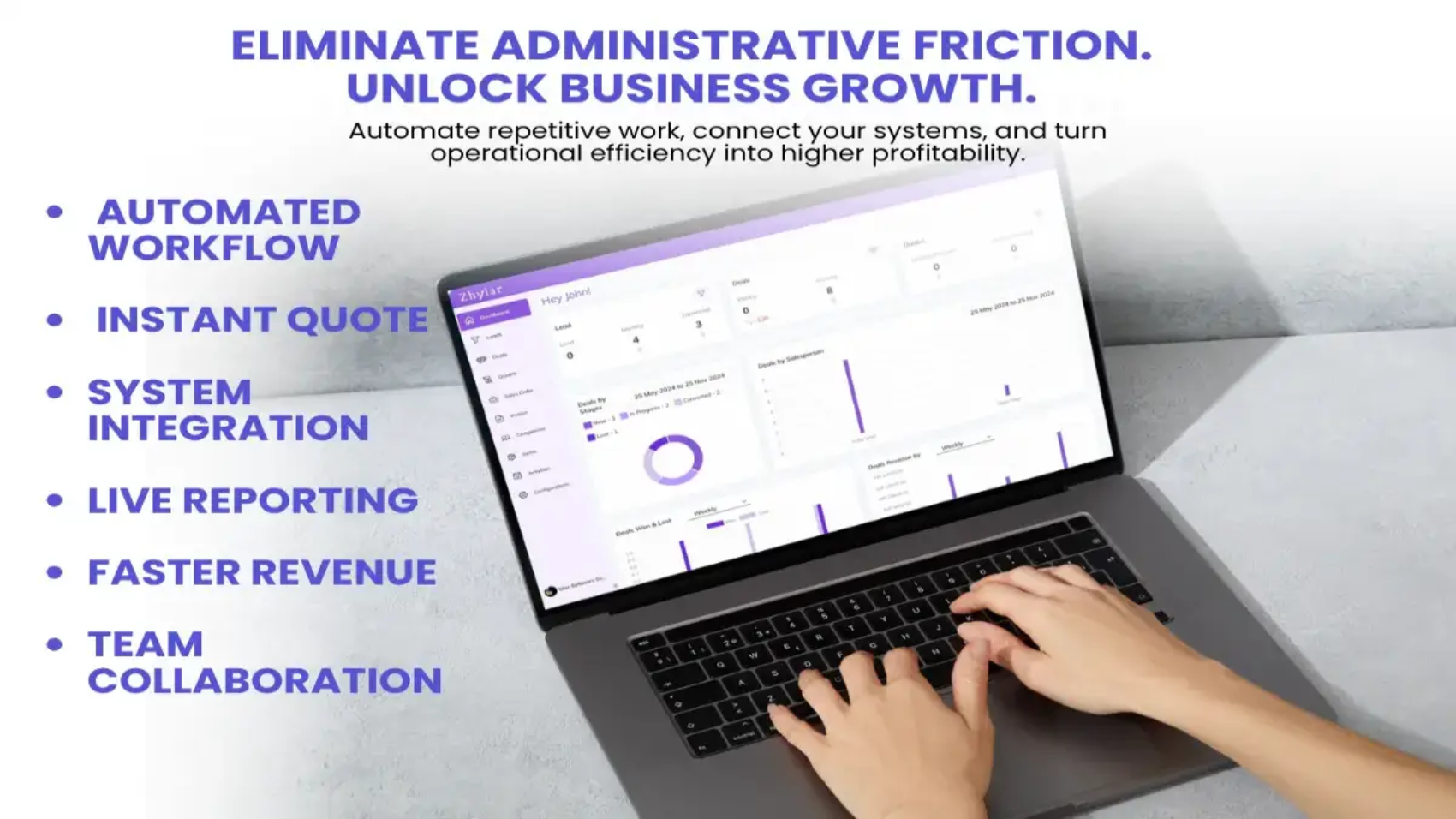
Automating repetitive activities leads to consistent, less error-prone processes, while also allowing employees to use their time for other things. 

System Integration 

Integrating CRM and ERP systems, as well as other business tools removes barriers to data sharing, and provides for seamless flow of knowledge across various applications. 

Real-Time Data Visibility 

By having access to data in real-time, better-informed decisions can be made more rapidly, and there will be fewer delays related to the availability of up-to-date information. 

The Power of Workflow Optimization 

Workflow optimization software provides organizations in the UAE with a means of improving inter-departmental processes. These solutions identify areas of inefficiency between departments, establish standard procedures for carrying out tasks, and enhance inter-departmental collaboration. 

Some of the many advantages of utilizing a workflow optimization application are as follows: 

  • Reduction in how long it takes to complete a task 
  • Increase in accuracy of task completion 
  • Increased productivity of team members 
  • Enhanced customer satisfaction 

Take, for example, the impact of an optimized workflow on sales operations. By optimizing the workflow, organizations can reduce the amount of time required to produce and approve sales quotes. Many organizations that have implemented automated solutions claim to have reclaimed over 10 hours per week, time that can be used for strategic activities, such as building and maintaining client relationships and generating revenue. 

System Integration: Breaking Down Operational Silos 

Fragmented systems create one of the most significant barriers to smooth functioning between departments of any organization. 

If there are multiple systems for managing customer relationships (CRM), enterprise resource planning (ERP), financial accounting, human resource management (HRMS) and communication platforms, it is difficult for organizations to operate effectively due to duplicate data, inconsistent reporting, lack of visibility, and delayed communication. 

When these same systems work in harmony through integration, organizations can create a central operational environment which allows information to be available without barriers across departmental boundaries. 

The resulting benefits include improved decision-making, forecasting, transparency of operations, and organizational agility. 

Real-Time Visibility: The Foundation of Faster Decisions 

Modern businesses need to use up-to-date reports and not rely on previous reports and fragmented spreadsheets. By having real-time visibility into operations, leadership teams can identify and eliminate bottlenecks in their operations quickly, view their performance immediately, utilize data for decision-making, and react quickly to risks in their operations. 

This is becoming increasingly important in AI-driven business environments where speed and responsiveness create competitive advantage. 

Workflow Optimization: Turning Efficiency Into Competitive Advantage 

Workflow optimization software helps businesses to establish standardized operating procedures, remove redundancies from those procedures, and enhance collaboration across multiple departments. 

Some of the major benefits include: 

  • reduced turnaround time, 
  • higher process accuracy, 
  • increased employee productivity, 
  • faster customer response times, 
  • and stronger scalability of business operations. 

For example, one-way organizations realize this is by automating the processes of producing quotes for customers and obtaining approvals on those quotes – ultimately providing them with the opportunity to reclaim multiple hours of operational time each week. 

Organizations can then use this reclaimed time in the following ways: 

  • Building better relationships with customers. 
  • Planning strategically for the future. 
  • Creating new revenue streams. 

Therefore, creating efficiencies not only lowers costs, but also increases an organization’s potential for growth. 

Automation in Action: Transforming Sales Efficiency 

Sales processes often suffer from significant amounts of friction. Inefficiencies in lead management, proposal generation, and other sales tasks often lead to delays in closing deals.  

Using CRM marketing automation integration tools can help to eliminate these inefficiencies by allowing businesses to: 

  • Automate lead tracking and follow up processes 
  • Create precise, instantaneous quotes 
  • Reduce approval delays 
  • Increase conversion rates 

Modern systems will provide you with the ability to produce accurate instant quotes at no cost associated with paper transactions that will help to close deals faster, in addition to providing an efficient, consistent and professional means of communicating with prospective clients. 

Enhancing Customer Experience Through Efficiency 

Administrative friction affects not only how a business operates internally but also impacts their customers directly. Delays in responding to customer requests, providing inaccurate information, and inconsistent departmental communications can lead to customers losing confidence in a business. 

With the implementation of customer experience optimization strategies in the UAE, a business can: 

  • Respond quickly to customer support requests 
  • Offer dependable, precise, and timely information 
  • Maintain consistent communication across multiple channels. 

In today’s competitive environment, efficiency = time; thus, it is one of the primary ways to differentiate your business from others. A business must have the ability to meet their customers’ expectations for speed, precision, and dependability. 

Measuring the Impact of Administrative Friction 

Organizations must start by measuring their inefficiencies before they can effectively resolve them. Some common key metrics are: 

  • Time spent on administrative tasks 
  • Process turnaround time 
  • Errors made while entering data 
  • Productivity of employees 

Using business analytics tools UAE, companies can identify where their bottlenecks are and prioritize their areas of improvement. 

Overcoming Resistance to Change 

Organizations may hesitate to adopt automation for several reasons, including cost concerns, complexity, or potential disruption.  

However, the cost of not adopting automation is much greater. This is because companies that do not pursue a digital transformation will likely continue to fall behind their competitors who have already begun using technology to become more efficient. 

Successful digital transformation requires more than simply purchasing software. 

The factors that lead to successful implementation of automation are: 

  • Defined strategic goals 
  • Training employees and assisting them with their tasks. 
  • Introducing new tools and processes gradually rather than all at once. 
  • Continually monitoring performance. 

This is why many organizations increasingly rely on experienced technology partners to help integrate systems, optimize workflows, improve adoption, and scale operations efficiently over time. 

The Future of Work: Efficiency as a Competitive Advantage 

As we move further into 2026, organizations that are efficient will be the leading organizations. Organizations taking advantage of the process automation UAE, cloud-based business solutions UAE, and integrated software ecosystems will outperform those that do not. 

Some of the trends you are going to hear more about: 

  • Workflow automation through artificial intelligence (AI), 
  • Predictive analytics will help to make better decisions, 
  • Integration of digital ecosystems will speed up operations from end to end., 
  • Increased adoption of cloud solutions 

All of these advancements will eliminate many of the inefficiencies created by administrative friction, which will allow organizations to produce and deliver their products and services at a level they never have before! 

Practical Steps to Eliminate Administrative Friction 

If you’re running a business and want to increase performance, consider implementing these five steps: 

Audit Existing Processes

Identify where one department’s activity is performed repeatedly and where bottlenecks exist between departments. 

Invest in Automation Tools

Adopt workflow automation software UAE and integrated platforms to streamline operations. 

Integrate Systems

Make sure that your customer relationship management (CRM) system, enterprise resource planning (ERP) system, and all other systems are integrated. 

Train Employees

You need to ensure that everyone is being trained to use the new technologies. 

Monitor and Optimize

Continuously monitor your processes and optimize them as needed. 

Final Thoughts: Turning Efficiency into Profitability 

Though administrative friction may be silent, its impact is significant. Left unaddressed, it can erode profitability, reduce productivity, and hinder growth. 

To address this issue, businesses can embrace automation; streamline their processes; and utilize real-time, accurate data. An investment in these changes will not only reduce the current obstacles to productivity but will also generate new avenues for growth. 

The question is not whether administrative friction exists in your organization, it does. The more pertinent question, however, is how much do you think it is costing you? 

Now is the time to act. Assess your processes, identify inefficiencies, and explore modern solutions that can change how you do business. In order to compete with other businesses in this highly competitive, modern environment, efficiency is no longer merely an advantage; it has become a strategic requirement! 

Frequently Asked Questions (FAQs)

1. What exactly is administrative friction?

Administrative friction refers to the inefficiencies found in the daily operations of a business, such as manual data entry, multiple levels of approvals, disconnected systems and communication delays. Individually, all these inefficiencies are very small, but when added together they can have a huge negative impact on business operations and slow business growth.

2. How much does administrative friction cost businesses?

Although administrative friction is hard to quantify, the research indicates some degree of administrative friction exists in almost every company.  Companies could lose between 20 and 30 percent of their employee’s effectiveness due to administrative inefficiencies, which could translate into revenue that is not realized, the cost of correcting errors, and a reduced closure rate of deals (which can amount to 10-15 percent of profits).

3. Which departments experience the most administrative friction?

Sales operations (manual quoting and approving), finance (invoicing and reconciliations), HR (onboarding and payroll), and marketing (tracking campaigns) departments suffer most from disconnected systems and repetitive manual processes.

4. How does administrative friction impact customer experience?

Delays in quotes, inaccurate information, and inconsistent communication create a lack of confidence between the company and its customers. Slow response times directly correlate with lost deals and negative brand perception.

5. What role does CRM automation play in reducing friction?

CRM automation UAE solutionsallow for tracking of leads through the sales process, generating quotes immediately and eliminating long delays for approvals. The use of real-time visibility of customer data helps to ensure that decisions are not made based on outdated information. 

6. Can small businesses benefit from workflow automation?

Yes, small and medium-sized enterprises (SME’s) experience significant improvement and regain roughly 10+ hours a week from automating quotes, invoicing and reporting. Using cloud-based platforms will allow SMEs to effectively scale with business growth.

7. How do you identify administrative friction in your organization?

Administrative friction is the result of bottleneck processes. To identify these administrative bottlenecks, you should audit your processes for: time spent on repetitive tasks, process turnaround time, data entry error rates and employee productivity levels. Compare the time taken to complete your workflows for manual versus automated systems.

8. What’s the ROI timeline for automation investments?

Most organizations report efficiencies of 15% to 20% within three to six months of using an automated system, with improvements to revenue by 25% to 35% within year one due to faster deal cycles and less operational costs.

9. How does system integration eliminate administrative friction?

By integrating CRM, ERP, accounting and HR systems, you are able to create one seamless data flow, which means there is no longer a need to reenter data, as well as providing real-time visibility of data, and allowing for collaboration between different departments.

10. What are the first steps to eliminate administrative friction?

  • Prioritize processes with the highest level of impact (e.g., quotes and invoices) 
  • Implement workflow automation tools in the UAE  
  • Educate employees on how to use their new systems 
  • Continuously monitor your key performance indicators (KPI’s) and optimize accordingly. 

Configure Leads Generation

Let’s understand how to connect Google Lead Forms with Zhyalr CRM, configure webhooks, and verify data flow.

Getting Started- Connect Google to Zhylar CRM

  • Log in to Zhylar CRM.
  • Go to Configuration.
  • Navigate to Lead generation.
  • Select Google/Facebook and click Connect.
  • Choose the Google/Facebook account you want to link.
  • Click Continue through the consent screens.

What access does Zhylar have to this data?

Zhylar.com has the following access to your Google ads account:

  1. See, edit, create and delete your Google Ads accounts and data
    • This app wants permission to do anything that you can do on your Google Ads account, including:
    • See your performance data
    • Create, edit or delete your campaigns, ad groups and ads
    • Create, edit or delete your bidding targeting and scheduling settings
    • Set and change your budgets
    • See, apply and dismiss your recommendations
    • Edit your billing settings
    • There may be sensitive information in your accounts, such as financial
      information or performance metrics.
    • If your Google Account’s access is limited to read-only access, email-only access or any other restriction, then this app’s access will be limited in the same way. For example, if you only have read-only access to the account, then this app will be able to pull reports but not make changes to the account.
    • Over time, the app’s ability to access this account will follow that of your Google
      Account. So if your access to the account is revoked, then this app won’t be able
      to access it either.
  2. See your personal info, including any personal info you’ve made publicly available
    • This app wants permission to:
    • See your full name
    • See your profile picture
    • See your gender
    • See your preferred languages
    • See any other information that you’ve made publicly available
  3. See your primary Google Account email address
    • This app wants permission to:
    • See the primary email address associated with your Google Account
  4. Associate you with your personal info on Google
    • This app wants permission to:
    • Know who you are on Google and associate you with the personal info you have
      made public “

Generate webhook details

  • After successful connection, copy the Webhook URL shown on the Zhylar screen.
  • Paste this webhook URL into your Google Ads Lead Form settings.
  • Copy the API key / secret key provided by Zhylar.

Send test data from Google

  • In Google Ads, use the Send test data option for the connected lead form.
  • Submit a test lead to trigger the webhook.

Step 4: Verify data in Zhylar CRM

  1. Return to your Zhylar screen.
  2. Open the Leads section.
  3. Confirm that the test lead has been received.
  4. Verify that all relevant fields (name, email, phone, campaign details, etc.) are populated correctly.

For a demo of the entire process, please watch the video below:

https://youtu.be/LLykGXa07tA?si=3qZp6zf_UiEIIfgY

Discover how Zhylar can streamline your sales and elevate your business processes. Visit our website or book a demo today to experience the difference!

Also Read

Web Forms

Leads

Import Leads

Lead Pipelines

Email Configuration

Email configuration refers to the setup process that connects your business email account (IMAP or Outlook) with the CRM. This enables users to send, receive, track, and manage emails directly within the CRM. It ensures centralized communication, improves customer engagement, and supports features like templates, automation, and activity logging.

  • Log in to Zhylar
  • Go to Left-hand navigation panel
  • Click on Configuration
  • Under Integrations tab, select Configure Email
  • A new page will open.
  • Click on “Connect email account” to proceed.
  • Select one of the following email providers to continue.
  • You will be taken to a sign-in page. Fill in your email ID that you want to configure.
  • Select an existing account or add new account.
  1. Click Connect with Outlook
  1. A Microsoft sign-in prompt appears. 
  1. Authenticate with your Microsoft credentials. 
  2. Your email has been configured.

Note: One user can configure one email ID only.

  1.  

Use this option when connecting a non-OAuth email provider (for example, a company-managed mail server).

Step-by-step instructions

  • Open the email integration settings in Zhylar.
  • Select Custom IMAP/SMTP as the connection method.
  • Enter the required email server details:
    • Email address: Enter your full company email address.
    • IMAP host / port: Enter the IMAP server address (e.g., imap.example.com)
    • SMTP host / port: Enter the SMTP server address (e.g., smtp.example.com)
  • Username and password: Enter your company email login credentials.
  • Review the entered server details for accuracy.
  • Click Save to submit the configuration.
  • Once the user completes authentication or enters credentials, Zhylar sends the details to Email Engine for validation. 
  • Email Engine will attempt to authenticate and establish IMAP/SMTP or API session. 
  • A success or error toast message will be displayed.
  • Once a Success message is received that means you are connected. If an error message is received then user will have to check the details provided above or contact zhylar support team for the same.

After the email account is connected, configure how emails are sent and received within Zhylar.

Sending preferences

  1. Select the default From address (typically the user’s primary email).
  2. Optionally configure an email signature that Zhylar will automatically append to all outgoing messages.

Receiving preferences

  1. Select the email folder to monitor (Inbox is selected by default).
  2. Enable auto-fetch or webhook notifications for incoming emails.

Once the email connection is active:

  1. Inbound emails received via EmailEngine APIs or webhooks flow directly into the Zhylar inbox or configured ticketing workflows.
  2. Outbound emails are sent using EmailEngine’s Submit API, with the process fully managed and abstracted by Zhylar.

This ensures seamless email communication and automation across your CRM workflows.

To disconnect your email ID,

  • Click on Disconnect
  • Provide confirmation.
  • Your email account will be disconnect.

Also Read

Units of Measurement

General Settings

Currencies