Data Sharing

In Zhylar CRM, data sharing means sharing records you own with another user. This allows users who cannot access those records to collaborate. It governs how records are shared between users within the organization. These records could be from leads, accounts, or deals module. It helps teams collaborate by sharing records with each other.

Data sharing is applicable at organization level and is applied at module level. This means that data can be shared with all users of the organization, or with none at all. The organization admin decides this for specific modules. (Example: If data sharing is public read for leads, then all records within the leads module are visible to all organization users. This is only applicable to leads).

When data sharing is turned ON:

  • Other users can see records they don’t own.
  • Depending on sharing settings, they can also edit, update, or delete those records.
  • Teams can collaborate easily without waiting for the record owner.

Zhylar uses a top-down role structure. This means your data access depends on where you stand in the company hierarchy.

Default role assignment

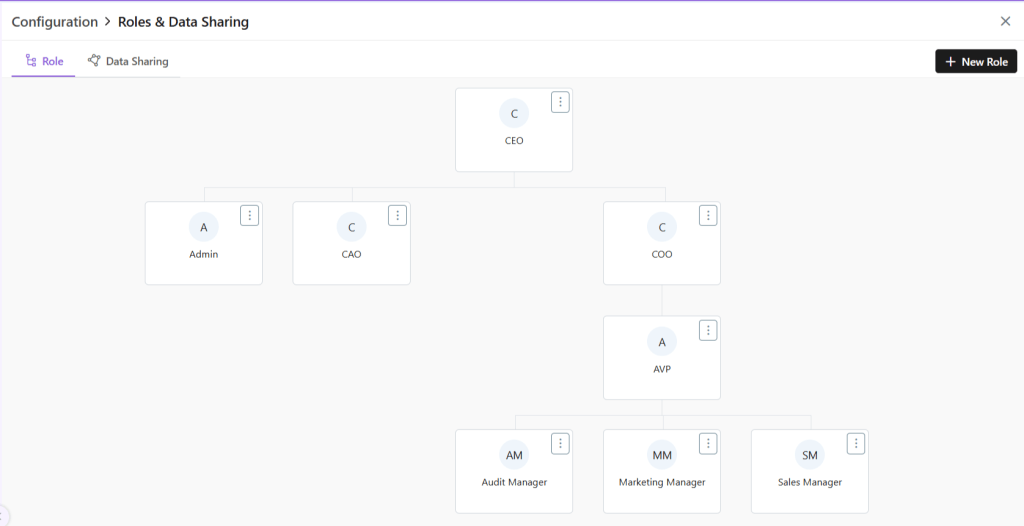
  • The first user in Zhylar is the Org Admin– This is the business owner. By default, this role is named CEO.
  • All other roles are created under the CEO in a tree-like structure.
  • Role names can be changed to match your company (e.g., Manager, Sales Lead, Marketing Executive).
  • CEO (Org Admin – Root Level)

Role-level permission settings

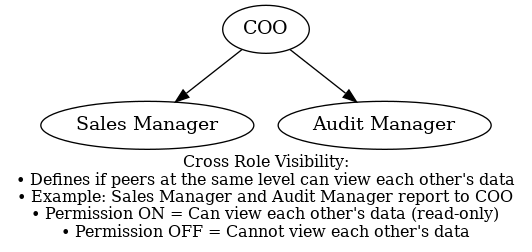
Cross Role :- People with different role with same reporting role (example both COO & CFO reporting to CEO, so CFO & COO are cross roles)

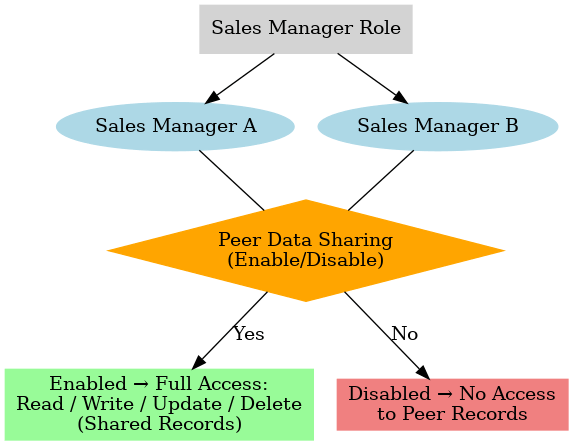
Peers:- People in same role are called peers (Example Sales intern role has 4 individuals in it so they are peers to each other)

This determines the type of data access granted to the role (even when Data Sharing is turned off).

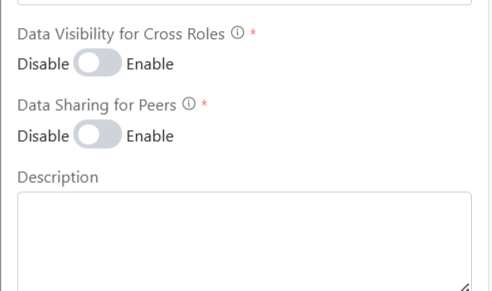
Data visibility for cross role

  • What it does: Lets people at the same level see each other’s data.
  • Example use cases:
    • Sales Reps can see each other’s deals and leads.
    • Marketing Coordinators can check campaigns of peers.
    • Managers can view work of other managers at the same level.
  • Access type: Read-only (can see but not edit).

Data sharing for peers

  • What it does: Lets people at the same level work together on each other’s data.
  • Example use cases:
    • Sales Reps can hand off accounts to each other.
    • Two Reps can manage deals together.
    • SDRs can share lead nurturing.
    • Managers can work together on projects.
  • Access type: Full access (create, edit, update, delete based on settings).

Data sharing configuration

Data Sharing controls how records (Leads, Deals, Accounts, Contacts, Quotes, Invoices, Cases) are shared.

Below are permission available in data sharing

  1. Private
  2. Public Read
  3. Public (Read + Write)
  4. Public (Read + Write + Delete)

Private access

  • Only the record owner has full rights (create, read, update, delete).
  • Others cannot see it unless sharing is given.
  • Example use cases:
    • Sensitive client info.
    • Territory-based leads.
    • Commission-based deals.
    • Compliance rules.

Public access

  • Everyone in the company can see and sometimes edit the records.
  • Different permission levels:
    • READ: Everyone can view records.
    • READ + WRITE: Everyone can view + edit data.
    • READ + WRITE + DELTE: Everyone can view, add, and delete data.

Examples:

  • Public (READ): All leads are visible to all organization user for market research.
  • Public (READ + WRITE): All leads are visible to all organization user with Edit access for market research.
  • Public (READ + WRITE + UPDATE): All leads are visible to all organization user with Edit / Delete access.

Data Sharing Example
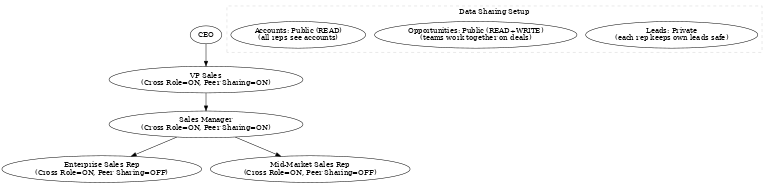
Example: Traditional Sales Organization

Hierarchy:

  • CEO
    → VP Sales
    → Sales Manager
    → Enterprise Sales Rep
    → Mid-Market Sales Rep

Role settings:

  • Enterprise & Mid-Market Sales Reps:
    • Can see data of other roles (If Cross Role = ON).
    • Cannot share their own data with same-level peers (If Peer Sharing = OFF).
  • Managers (Business owners, VP, Sales Manager):
    • Can see across roles (If Cross Role = ON).
    • Can share with peers at the same level (If Peer Sharing = ON).

Data sharing rules:

  • Leads → Private → Each rep keeps their own leads.
  • Opportunities (deals) → Public (READ + WRITE) → Teams can work together on deals.
  • Accounts → Public (READ) → Everyone can see accounts to get market knowledge.

Important points to remember

  • Data sharing rules are applicable across the entire organizational structure.
  • Changing role hierarchy instantly changes who can see what.
  • Changing data sharing rules affects both old and new records.
  • If you move a user to a new role, their access changes automatically.
  • Bulk uploads follow the current sharing rules.
  • Data Sharing rules supersede all other permissions.
  • A user without access to a particular module will not be impacted by data sharing changes. For example, if User A does not have access to the Leads module, turning data sharing on across the organization will not affect them at all.

Zhylar makes it easy to balance privacy (when you need control) and collaboration (when you need teamwork).

Also Read

User Management

Roles and Hierarchies

In a CRM system like Zhylar, roles determine user data access levels. They assign permissions to each user within the organization. Roles ensure data privacy and control by allowing only authorized team members to view, edit, or manage specific records. With hierarchy-based roles, managers can oversee their team’s activities. Individual users focus only on the data relevant to their responsibilities. This setup maintains data security while allowing appropriate visibility based on roles and responsibilities.- Roles (what is your role in your org/designation)

Zhylar implements top-down hierarchical role structure. A role in Zhylar decides two important things:

  • Position in company hierarchy – It shows who reports to whom (like CEO → Manager → Sales Rep)
  • Data access control – It defines what each user can see or edit on the Zhylar platform.
  • Log in to Zhylar
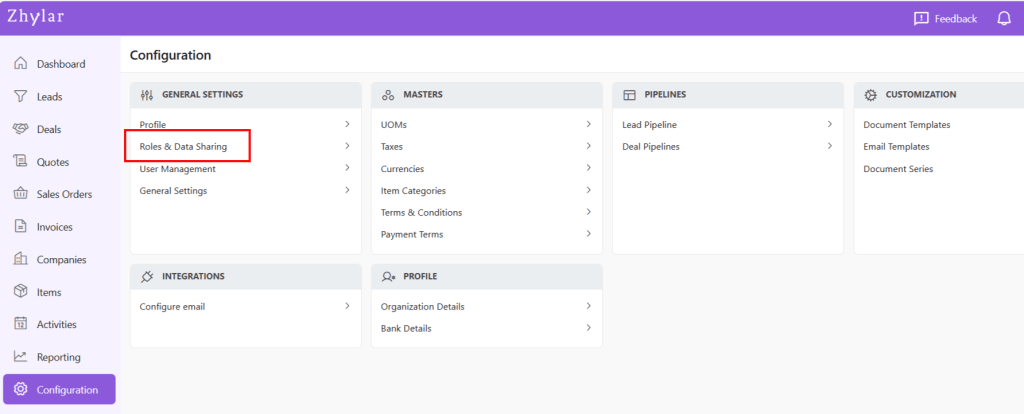
  • Go to Left-hand navigation panel
  • Click on Configuration
  • Under General Settings tab, select Roles & Data Sharing
  • When you click on Roles and Data Sharing, you will be taken to a new page.
  • Here, you can see all the roles added to the system. The hierarchy of roles is illustrated like a flow chart.
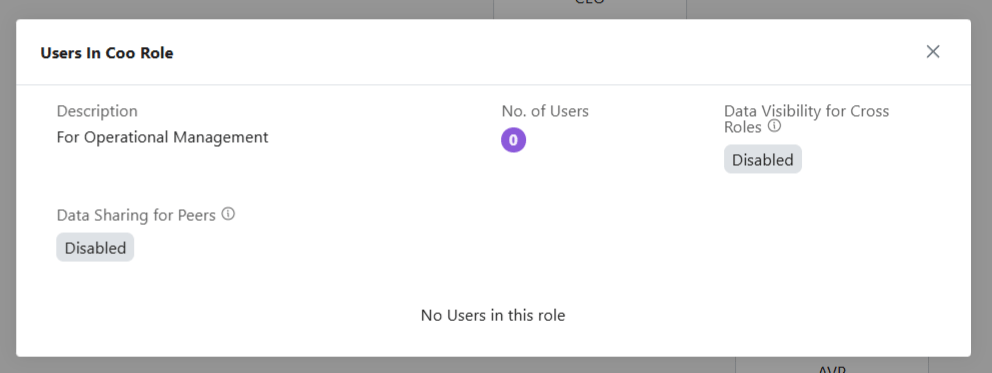
  • Click ⋮ 3 dots
  • Select View
  • Check details.
  • Click X on the top-right of the box to close.
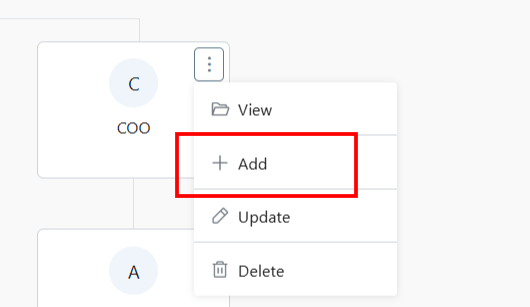
  • To add a new role, click + New Role
  • Alternately, click on the 3 dots of the Role name under whom you want to add a new Role.
  • Select +Add
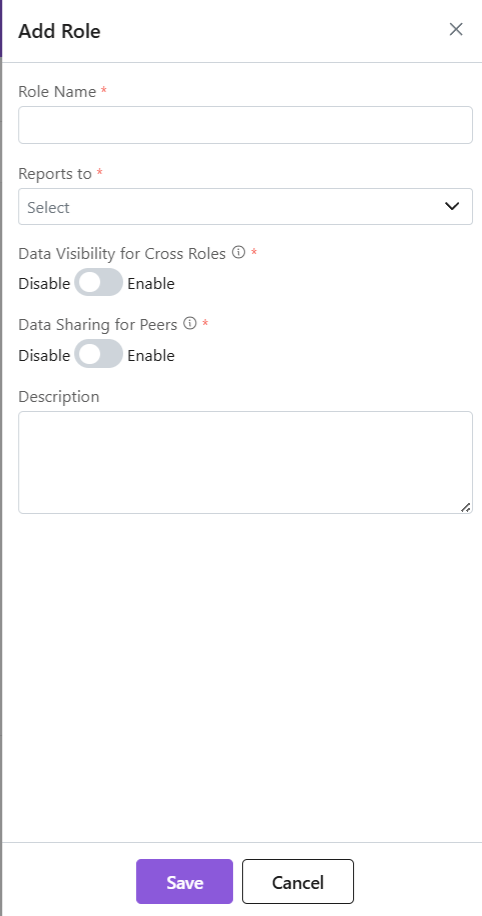
  • A side sheet will open.
  • Fill out the details.
  • Click Save.
  • The new role will be added.

Data Access:

Data Sharing for Peers: This determines if 2 or more persons are in the same role. They will be able to access each other’s data or not. For example, an organization may have 2 Sales Managers, they are considered peers. So, enabling or disabling this permission will determine if they can gain access (Read/Write/Update/Delete) to each other’s data or not.

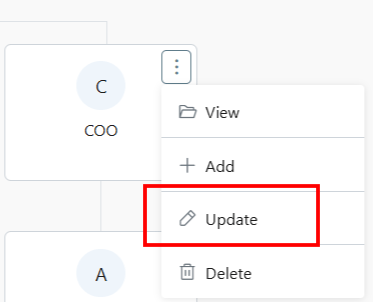
  • Click ⋮ 3 dots
  • Select Update
  • Make changes.
  • Click Save.
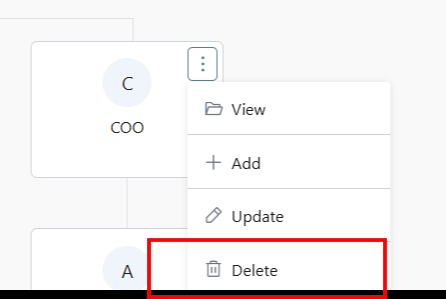
  • Click ⋮ 3 dots
  • Select Delete
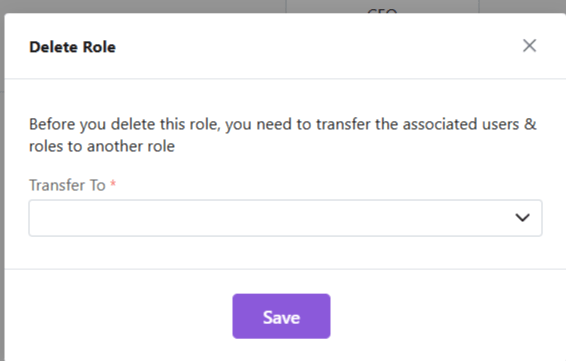
  • You will be required to transfer all associated users under this role to another role.
  • Once you have done the needful, click Save.
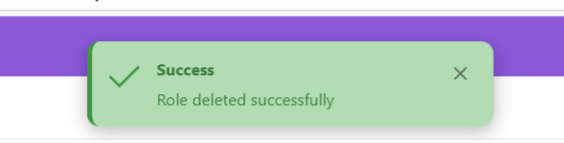
  • The role will be deleted successfully.

Note: Hierarchy + Roles = Secure yet collaborative access control.

Also Read
User Management

User Management

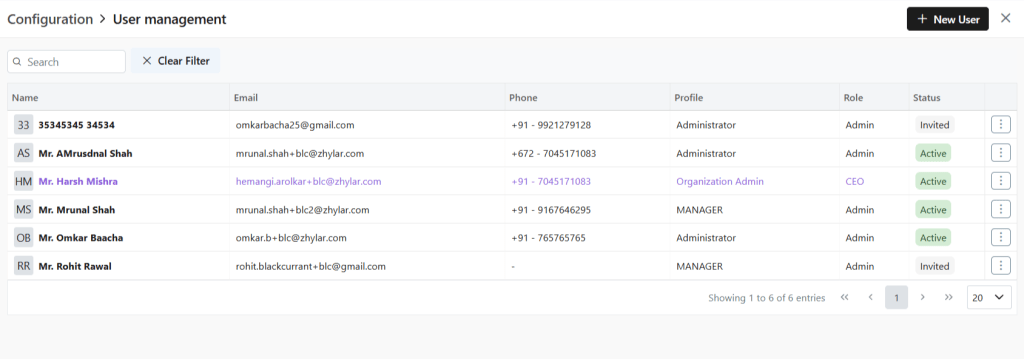
User management is a system that controls access to software or platforms. It assigns role-based privileges such as Admin or Sales Rep. It ensures that users have appropriate permissions based on their roles. This approach enhances data security. It prevents unauthorized access. It also supports regulatory compliance by maintaining control over who can view or modify specific information within the system.

  • Organization Admin has the full system control (configurations/user access). Organization Admin is the CEO.
  • User Status– Tracks invitation (Pending → Active)
  • Password Reset– credential updates
  • Log in to Zhylar
  • Go to Left-hand navigation panel
  • Click on Configuration
  • Under General Settings tab, select User Management.
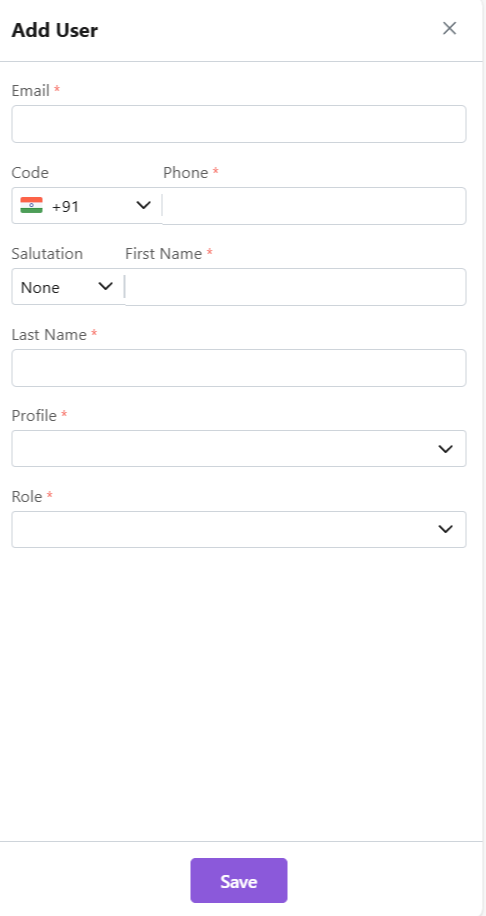
  • Click +New User”
  • Fill details
  • Save User”
    • To define Profile, add a new Profile from “Profile” module first, if required.
    •  When a new user is added, the status will automatically be updated as “Invited”. 
    • Once the user accepts, the status will change to active.  
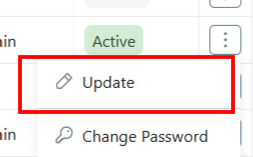
  • Click ⋮ 3 dots
  • Select Update
  • Click Save.
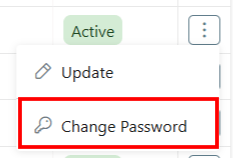
  • Click ⋮ 3 dots
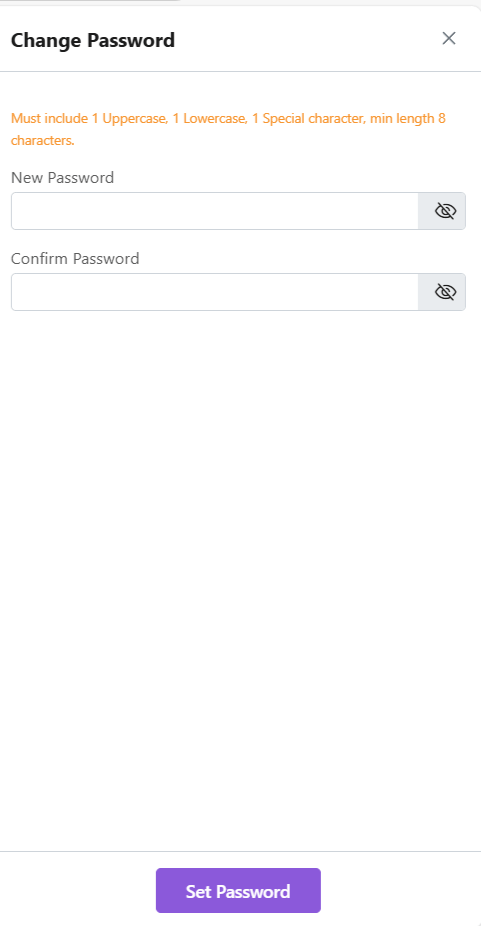
  • Select Change Password
  • “Set Password”

Note: Password can only be changed by the user or system administrator.

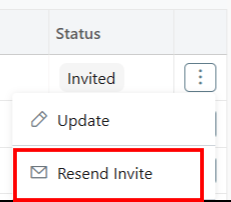
This is only applicable for a User who has not yet accepted the invite email. The status will reflect Invited.

  • Click ⋮ 3 dots
  • Select “Resend Invitation” to invite user again (password reset email)
  • Organization Admin is the CEO.
  • Only users with specific permissions Can Create, Add, Update, Delete or Resend the Invitation to any user. 
  • One email ID can be used to register one user only.
  • Permissions required for user modifications
  • Admins customize workflows/access per role.

Also Read

Currencies

Roles and Data Sharing

General Settings 

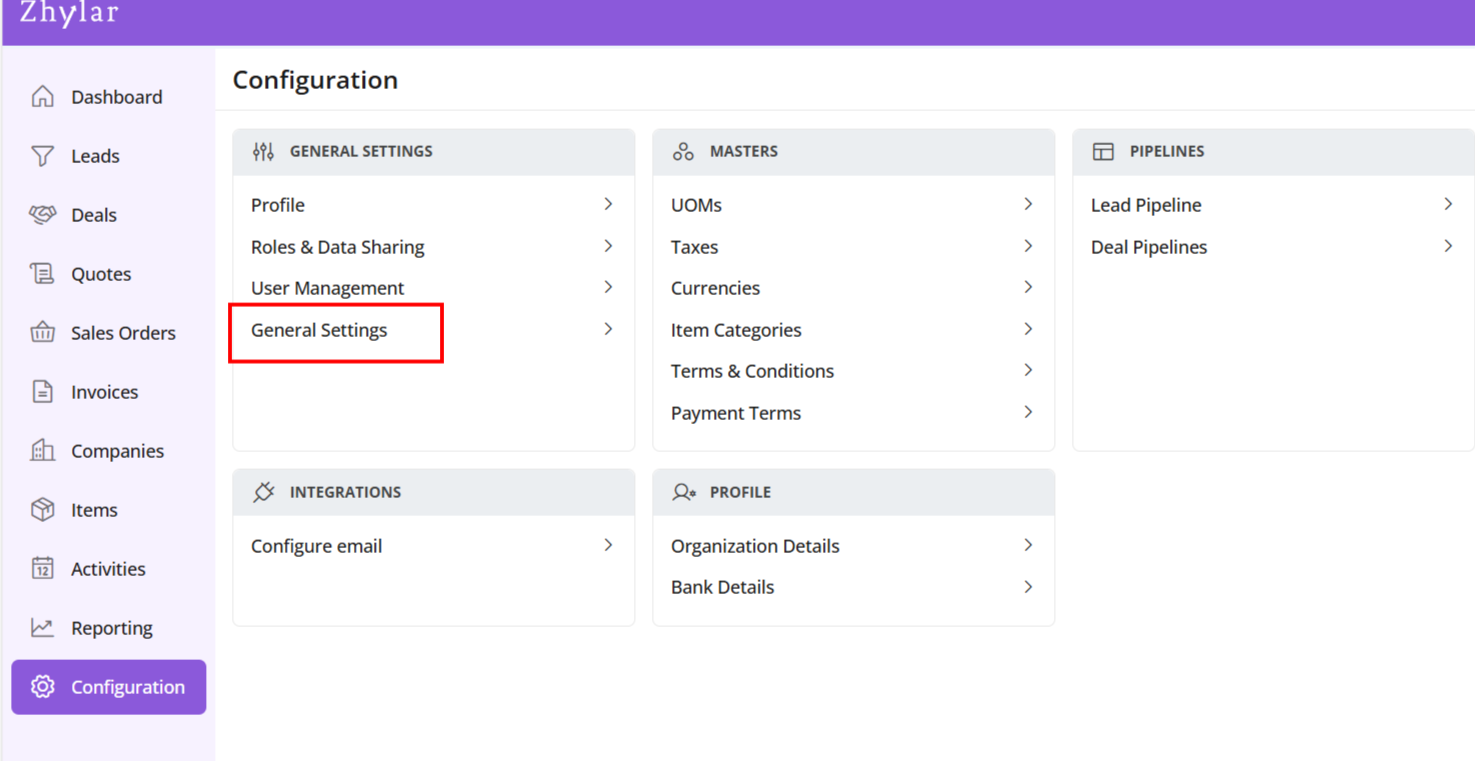
  1. Log in to Zhylar.
  1. Click on “Configuration”.  
  1. In the “Masters” column, click on “General Settings”. 
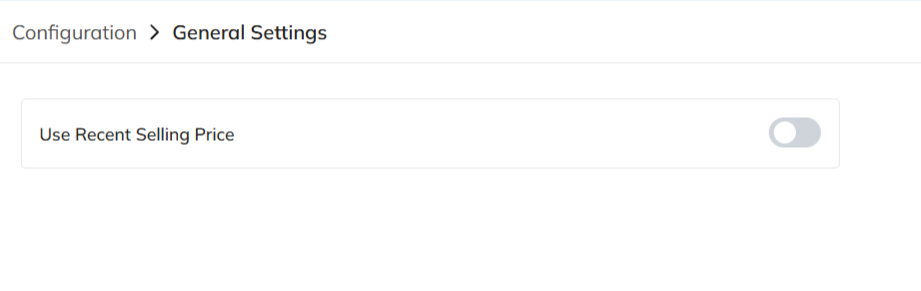
  1. A new page will open for you. 
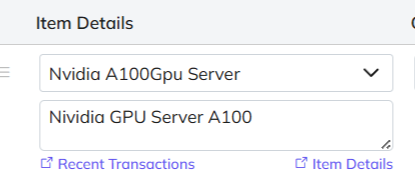
  1. Here, you can turn on or turn off the “recent selling price” option. 

When turned on, recent selling price is reflected under “Item Details” wherever an item is added in the following modules:

  • Deal
  • Quote
  • Sales Order
  • Invoice

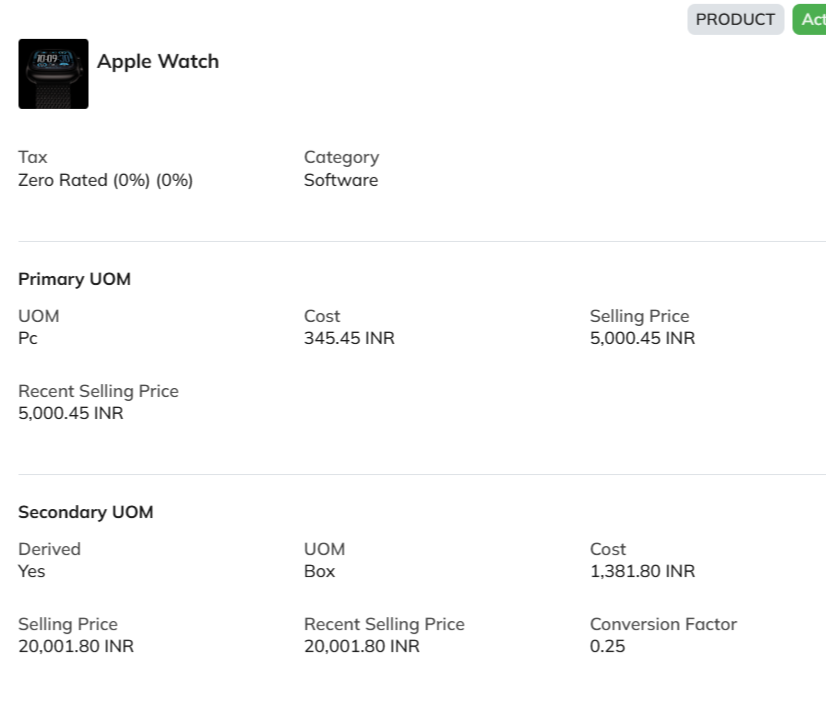
Under the added item, select Item Details

The details will open.

The recent selling price reflects the price at which the item was sold the last time only. In comparison, the recent transaction reflects the entire transaction history of the product in the Zhylar system.

Also Read

Profiles

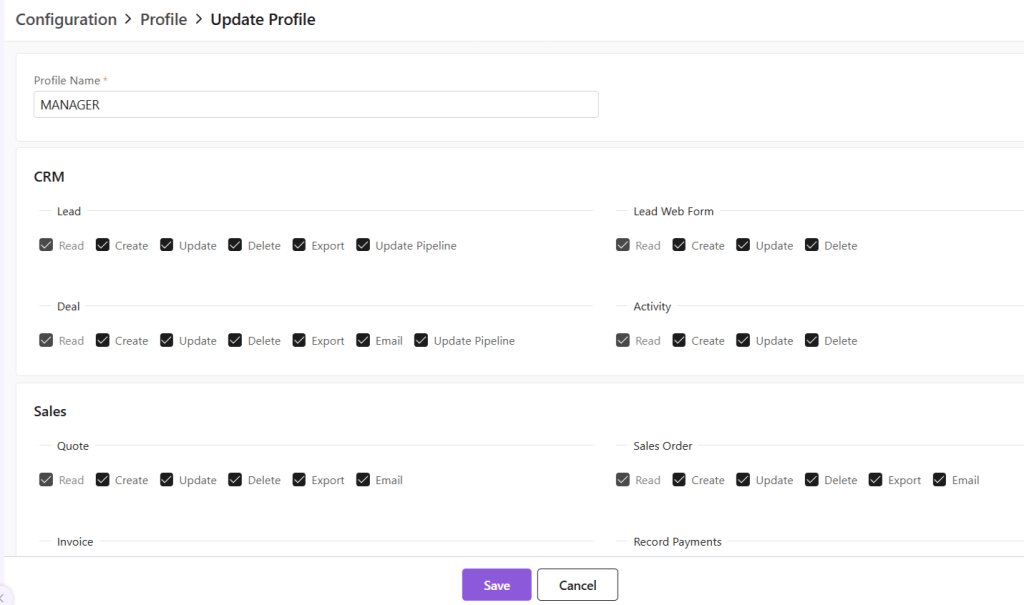
In Zhylar, profiles determine what features and functionalities a user can access within the platform. Profiles control “who sees what” based on hierarchy. Profiles define “what a user can do.” This includes creating records, editing data, or generating reports. Zhylar assigns the right profile to ensure every team member has the exact tools they need. This helps them perform their job efficiently without unnecessary clutter or access.

  1. Administrator/Admin
  2. Manager

Permissions refer to the specific actions or data that a user can access within their assigned Profiles. Permissions are more granular than roles. They dictate exactly what each user can do with the data. They also define the features users can see. 

  • Read
  • Create
  • Update
  • Delete
  • Export
  • Update Pipeline
  • Email
  • Manage Configuration

To get started, follow these steps:  

  • Log in to Zhylar
  • Go to Left-hand navigation panel
  • Click on Configuration
  • Under General Settings tab, select Profiles
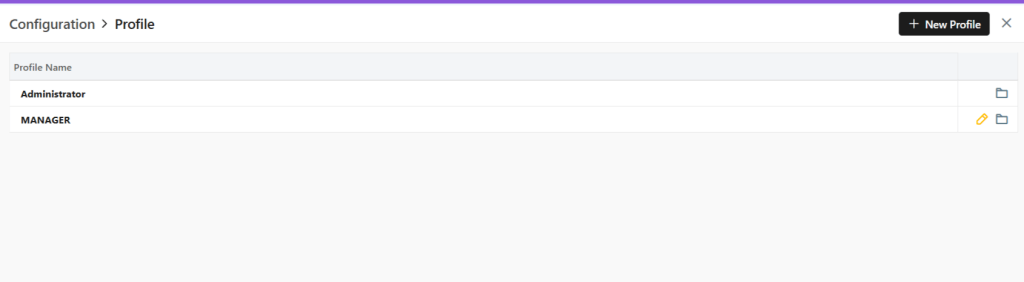
  1. You will be able to view all the Profiles as shown in the image below. 
  • Two default Profiles are pre-loaded in the system- Administrator and Manager.
  • The Administrator is the CEO. This profile cannot be updated or deleted in any way.

Add New Profile

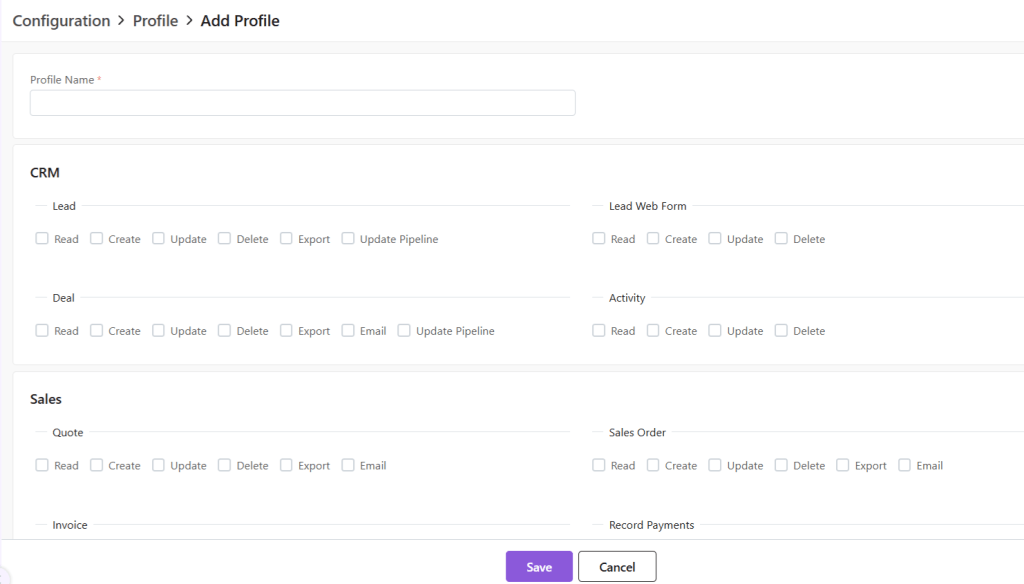
  1. Click on the “+ New Profile” button. 
  1. A new page will open.  
  1. Fill out the Profile name and click on the permissions to be provided to the said Profile.  
  1. Click on Save to add Profile. 
  1. There are 2 default Profile, namely, Administrator and Manager.  
  1. The Administrator Profile cannot be edited. 
  1. To update a Profile, click on the yellow pen at the end of the Profile you want to edit.  
  1. A new page will open. 
  1. Update the permissions provided and click Save
  • Click Save.

To delete the Profile,

  • First click on the yellow pencil to go to Update view.

Now, click on “Delete Profile” at the bottom-right corner of the page.

  • Now, confirm you want to delete the role by clicking on Yes.
  • The role will be deleted.

Also Read

User Management

Roles and Data Sharing