Search and Filter

The Search and Filter feature in Zhylar helps users quickly find the exact information they need. It eliminates the need to scroll through endless records. With global search, you can look up leads, deals, customers, or items in seconds. Filters allow you to narrow results by conditions like deal stage, lead source, industry, date, or owner.

This saves time, reduces errors, and ensures sales teams always focus on the most relevant records. For example, a manager can filter leads generated “this month” or leads by “owner.” Adding more than one filter helps you quickly narrow down to the exact records you need without wasting time.

  • Find hot leads – A sales rep filters leads marked “High Priority” created in the last 7 days.
  • Check pending invoices – The finance team searches for invoices that are still pending or overdue.
  • See campaign results – A marketing manager filters leads from an email campaign to check how many converted.
  • Log in to Zhylar
  • The Filter option is available in the following modules:
    • Leads
    • Deals
    • Quotes
    • Sales Orders
    • Invoices
    • Companies
    • Items
    • Tasks (Under Activities)

For each module, you can find the Filter button on the top right-hand corner of the page.

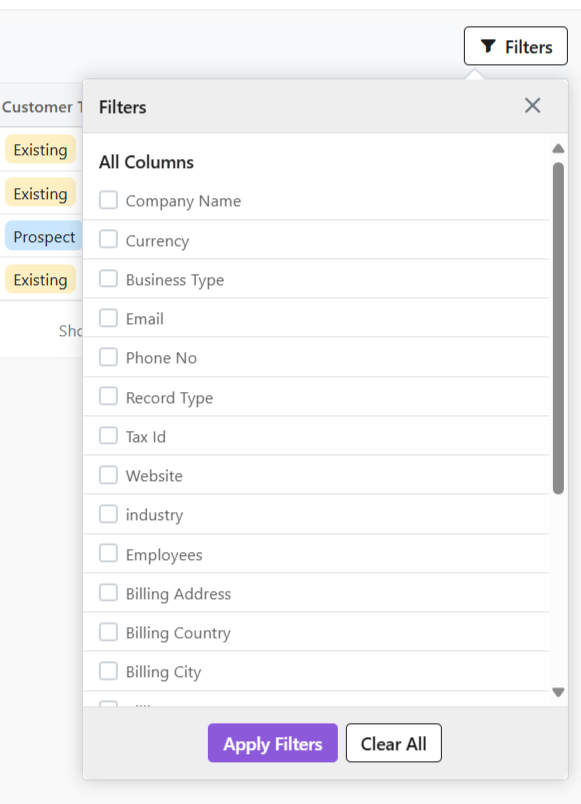
The Filters differ from module to module based on the module itself.

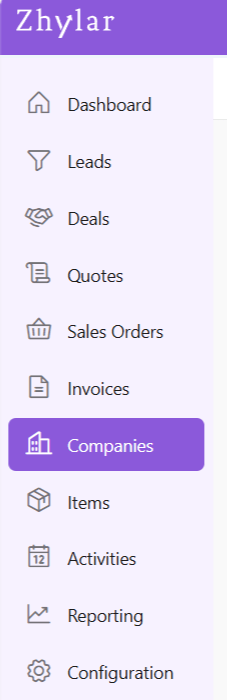
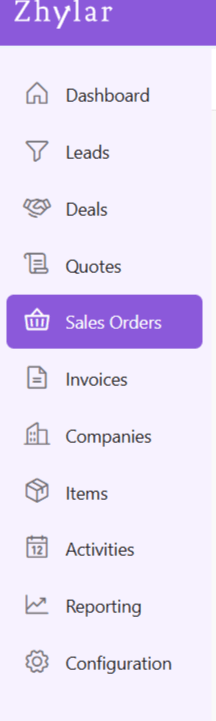
  • From the left-hand navigation panel, click on Leads.
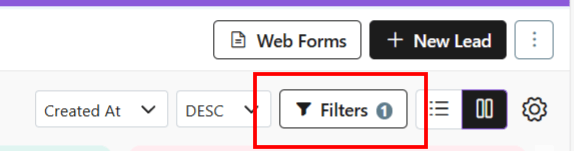
  • On the top-right hand corner, select Filters. A list of all the filters will show in a drop-down menu.
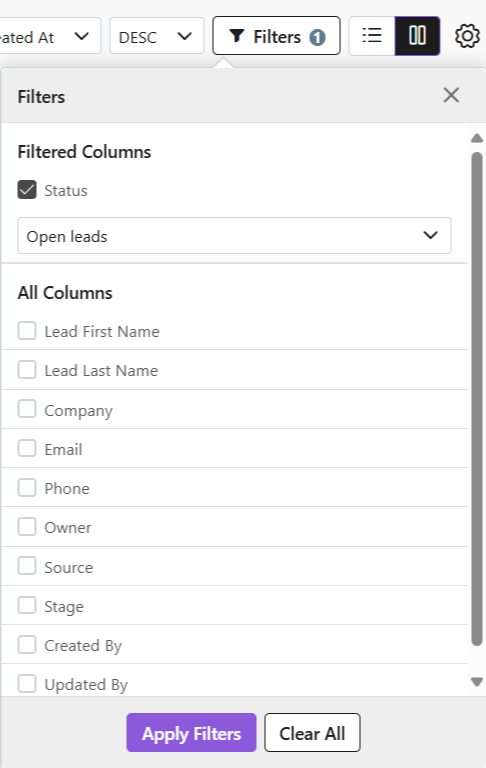
  • Select all required Filters.
  • Click Apply Filters.
  • Once done, or to make a new search, click Clear All to see all results.
  • All Filters will be cleared and the entire List View will show again.
  • From the left-hand navigation panel, click on Deals.
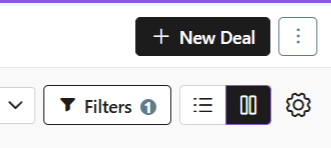
  • On the top-right hand corner, select Filters. A list of all the filters will show in a drop-down menu.

  • Select all required Filters.
  • Click Apply Filters.
  • Once done, or to make a new search, click Clear All to see all results.
  • All Filters will be cleared and the entire List View will show again.
  1. From the left-hand navigation panel, click on Quotes.
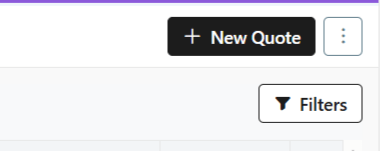
  • On the top-right hand corner, select Filters. A list of all the filters will show in a drop-down menu.
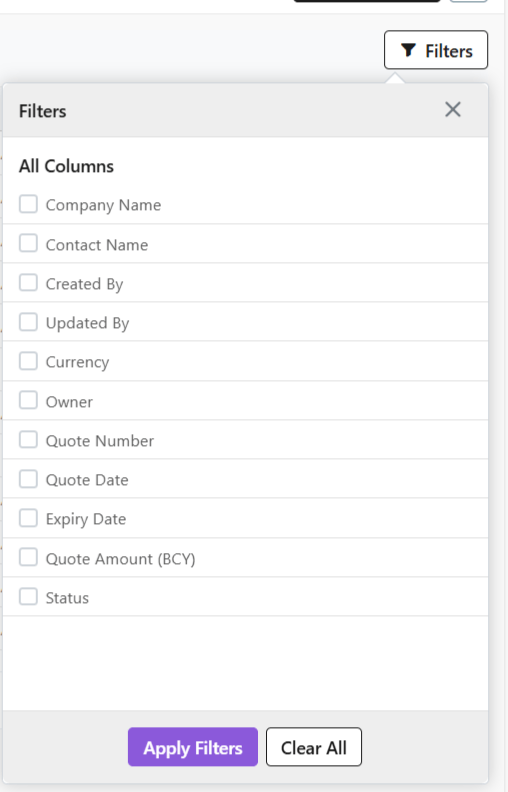
  • Select all required Filters.
  • Click Apply Filters.
  • Once done, or to make a new search, click Clear All to see all results.
  • All Filters will be cleared and the entire List View will show again.
  • From the left-hand navigation panel, click on Sales Order.
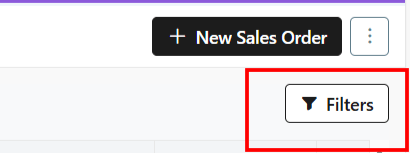
  • On the top-right hand corner, select Filters. A list of all the filters will show in a drop-down menu.
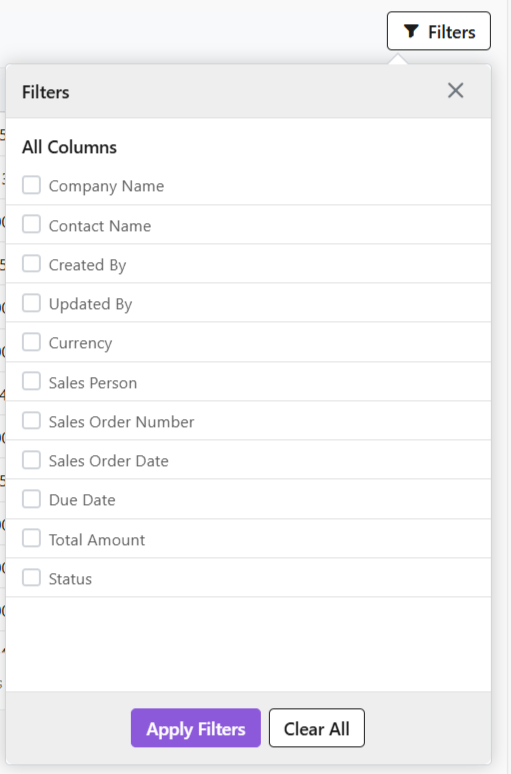
  • Select all required Filters.
  • Click Apply Filters.
  • Once done, or to make a new search, click Clear All to see all results.
  • All Filters will be cleared and the entire List View will show again.
  • From the left-hand navigation panel, click on Invoices.
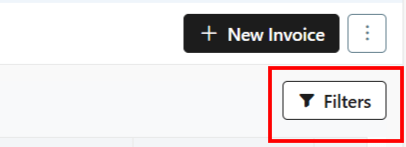
  • On the top-right hand corner, select Filters. A list of all the filters will show in a drop-down menu.
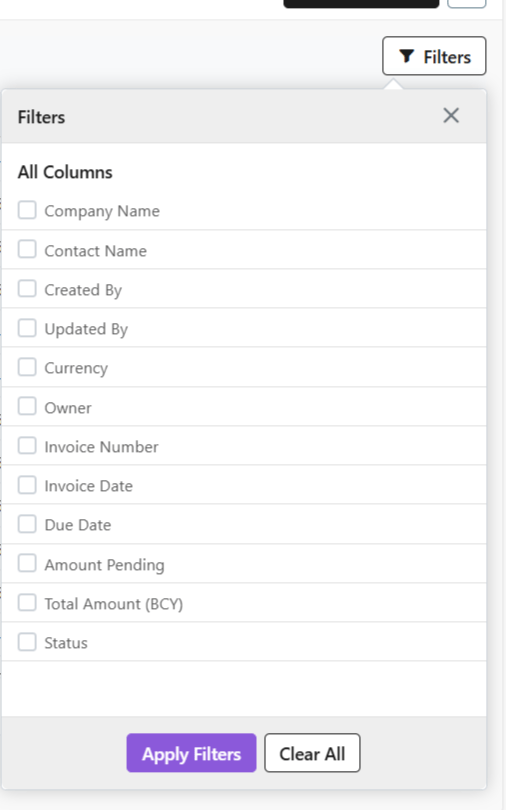
  • Select all required Filters.
  • Click Apply Filters.
  • Once done, or to make a new search, click Clear All to see all results.
  • All Filters will be cleared and the entire List View will show again.
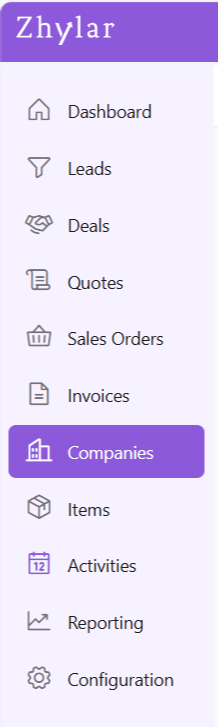
  • From the left-hand navigation panel, click on Companies.
  • On the top-right hand corner, select Filters. A list of all the filters will show in a drop-down menu.
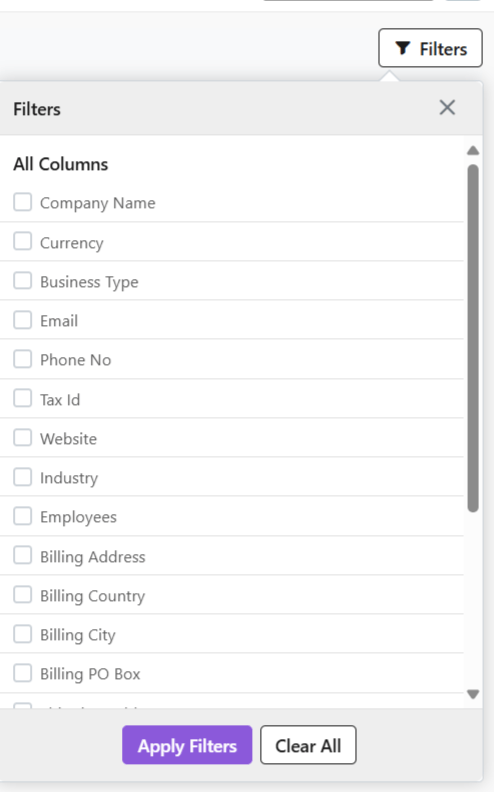
  • Select all required Filters.
  • Click Apply Filters.
  • Once done, or to make a new search, click Clear All to see all results.
  • All Filters will be cleared and all the results will show again.
  • From the left-hand navigation panel, click on Items.
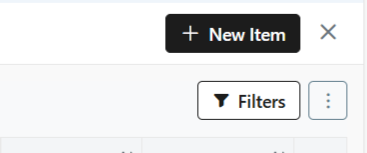
  • On the top-right hand corner, select Filters. A list of all the filters will show in a drop-down menu.
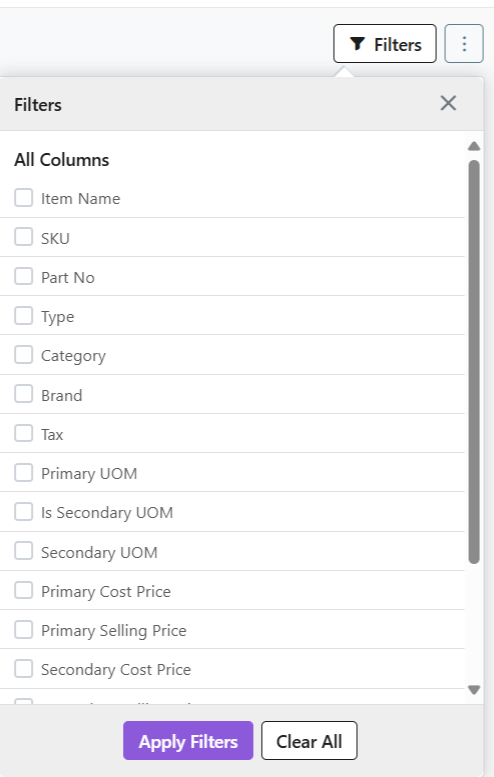
  • Select all required Filters.
  • Click Apply Filters.
  • Once done, or to make a new search, click Clear All to see all results.
  • All Filters will be cleared and all the results will show again.
  • From the left-hand navigation panel, click on Activities
  • Go to Tasks.
  • On the top-right hand corner, select Filters. A list of all the filters will show in a drop-down menu.
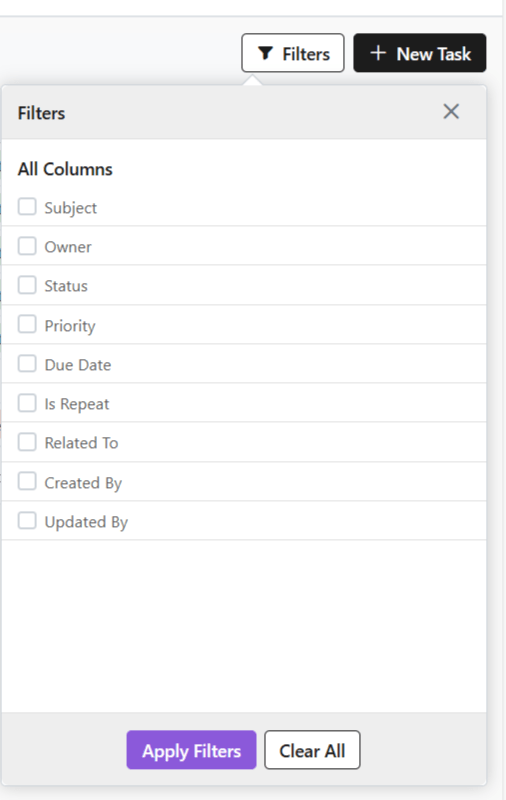
  • Select all required Filters.
  • Click Apply Filters.
  • Once done, or to make a new search, click Clear All to see all results.
  • All Filters will be cleared and all the results will show again.

Discover how Zhylar can streamline your sales and elevate your business processes. Visit our website or book a demo today to experience the difference!
Also Read

Units of Measurement

User Management

Currencies

Sales Order

Sales orders are records created when a customer commits to a purchase. They outline product details, quantities, prices, and delivery timelines, helping teams track and manage fulfillment. Sales orders streamline the transition from sales to delivery, ensuring accuracy, efficient processing, and clear communication with customers. 

Getting Started

Sales Order List View

  • Log in to Zhylar
  • Go to Left-hand navigation panel
  • Click on Sales Order
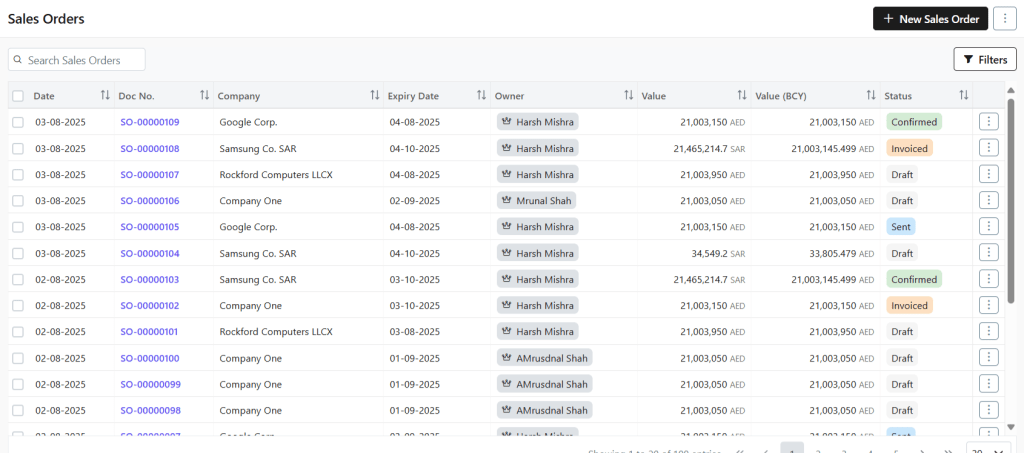
  • Check the list of Sales Orders in the system

Add New SO

A Sales Order can be added to the system in several ways.

Sales Order Module

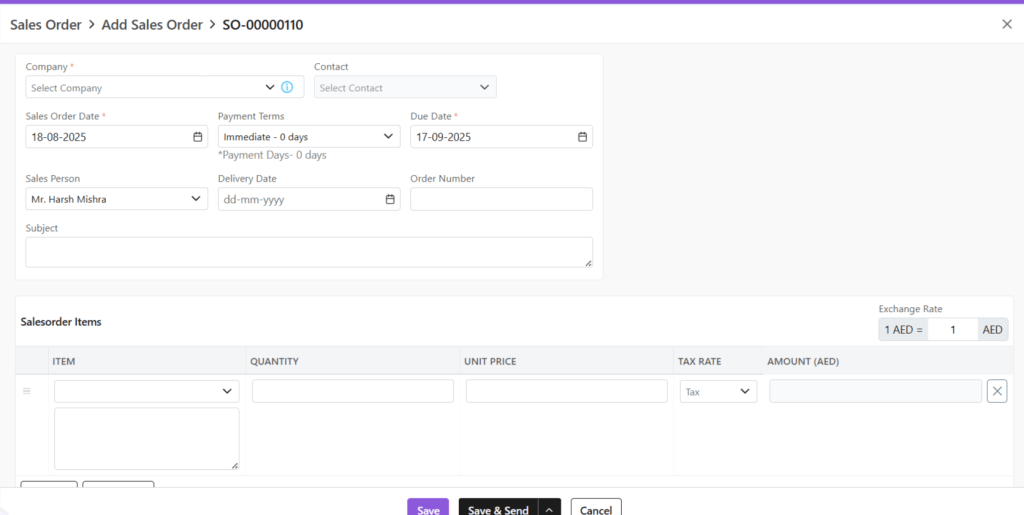
  • Click + New Sales Order
  • A new page will open.
  • Fill out the required details.
    • Company: Select or add a company to whom this Sales Order is being sent
    • Contact: Add contact from that company
    • Owner: Owner is the person who created the document or to whom it is assigned
    • Sales Order Date: Date on which invoice was created.
    • Payment Terms: Select or add payment terms
    • Due Date: Due date to confirm sales order
    • Subject: Optional field
    • Exchange Rate: Based on company selection, the exchange rate will be populated automatically. You can also manually adjust the exchange rate at the document level itself.
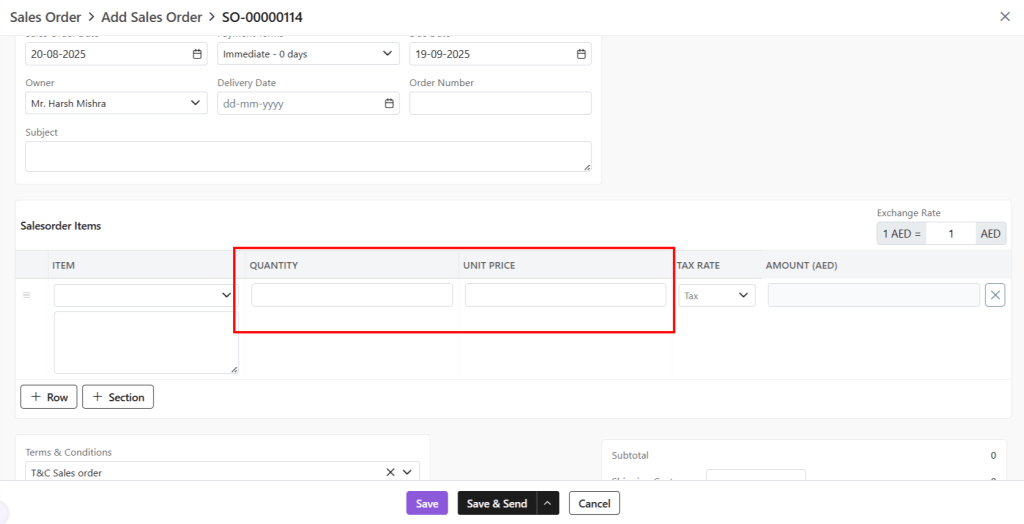
    • Sales Order Items: Add items to the Sales Order with a single click.
    • Modify quantity and unit price
      • Zhylar supports the primary & secondary UOM concept. You can specify quantity in any of the primary or secondary UOM. You can also set the unit price in any of these UOM.
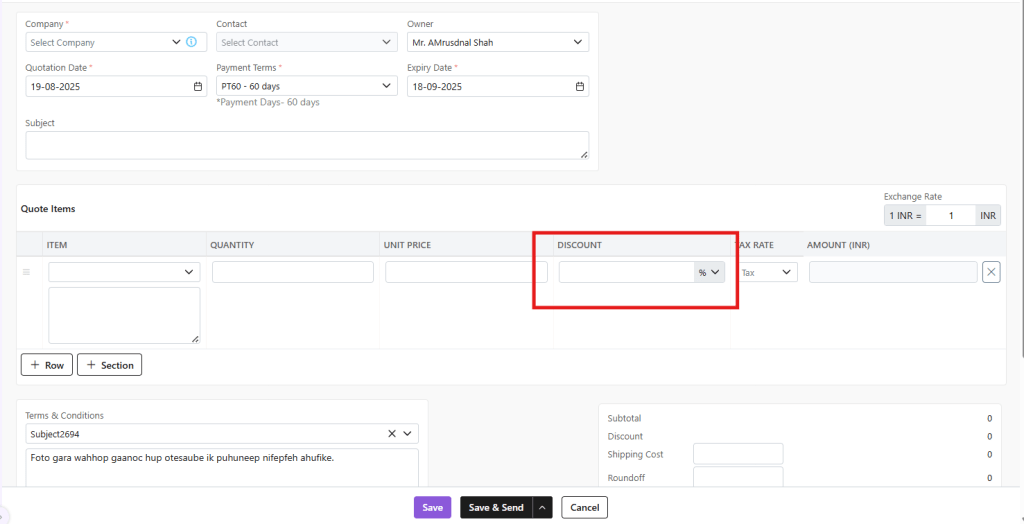
  • Discount: This field is visible only if line discounts are enabled for your organization. You can specify the discount either as a percentage or as a fixed amount.
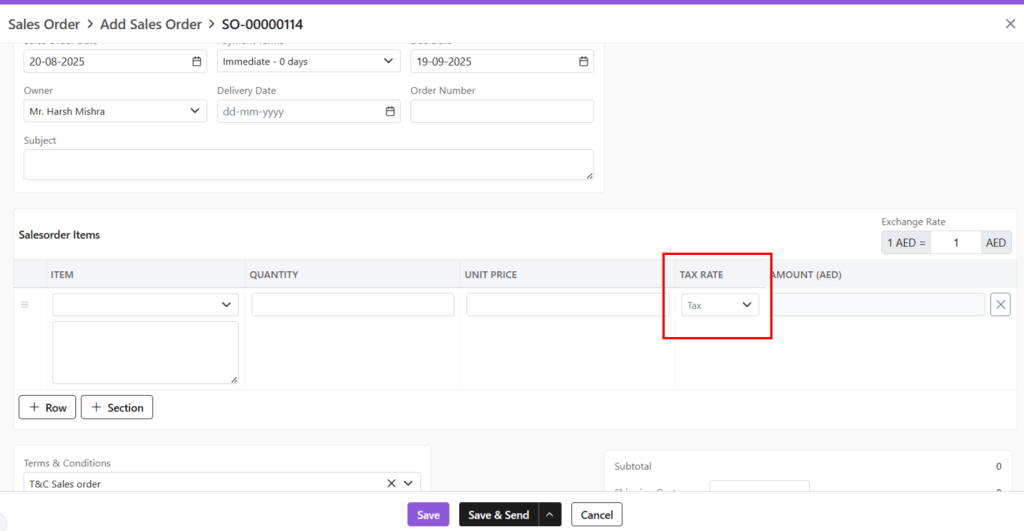
  • Tax Rate: The tax will be preloaded based on the item selected. It is defined during the creation of the item. However, you still have the option to change the tax that is applied to the item selected.
    • Amount: Amount will be calculated based on Quantity * Unit Price – Discount
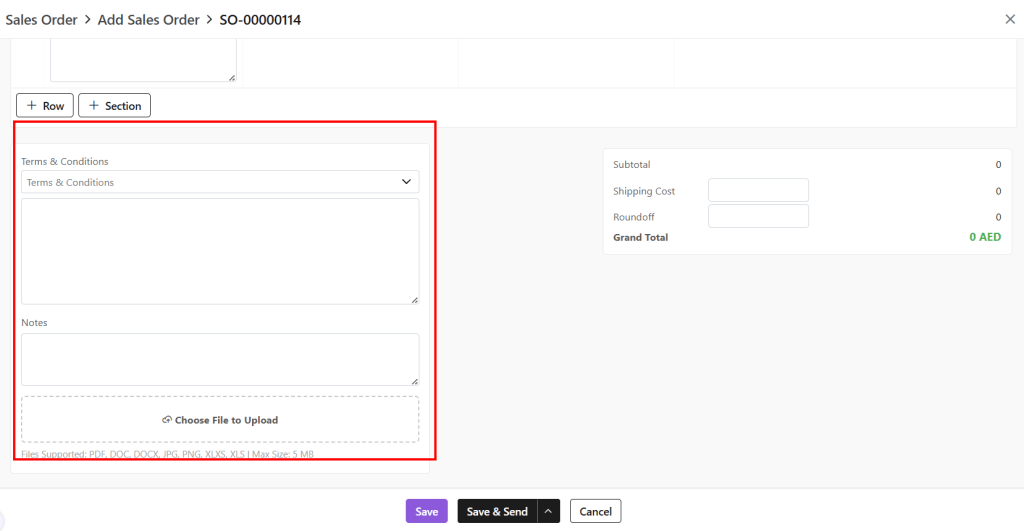
    • Terms & Conditions: T&C can be selected from the defined T&C templates. Alternatively, they can be typed manually as per your need.
    • Notes: Any notes about the document to displayed to customer.
    • File Upload: This is to upload related files along with documents.
    • Save as Draft (edit later)
    • Save & Send (send immediately)

    Shortcut (Header)

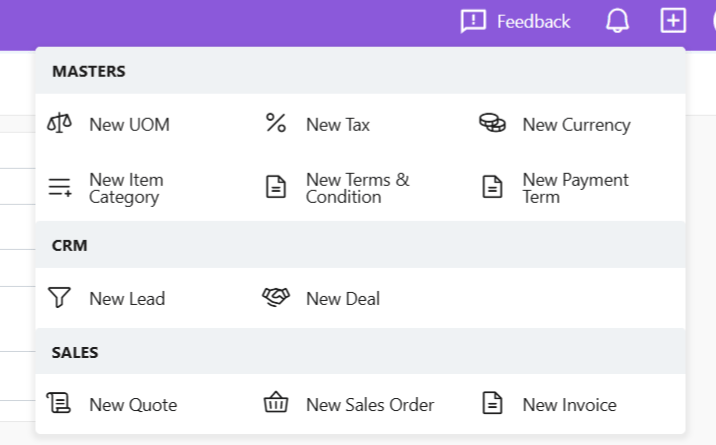
    A new SO can also be added by clicking the + sign next to the profile. All following steps remain the same.

    Companies Module

    • From the Companies module, click open the company to whom you want to send an SO.
    • Go to SO tab.
    • Select +Sales Order

    From Deal

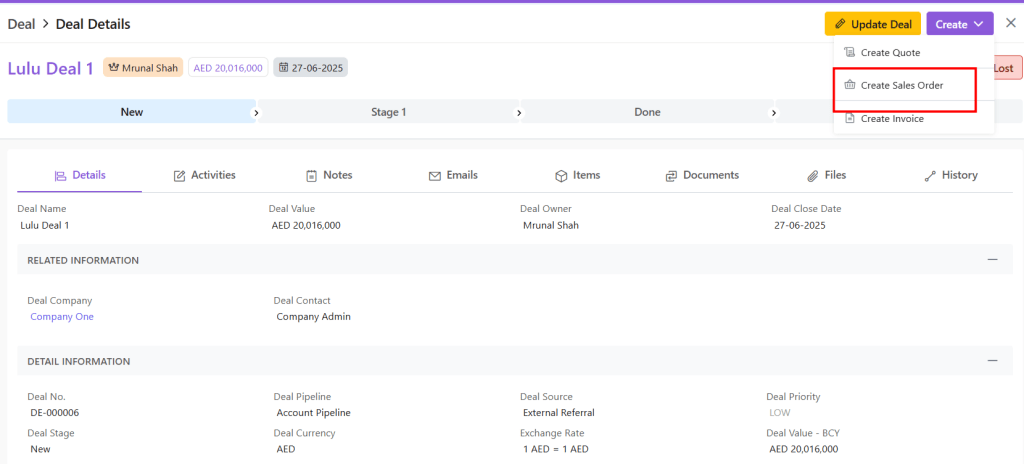
    A Sales Order can also be created from a Deal.

    • Select Create SO.
    • Go to Deals module.
    • Click open the Deal for which you want to make a SO.
    • Go to View Deal.
    • Click Create.

    The same process is applicable for creating Sales Orders from Quotes as well.

    Sales Order Lifecycle

    Draft

    Initial stage of the order- The sales order is created but not yet sent to the customer.

    • Available actions:
      • View: View the details of the document.
      • Update: Update details of an existing sales order.
      • Clone: Make a copy of the deal that you can edit for further use.
      • Download: Download a copy of the sales order to your device in PDF format.
      • Mark as Sent: Sends the sales order to the customer, moving it to the next status.
      • Delete: If the SO is no longer needed, it can be deleted.

    Sent

    Indicates the order has been shared with the customer for review.

    • Available actions:
      • View: View the details of the document.
      • Update: Update details of an existing sales order.
      • Clone: Make a copy of the deal that you can edit for further use.
      • Download: Download a copy of the sales order to your device in PDF format.
      • Mark as Sent: Sends the sales order to the customer, moving it to the next status.
      • Delete: If the SO is no longer needed, it can be deleted.
      • Mark as confirmed: The customer has confirmed the order.
      • Mark as rejected: The customer has rejected the order.
      • Mark as canceled: The sales order has been withdrawn (internally)

    Confirmed

    • Order is accepted and ready for invoicing
    • Available actions:
      • View: View the details of the document. You can also directly create an invoice from this sales order while viewing the details.
      • Update: Update details of an existing sales order.
      • Clone: Make a copy of the deal that you can edit for further use.
      • Download: Download a copy of the sales order to your device in PDF format.
      • Mark as Sent: Sends the sales order to the customer, moving it to the next status.
      • Delete: If the SO is no longer needed, it can be deleted.
      • Mark as rejected: The customer has rejected the order.
      • Mark as canceled: The sales order has been withdrawn (internally)

    Invoiced

    • An invoice has been generated from this particular sales order. Now, the sales order cannot be canceled or rejected.
    • Available actions:
      • View: View the details of the document. You can also directly create an invoice from this sales order while viewing the details.
      • Update: Update details of an existing sales order.
      • Clone: Make a copy of the deal that you can edit for further use.
      • Download: Download a copy of the sales order to your device in PDF format.
      • Delete: If the SO is no longer needed, it can be deleted.

    Rejected

    • The sales order has been rejected. Now, the status cannot be changed in any way.
    • Available actions:
      • View: View the details of the document. You can also directly create an invoice from this sales order while viewing the details.
      • Update: Update details of an existing sales order.
      • Clone: Make a copy of the deal that you can edit for further use.
      • Download: Download a copy of the sales order to your device in PDF format.
      • Delete: If the SO is no longer needed, it can be deleted.

    Canceled

    • The order has been canceled or withdrawn internally.
    • Available actions:
      • View: View the details of the document. You can also directly create an invoice from this sales order while viewing the details.
      • Update: Update details of an existing sales order.
      • Clone: Make a copy of the deal that you can edit for further use.
      • Download: Download a copy of the sales order to your device in PDF format.
      • Delete: If the SO is no longer needed, it can be deleted.

    Delete

    The document was deleted.

    Roles and Hierarchies

    In a CRM system like Zhylar, roles determine user data access levels. They assign permissions to each user within the organization. Roles ensure data privacy and control by allowing only authorized team members to view, edit, or manage specific records. With hierarchy-based roles, managers can oversee their team’s activities. Individual users focus only on the data relevant to their responsibilities. This setup maintains data security while allowing appropriate visibility based on roles and responsibilities.- Roles (what is your role in your org/designation)

    Zhylar implements top-down hierarchical role structure. A role in Zhylar decides two important things:

    • Position in company hierarchy – It shows who reports to whom (like CEO → Manager → Sales Rep)
    • Data access control – It defines what each user can see or edit on the Zhylar platform.
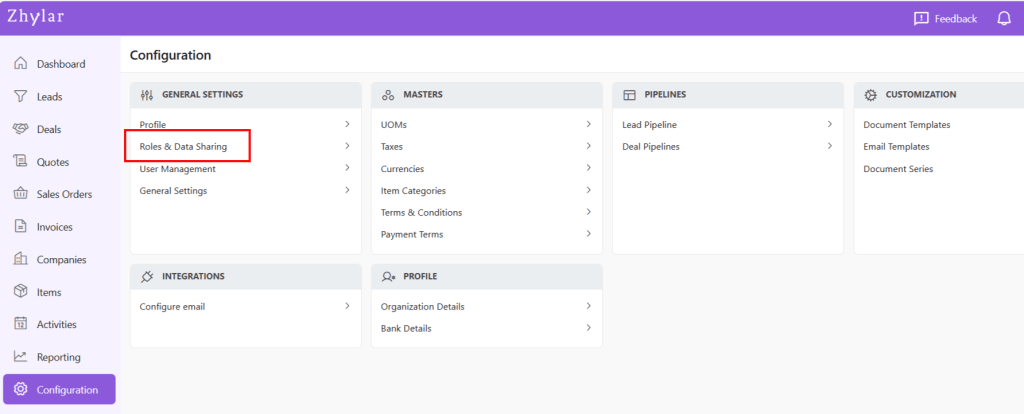
    • Log in to Zhylar
    • Go to Left-hand navigation panel
    • Click on Configuration
    • Under General Settings tab, select Roles & Data Sharing
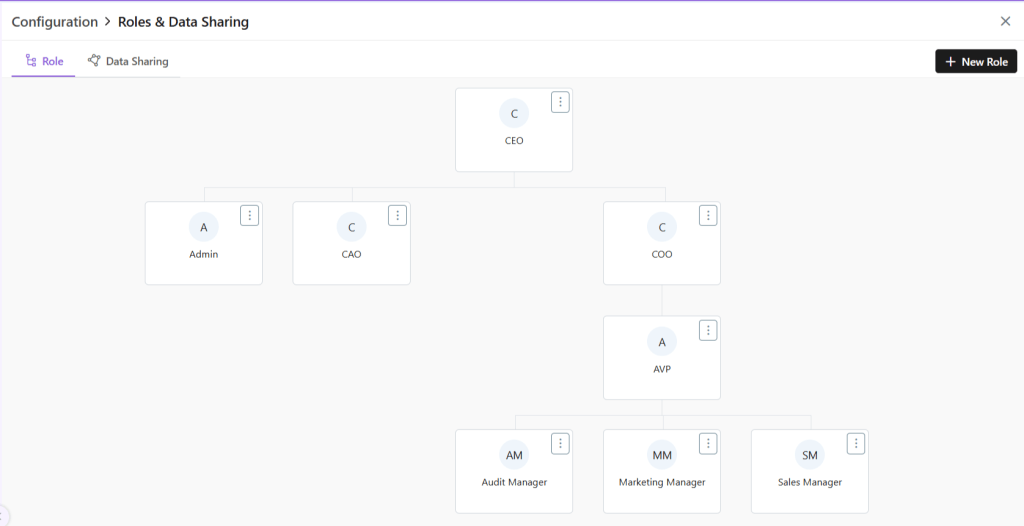
    • When you click on Roles and Data Sharing, you will be taken to a new page.
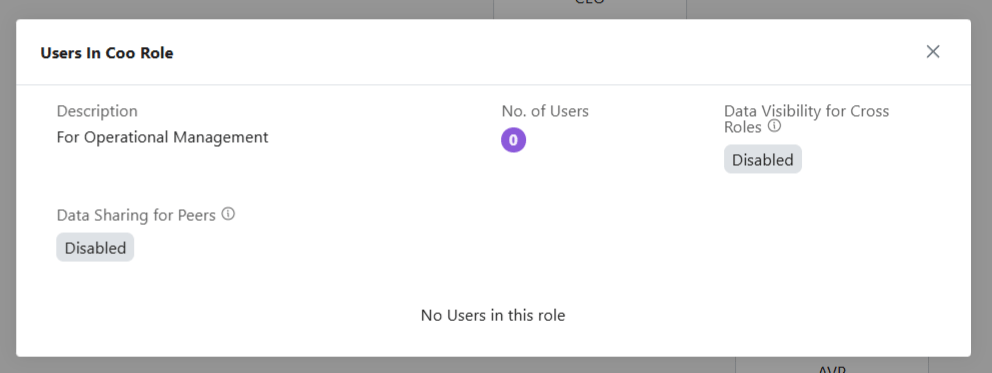
    • Here, you can see all the roles added to the system. The hierarchy of roles is illustrated like a flow chart.
    • Click ⋮ 3 dots
    • Select View
    • Check details.
    • Click X on the top-right of the box to close.
    • To add a new role, click + New Role
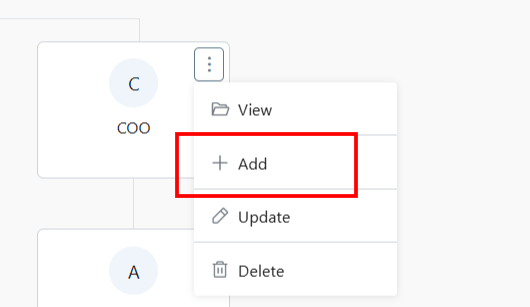
    • Alternately, click on the 3 dots of the Role name under whom you want to add a new Role.
    • Select +Add
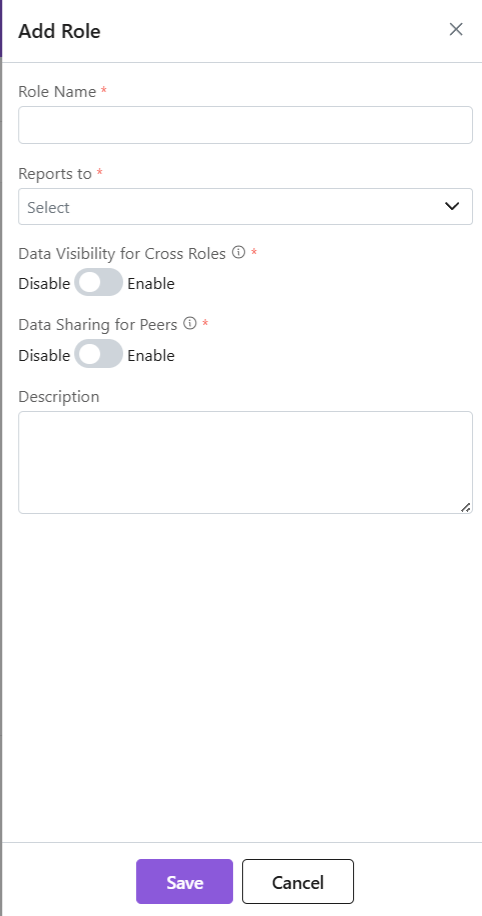
    • A side sheet will open.
    • Fill out the details.
    • Click Save.
    • The new role will be added.

    Data Access:

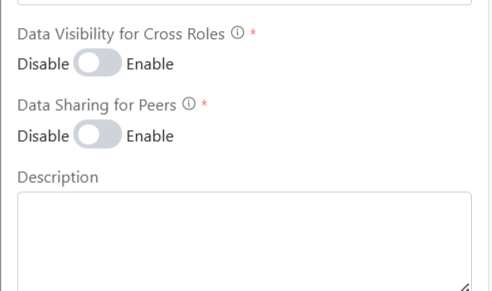
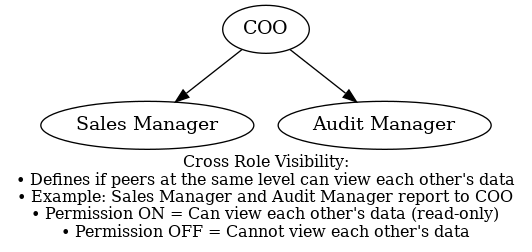
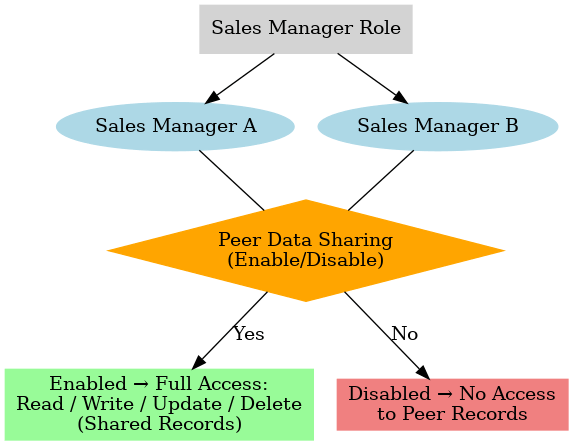
    Data Sharing for Peers: This determines if 2 or more persons are in the same role. They will be able to access each other’s data or not. For example, an organization may have 2 Sales Managers, they are considered peers. So, enabling or disabling this permission will determine if they can gain access (Read/Write/Update/Delete) to each other’s data or not.

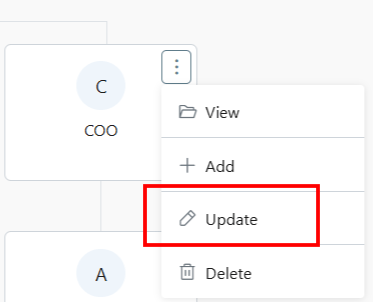
    • Click ⋮ 3 dots
    • Select Update
    • Make changes.
    • Click Save.
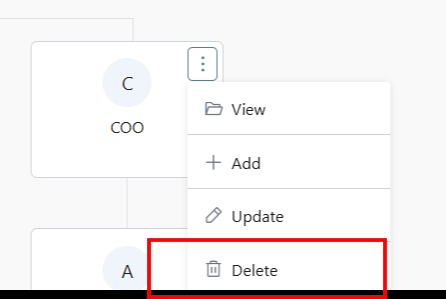
    • Click ⋮ 3 dots
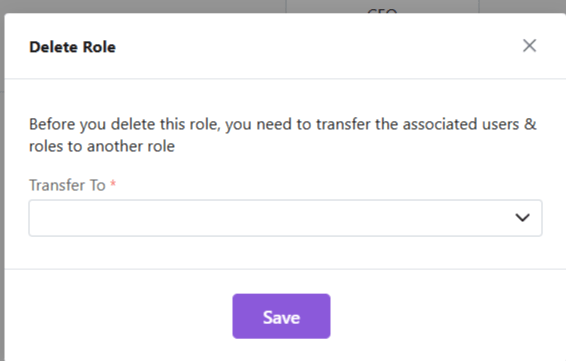
    • Select Delete
    • You will be required to transfer all associated users under this role to another role.
    • Once you have done the needful, click Save.
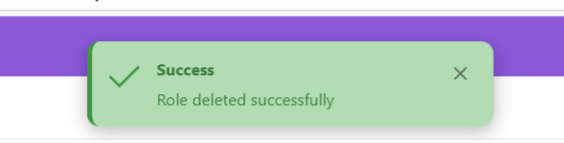
    • The role will be deleted successfully.

    Note: Hierarchy + Roles = Secure yet collaborative access control.

    Also Read

    User Management

    User Management

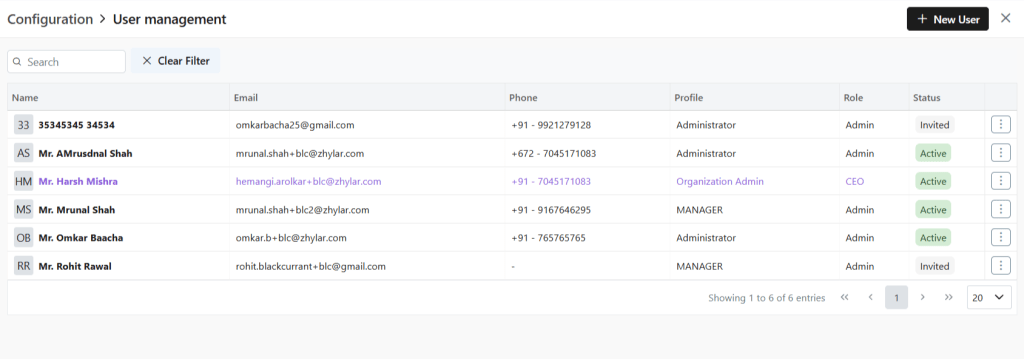
    User management is a system that controls access to software or platforms. It assigns role-based privileges such as Admin or Sales Rep. It ensures that users have appropriate permissions based on their roles. This approach enhances data security. It prevents unauthorized access. It also supports regulatory compliance by maintaining control over who can view or modify specific information within the system.

    • Organization Admin has the full system control (configurations/user access). Organization Admin is the CEO.
    • User Status– Tracks invitation (Pending → Active)
    • Password Reset– credential updates
    • Log in to Zhylar
    • Go to Left-hand navigation panel
    • Click on Configuration
    • Under General Settings tab, select User Management.
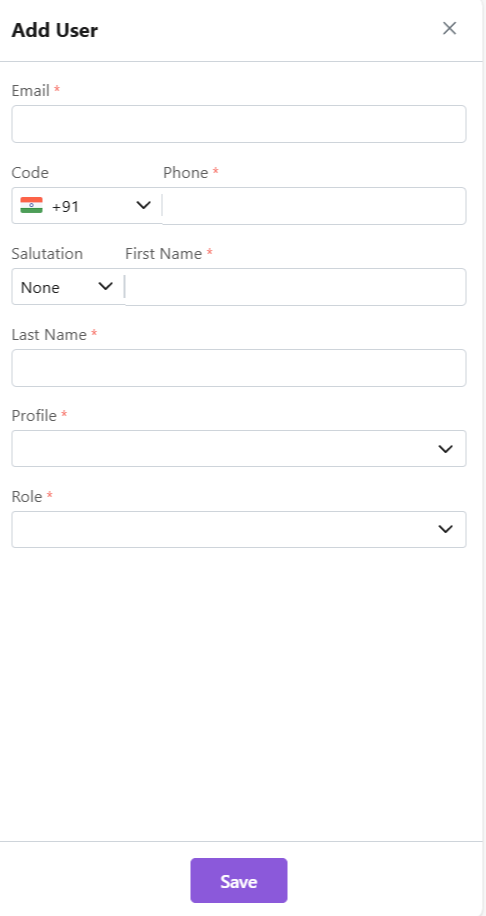
    • Click +New User”
    • Fill details
    • Save User”
      • To define Profile, add a new Profile from “Profile” module first, if required.
      •  When a new user is added, the status will automatically be updated as “Invited”. 
      • Once the user accepts, the status will change to active.  
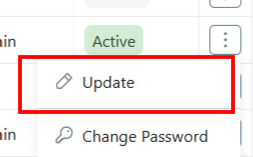
    • Click ⋮ 3 dots
    • Select Update
    • Click Save.
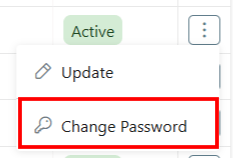
    • Click ⋮ 3 dots
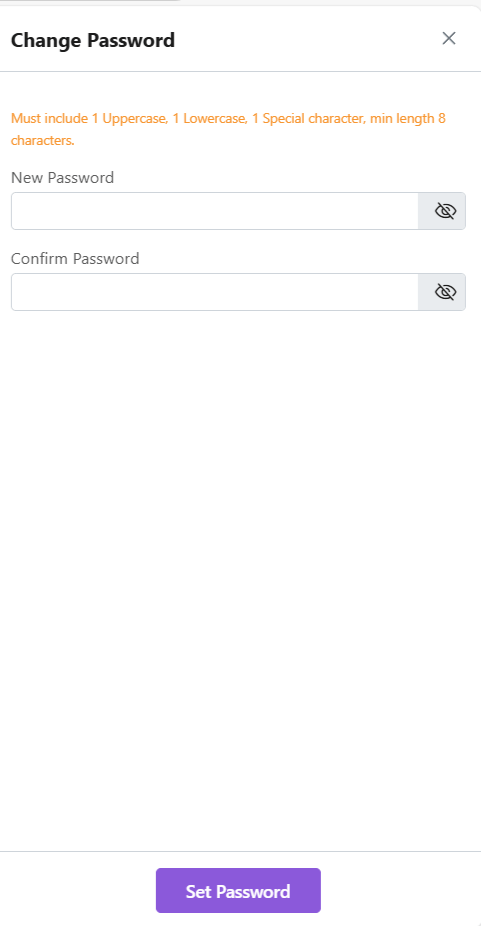
    • Select Change Password
    • “Set Password”

    Note: Password can only be changed by the user or system administrator.

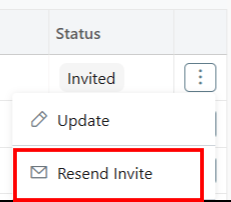
    This is only applicable for a User who has not yet accepted the invite email. The status will reflect Invited.

    • Click ⋮ 3 dots
    • Select “Resend Invitation” to invite user again (password reset email)
    • Organization Admin is the CEO.
    • Only users with specific permissions Can Create, Add, Update, Delete or Resend the Invitation to any user. 
    • One email ID can be used to register one user only.
    • Permissions required for user modifications
    • Admins customize workflows/access per role.

    Also Read

    Currencies

    Roles and Data Sharing

    Companies

    What is a Company?

    A company is a business or organization you engage with. Companies can be clients, partners, or prospects, forming the backbone of your CRM.

    Features of a Company at Zhylar

    • Stores all company details (industry, size, location)
    • Tracks all interactions and documents

    Company List View

    • Log in to Zhylar
    • Go to Left-hand navigation panel
    • Go to Company

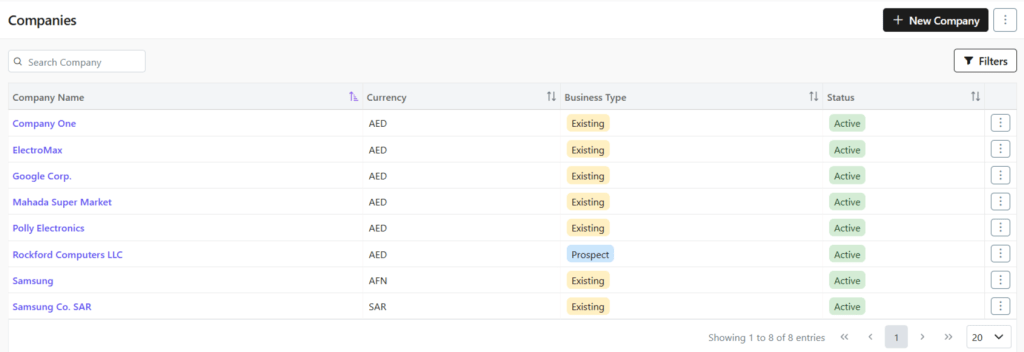
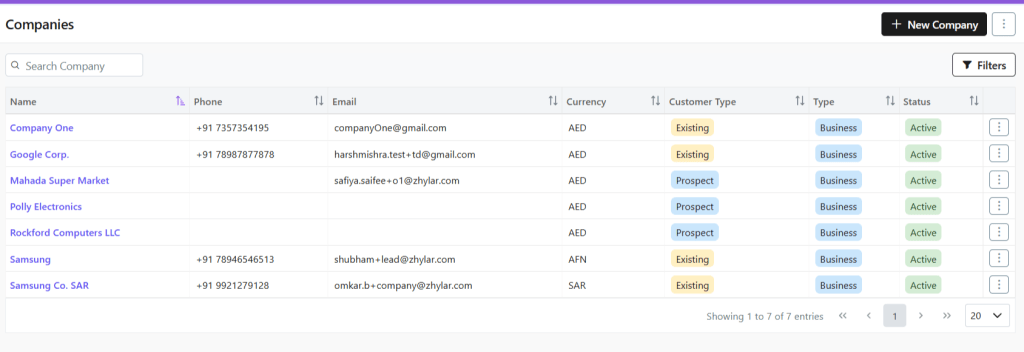
    Here, you can find a list of all the companies added to the system.

    Viewing a Company Profile

    To view the details of any company,

    • Click any company name
    • See complete company overview
      • Basic information
      • Recent activities
      • Linked contacts/deals

    Customer Type

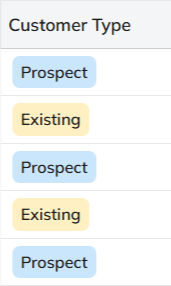
    • A company is categorized as:
      • Existing: A customer you’re already dealing with.

    Search Filter

    • Conduct a universal search across all fields through the search box.
    • Or search/sort through Name/Phone no./Email/Currency/Customer Type/Status.
    • Or, you can use the Filter button to filter your searches from a range of filters.

    Managing Company Information

    Adding New Companies

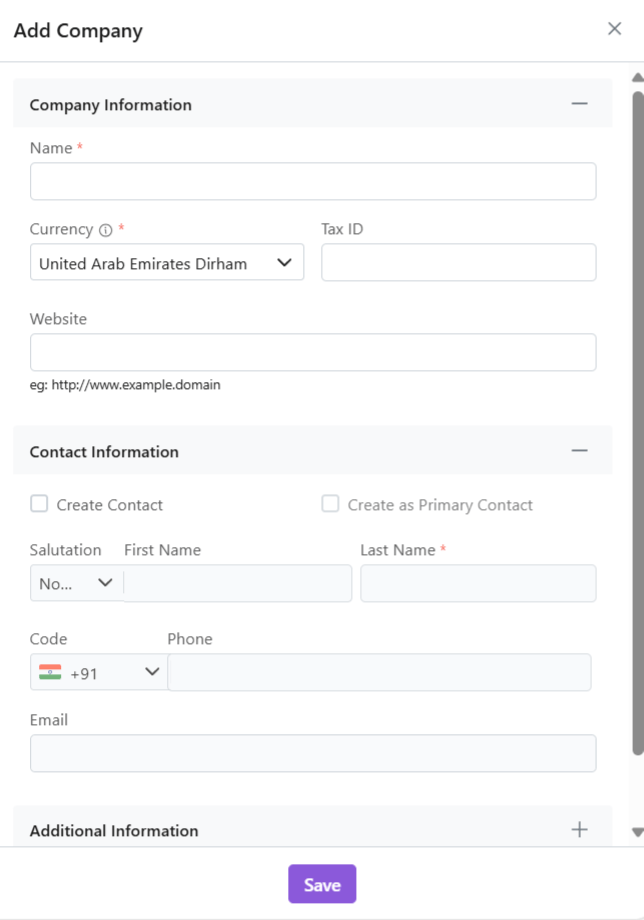
    • Click “+ New Company”
    • Fill out the data
    • Click “Save”

    Also read about how to Import Companies on Zhylar.

    Update Company Details

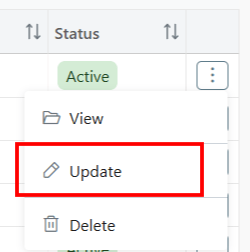
    • Click ⋮ 3 dots
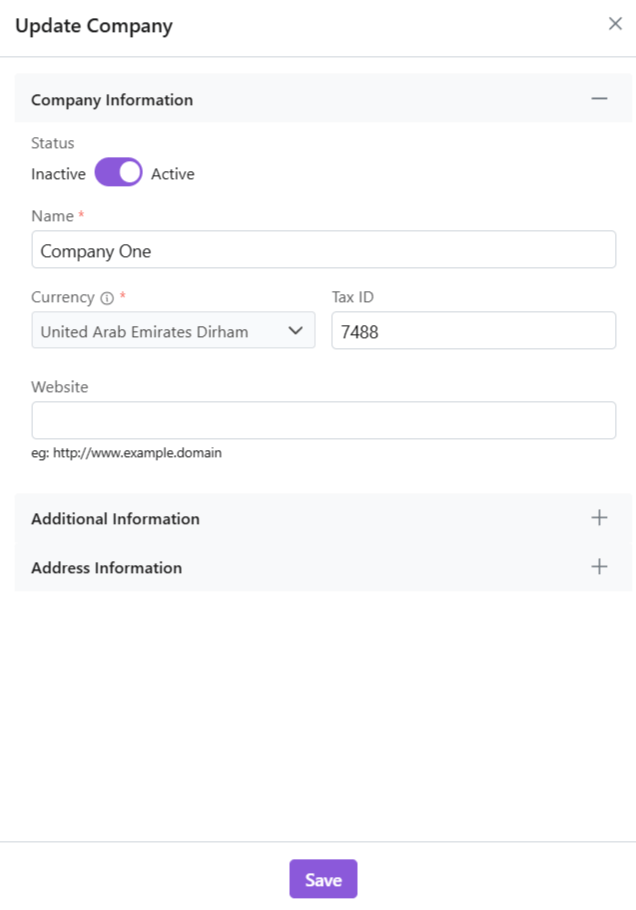
    • Click on Update
    • Make changes
    • Company currency cannot be changed/updated.
    • Click “Save“.

    Delete Company

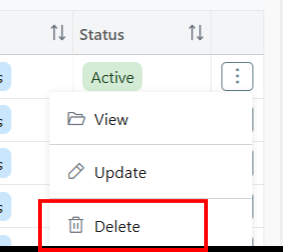
    • Click ⋮ 3 dots
    • Select Delete
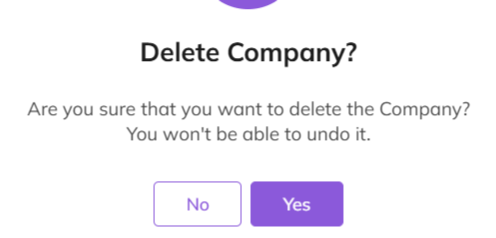
    • Provide confirmation.
    • The Company will be deleted successfully.

    Company Details

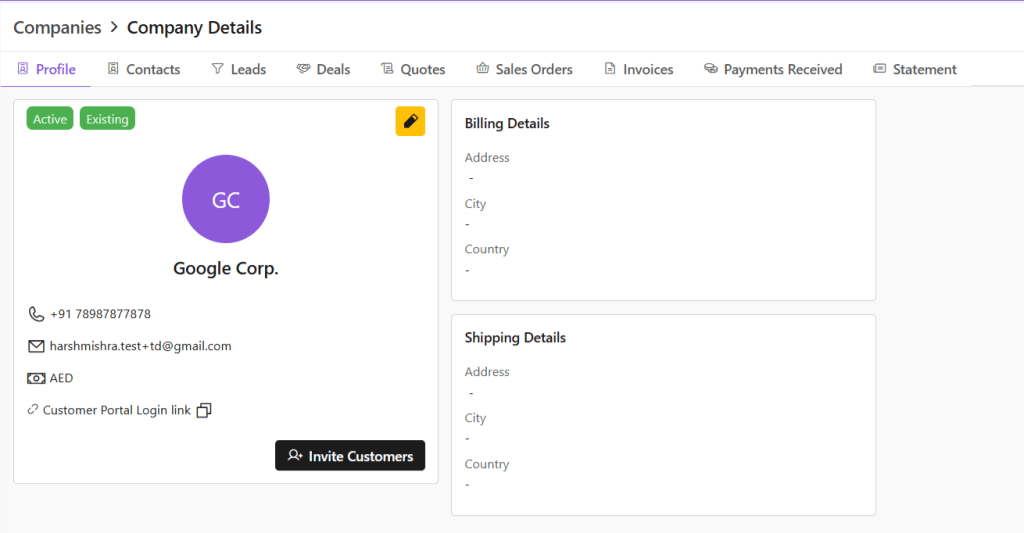
    • Click on any company to open and view details.
    • Profile tab opens by default.
    • Check all details of the company, e.g., status, customer type, etc.
    • Click ✏️ Edit (yellow-highlighted pen) to edit details or invite customers directly.
    • Switch tabs to check data in specific modules, e.g., contacts, leads etc.

    Managing Contacts

    A contact is an individual person associated with a company. This person might be a decision-maker, buyer, or support staff. Your team communicates with them during business interactions.

    View Contacts

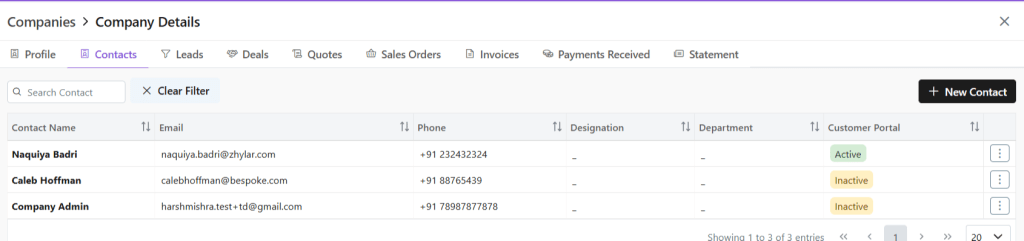
    Click Contacts tab

    • See all users added to the company
    • Conduct universal search or filter by fields

    Adding a New Contact

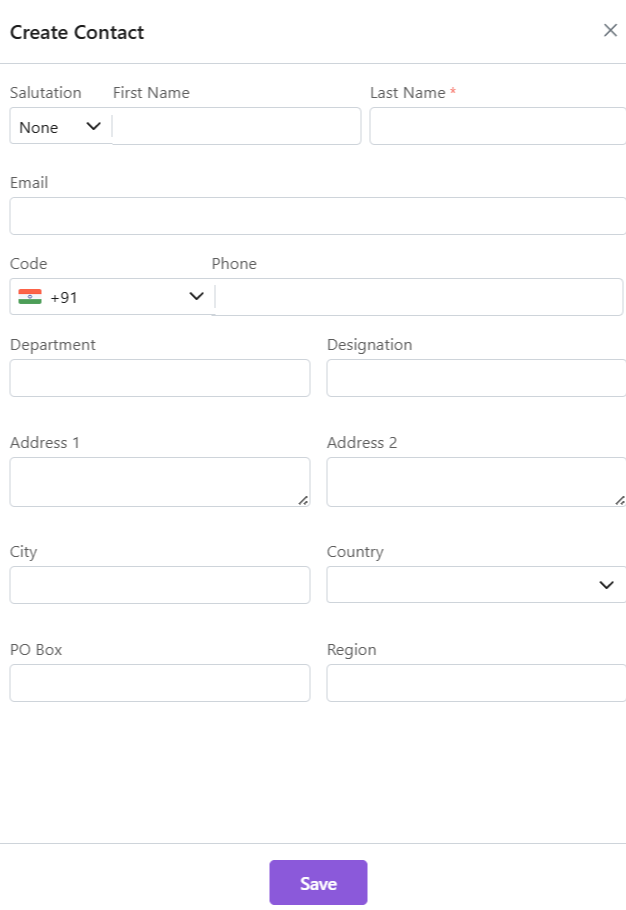
    • Click “+ New Contact”
    • Fill required data.
    • Click “Save.”

    Update Contact

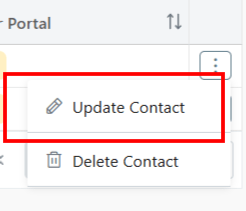
    • Click ⋮ 3 dots
    • Select Update
    • Make changes
    • Click Save.

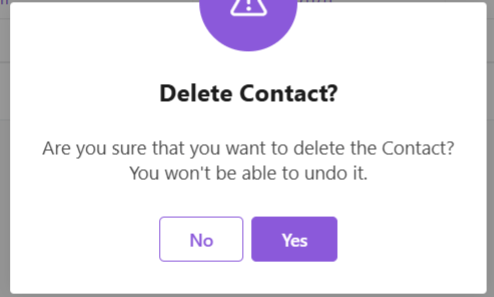
    Delete Contact

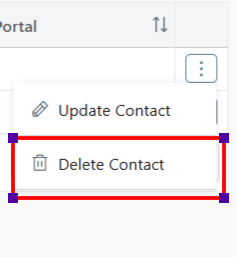
    • Delete: Click ⋮ 3 dots
    • Select Delete
    • Provide Confirmation.

    Business Activities

    Leads

    • Click Leads tab
    • View all potential opportunities
    • Click lead name for details
    • Conduct universal search or sort by fields in ascending or descending order.

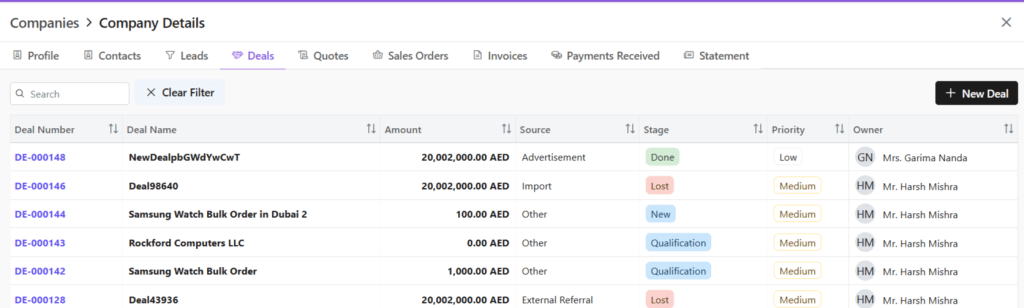
    Deals

    • Click Deals tab
    • See all active negotiations
    • Add New Deal:
      • Click “+ New Deal”
    • Fill required details.
    • Save deal.
    • Conduct universal search or sort by fields in ascending or descending order.

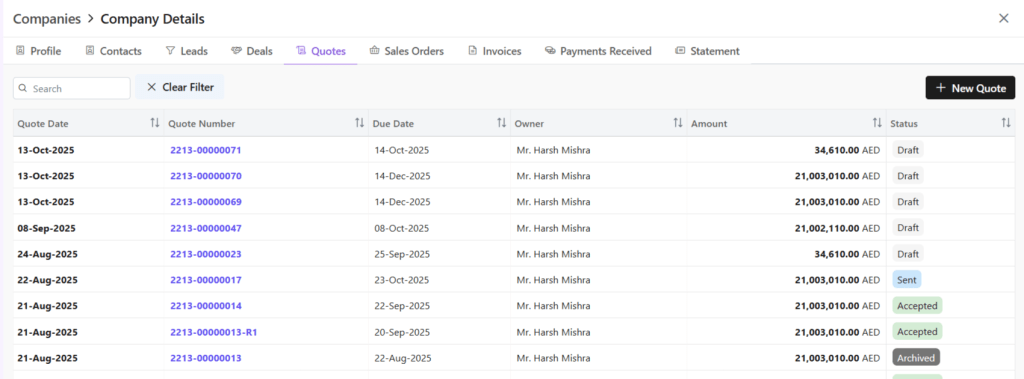
    Quotes

    • Click Quotes tab
    • See all Quotes
    • Add New Quote:
      • Click “+ New Quote”
    • Fill required details.
    • Save as draft or save and send quote.
    • Conduct universal search or sort by fields in ascending or descending order.

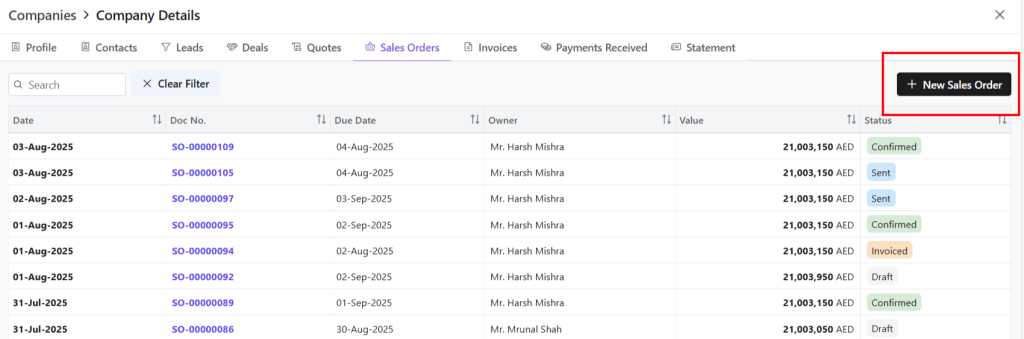
    Sales Orders

    • Click Sales Order tab
    • See all Sales Orders
    • Add New SO:
      • Click “+ New Sales Order”
    • Fill required details.
    • Save as draft or save and send quote.
    • Conduct universal search or sort by fields in ascending or descending order.

    Invoice

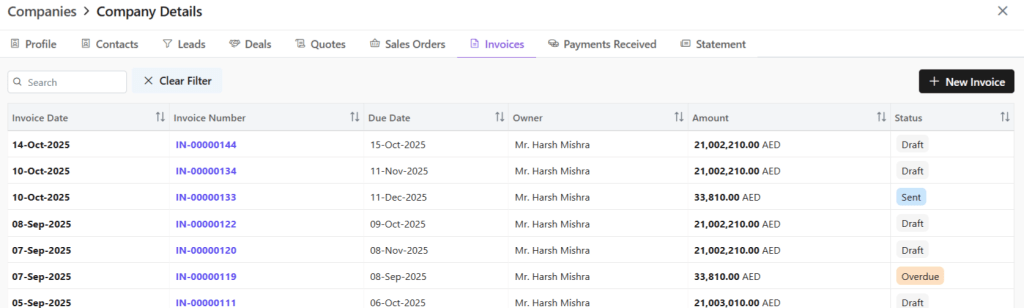
    • Click Invoice tab
    • See all invoices
    • Add New Invoice:
      • Click “+ New Invoice”
    • Fill required details.
    • Save as draft or save and send invoice.
    • Conduct universal search or sort by fields in ascending or descending order.

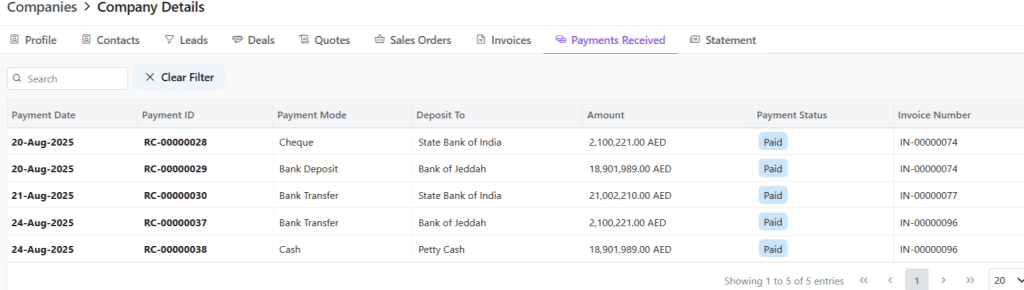
    Payments Received

    • Check financial transactions for this company.
    • Click on any payment document number to view all details.
    • Redirected to Invoice module.
    • Check all details for this invoice, timeline, notes, emails, etc.

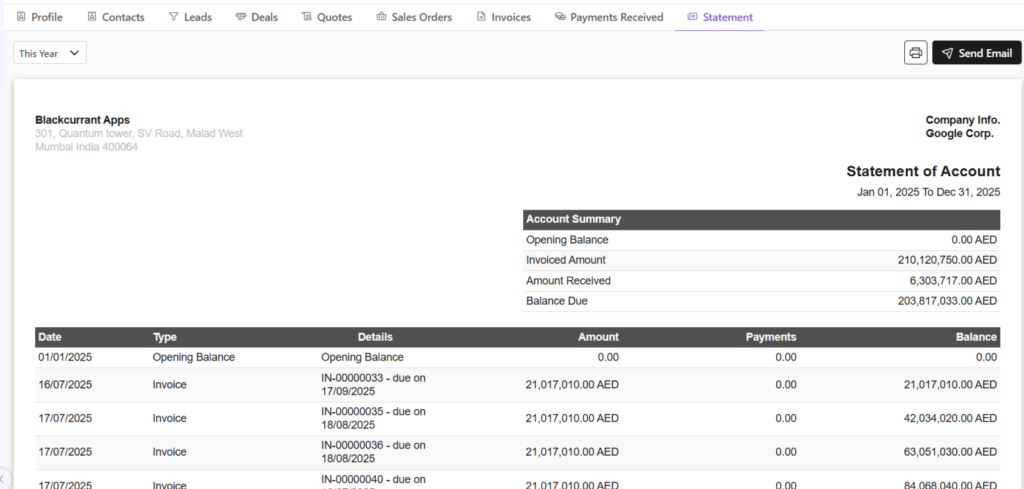
    Statement

    Statement of accounts is a detailed summary of all financial transactions between a company and a customer. It covers a specific period and shows invoices, payments, credits, and the remaining balance.

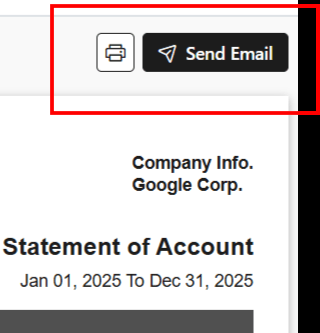
    You can email the statement to your client by clicking on Send Email.

    Also Read

    Web Forms

    Import Contacts

    Import Companies

    Import Contacts

    Contacts in a CRM system are individual people your business interacts with, such as customers, prospects, or partners. They store key details like name, phone number, email, and job title. Each contact is linked to companies (accounts), deals, and activities. This linkage allows your team to track every conversation and interaction in one place. It enhances better relationship management.

    Importing Contacts to Zhylar Platform

    • Log in to Zhylar
    • Go to Left-hand navigation panel
    • Click on Companies
    • The Companies list view will open.
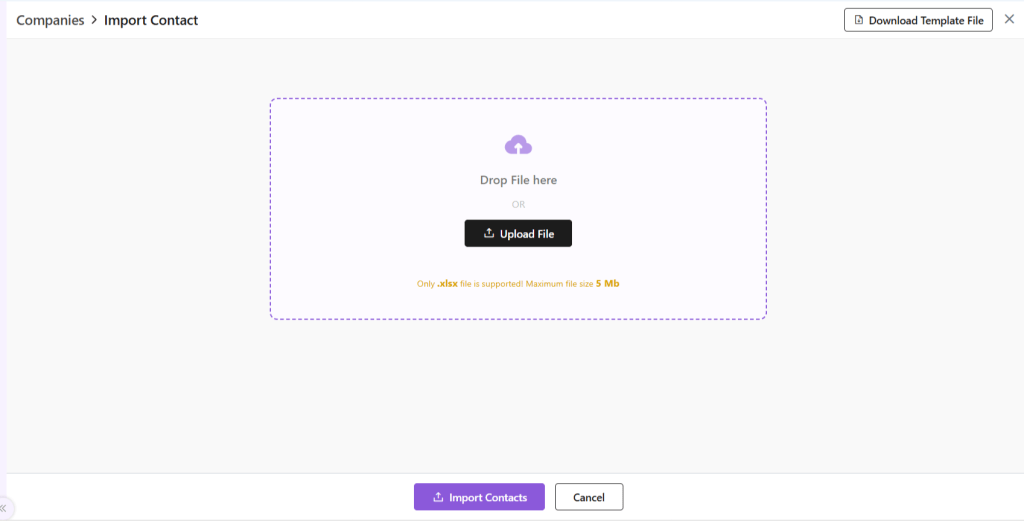
    • From the top-right hand corner, click ⋮ 3 dots beside +New Company
    • Select Import Contacts.
    • You will be taken to a new page.
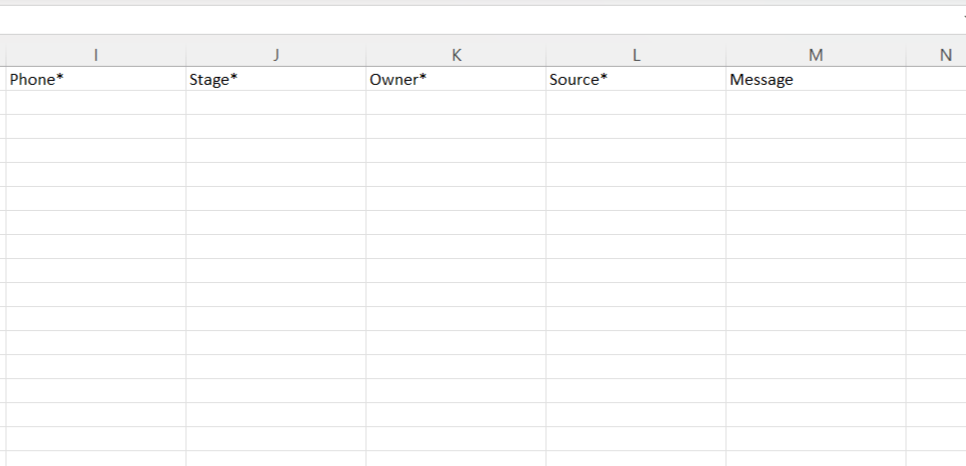
    • Upload a file in .xlsx format with the details of your leads.
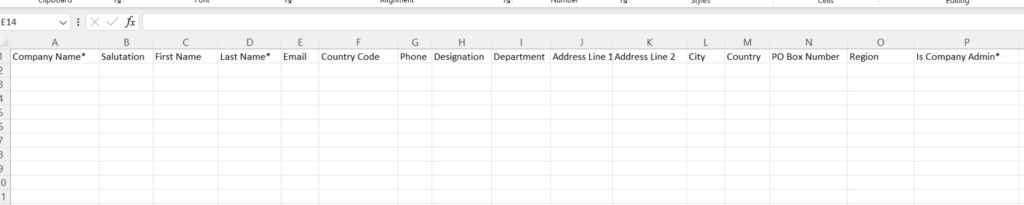
    • If file is not ready, Download Template File from the right-hand corner.
    • Fill out the data in the filed provided.
    • All fields marked in * are mandatory.
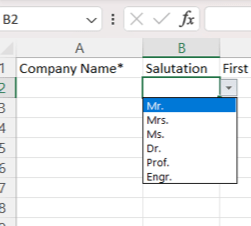
    • For some fields, entry can be punched manually.
    • For others, such as salutation, country and such, a drop-down arrow will be there. You can select one of the pre-filled values.
    • Once done, upload this file back in the space provided by clicking on the Upload File button.
    • Click Import Contacts.
    • Your Contacts will be added to the system.
    • Click on Go to All Contacts to go to Contact List View page.
    • You can now see this newly added company in the list view.
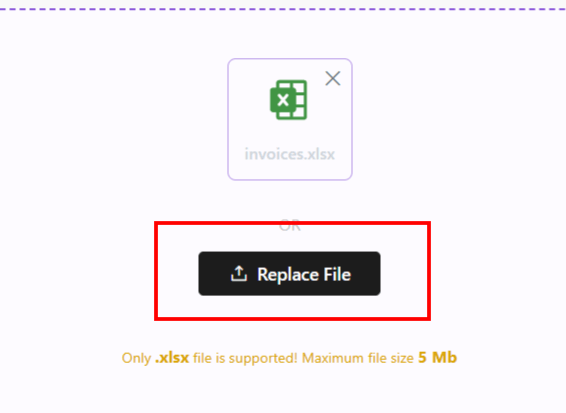
    • In case there is an error with the file upload, simply click Replace File and try again.

    Once your Contacts have been imported, you can now proceed. Read about how to navigate through the Companies module at Zhylar.

    Also Read

    Web Forms

    General Settings

    Basic Terminologies

    Pipeline Management- Deals

    A deal pipeline (or sales pipeline) is a visual way to track where each deal is in your sales process.
    It’s divided into stages — for example:

    • NewQualifiedProposal SentClosed Won/Closed Lost

    By moving deals through these stages, teams can:

    • Make sure no opportunity gets forgotten
    • See exactly how close they are to closing
    • Spot bottlenecks in the process
    • Through the multiple pipeline feature, Zhylar offers a flexible approach to managing the sales cycle.
    • Create multiple pipelines for different workflows
    • Each pipeline has:
      • Custom fields
      • Tailored stages
      • Role-based access
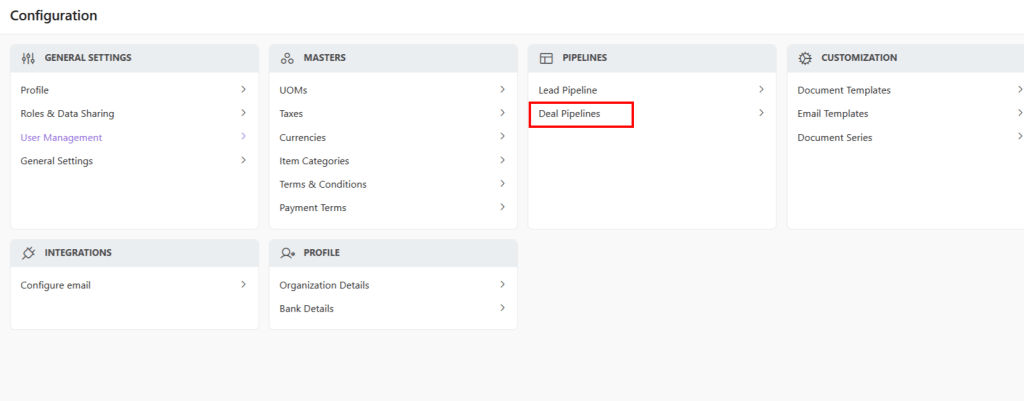
    • You can navigate to the deals pipeline in two ways:
      • Go to the Left-hand navigation panel
      • Go to Configuration
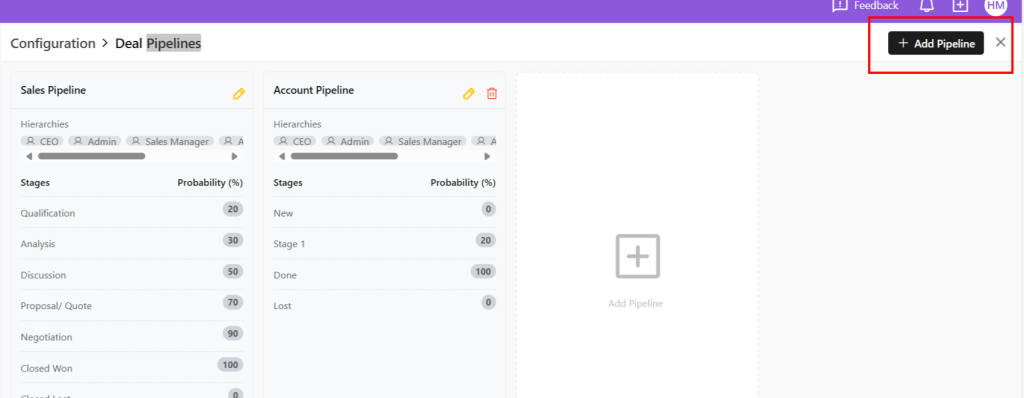
      • Under “Pipelines”, select Deal Pipelines
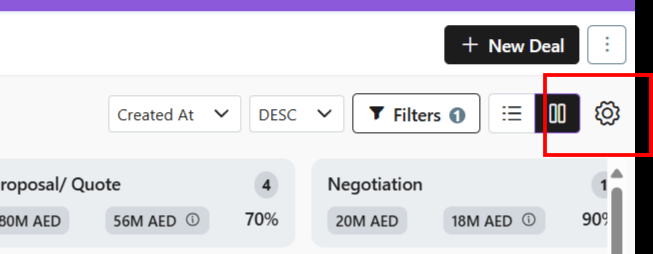
    • Alternately, go to the Left-hand navigation panel
    • Go to Deals
    • Quick Access: Click ⚙️ on Deals page

    Creating Pipelines

    • Using either of the two aforementioned ways, go to Deal Pipelines
    • Click “Add Pipeline”
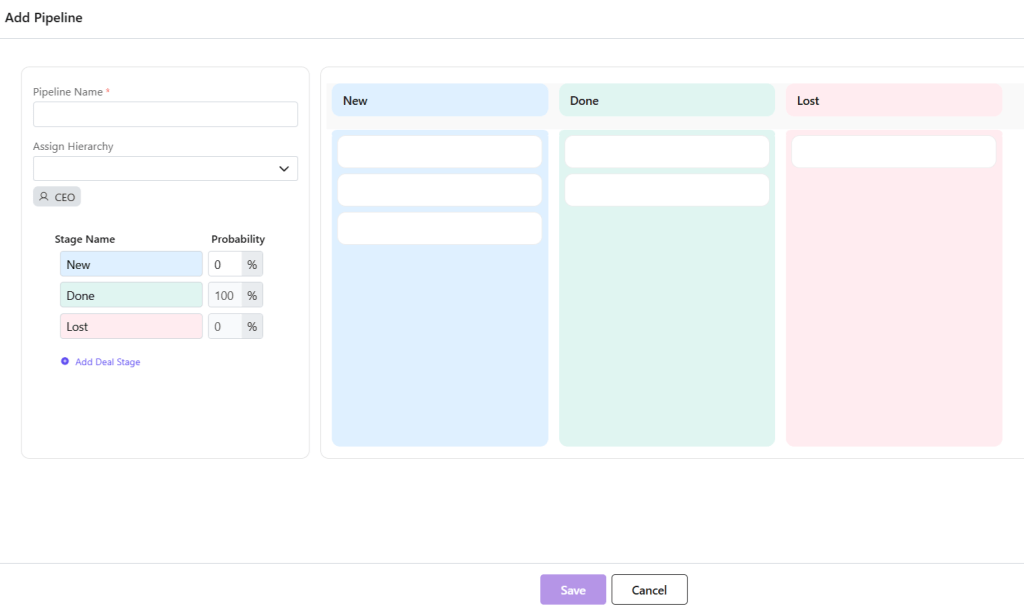
    • Configure:
      • Stages: Add/rename as needed
      • Probabilities: Set win % per stage
      • Click Save

    Probability Scoring

    • Stage Value = Potential deal amount. E.g., 1000 AED
    • Stage Probability = Likelihood of closing E.g., 10%

    Stages in a Pipeline

    In Zhylar, you can create several Deal Pipelines. Within those pipelines, you can create stags.

    • Each Pipeline has three default stages
      • New
      • Done
      • Lost
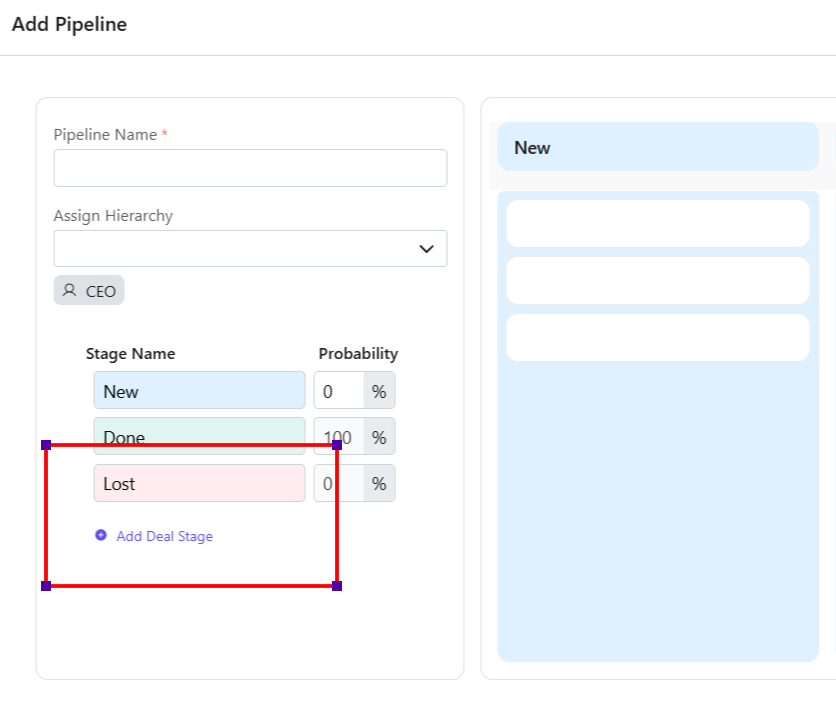
    • Users can add and customize stages as required.
    • Click Add Deal Stage to add a new stage.
    • Give the stage a name.
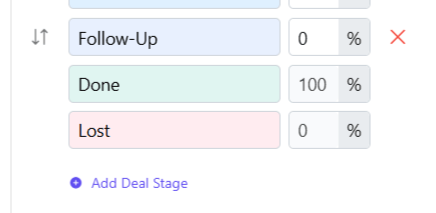
    • You can shuffle the position of the stages that you add via drag and drop method.

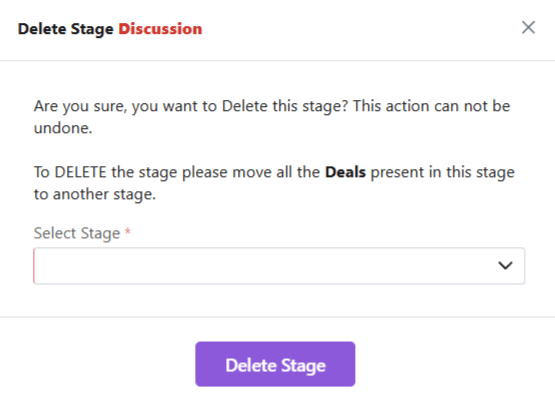
    Delete Added Stage

    Users can only delete stages they have added, i.e., Default stages cannot be deleted.

    To delete,

    • Click on the red cross.
    • You will be asked to transfer any existing leads from this stage to another stage.
    • Once done, you can proceed to delete the stage.

    Purpose

    • Prioritizes deals with higher probability of conversion
    • Focus on deals that generate more revenue, i.e., targeted effort
    • Take action on deals that require follow-up
    • Forecasts realistic revenue through probability and weighted value
    • Visualize the complete deal cycle as well as the position of each deal in the cycle.

    Read all about the complete Deals Module before you proceed.

    Also Read

    Units of Measurement

    General Settings

    Basic Terminologies

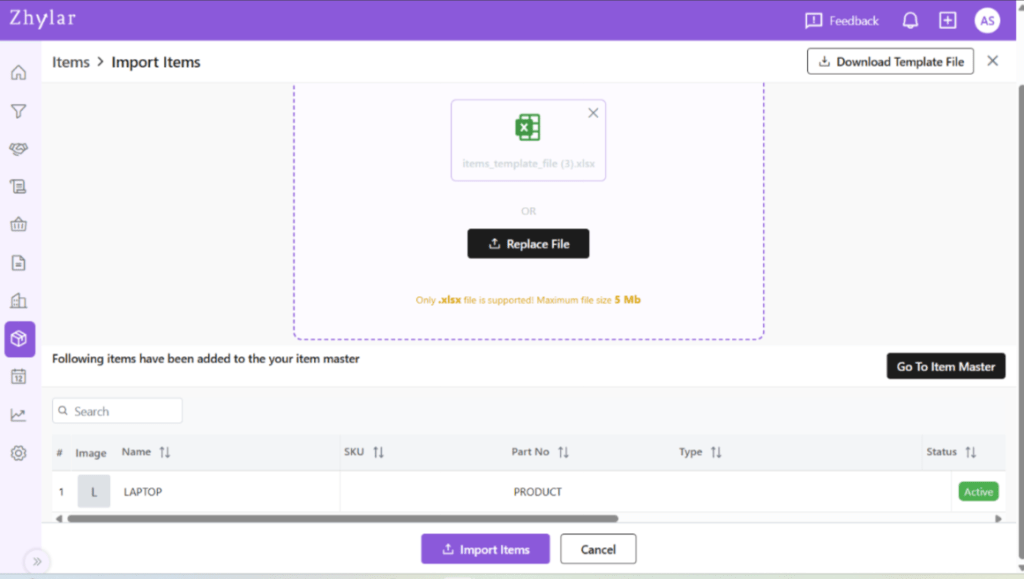
    Import Items

    In Zhylar, importing items lets you quickly add your complete product or service catalogue. This includes item names, descriptions, prices, tax details, and units of measurement. You can import from external sources like spreadsheets or CSV files into a centralised inventory. This streamlines sales processes, ensures accuracy, and makes it easier for your team to create quotes, orders, and invoices.

    Importing Leads is a quick way to add leads in bulk whilst avoiding any errors.

    • Log in to Zhylar
    • Go to Left-hand navigation panel
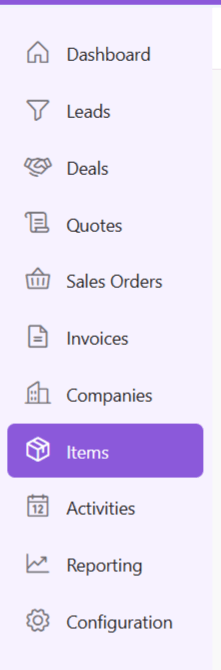
    • Click on Items
    • The Items list view will open.
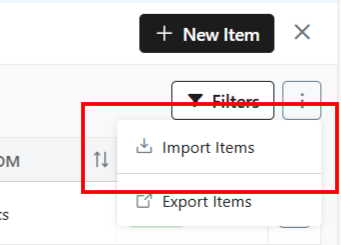
    • From the top-right hand corner, click ⋮ 3 dots beside Filters
    • Select Import Items.
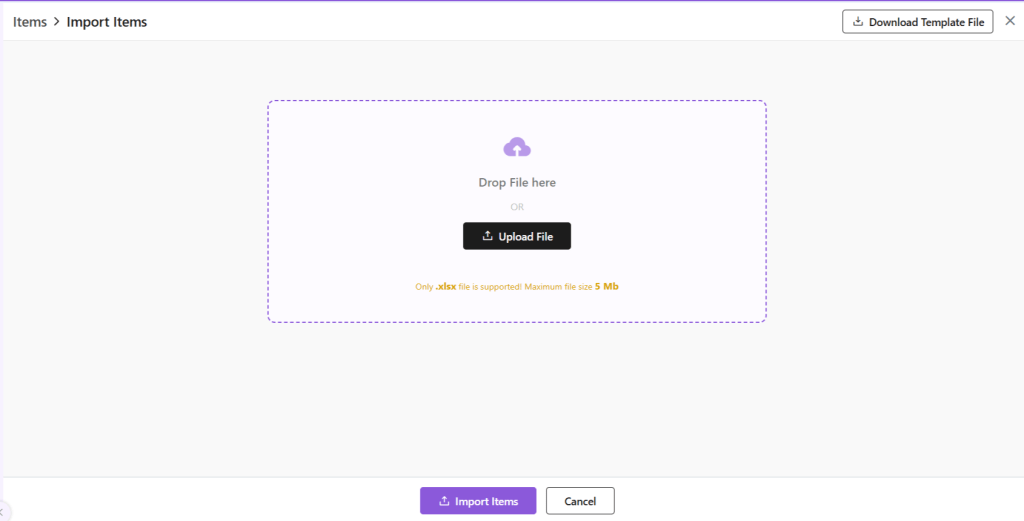
    • You will be taken to a new page.
    • Upload a file in .xlsx format with the details of your leads.
    • If file is not ready, Download Template File from the right-hand corner.
    • Fill out the data in the filed provided.
    • All fields marked in * are mandatory.
    • Once done, upload this file back in the space provided.
    • Click Import Items.
    • Your Items will be added to the system.
    • From here, click on Go to Item Master to go to the Items module.
    • The imported item will be reflected in the Item List View.
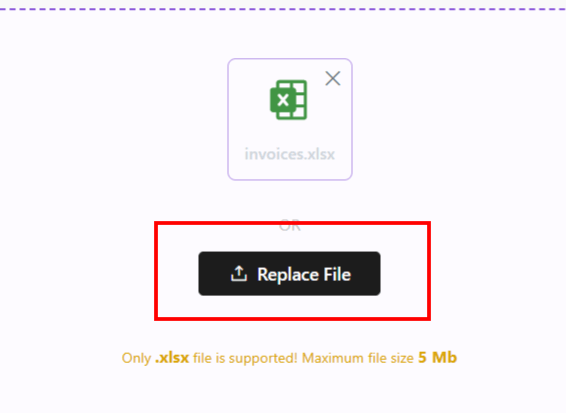
    • In case there is an error with the file upload, simply click Replace File and try again.

    Once your Items have been imported, you can now proceed. Read about how to navigate through the Items module at Zhylar.

    Also Read

    Web Forms

    General Settings

    Basic Terminologies

    Import Leads

    Importing leads in a CRM system involves bringing lead data into the CRM. This data includes names, contact details, and company information. Sources of this data include spreadsheets, CSV files, or other software. This enables businesses to quickly centralize all prospect information. They can do this in one secured Zhylar CRM system for organized tracking. Nurturing and conversion are also part of the process.

    • Log in to Zhylar
    • Go to Left-hand navigation panel
    • Click on Leads
    • The Leads list view will open.
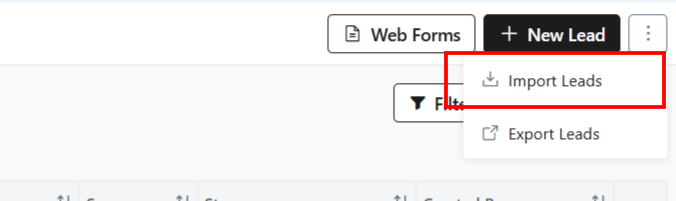
    • From the top-right hand corner, click ⋮ 3 dots beside + New Lead
    • Click on Import Leads
    • You will be taken to a new page.
    • Upload a file in .xlsx format with the details of your leads.
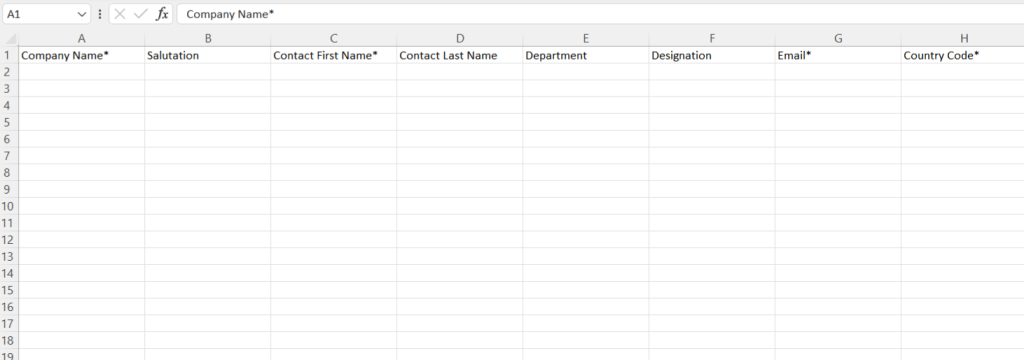
    • If file is not ready, Download Template File from the right-hand corner.
    • Fill out the data in the filed provided.
    • All fields marked in * are mandatory.
    • For some fields, entry can be punched manually.
    • For others, such as country code, salutation and such, a drop-down arrow will be there. You can select one of the pre-filled values.
    • Once done, upload this file back in the space provided by clicking on the Upload File button.
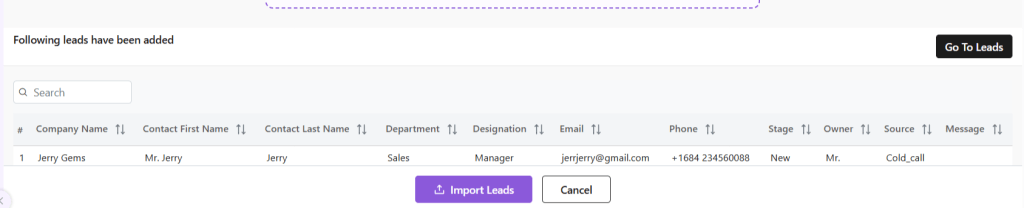
    • Click Import Leads.
    • Your Leads will be added to the system.
    • From here, go to the Leads module directly by clicking on Go to Leads. Leads have been added to the list view.
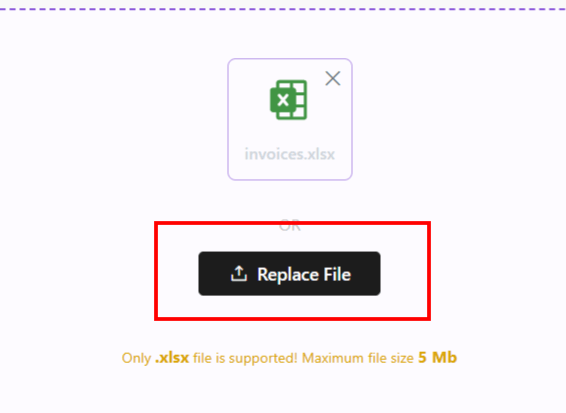
    • In case there is an error with the file upload, simply click Replace File and try again.

    Importing Leads is a quick way to add leads in bulk whilst avoiding any errors.

    Once your Leads have been imported, you can now proceed. Read about how to navigate through the Leads module at Zhylar.

    Also Read

    Web Forms

    General Settings

    Basic Terminologies

    Email Configuration

    Email configuration refers to the setup process that connects your business email account (IMAP or Outlook) with the CRM. This enables users to send, receive, track, and manage emails directly within the CRM. It ensures centralized communication, improves customer engagement, and supports features like templates, automation, and activity logging.

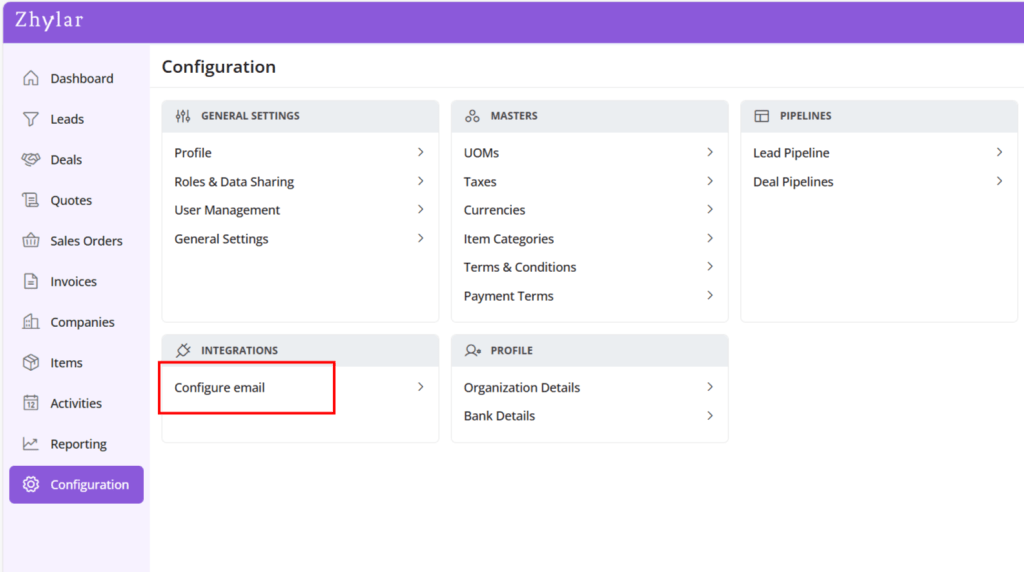
    • Log in to Zhylar
    • Go to Left-hand navigation panel
    • Click on Configuration
    • Under Integrations tab, select Configure Email
    • A new page will open.
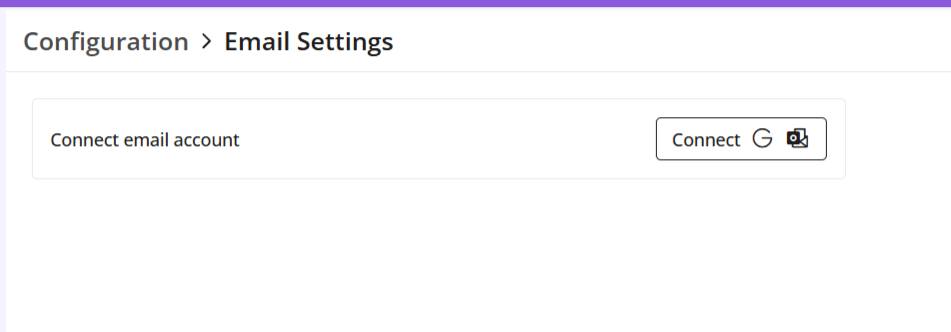
    • Click on “Connect email account” to proceed.
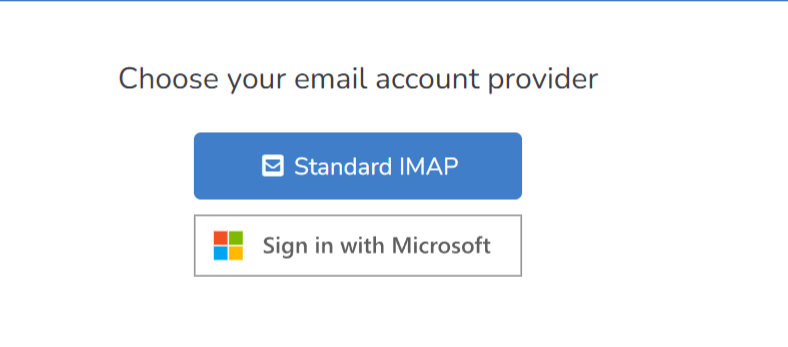
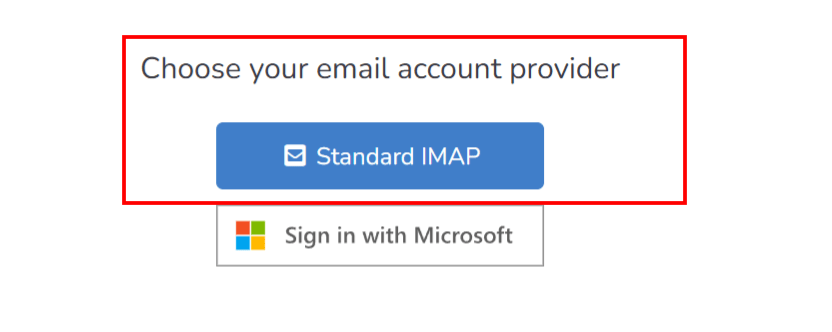
    • Select one of the following email providers to continue.
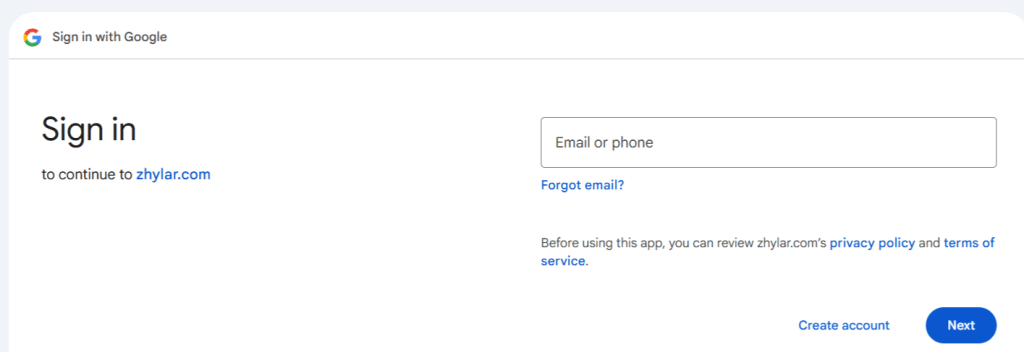
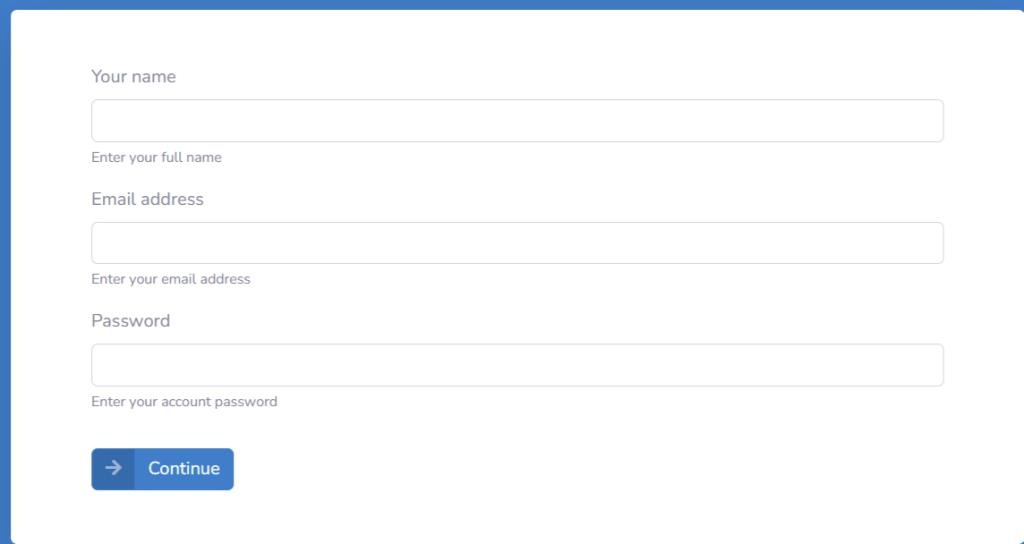
    • You will be taken to a sign-in page. Fill in your email ID that you want to configure.
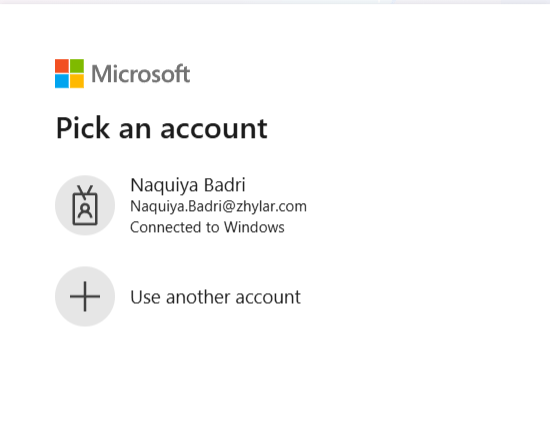
    • Select an existing account or add new account.
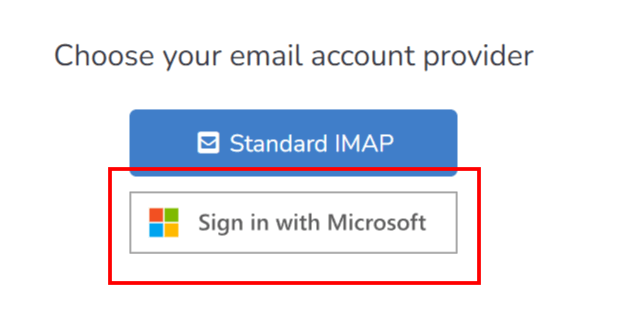
    1. Click Connect with Outlook
    1. A Microsoft sign-in prompt appears. 
    1. Authenticate with your Microsoft credentials. 
    2. Your email has been configured.

    Note: One user can configure one email ID only.

    Use this option when connecting a non-OAuth email provider (for example, a company-managed mail server).

    Step-by-step instructions

    • Open the email integration settings in Zhylar.
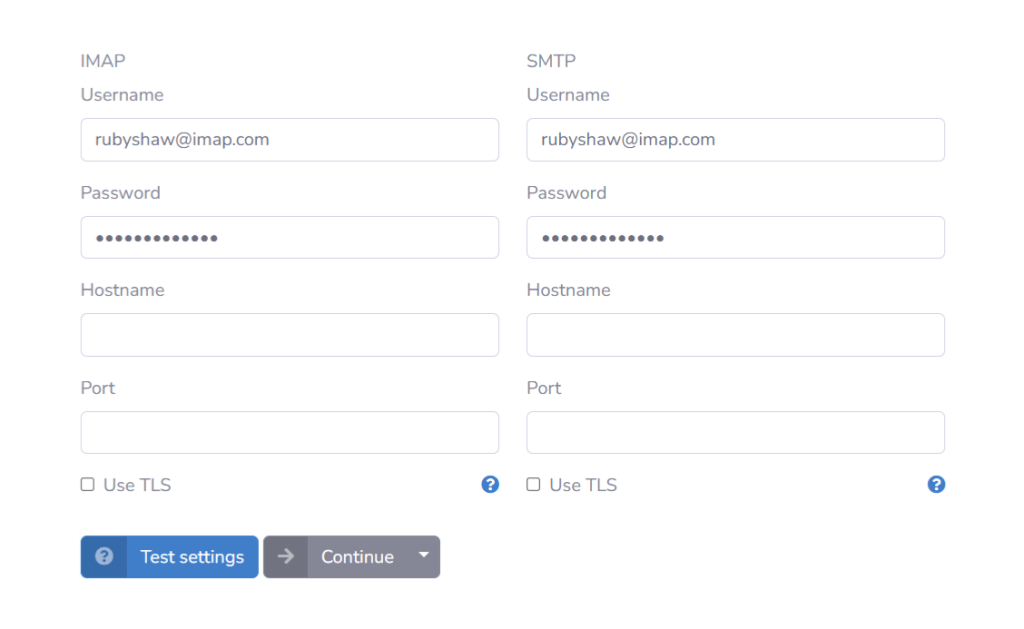
    • Select Custom IMAP/SMTP as the connection method.
    • Enter the required email server details:
      • Email address: Enter your full company email address.
      • IMAP host / port: Enter the IMAP server address (e.g., imap.example.com)
      • SMTP host / port: Enter the SMTP server address (e.g., smtp.example.com)
    • Username and password: Enter your company email login credentials.
    • Review the entered server details for accuracy.
    • Click Save to submit the configuration.
    • Once the user completes authentication or enters credentials, Zhylar sends the details to Email Engine for validation. 
    • Email Engine will attempt to authenticate and establish IMAP/SMTP or API session. 
    • A success or error toast message will be displayed.
    • Once a Success message is received that means you are connected. If an error message is received then user will have to check the details provided above or contact zhylar support team for the same.

    After the email account is connected, configure how emails are sent and received within Zhylar.

    Sending preferences

    1. Select the default From address (typically the user’s primary email).
    2. Optionally configure an email signature that Zhylar will automatically append to all outgoing messages.

    Receiving preferences

    1. Select the email folder to monitor (Inbox is selected by default).
    2. Enable auto-fetch or webhook notifications for incoming emails.

    Once the email connection is active:

    1. Inbound emails received via EmailEngine APIs or webhooks flow directly into the Zhylar inbox or configured ticketing workflows.
    2. Outbound emails are sent using EmailEngine’s Submit API, with the process fully managed and abstracted by Zhylar.

    This ensures seamless email communication and automation across your CRM workflows.

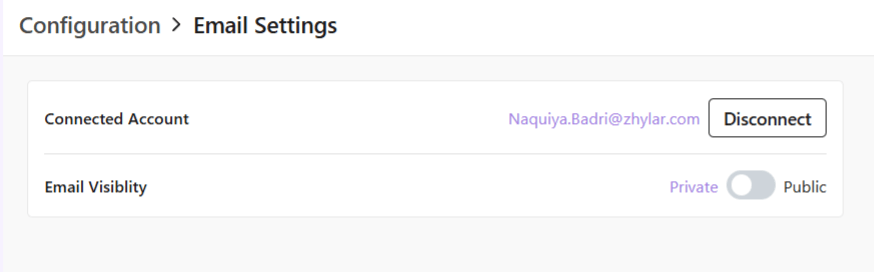
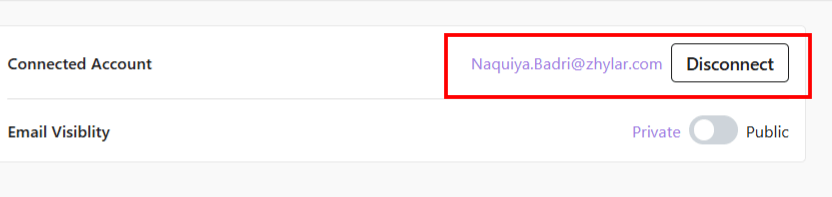
    To disconnect your email ID,

    • Click on Disconnect
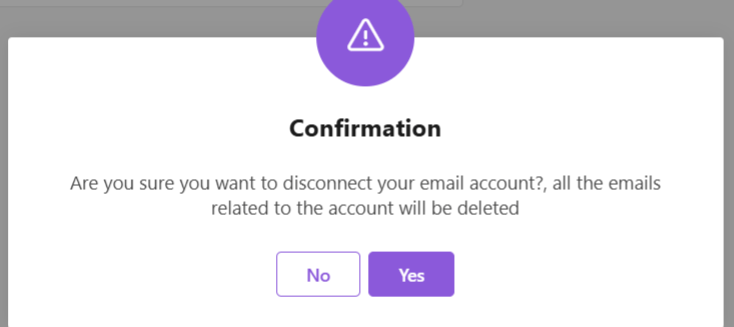
    • Provide confirmation.
    • Your email account will be disconnect.

    Also Read

    Units of Measurement

    General Settings

    Currencies