Email Configuration

Email configuration refers to the setup process that connects your business email account (IMAP or Outlook) with the CRM. This enables users to send, receive, track, and manage emails directly within the CRM. It ensures centralized communication, improves customer engagement, and supports features like templates, automation, and activity logging.

  • Log in to Zhylar
  • Go to Left-hand navigation panel
  • Click on Configuration
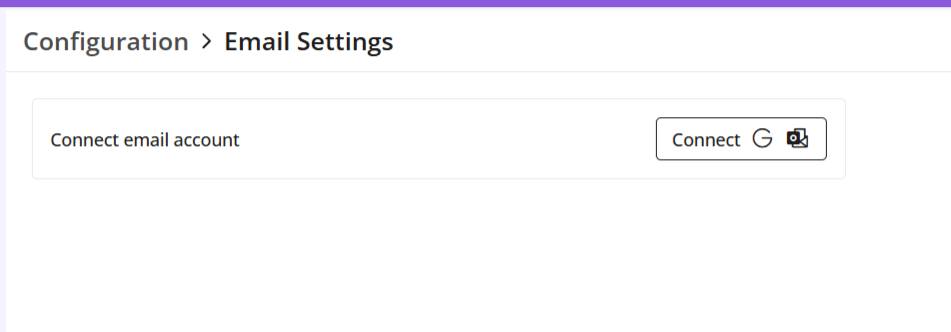
  • Under Integrations tab, select Configure Email
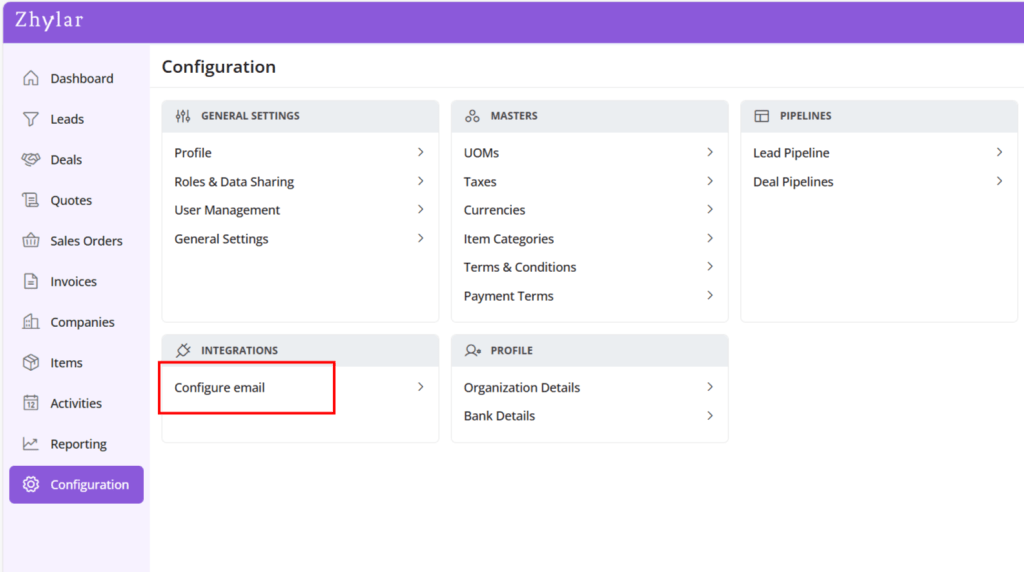
  • A new page will open.
  • Click on “Connect email account” to proceed.
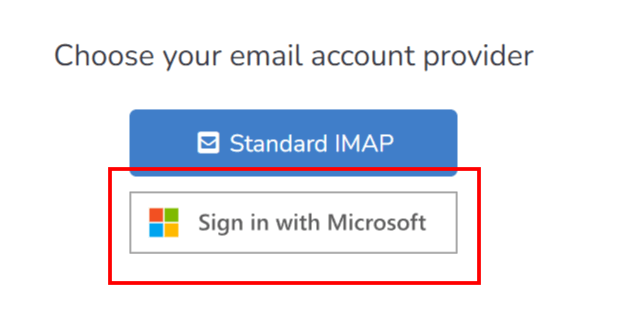
  • Select one of the following email providers to continue.
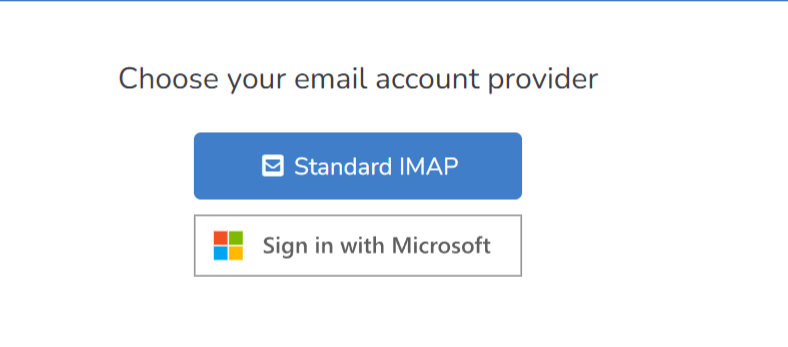
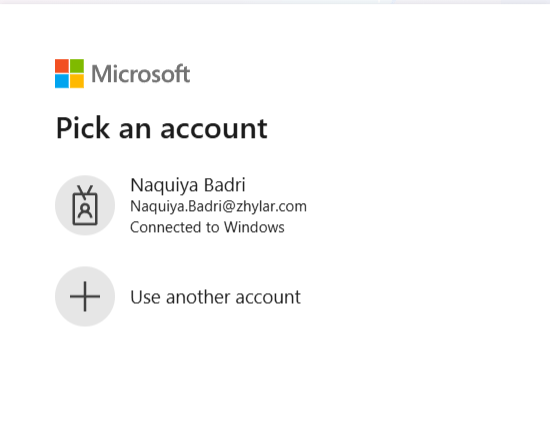
  • You will be taken to a sign-in page. Fill in your email ID that you want to configure.
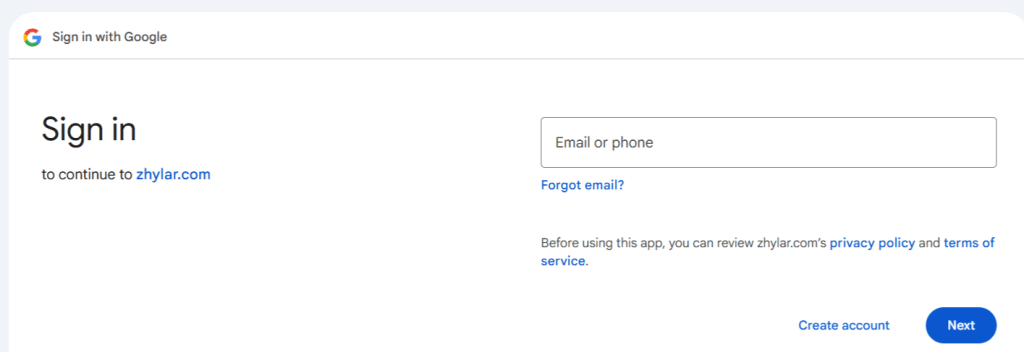
  • Select an existing account or add new account.
  1. Click Connect with Outlook
  1. A Microsoft sign-in prompt appears. 
  1. Authenticate with your Microsoft credentials. 
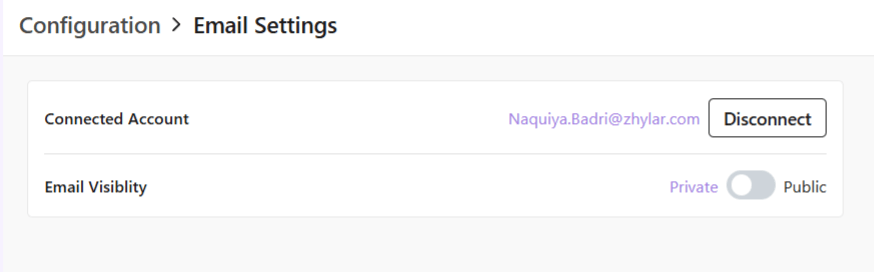
  2. Your email has been configured.

Note: One user can configure one email ID only.

Use this option when connecting a non-OAuth email provider (for example, a company-managed mail server).

Step-by-step instructions

  • Open the email integration settings in Zhylar.
  • Select Custom IMAP/SMTP as the connection method.
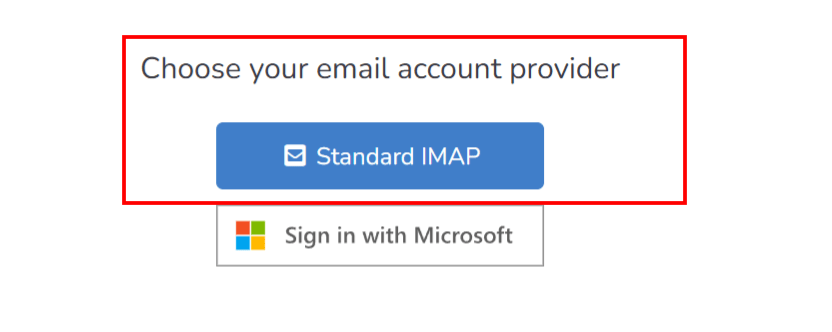
  • Enter the required email server details:
    • Email address: Enter your full company email address.
    • IMAP host / port: Enter the IMAP server address (e.g., imap.example.com)
    • SMTP host / port: Enter the SMTP server address (e.g., smtp.example.com)
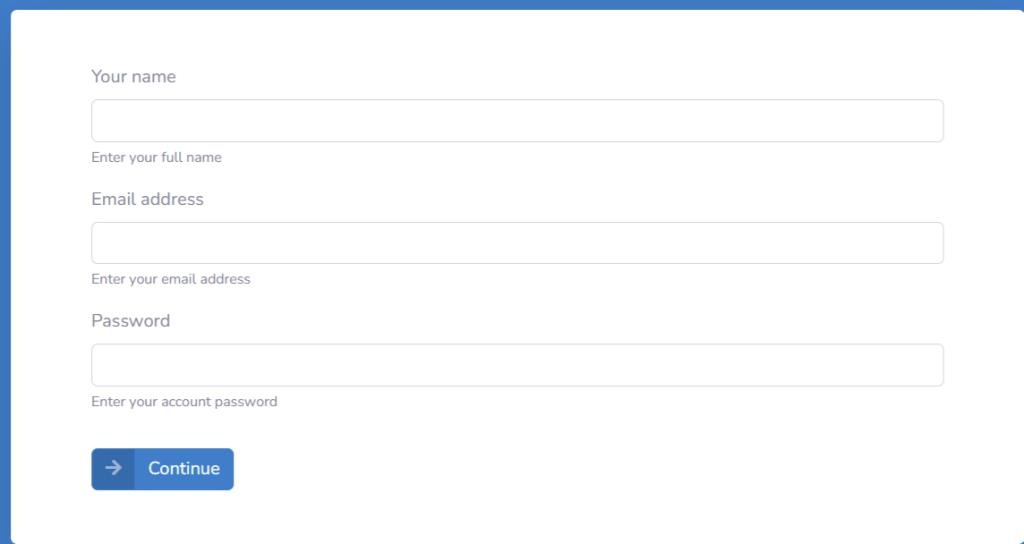
  • Username and password: Enter your company email login credentials.
  • Review the entered server details for accuracy.
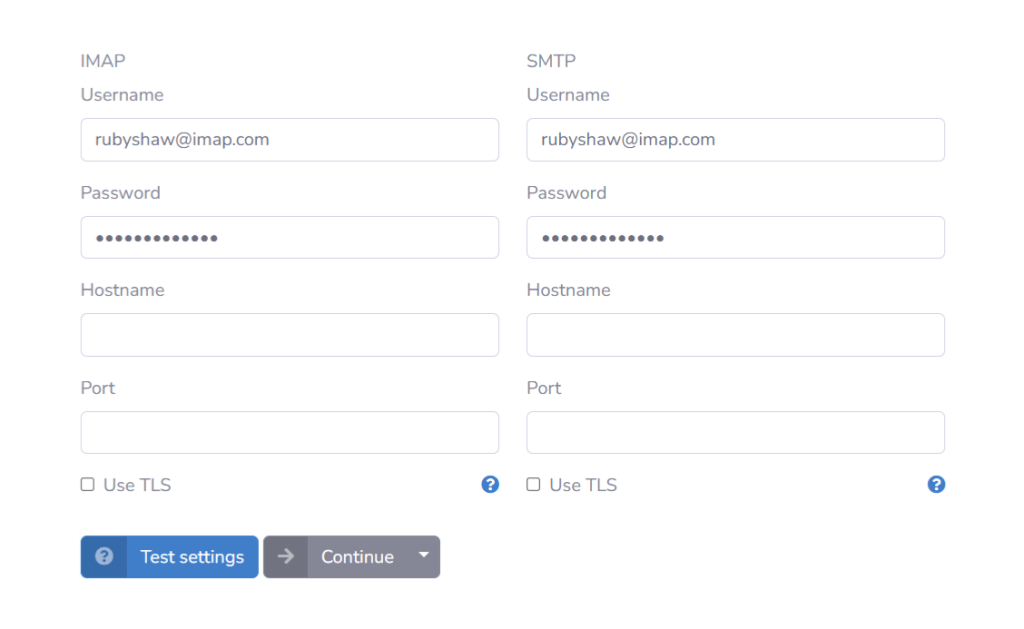
  • Click Save to submit the configuration.
  • Once the user completes authentication or enters credentials, Zhylar sends the details to Email Engine for validation. 
  • Email Engine will attempt to authenticate and establish IMAP/SMTP or API session. 
  • A success or error toast message will be displayed.
  • Once a Success message is received that means you are connected. If an error message is received then user will have to check the details provided above or contact zhylar support team for the same.

After the email account is connected, configure how emails are sent and received within Zhylar.

Sending preferences

  1. Select the default From address (typically the user’s primary email).
  2. Optionally configure an email signature that Zhylar will automatically append to all outgoing messages.

Receiving preferences

  1. Select the email folder to monitor (Inbox is selected by default).
  2. Enable auto-fetch or webhook notifications for incoming emails.

Once the email connection is active:

  1. Inbound emails received via EmailEngine APIs or webhooks flow directly into the Zhylar inbox or configured ticketing workflows.
  2. Outbound emails are sent using EmailEngine’s Submit API, with the process fully managed and abstracted by Zhylar.

This ensures seamless email communication and automation across your CRM workflows.

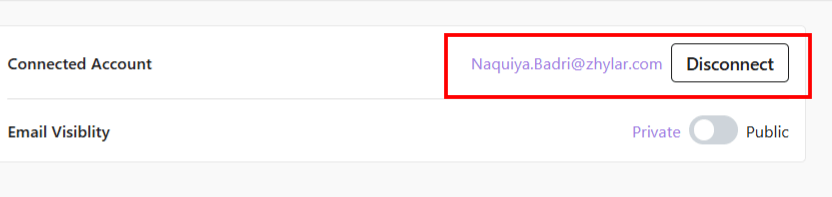
To disconnect your email ID,

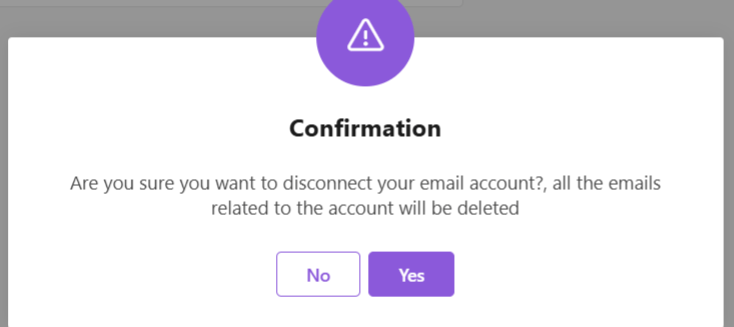
  • Click on Disconnect
  • Provide confirmation.
  • Your email account will be disconnect.

Also Read

Units of Measurement

General Settings

Currencies

Email Templates

Email templates in Zhylar offer pre-designed formats for quick communication, consistency and ensuring accuracy. These templates can be customized for brand alignment.

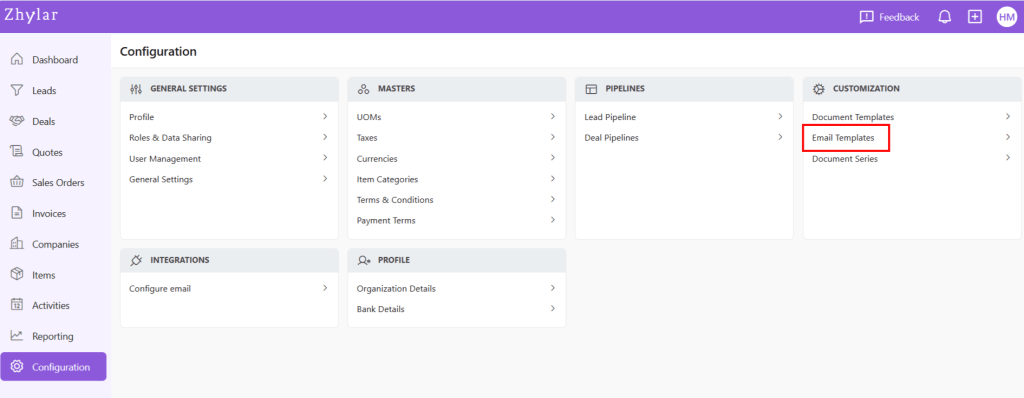
  • Log in to Zhylar
  • Go to Left-hand navigation panel
  • Click on Configuration
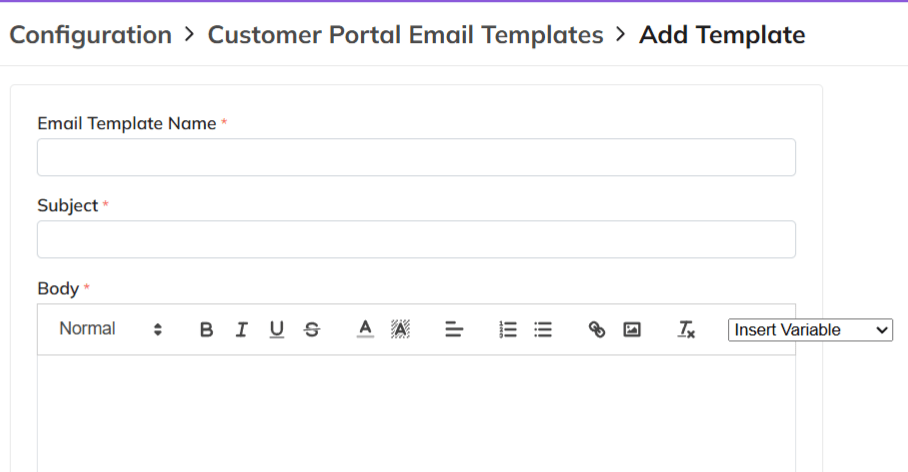
  • Under Configuration tab, select Email Template.
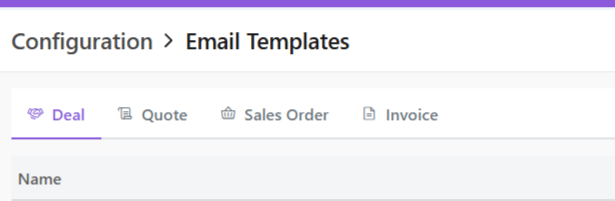
  • Create templates for:
    • Deal
    • Quote
    • Sales Order
    • Invoice
  • If email is sent from an integrated personal email ID, replies can be sent to the email.
  • Navigate to desired tab
  • Click + New Template.
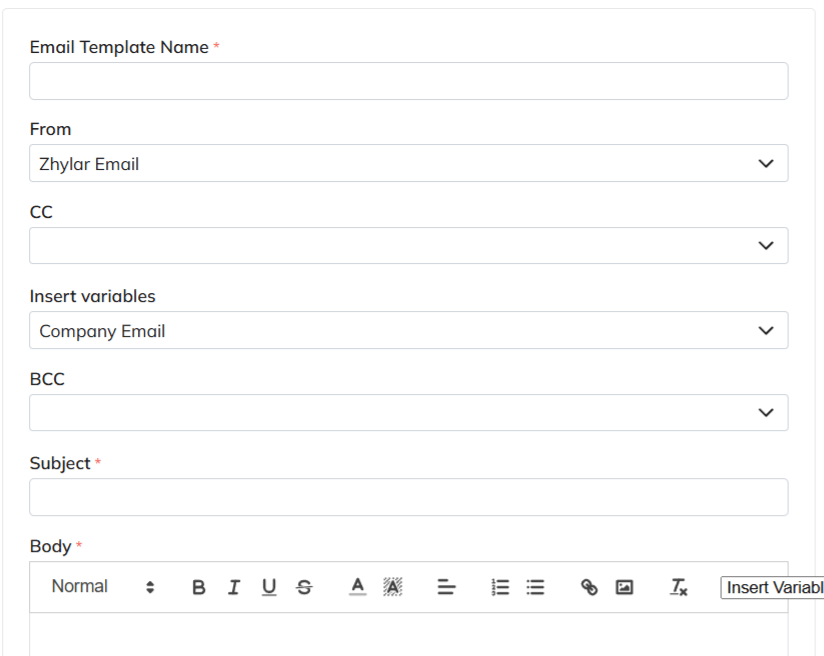
  • A side sheet will open.
  • Enter template name
  • Note: Two templates cannot have the same name in the same module. The system will not allow duplicates.
  • Fill out remaining fields
  • Insert variables if required to customize your template. Variables are placeholders used to dynamically insert specific data—such as a customer’s name, deal value, or due date—into templates, emails, or documents
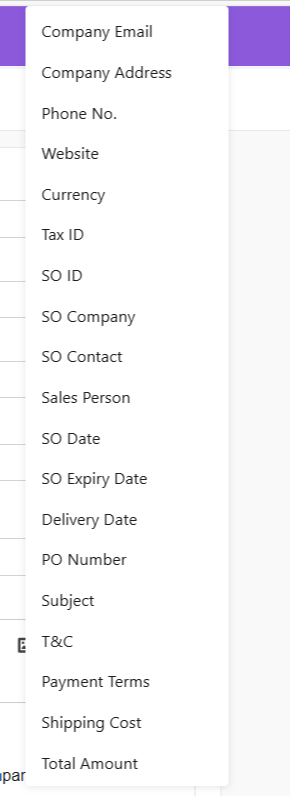
    • List of variables differ from module to module.

The image below represents the variables presented in the Sales Order module:

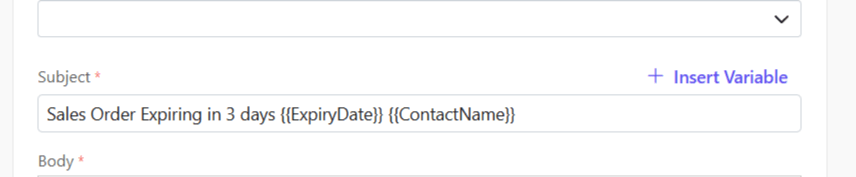
  • For example, if SO Expiry Date is selected, the system will automatically pick the expiry date added from the sales order.
  • Or, Contact Name is selected, the name willl be picked directly from the name added to the SO.
  • if Click Save.
  • The field options in all templates are the same except in customer portal. Here, only a Template Name, Subject and Body can be added.
  • Are you stuck whilst writing your emails?
  • At a loss for words?
  • Not sure how to write a message that will surely make an impact on your clients?

No reason to worry at all because Zhylar offers an AI email generator.

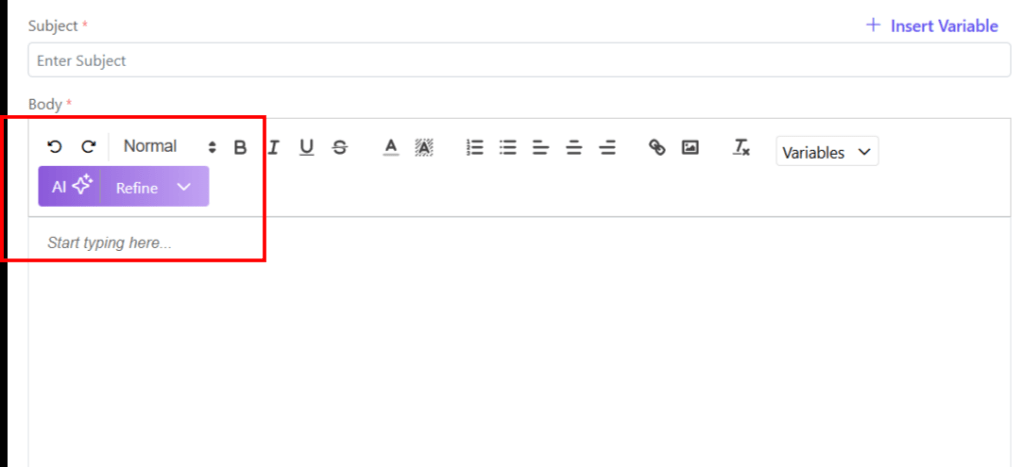
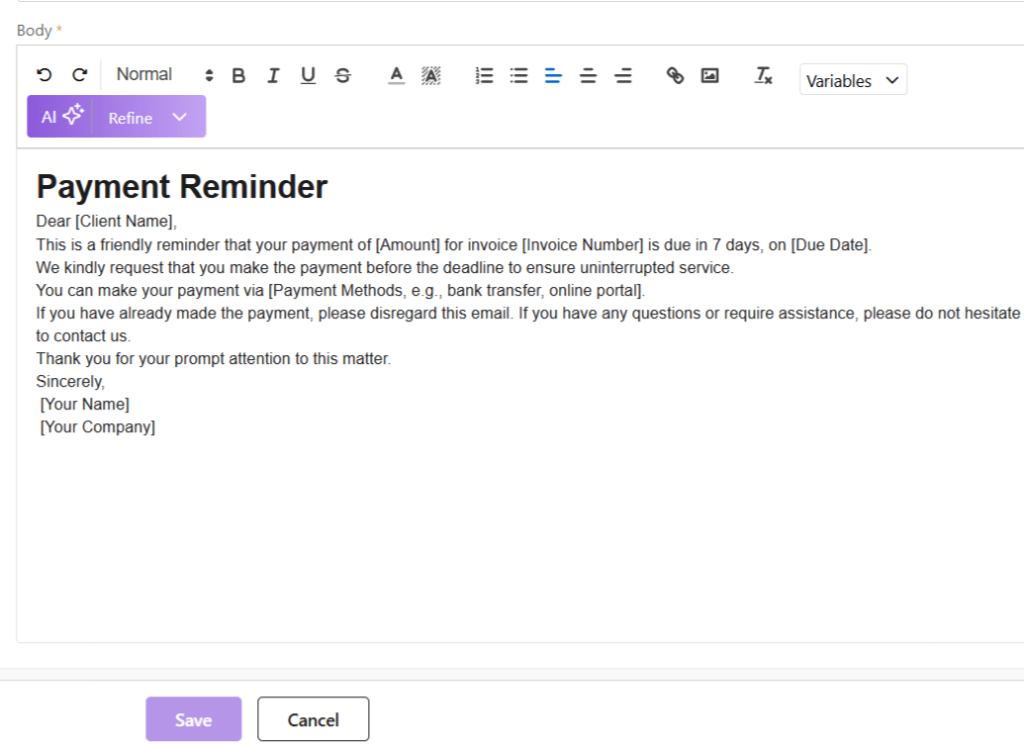
  • Click on AI ✨
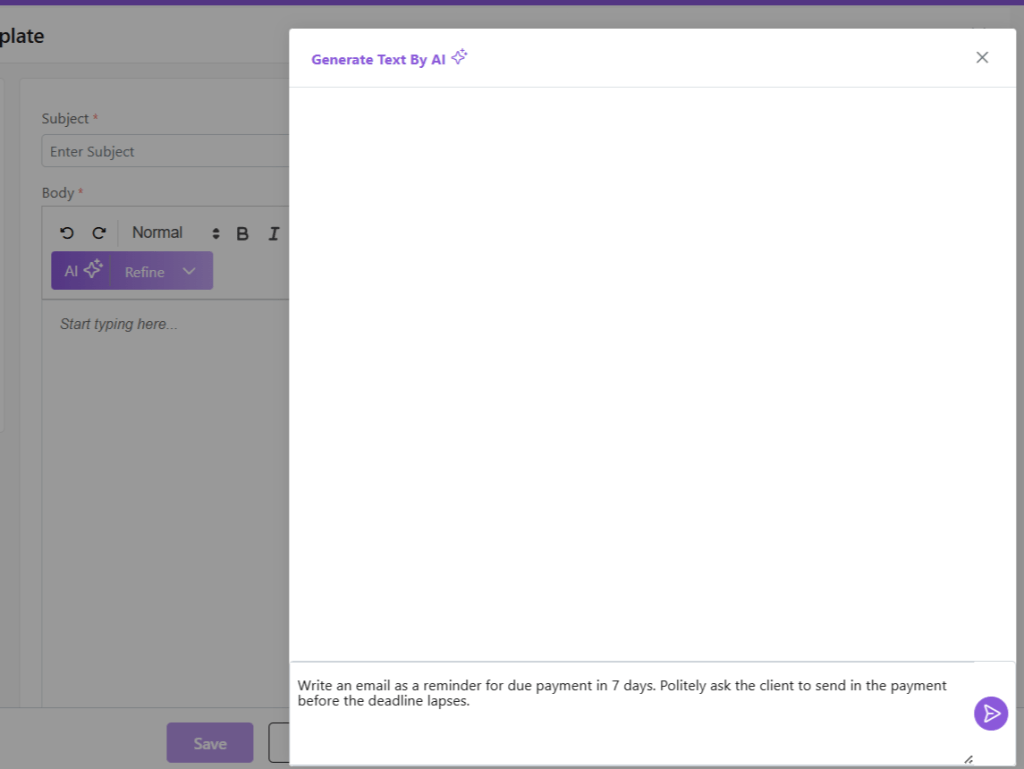
  • Provide a prompt for the nature of your email.
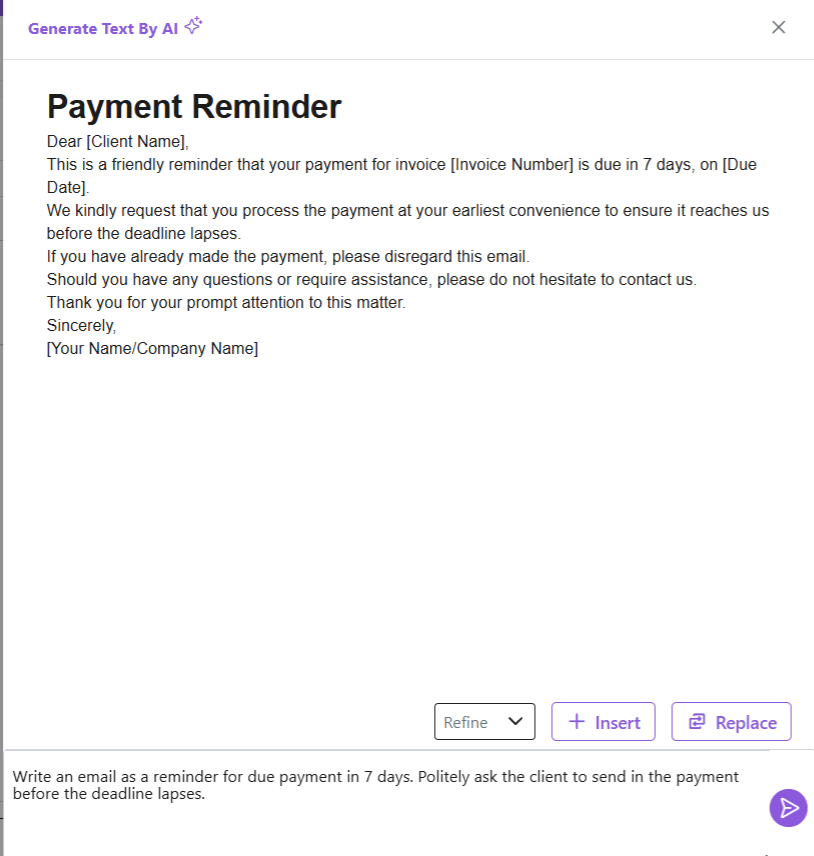
  • The AI Email generator has generated email content.
  • Once the text is generated, you can:
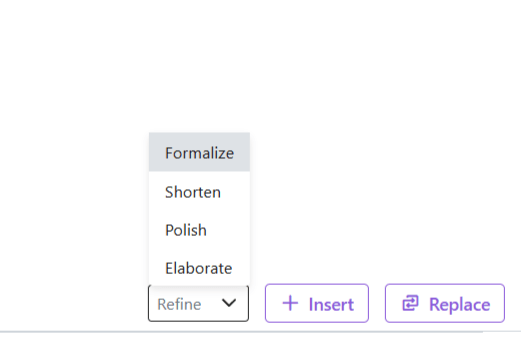
  • Refine: Based on your preference, you can ask the AI email generator to refine the text.
  • Insert: Add documents or files
  • Replace: Click on Replace to add this text by removing the existing text in the email (if any)
  • Once done, click on Save to save your AI-generated email template.
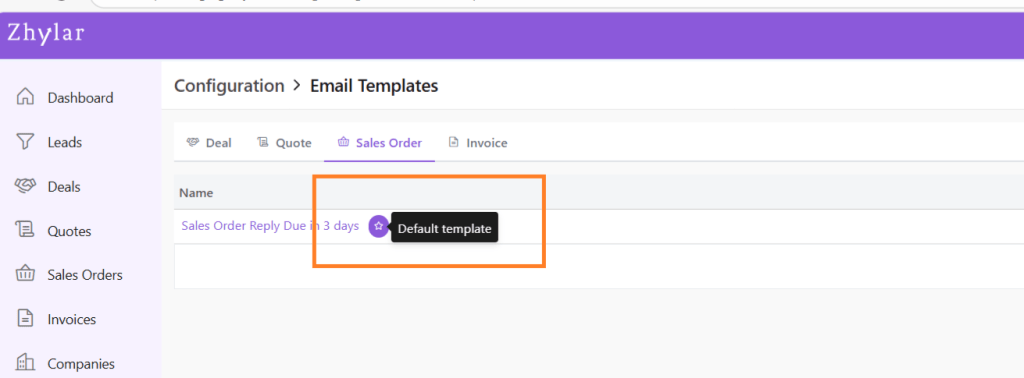
  • Marked by a white star in a purple circle.
  • First template created under any tab will be automatically marked as default.
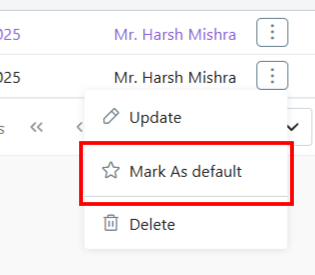
  • To Change default template, go to List View
  • Click ⋮ 3 dots
  • Select Mark as Default.
  • If there is only one template in the system, the existing template will be marked as default automatically.

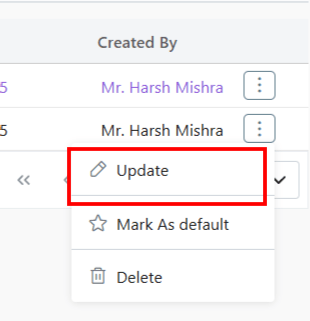
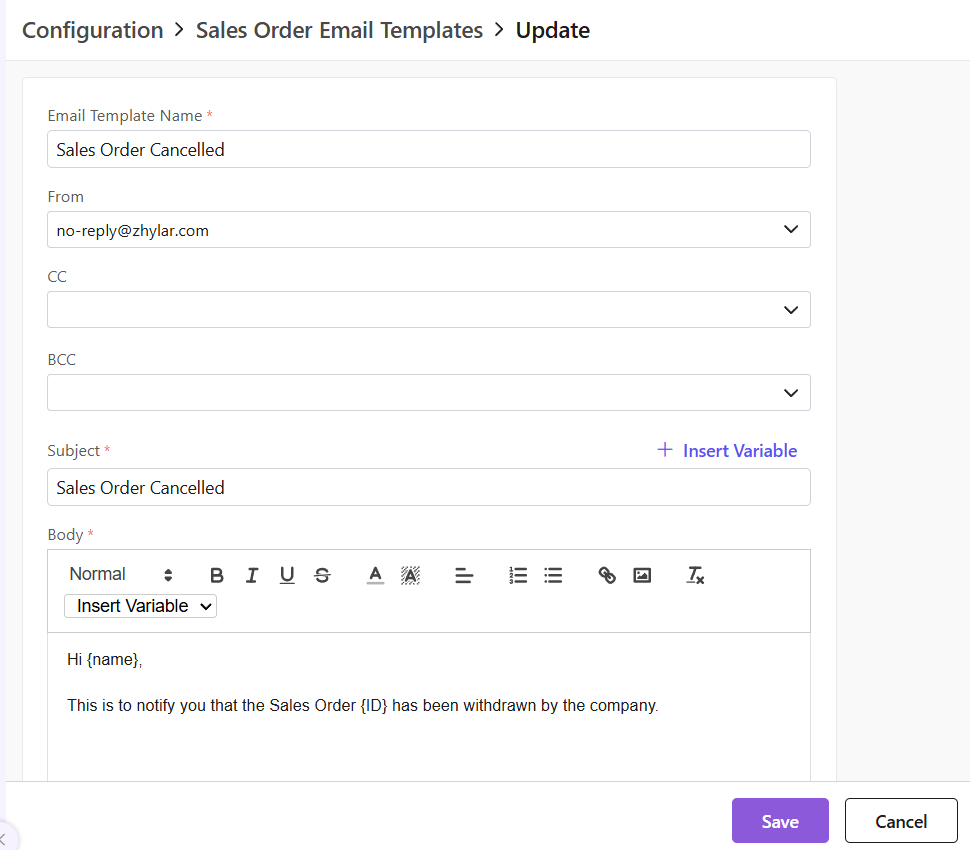
To update a template,

  • Click ⋮ 3 dots
  • Select Update
  • Make your changes.
  • Click Save.

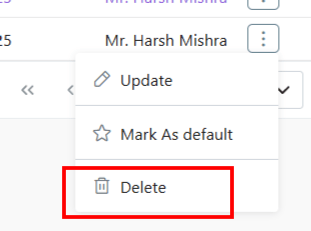
To delete a template,

  • Click ⋮ 3 dots
  • Select Delete
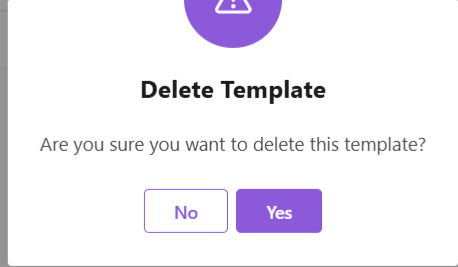
  • Provide confirmation.

Note: A template marked as Default Template cannot be deleted.

Units of Measurement

General Settings

Currencies

Units of Measurement (UOM)

UOM or Units of Measurement refers to standardized units like kilograms, liters, or hours used to quantify products or services. It ensures accurate pricing, quoting, and inventory tracking across the CRM. UOMs are customizable to match specific business needs, making transactions more precise and consistent.

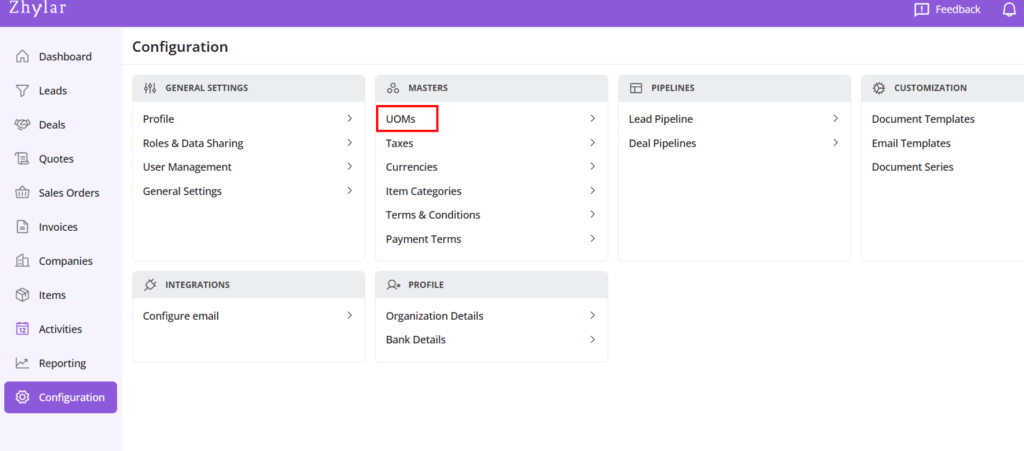
  • Log in to Zhylar.
  • Go to Left-hand panel
  • Click on Configuration
  • Under Masters, click on UOMs
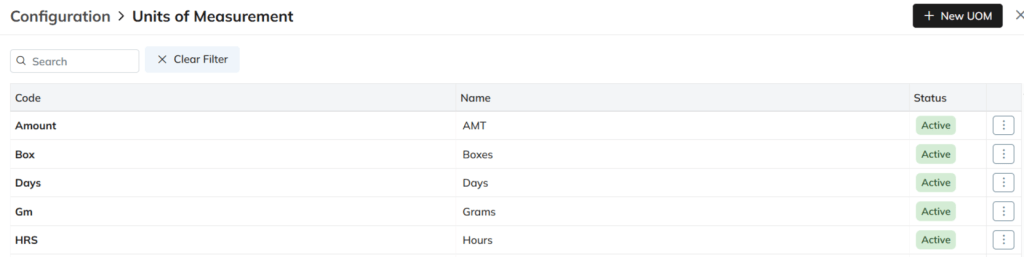
  • Check the list of UOMs added to the system.
  • Click + New UOM
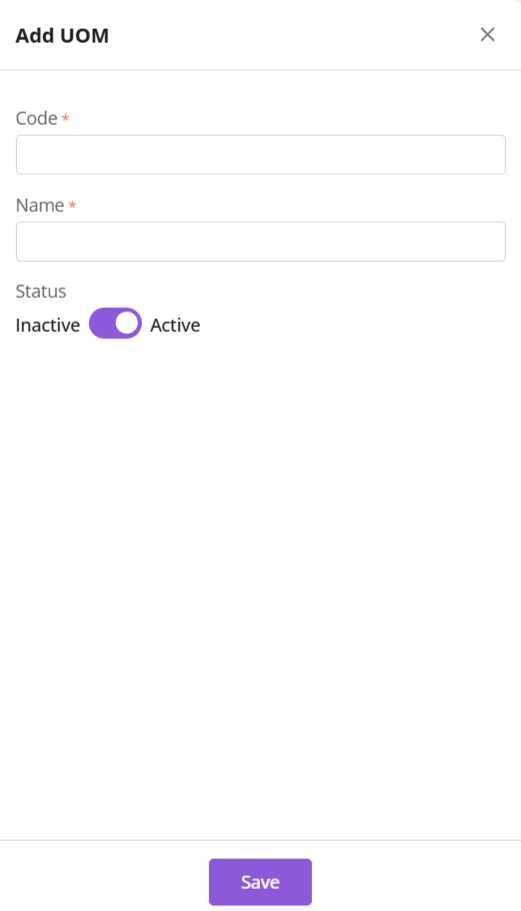
  • Enter details
  • Code: Enter a code for the UOM
  • Name: Give the UOM a name
  • Duplicate UOM names or codes are not allowed. In case you enter a duplicate name or code, you will receive an error.
  • Click Save

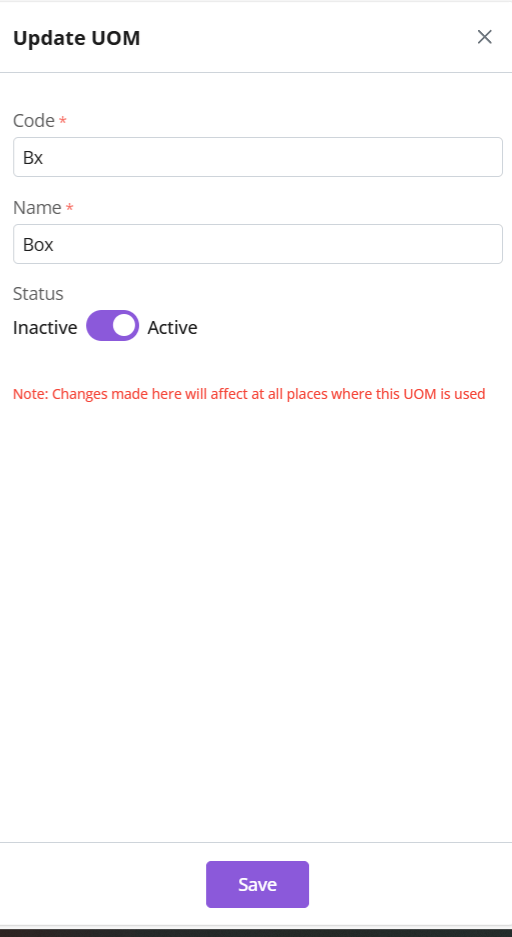
Update UOM

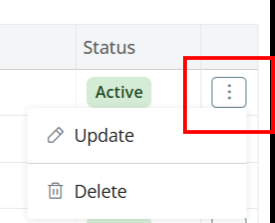
  • Click ⋮ 3 dots > Update → Edit → Save
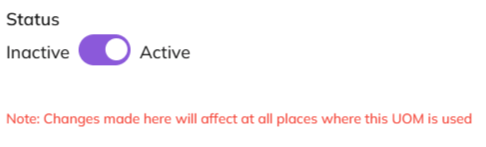
  • Toggle UOM status from active to inactive.
  • Click Save
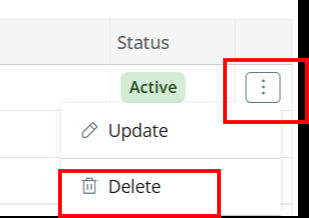
  • Click ⋮ 3 dots > select Delete
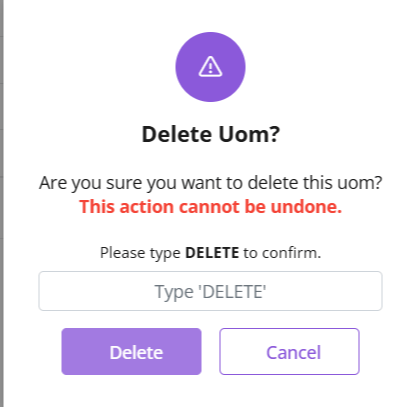
  • Type “DELETE” to provide confirmation.
  • The UOM will be deleted.
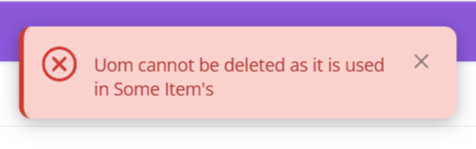
  • If the UOM is associated with any items, you will receive an error message

Also Read

Units of Measurement

General Settings

Currencies

General Settings 

  1. Log in to Zhylar.
  1. Click on “Configuration”.  
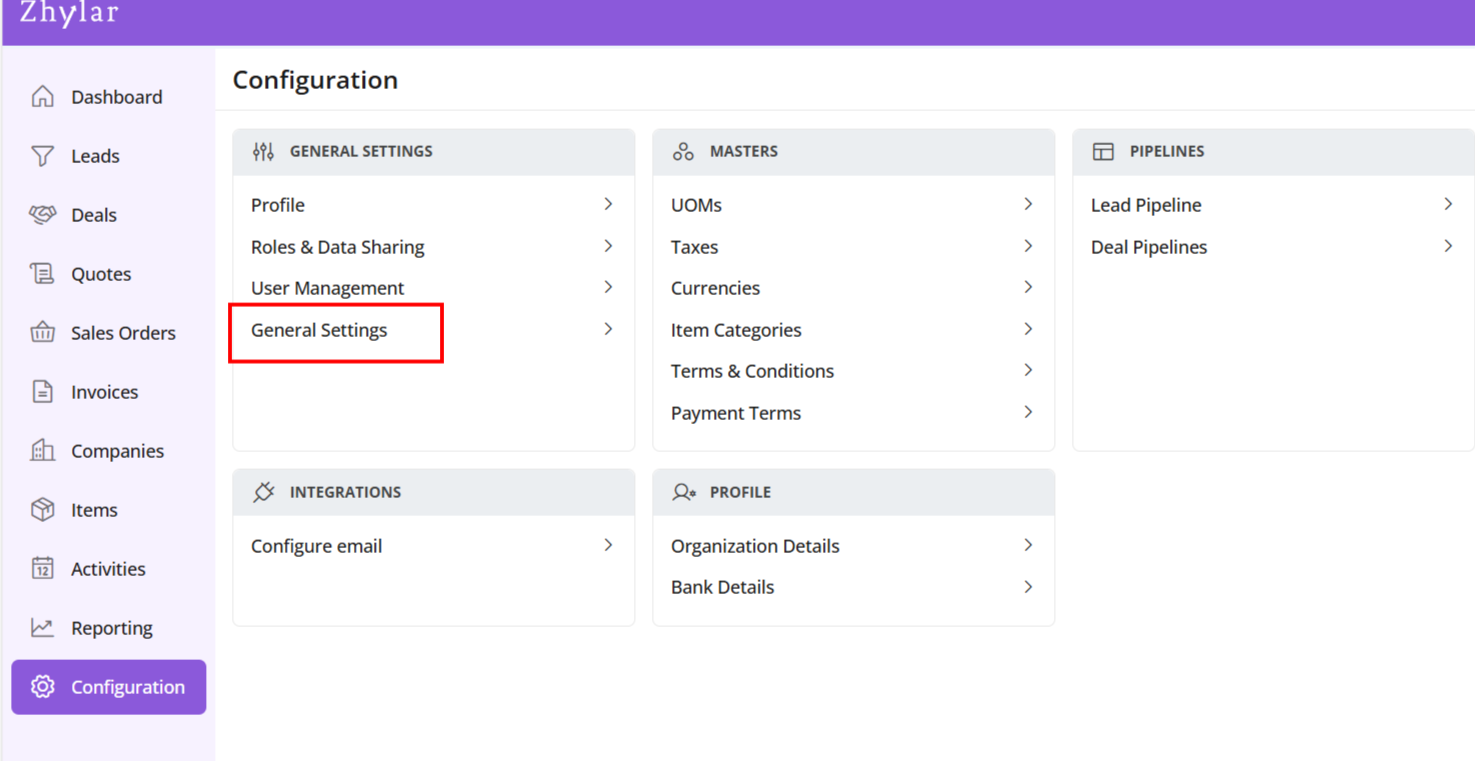
  1. In the “Masters” column, click on “General Settings”. 
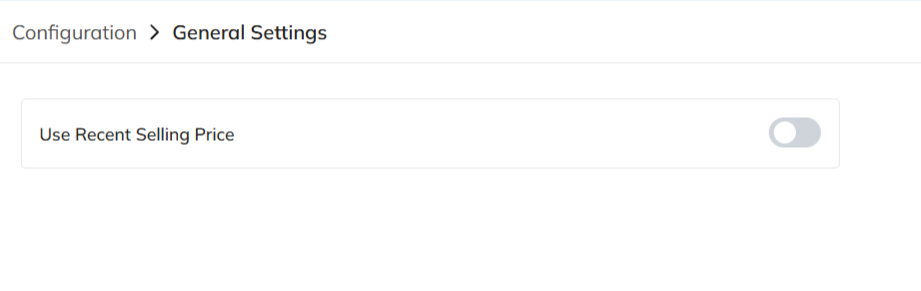
  1. A new page will open for you. 
  1. Here, you can turn on or turn off the “recent selling price” option. 

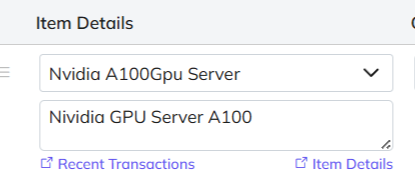
When turned on, recent selling price is reflected under “Item Details” wherever an item is added in the following modules:

  • Deal
  • Quote
  • Sales Order
  • Invoice

Under the added item, select Item Details

The details will open.

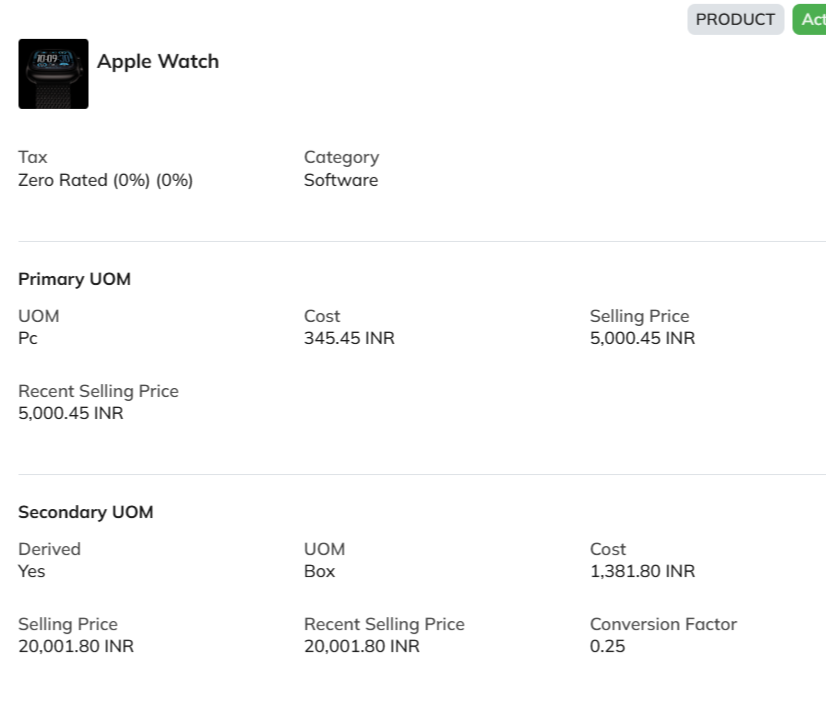
The recent selling price reflects the price at which the item was sold the last time only. In comparison, the recent transaction reflects the entire transaction history of the product in the Zhylar system.

Also Read

Deals

In CRM, a deal is a sales opportunity — a chance to sell your product or service and earn revenue.
A deal record stores key details like:

  • Deal value (how much it’s worth)
  • Expected close date (when you aim to win it)
  • Linked contacts (people you’re selling to)
  • Products or services offered

Tracking deals in the CRM helps sales teams stay organized. It ensures they follow up on time. It also moves opportunities forward until they’re won or lost.

In Zhylar, a deal pipeline is a visual framework. It maps each stage of your sales process, from opportunity creation to closure. Pipeline management empowers you to track progress, identify stalled deals, and forecast revenue accurately.

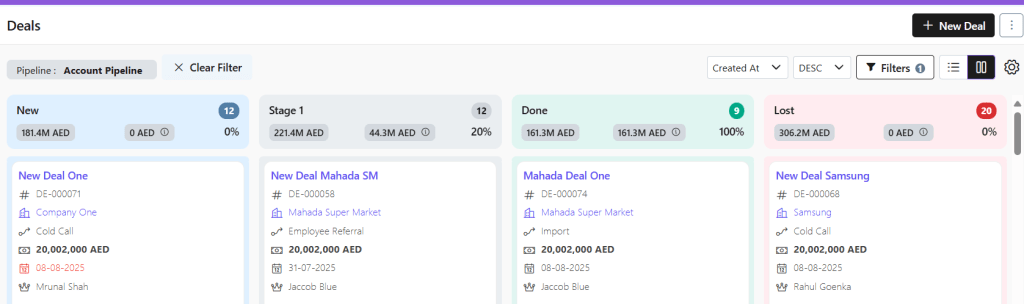
When viewing the deals added to the system, the list will show deals in one particular pipeline at a time.

  • Switch between pipelines to check deals.
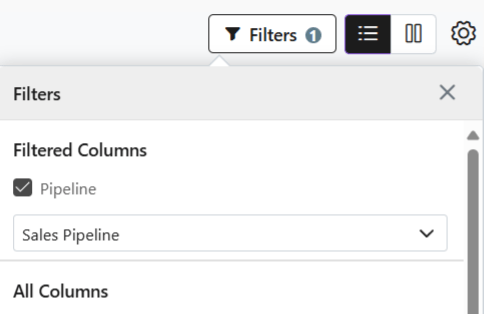
  • Click on Filters
  • Select Pipeline
  • Select the required pipeline
  1. Visual Pipeline Tracking – See deal stages at a glance with color-coded cards
  2. Drag-and-Drop Simplicity – Move deals between stages instantly
  3. Quick Status Checks – Identify bottlenecks or stalled deals visually

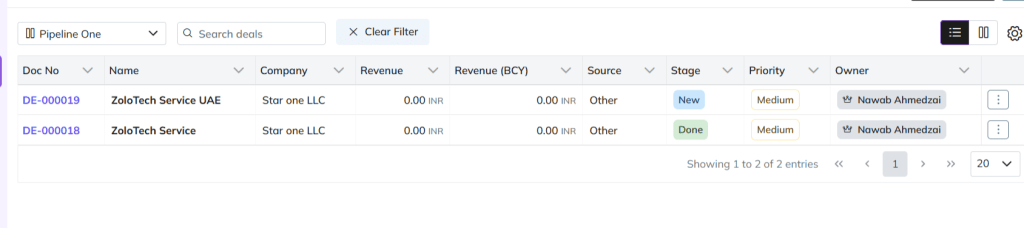
Switch to list view if required.

  1. Detailed Data Overview – View all deal info (value, dates, contacts) in one table
  2. Sorting & Filtering – Organize by amount, close date, or custom fields

There are three ways to add a new deal to Zhylar.

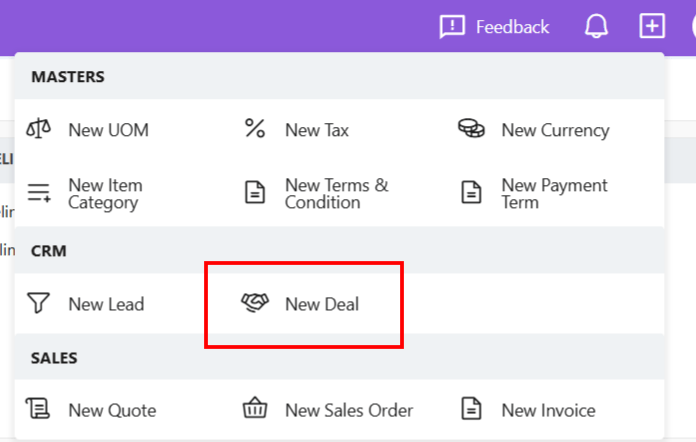
  • Click + New Deal (top-right)
  • Fill details
  • Click Add Deal
  • Go to Dashboard
  • From the left-hand panel, go to Deals
  • Click + New Deal
  • Fill details.
  • Save.
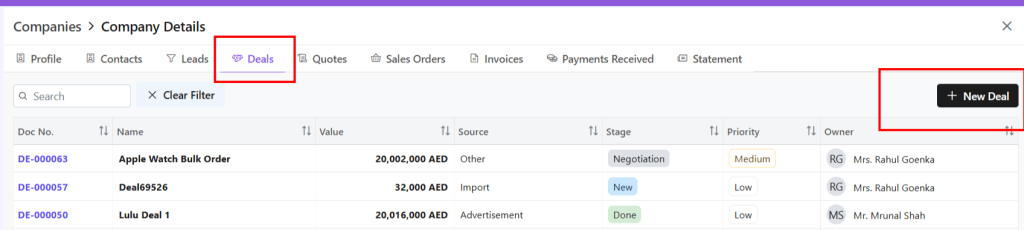
  • From the left-hand panel, go to Companies
  • Go to Company Details
  • Click on the Deals tab
  • Select + New Deal

When you click open a deal, you can;

  • View deal details
  • Edit deal– Make required changes
  • Email deal– The deal can be mailed to client
  • View Company– Get a wholistic view of the company linked to this deal with one click.
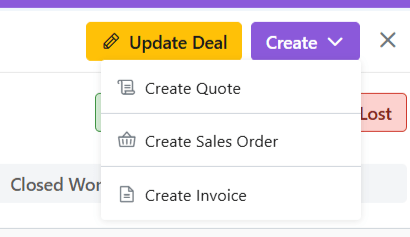
  • Create Quote– Generate a quote for this deal
  • Create SO– Create a sales order from this deal
  • Create Invoice- Generate an invoice for this deal

Deal PDF View

For any deal, you can track the following:

  • Details- Details of the deal
  • Activities– Tasks, calls, events- Add/Edit activities
  • Notes– Add and/ or check notes
  • Emails– Send and check emails related to the deal
  • Items– Details of the items added to the deal
  • Documents- See all documents associated with this deal
  • Files– Any attachments added to the deal
  • History- A record audit of the deal

Stages- Check if and how the deal has moved stages within the pipeline.

Deal Management

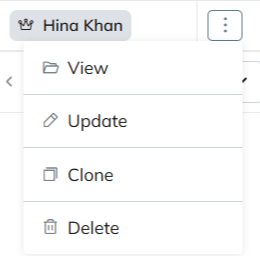
  • Click ⋮ 3 dots
  • Select View
  • The deal details will be visible.
  • Click ⋮ 3 dots
  • Select Update.
  • Make required changes.
  • Save.
  • Click ⋮ 3 dots
  • Select Clone

Delete Deal

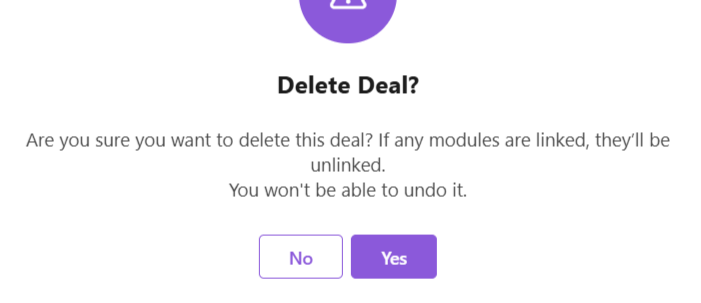
  • Click ⋮ 3 dots
  • Selecy Delete
  • Provide confirmation.
  • Deal deleted successfully.

Also Read

Units of Measurement

General Settings

Basic Terminologies

Bank Details

In a CRM system, bank details refer to the financial information of customers, vendors, or partners. This information is utilized for billing, invoicing, refunds, and financial transactions within the platform.

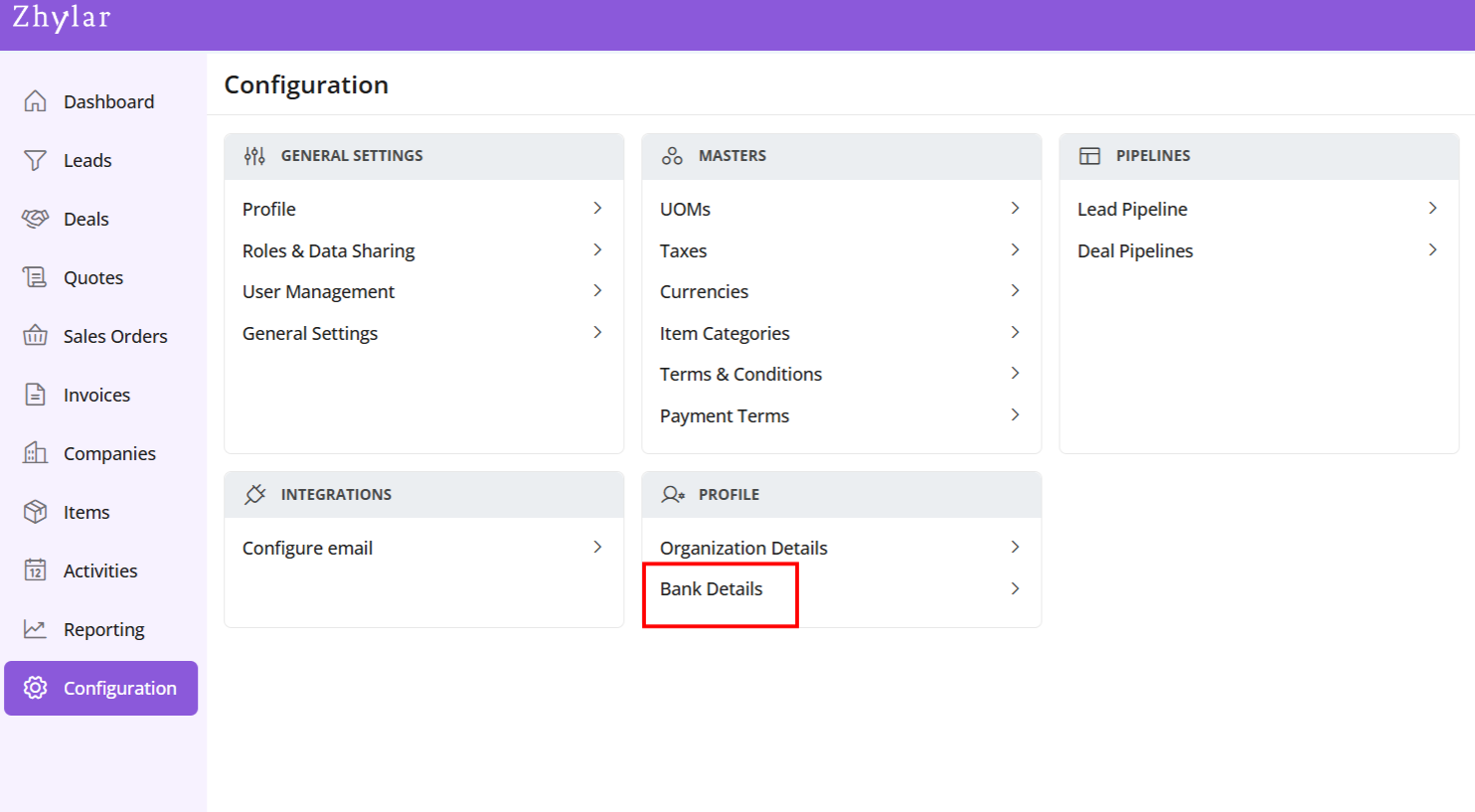
  • Log in to Zhylar
  • Go to Left-hand navigation panel
  • Click on Configuration
  • Under Profile tab, select Bank Details.
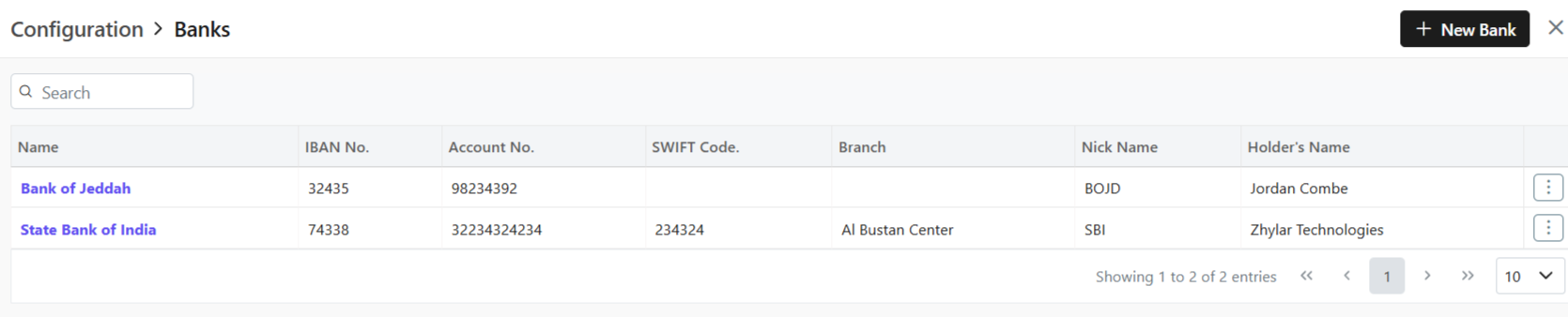
  • Shows a list of all the saved banks.
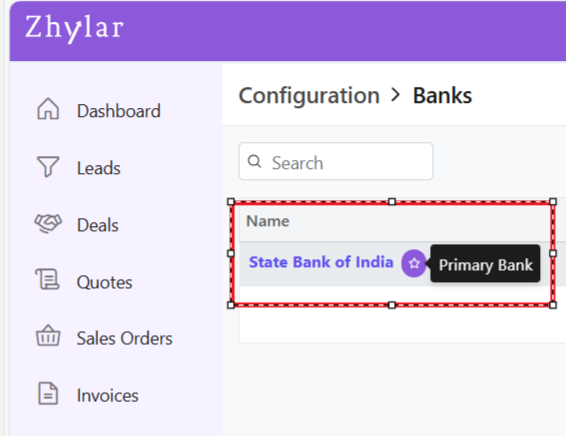
  • Bank marked with purple star is primary bank.
  • In Zhylar CRM, a primary bank is the default account managing payments, refunds, and transactions.
  • This bank will be loaded by default in all the Add Invoice forms.
  • You can switch the Bank in the document if required.
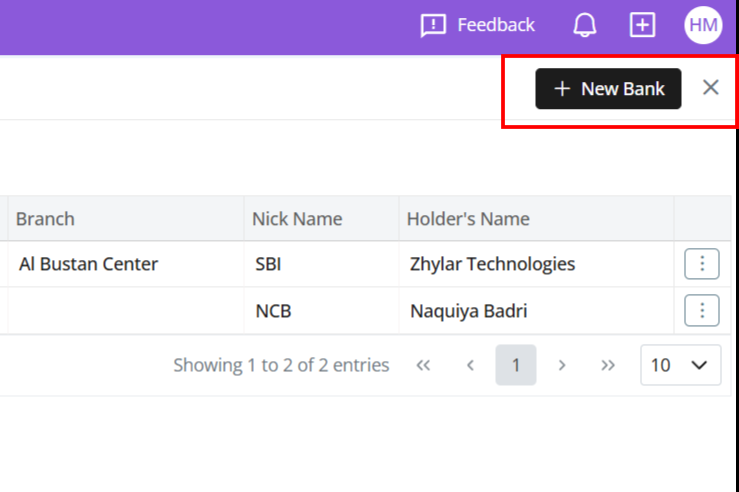
  • Click + New Bank.
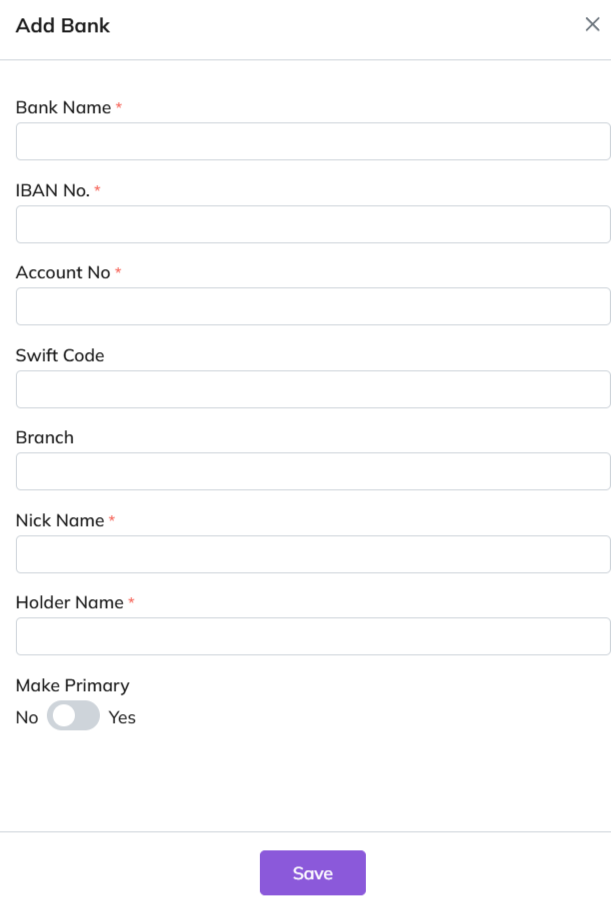
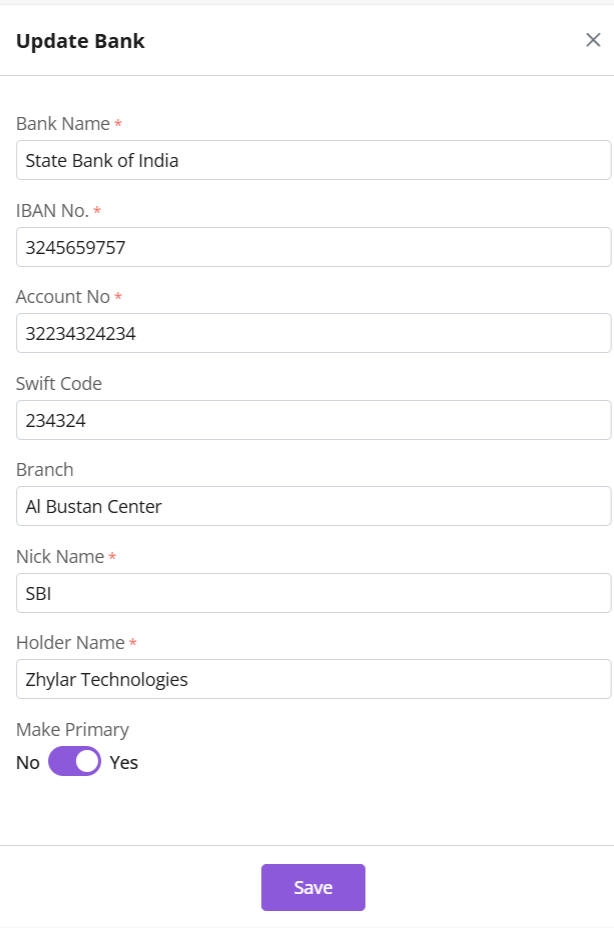
  • Fill out the details.
  • Fill required data.
  • Click Save.
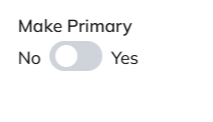
  • Toggle to mark as primary.
  • Only one primary bank allowed.
  • Primary bank denoted by a white star in a purple circle.
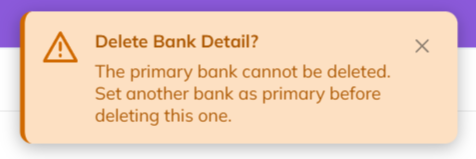
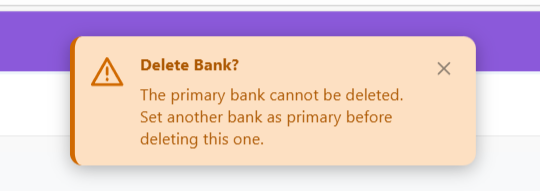
  • A primary bank cannot be deleted.
  • When a bank is added to any document, the field drop down will carry the bank’s nick name.
  • E.g., Dubai National Bank- Al-Nahda branch -> Nickname: DNB Al-Nahda
  • Thus drop down will show “DNB Al-Nahada” as an option.
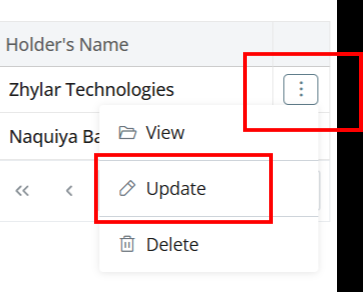
  • Click ⋮ 3 dots
  • Select Update.
  • Edit details.
  • Save changes.
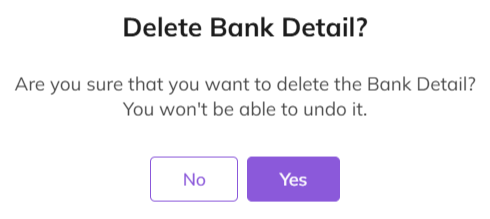
  • Click ⋮ > Delete.
  • Confirm with Yes.

Note:

  • Action cannot be undone.
  • A bank marked as primary cannot be deleted.
  • Two banks can not have the same Nick Name.

Navigate to Invoice

  • Go to Dashboard
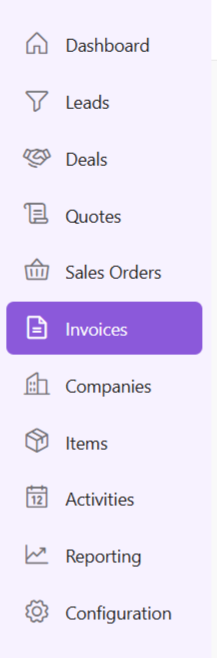
  • From the left-hand navigation panel, go to Invoices
  • Select Invoice:
    • Open the relevant invoice.
    • Invoice must be in Sent status or any of the successive stages.
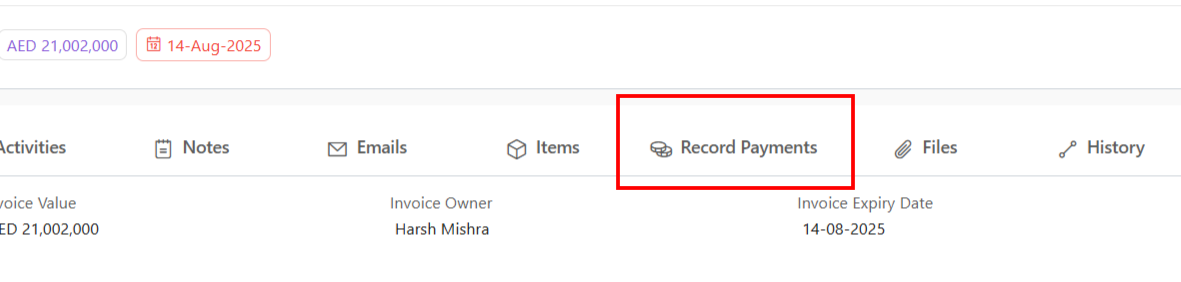
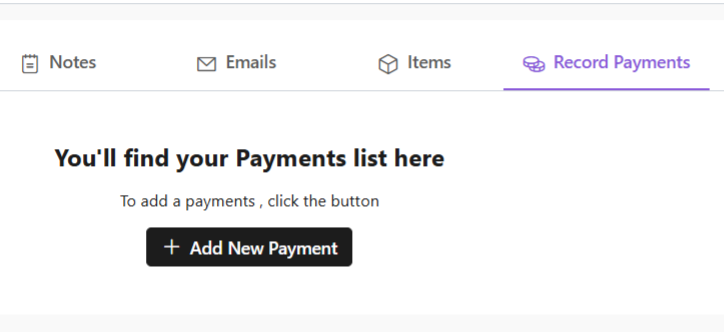
  • Record Payment:
    • Click “Record Payment”
  • You’ll find your Payments list.
  • Add New Payment:
    • Click “+ Add New Payment”
    • Fill required details.
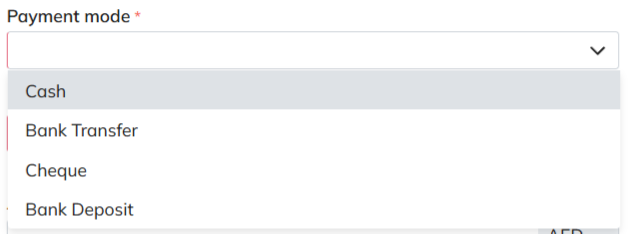
    • When selecting mode of payment, except cash, all other payment modes will require you to add a bank.
  • Under “deposit to” field, add your bank.
  • If payment is being made in cash, you will not have to add a bank.
  • Fill data and click “Add Payment”.
  • Your payment receipt will be added.

Units of Measurement

General Settings

Currencies

Zhylar CRM

From inquiry to invoice: How automation streamlines your sales cycle

Introduction

Managing a sales cycle manually can be overwhelming. From capturing leads to sending invoices, every stage requires precision, timely follow-ups, and seamless coordination. The traditional approach often leads to inefficiencies, missed opportunities, and delayed payments.

Automation is transforming sales processes by reducing manual effort, eliminating errors, and accelerating deal closures. By using a robust CRM and CPQ system, businesses can enhance their sales journey. This improvement spans from the first customer inquiry to the final invoice.

The challenges of a manual sales cycle

Many businesses struggle with an unstructured sales process that leads to inefficiencies such as:

  • Missed follow-ups: Without automation, sales teams often forget to follow up on leads, reducing conversion rates.
  • Data inconsistencies: Manually updating customer information can result in errors, leading to miscommunication.
  • Time-consuming approvals: Pricing, discounts, and proposal approvals often require back-and-forth discussions, slowing down the sales process.
  • Delayed invoicing: Generating invoices manually can lead to billing errors and payment delays, affecting cash flow.

How automation streamlines the sales cycle

Automation enhances each stage of the sales cycle, ensuring a smooth transition from inquiry to invoice. Let’s break it down step by step:

1. Lead capture and qualification

Manually entering and tracking leads can be time-consuming. Automation helps by:

  • Capturing leads instantly from web forms, emails, and social media.
  • Scoring and qualifying leads based on predefined criteria, ensuring sales teams focus on high-potential prospects.
  • Automatically assigning leads to the right salesperson for quicker engagement.

2. Efficient deal and quote management

Once a lead is converted into a deal, automation ensures a streamlined workflow:

  • Pre-configured sales pipelines guide teams through each stage of the deal.
  • Automated pricing and discount approvals eliminate bottlenecks in CPQ processes.
  • Generating professional quotes in just a few clicks, reducing turnaround time.

3. Sales order creation and approval

Once a customer accepts a quote, automation speeds up order processing:

  • One-click conversion of quotes to sales orders eliminates redundant data entry.
  • Automated approval workflows ensure orders are reviewed and processed without delays.
  • Error-free order documentation improves accuracy and compliance.

4. Seamless invoice generation and payment tracking

Getting paid on time is crucial for any business. Automation helps by:

  • Auto-generating invoices based on approved sales orders, reducing manual effort.
  • Tracking due payments and sending automated payment reminders to customers.
  • Integrating with accounting tools like QuickBooks and Zoho Books for better financial management.

Why Zhylar is the ideal solution

At Zhylar, we understand the challenges of managing a sales cycle manually. That’s why we’ve built a powerful CRM + CPQ solution that:

  • Automates lead capture, deal tracking, and quote generation.
  • Offers seamless approval workflows to speed up sales orders.
  • Generates invoices instantly and integrates with accounting platforms.
  • Enhances efficiency with an intuitive interface and smart automation tools.

By using Zhylar, businesses can eliminate repetitive tasks, close deals faster, and maintain strong customer relationships—all while boosting revenue. Ready to transform your sales cycle? Let’s make it happen with Zhylar!

Zhylar CRM
Zhylar – top CRM solutions

Transform Your Sales Cycle: Inquiry to Invoice Simplified

Introduction

Managing a sales cycle manually can be overwhelming. From capturing leads to sending invoices, every stage requires precision, timely follow-ups, and seamless coordination. The traditional approach often leads to inefficiencies, missed opportunities, and delayed payments.

Automation is transforming sales processes by reducing manual effort, eliminating errors, and accelerating deal closures. Businesses can streamline their entire sales journey by leveraging a robust CRM and CPQ system. This spans from the first customer inquiry to the final invoice.

The challenges of a manual sales cycle

Many businesses struggle with an unstructured sales process that leads to inefficiencies such as:

  • Missed follow-ups: Without automation, sales teams often forget to follow up on leads, reducing conversion rates.
  • Data inconsistencies: Manually updating customer information can result in errors, leading to miscommunication.
  • Time-consuming approvals: Pricing, discounts, and proposal approvals often require back-and-forth discussions, slowing down the sales process.
  • Delayed invoicing: Generating invoices manually can lead to billing errors and payment delays, affecting cash flow.

How automation streamlines the sales cycle

Automation enhances each stage of the sales cycle, ensuring a smooth transition from inquiry to invoice. Let’s break it down step by step:

1. Lead capture and qualification

Manually entering and tracking leads can be time-consuming. Automation helps by:

  • Capturing leads instantly from web forms, emails, and social media.
  • Scoring and qualifying leads based on predefined criteria, ensuring sales teams focus on high-potential prospects.
  • Automatically assigning leads to the right salesperson for quicker engagement.

2. Efficient deal and quote management

Once a lead is converted into a deal, automation ensures a streamlined workflow:

  • Pre-configured sales pipelines guide teams through each stage of the deal.
  • Automated pricing and discount approvals eliminate bottlenecks in CPQ processes.
  • Generating professional quotes in just a few clicks, reducing turnaround time.

3. Sales order creation and approval

Once a customer accepts a quote, automation speeds up order processing:

  • One-click conversion of quotes to sales orders eliminates redundant data entry.
  • Automated approval workflows ensure orders are reviewed and processed without delays.
  • Error-free order documentation improves accuracy and compliance.

4. Seamless invoice generation and payment tracking

Getting paid on time is crucial for any business. Automation helps by:

  • Auto-generating invoices based on approved sales orders, reducing manual effort.
  • Tracking due payments and sending automated payment reminders to customers.
  • Integrating with accounting tools like QuickBooks and Zoho Books for better financial management.

Why Zhylar is the ideal solution

At Zhylar, we understand the challenges of managing a sales cycle manually. That’s why we’ve built a powerful CRM + CPQ solution that:

  • Automates lead capture, deal tracking, and quote generation.
  • Offers seamless approval workflows to speed up sales orders.
  • Generates invoices instantly and integrates with accounting platforms.
  • Enhances efficiency with an intuitive interface and smart automation tools.

By using Zhylar, businesses can eliminate repetitive tasks, close deals faster, and maintain strong customer relationships—all while boosting revenue. Ready to transform your sales cycle? Let’s make it happen with Zhylar!

7 Benefits of Implementing a CPQ Solution

In today’s competitive business landscape, companies need to constantly look for ways to streamline their processes and improve efficiency. One tool that can significantly help in this regard is a CPQ (Configure, Price, Quote) solution. CPQ software helps businesses automate their sales processes. It enables them to quickly generate accurate quotes.

This reduces errors and improves overall sales performance. There are several reasons why a business can benefit from implementing a CPQ solution. Let’s outline the top seven reasons why businesses should consider using CPQ software. 

7 Reasons Why a Business Needs a CPQ Solution

Streamline Your Sales Process 

First and foremost, a CPQ solution can help businesses streamline their sales process. Automation of configuration, pricing, and quoting of products and services helps businesses. It eliminates manual tasks. It also reduces the time it takes to create a quote. This can lead to quicker turnaround times for customers, ultimately improving customer satisfaction and increasing sales. 

Improve Your Quotes 

Secondly, CPQ software can help businesses improve the accuracy of their quotes. When product and pricing information is centralized in a single platform, businesses ensure that sales reps always offer the most up-to-date pricing. This centralization helps sales reps provide accurate pricing to customers. They also provide the most accurate pricing to customers. This can help eliminate pricing errors and discrepancies, leading to more consistent and reliable quotes. 

Upsell + Cross-Sell 

Another benefit of CPQ software is its ability to help businesses upsell and cross-sell products. CPQ software provides sales reps with real-time insights into product recommendations and pricing options. This helps them identify opportunities to sell additional products or services to customers. This can help businesses increase their average deal size and drive in more revenue. 

Optimize Pricing to Maximize Profitability 

Furthermore, a CPQ solution can help businesses improve their pricing strategies. By analyzing historical sales data and market trends, CPQ software can help businesses optimize their pricing to maximize profitability. This can help businesses stay competitive in the market. It ensures they get the most value out of each deal. 

Optimize Sales Performance 

Additionally, CPQ software can help businesses improve their overall sales performance. CPQ software provides sales reps with guided selling tools and templates. These tools help them navigate complex sales processes more effectively. This can help reps better understand customer needs, tailor their sales approach, and ultimately close more deals. 

Streamline Quote to Cash Process  

Moreover, a CPQ solution can help businesses improve their quote-to-cash process. By integrating CPQ software with other business systems such as CRM and ERP, businesses can streamline their sales process. This integration enhances the journey from quote creation to order fulfilment. This can help businesses reduce errors, cut down on manual tasks, and improve overall operational efficiency. 

Valuable Insights for Analysis 

Lastly, implementing a CPQ solution can help businesses gain valuable insights into their sales performance. By tracking key metrics such as quote conversion rates, win rates, and sales velocity, businesses can identify areas for improvement. They can make data-driven decisions to optimize their sales process. This can help businesses stay ahead of the competition and drive greater success in the market. 

Conclusion 

In conclusion, a CPQ solution offers numerous benefits for businesses. It helps those looking to enhance their sales processes. It can also increase revenue. CPQ software streamlines sales operations and optimizes pricing strategies. It gains valuable insights.

These capabilities empower businesses to elevate their sales performance. They also help maintain a competitive edge in the market. Therefore, businesses must explore implementing a CPQ solution. This is necessary to capitalize on these advantages. Doing so ensures long-term success. 

Your CRM+CPQ Solution: Why You Should Choose Zhylar

Who Are We? 

Zhylar is your one-stop Customer Relationship Management (CRM) + Configure, Price, Quote (CPQ) solution. We are the only cutting-edge SaaS product that provides CRM and CPQ solutions all in one. This helps you reduce costs, improve workflow and organize your enquiry to invoice process all in one place.  

First, let us understand the importance of CRM solutions. Before we move on to learn more about why you should choose Zhylar for your sales processes. Then we will explore why CPQ solutions are crucial for any growing business. 

Importance of CRM and CPQ Systems 

CRM and CPQ systems are important, rather indispensable tools for all modern-day businesses in sales-driven organizations. CRM focuses on managing customer relationships and streamlining interactions. CPQ enhances the quoting and sales process. It simplifies product configuration and pricing, and it aids in creating quotes. Together, they create a powerful synergy that streamlines efficiency, boosts sales and improves overall customer experience.  

By itself, CRM systems provide a single database for all customer information. This includes contacts, past interactions, and sales history. This centralization allows sales teams to have a comprehensive view of each customer, enabling personalized and efficient engagement. CRM helps businesses manage relationships at every stage of the customer lifecycle—from lead generation to post-sale support.  

When it comes to CPQ, for businesses with complex products or services, CPQ simplifies configuring the right product mix. Sales teams can easily customize offerings based on customer needs, ensuring that quotes are accurate and aligned with customer expectations. Additionally, CPQ systems can provide valuable insights into sales performance and customer preferences, helping businesses make data-driven decisions to optimize their product offerings and pricing strategies 

Integrated CRM and CPQ 

When CRM and CPQ are integrated, they create a seamless flow from lead management to quote creation. CRM manages the relationship and pipeline, while CPQ handles product configuration and pricing. Together, they: 

  • Increase revenue by streamlining the sales process. Reduce errors in quoting. This leads to more closed deals and higher customer retention rates.
  • Enhance collaboration between sales, marketing, and product teams. Provide a centralized platform for sharing customer information. Share product details and pricing data on this platform.
  • Enable data-driven decision-making by tracking customer interactions, quote history, and sales performance metrics in one integrated system.  

This is where Zhylar comes into play!  

How Does Zhylar Solve Your CRM + CPQ Needs? 

As aforementioned, Zhylar provides integrated CRM and CPQ solutions. These solutions simplify and consolidate your tasks in one place. Furthermore, Zhylar’s competitive pricing is very easy on your pockets and provides 2 solutions at the cost of one.  

Don’t believe us? Check it out in the section below. 

Why Choose Zhylar? 

There are many reasons why Zhylar is your go-to CRM+ CPQ product. 

  • Only SaaS product offering CRM+ CPQ solution all in one!  
  • Competitive price offering 2 solutions at the price of one. 
  • Easy-to-use user-friendly interface. 
  • All-time suppport available.  

Let’s Talk Numbers! 
From one business to another, at the end of the day, it’s all about numbers. Take a look at our product pricing to understand how Zhylar is your cost-effective solution.  

Tiers Name Freemium Basic  Standard  Premium 
Yearly Price $-     $14   $20   $30  
Diff Yearly – Monthly  25% 25% 25% 25% 
Monthly Price $-     $18   $25   $38  
Users 2 Users Price / User Price / User Price / User 
Parameters & Features     
CRM Essential     
Leads  Y Y Y Y 
Deals Y Y Y Y 
Customer/Contacts Y Y Y Y 
Sales Pipeline 1 Pipeline/Org 1 Pipeline/Org 3 Pipeline/Org 5 Pipeline/Org 
Web Forms to capture leads Y Y Y Y 
Custom Web Forms N N 2 5 
Reporting & Insights Y Y Y Y 
Sales Essential     
Product Catalog Y Y Y Y 
Simple Units of Measure Y Y Y Y 
Quotes Y Y Y Y 
Sales Order Y Y Y Y 
Invoice Y Y Y Y 
Customer/Contacts Y Y Y Y 
Attachment in documents N N N 3 MB/ Document 
Line items / Quotes, Sales order, Invoice 10-line items/ Quotes, SO, Invoice 20-line items/ Quotes, SO, Invoice 30-line items/ Quotes, SO, Invoice 50-line items/ Quotes, SO, Invoice 
Data      
Number of Records  500 / Org 20000 / Org 50000 / Org 100000 / Org 
File Storage  1 GB / Org 1 GB / Org 2 GB / Org 
Data Backup (No of backup to be taken monthly)  1/Month 2/Month 2/Month 
Data Import (No of records to be imported per batch) 50 Records/Batch 150 Records/Batch 300 Records/Batch 500 Records/Batch 
Data Export 50 Records/Batch  
2 Export/Day/Org 
5000 Records/Batch  
5 Export/Day/Org 
10,000 Records/Batch  
10 Export/Day/Org 
20,000 Records/Batch  
15 Export/Day/Org 
Integrations     
Email, Calendar & Contact sync     
O365  N N N Y 
Gsuite N N N Y 
Attachment Size 1 MB / Email 1 MB / Email 1 MB / Email 5 MB / Email 
Emails 1 Email/Day *License /Org/month 20 Email/Day *License /Org/month 30 Email/Day *License /Org/month 50 Email/Day *License /Org/month 
Accounting Integration     
QuickBooks N N N Y 
Zoho Books N N N Y 
Tally N N N Y 
Amazon-Business N N N Y 
Social Media Integrations     
Facebook N N N Y 
Instagram  N N N Y 
Linkden N N N Y 
Google Ads N N N Y 
Advance features     
Combined Units of Measure N N Y Y 
Multicurrency N N 5 Currency / Org 10 Currency/Org 
Sales Forecast N N 2 Sales Forecast/Org 5 Sales Forecast/Org 
Custom Email Template N   Y Y 
Custom Document Template N Y Y Y 
Custom Dashboard N N Y Y 
     

Subscribe to get access

Read more of this content when you subscribe today.