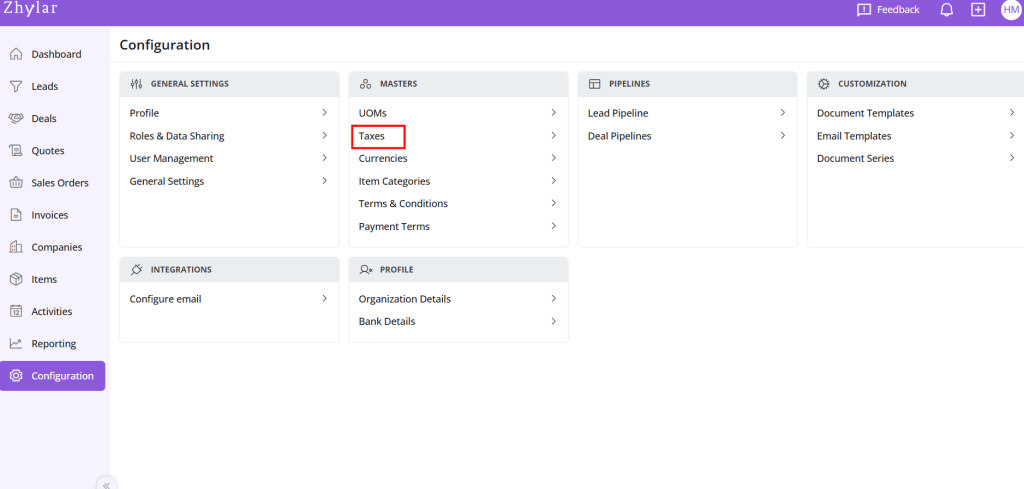
Taxes represent financial obligations on sales transactions. They are calculated automatically based on customer location, product type, and applicable tax laws like VAT or GST. Taxes are seamlessly integrated into quotes and invoices. This ensures accurate billing. It also ensures compliance with regional tax regulations across all sales documents.
Key Features
Automatic Calculation: Applies correct rates during quoting
Seamless Integration: Syncs with invoicing/billing
Some default taxes are pre-loaded as listed below:
Add New Tax:
Click “+ New Tax”
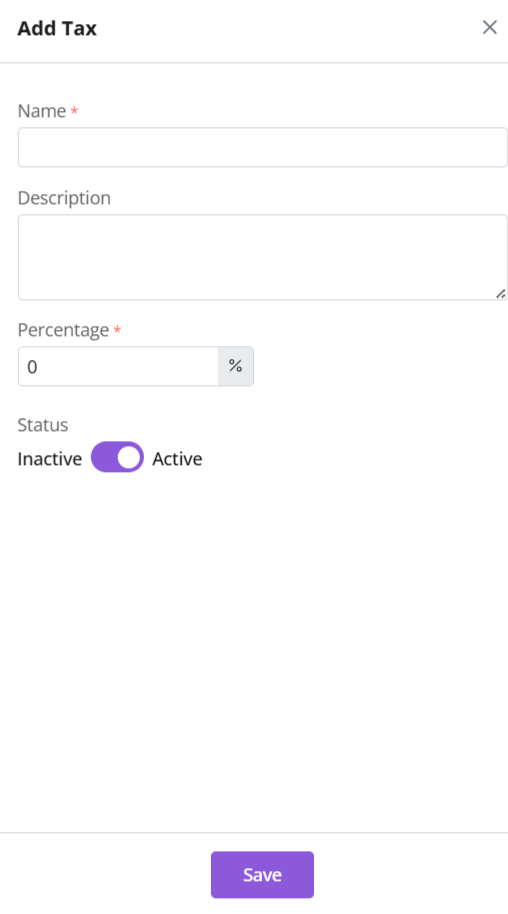
Enter details
Name- Assign name to tax
Description- Explain the terms and policies of the tax.
Percentage- % of tax levied on certain item.
Status- If this tax is being used in the system at present or not.
Click Save
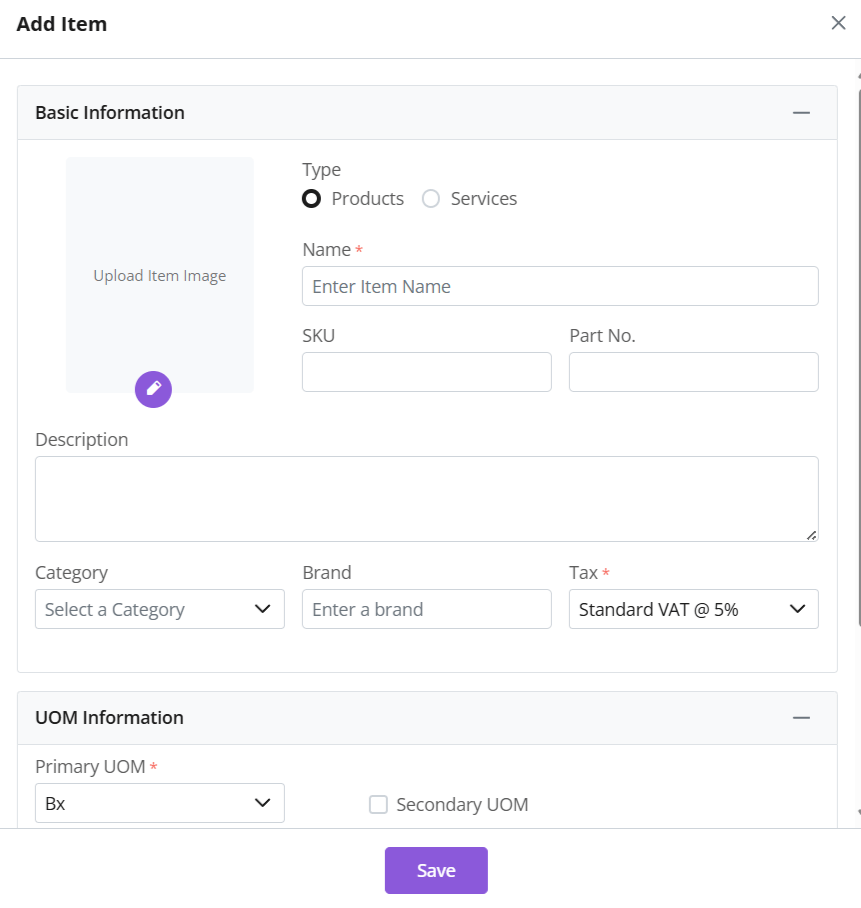
Add Tax to Item
A tax can be assigned to an item directly for direct use.
It will be auto applied when relevant item is added to any document.
Thus, different taxes can be used for different or specific items.
Read more about this feature in the items module.
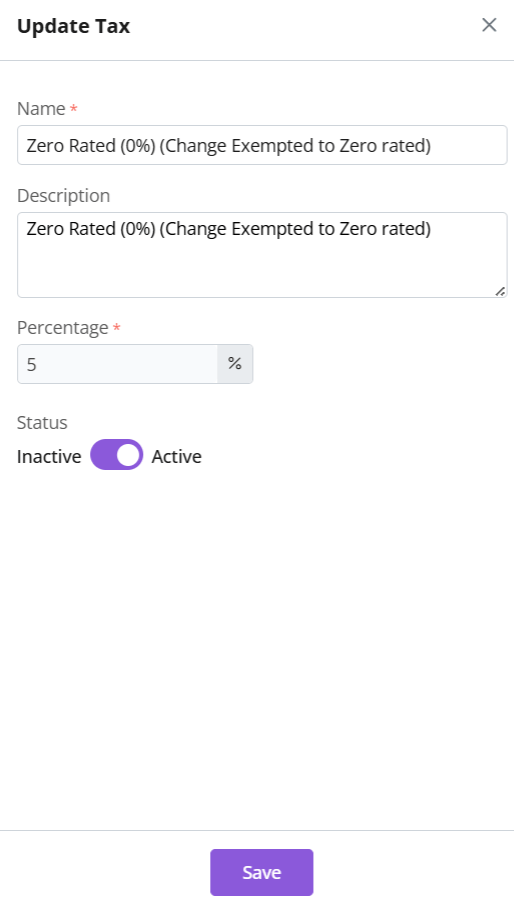
Update Tax
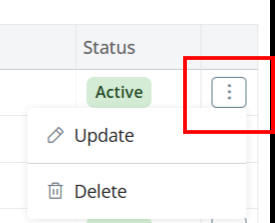
Click ⋮ 3 dots > Update → Make changes → Save
Note: Tax Percentage and Tax Type cannot be updated.
Toggle between active/inactive status depending on whether tax is in use or not.
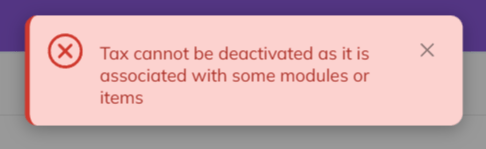
If tax is associated with items, you will receive an error message.
Make required changes to proceed.
Delete Tax
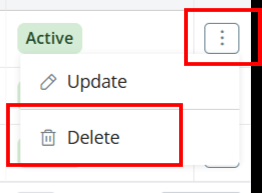
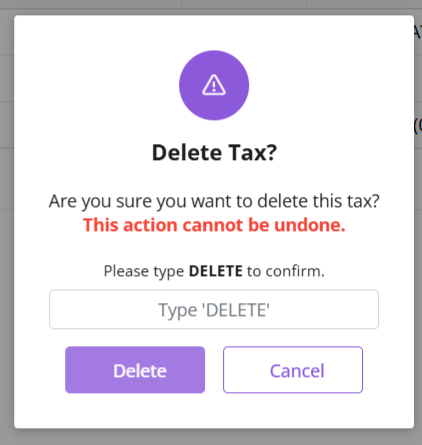
Click ⋮ 3 dots > select Delete’
Type “DELETE” to provide confirmation.
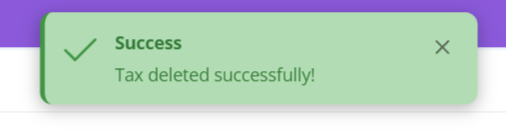
The tax will be deleted from the system.
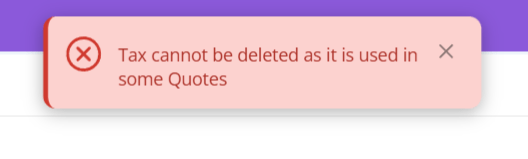
If the Tax is associated with some other modules, then it cannot be deleted.
Delete relevant items to proceed, in order to delete the tax.
Discover how Zhylar can streamline your sales and elevate your business processes. Visit our website or book a demo today to experience the difference!