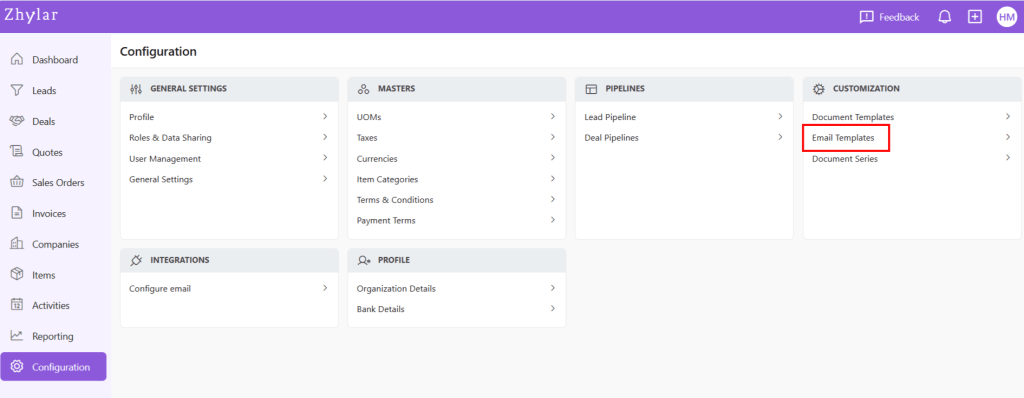
Email templates in Zhylar offer pre-designed formats for quick communication, consistency and ensuring accuracy. These templates can be customized for brand alignment.
If Zhylar email is used, the email will be marked as a no-reply email.
If email is sent from an integrated personal email ID, replies can be sent to the email.
Add New Template
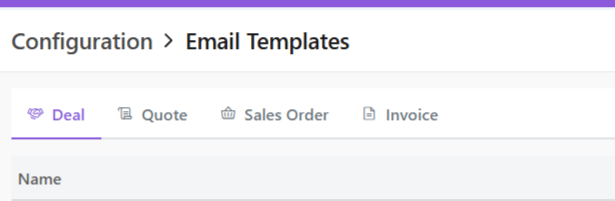
Navigate to desired tab
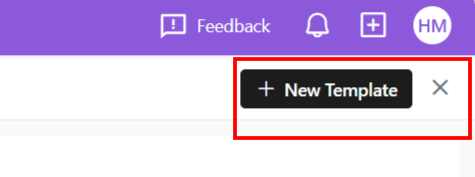
Click + New Template.
A side sheet will open.
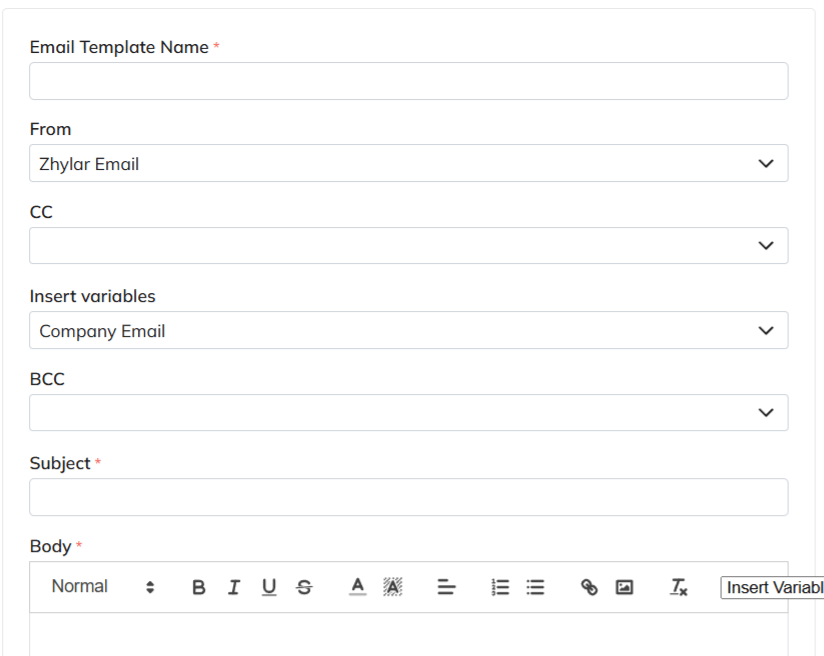
Enter template name
Note: Two templates cannot have the same name in the same module. The system will not allow duplicates.
Fill out remaining fields
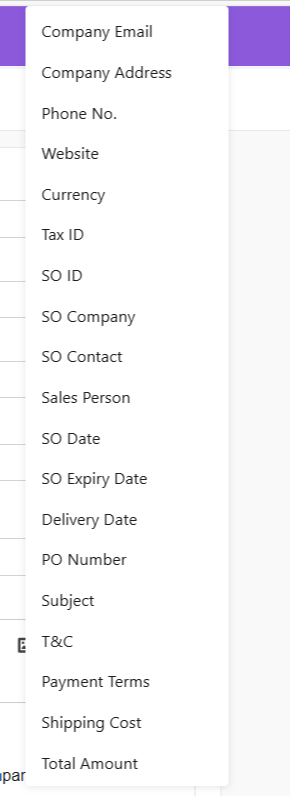
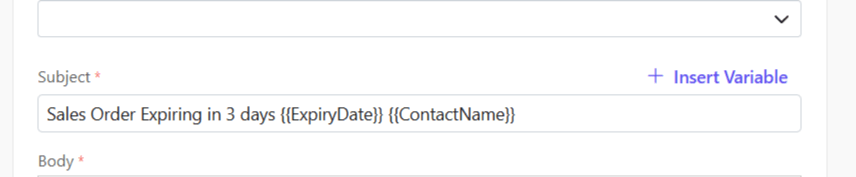
Insert variables if required to customize your template. Variables are placeholders used to dynamically insert specific data—such as a customer’s name, deal value, or due date—into templates, emails, or documents
List of variables differ from module to module.
The image below represents the variables presented in the Sales Order module:
For example, if SO Expiry Date is selected, the system will automatically pick the expiry date added from the sales order.
Or, Contact Name is selected, the name willl be picked directly from the name added to the SO.
if Click Save.
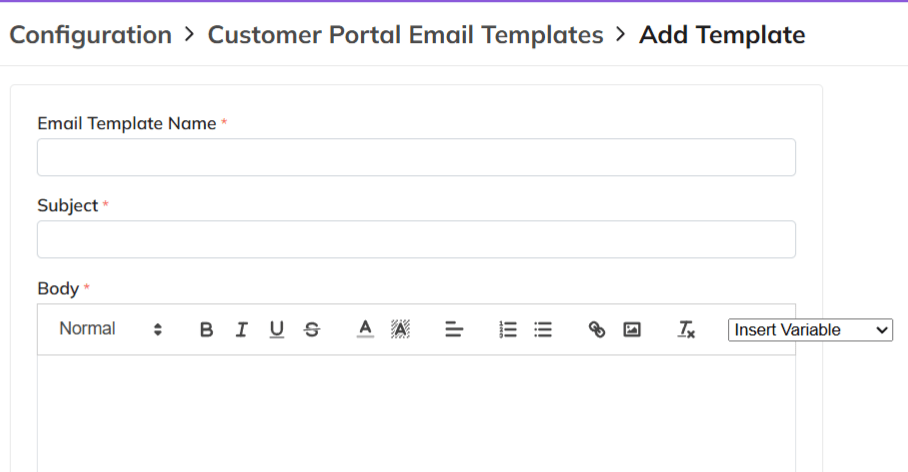
The field options in all templates are the same except in customer portal. Here, only a Template Name, Subject and Body can be added.
AI Email Generator
Are you stuck whilst writing your emails?
At a loss for words?
Not sure how to write a message that will surely make an impact on your clients?
No reason to worry at all because Zhylar offers an AI email generator.
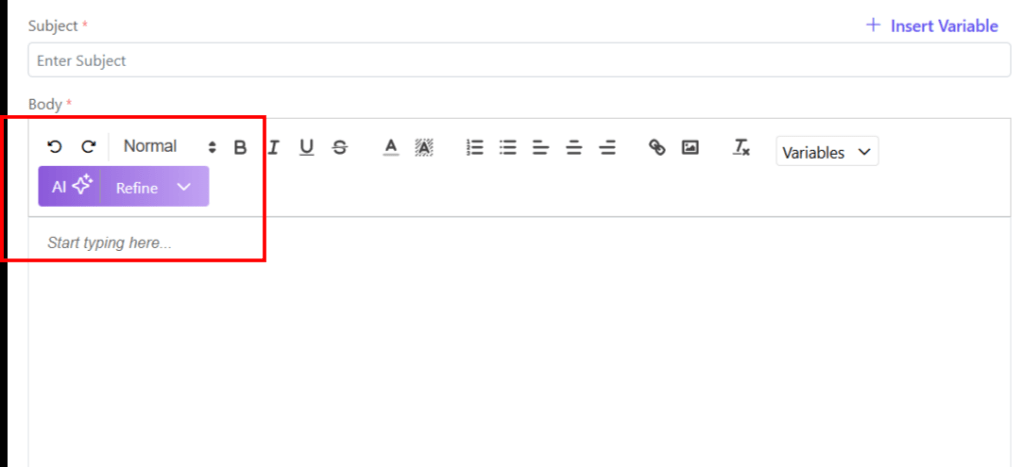
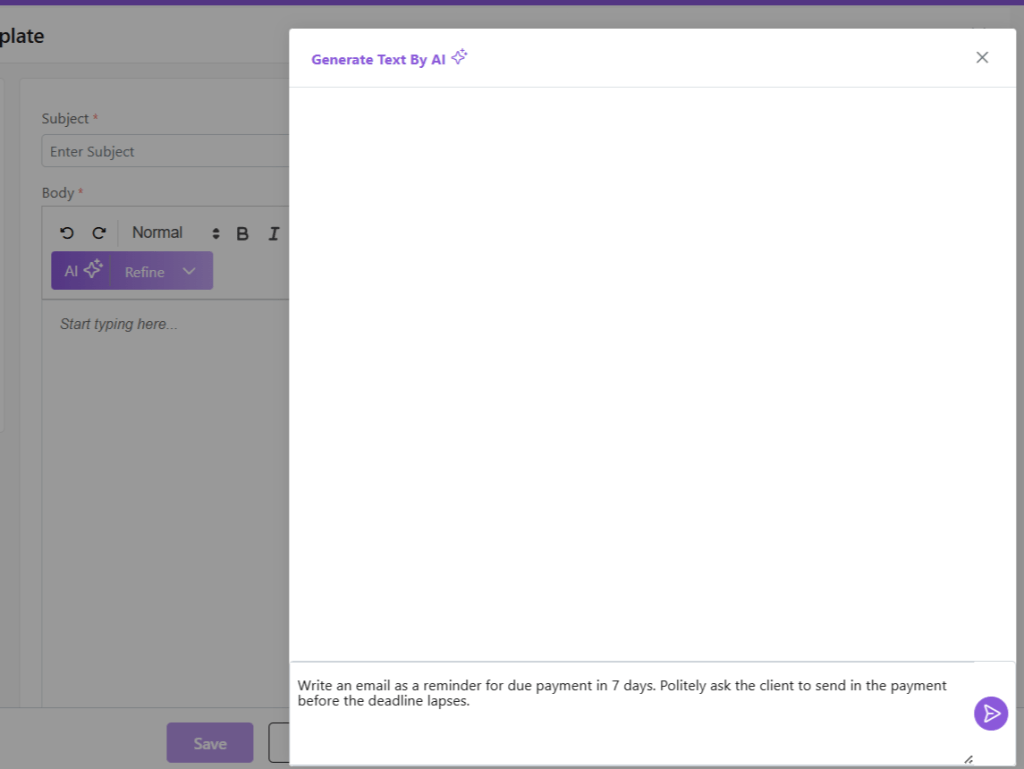
Click on AI ✨
Provide a prompt for the nature of your email.
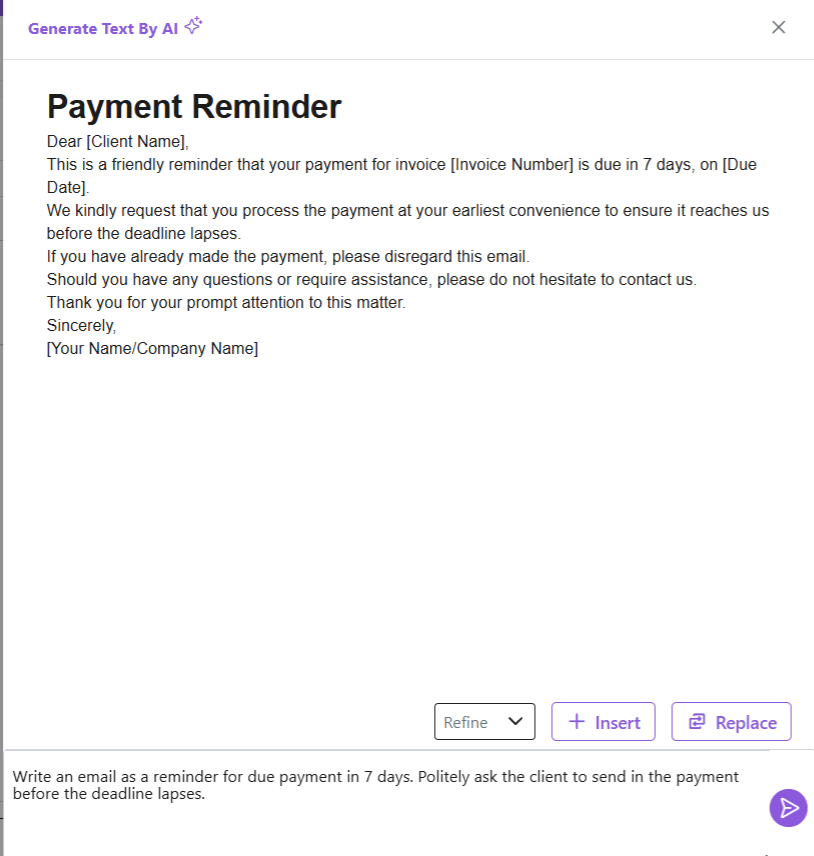
The AI Email generator has generated email content.
Once the text is generated, you can:
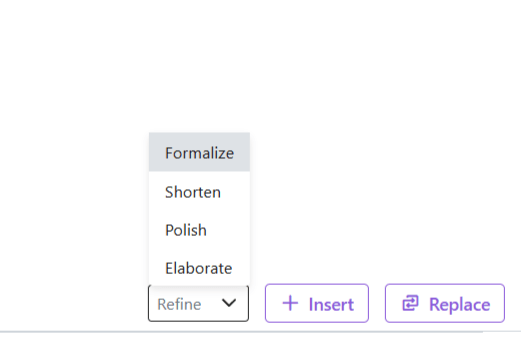
Refine: Based on your preference, you can ask the AI email generator to refine the text.
Insert: Add documents or files
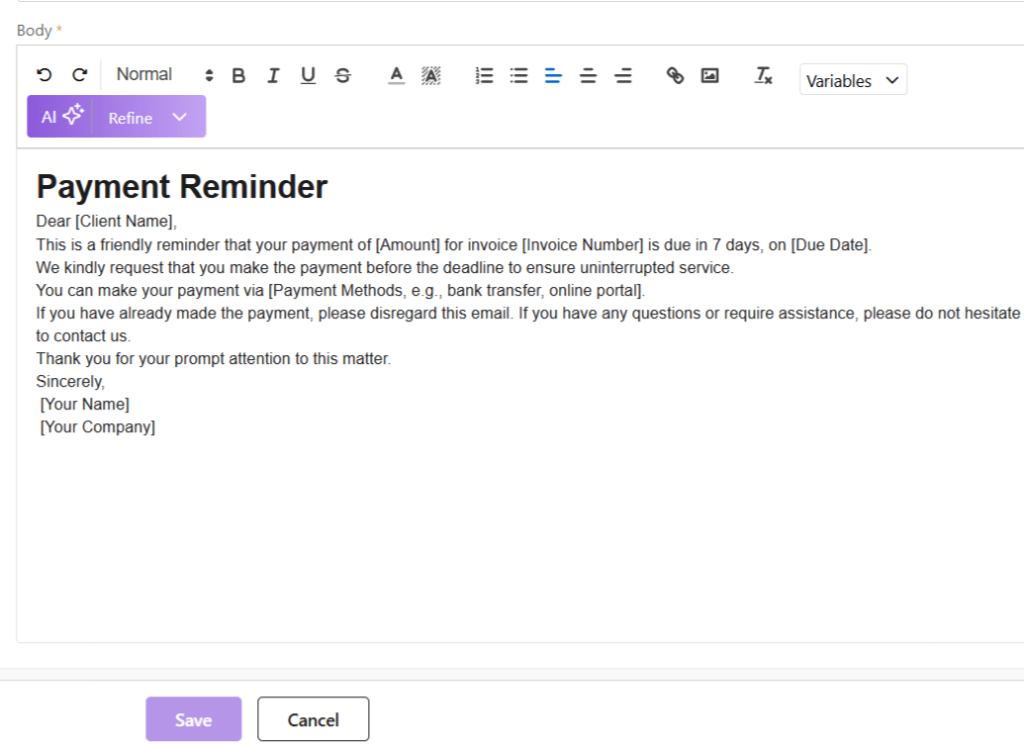
Replace: Click on Replace to add this text by removing the existing text in the email (if any)
Once done, click on Save to save your AI-generated email template.
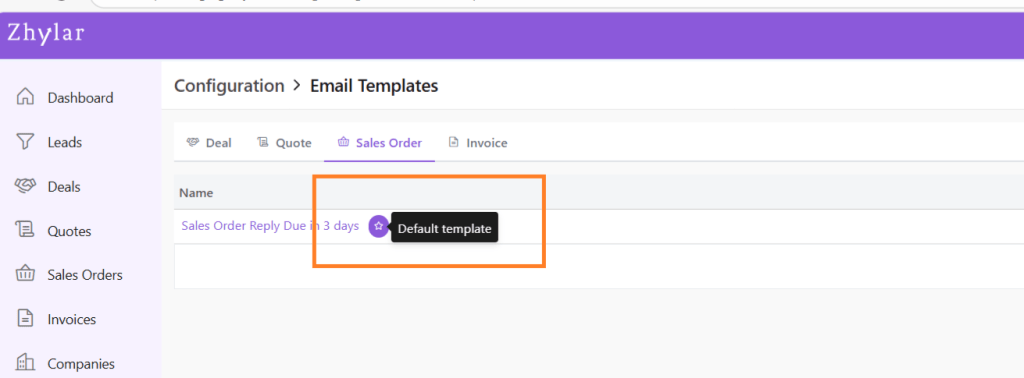
Default Template
Marked by a white star in a purple circle.
First template created under any tab will be automatically marked as default.
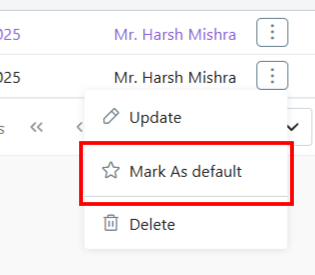
To Change default template, go to List View
Click ⋮ 3 dots
Select Mark as Default.
If there is only one template in the system, the existing template will be marked as default automatically.
Update Template
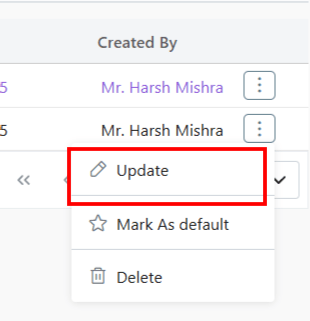
To update a template,
Click ⋮ 3 dots
Select Update
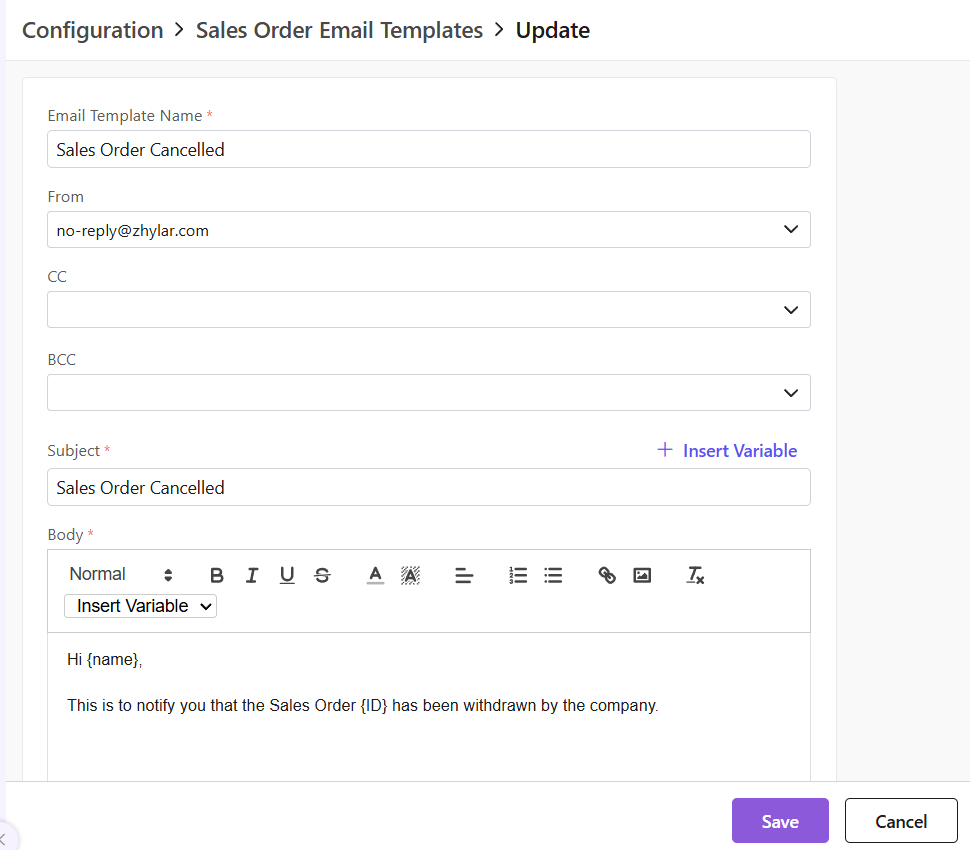
Make your changes.
Click Save.
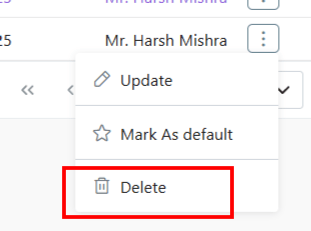
Delete Template
To delete a template,
Click ⋮ 3 dots
Select Delete
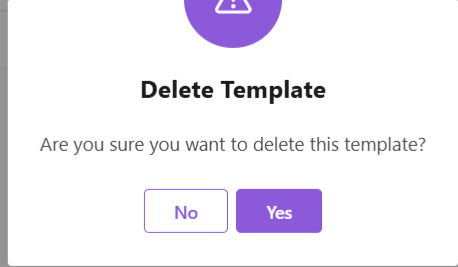
Provide confirmation.
Note: A template marked as Default Template cannot be deleted.
Discover how Zhylar can streamline your sales and elevate your business processes. Visit our website or book a demo today to experience the difference!