A lead is a potential customer who has expressed interest but isn’t yet qualified as a sales opportunity. Leads are the starting point of the sales cycle. They must be carefully evaluated. This evaluation determines their likelihood of converting into deals. Through leads, teams can prioritize high-value prospects.
Viewing Leads in Zhylar
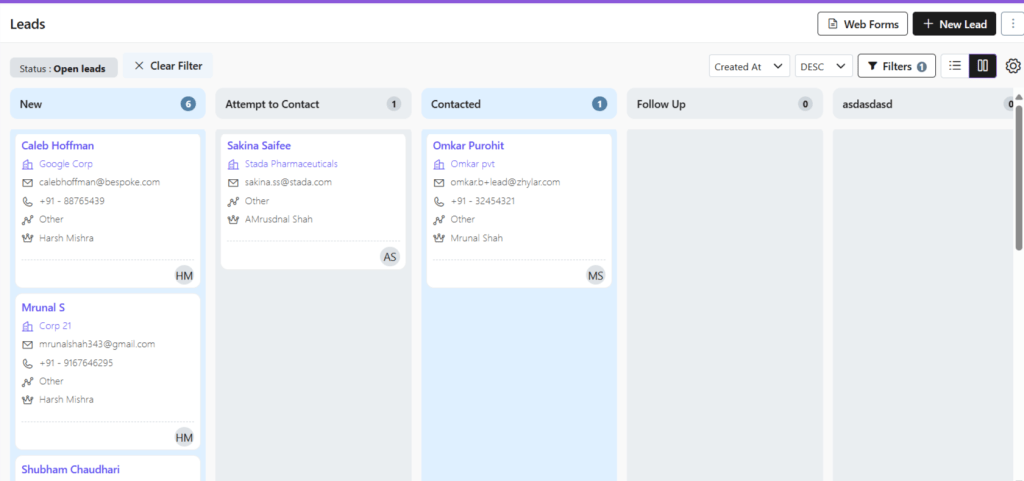
Kanban View (Default)
Visual drag-and-drop interface
Leads grouped by status (e.g., New, Contacted, Qualified)
Quick actions (hover over a lead card).
Move leads from one status to another.
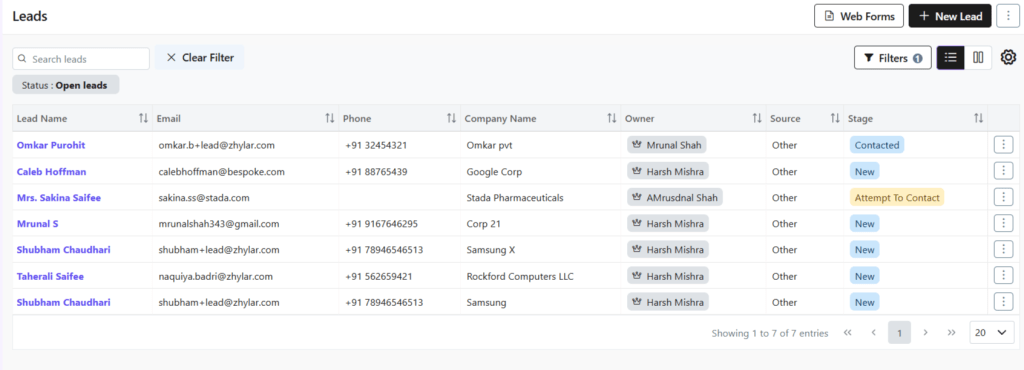
List View
Here, you can find a list of all the leads entered in the system.
Table format with all lead details
Sort & filter (e.g., by date, name, status)
Viewing Leads from Company Module
The leads of a specific company can be viewed from their own profile.
From the left-hand panel, select Company
Click on Leads tab
The leads against this company will be listed for you.
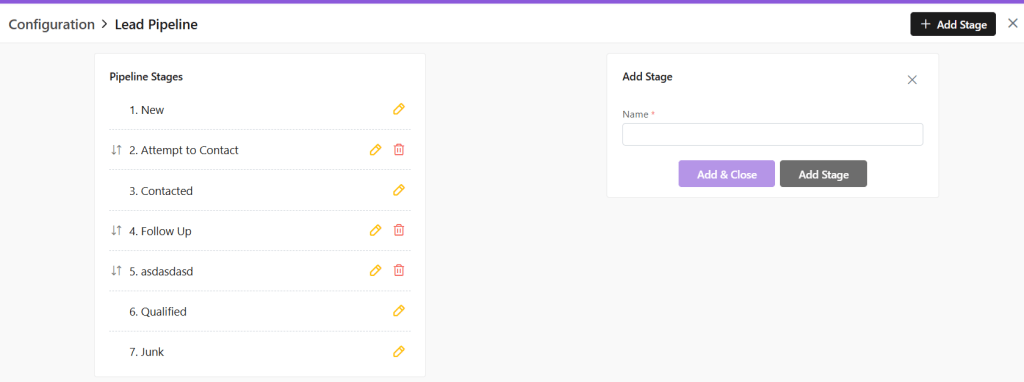
Customizing the Lead Pipeline
You can customize Lead Pipelines in 2 ways:
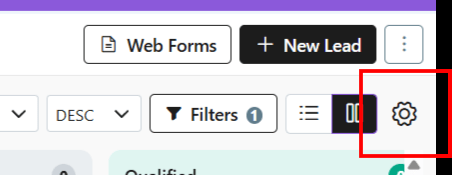
From the Leads Module Click ⚙️. Or,
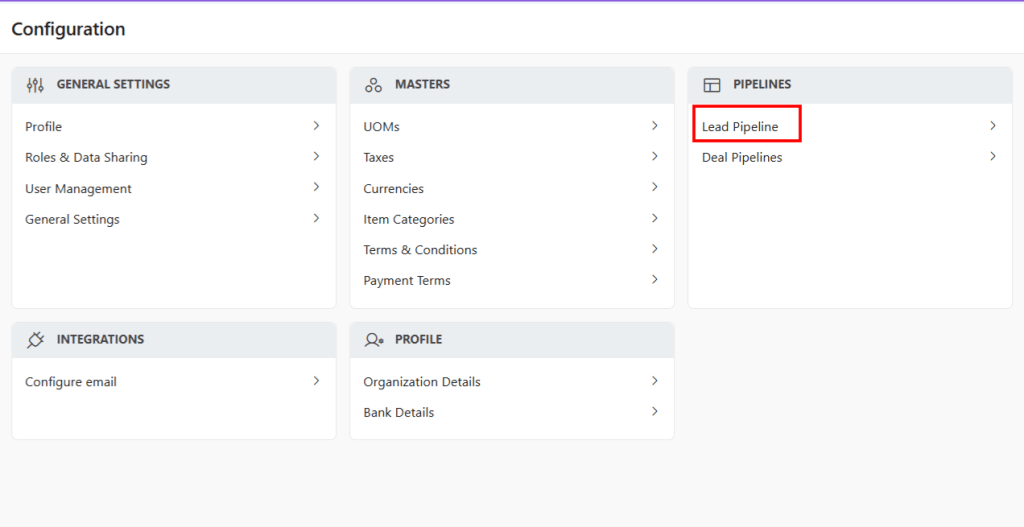
Go to Configuration and click on Lead Pipeline
User can Add or Rename the stages here.
Users can also change the order of the stages by clicking on the stage name.
Update the stage name or click on the two-way faced arrows to shuffle stage positioning.
New Leads
There are two ways to manually add new leads in the system
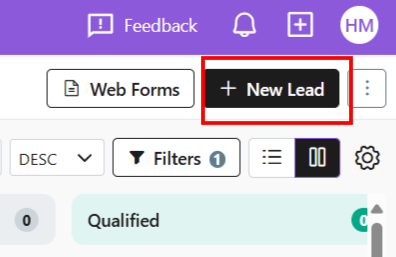
Option 1: From Leads Module
Click “+ New Lead”
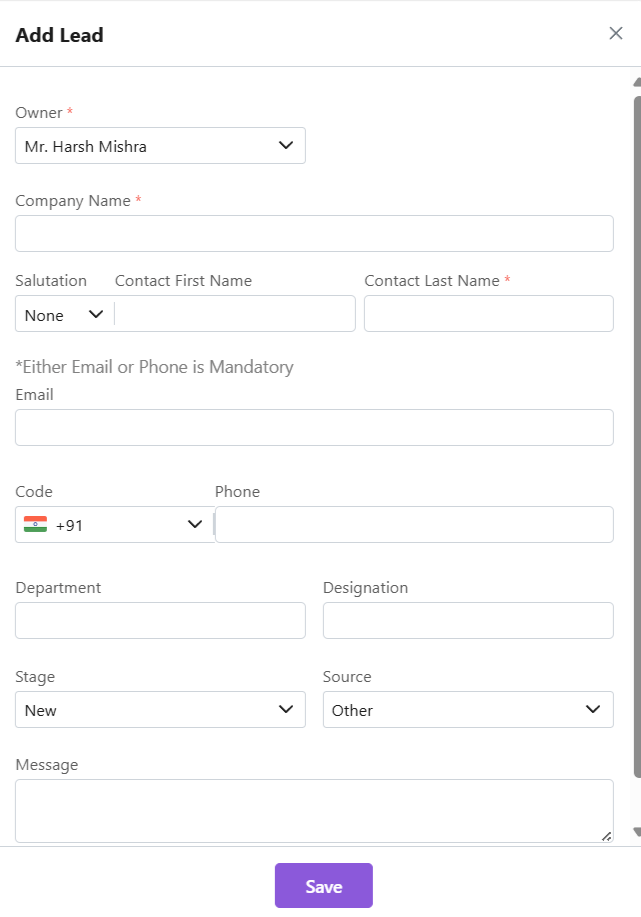
Fill in required data
Save
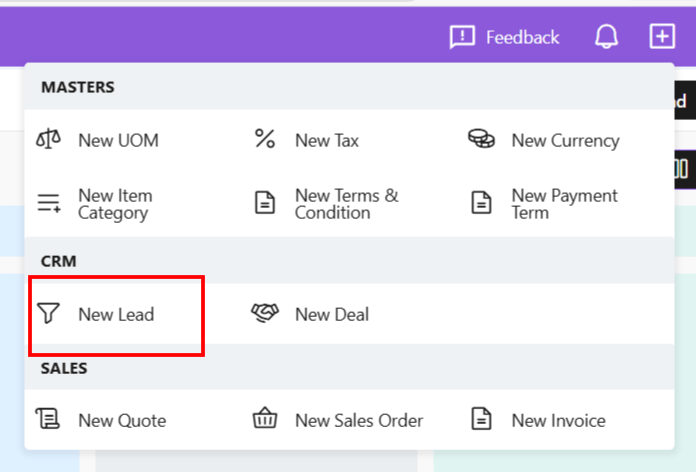
Option 2 : Shortcut (+) Icon from header
A new lead can also be added by clicking the + sign next to the profile.
All following steps remain the same.
Managing Existing Leads
Updating Lead Details
Find lead (search or filter)
Only open leads can be updated. Leads marked “converted” cannot be edited.
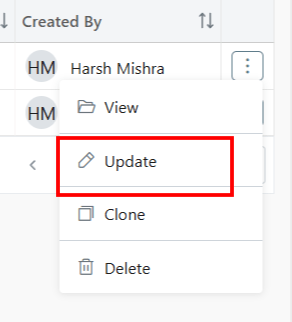
Click ⋮ 3 dots
Select Update
Make changes
Click Save
Convert Lead
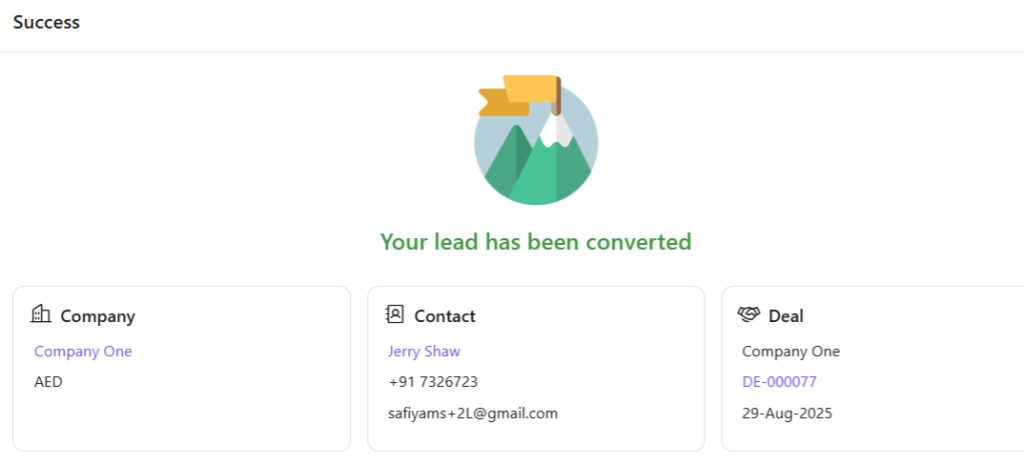
To change a lead’s status to “convert“
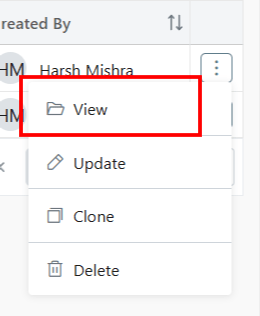
Click ⋮ 3 dots > View
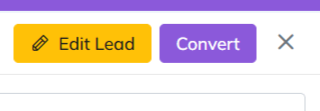
Select Convert
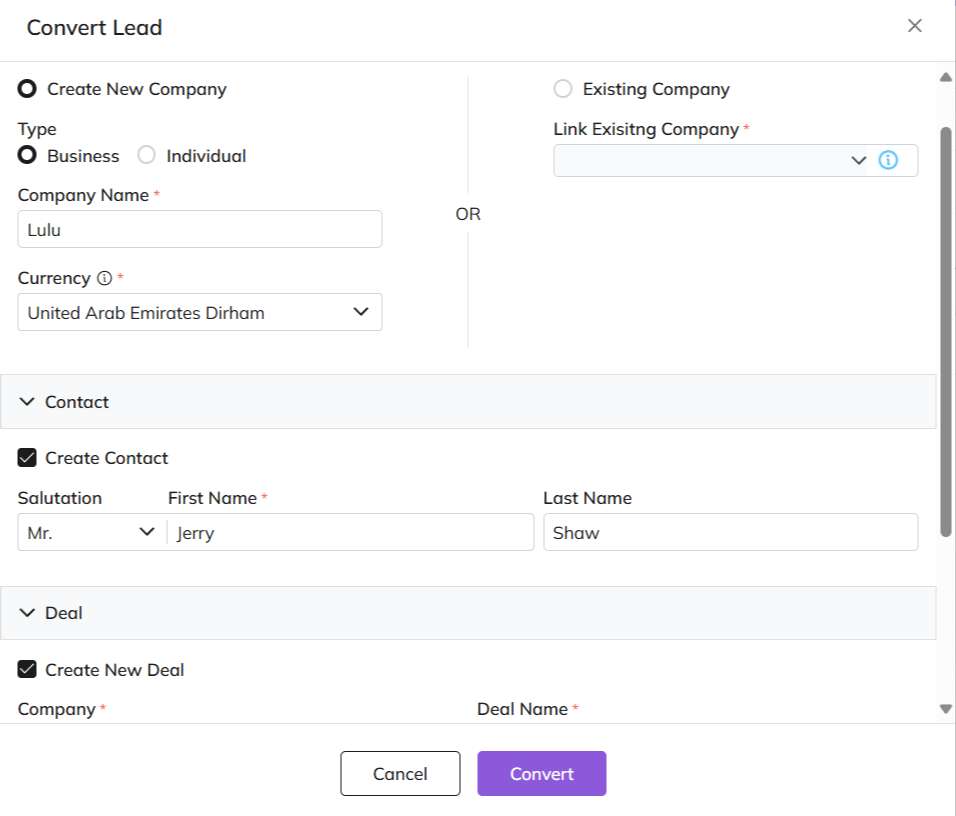
One or more of the following actions must be done:
The Lead must be linked to a company (existing company or create new) with the data provided.
Add Deal Revenue and Deal Closing Date.
The Lead will then be converted to a Deal.
Once done, the lead will not be visible in all open leads view.
This will also help in sorting/searching leads.
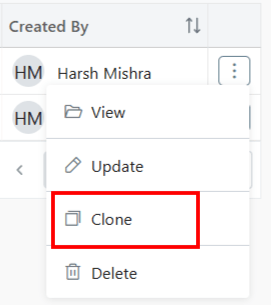
Cloning a Lead
Click ⋮ 3 dots
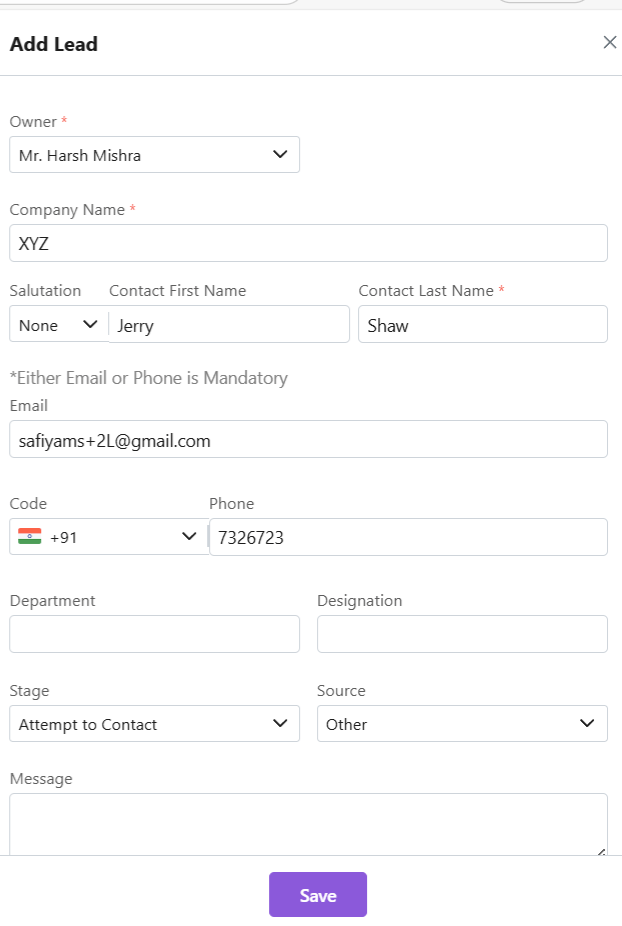
Select Clone
A side sheet will open.
Add/Update details or Save Lead
A lead can be cloned at any stage.
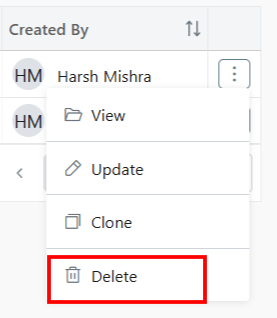
Deleting a Lead
Click ⋮ 3 dots
Select Delete
Lead can be deleted at any stage
Confirm (action cannot be undone)
Leads Activities
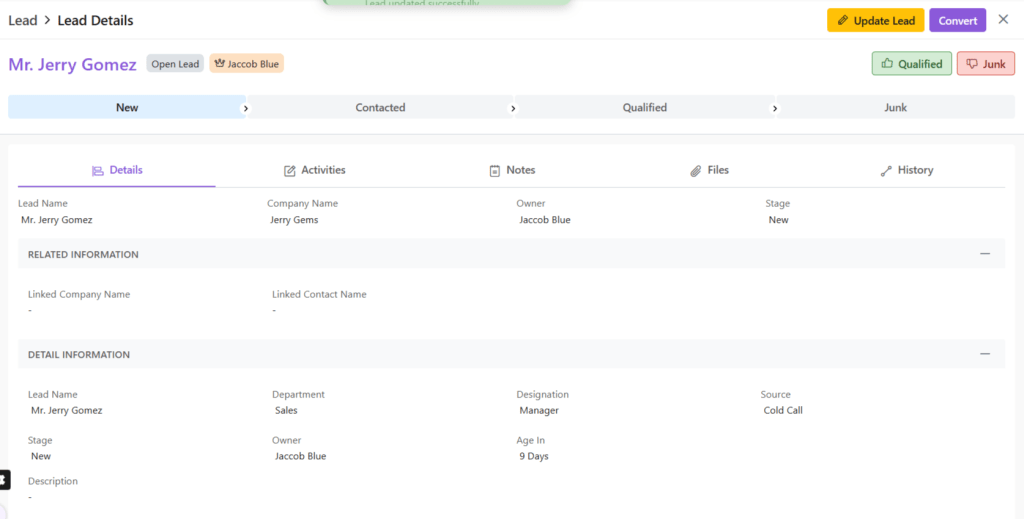
To view Activities to a Lead, click on View.
A new page will open.
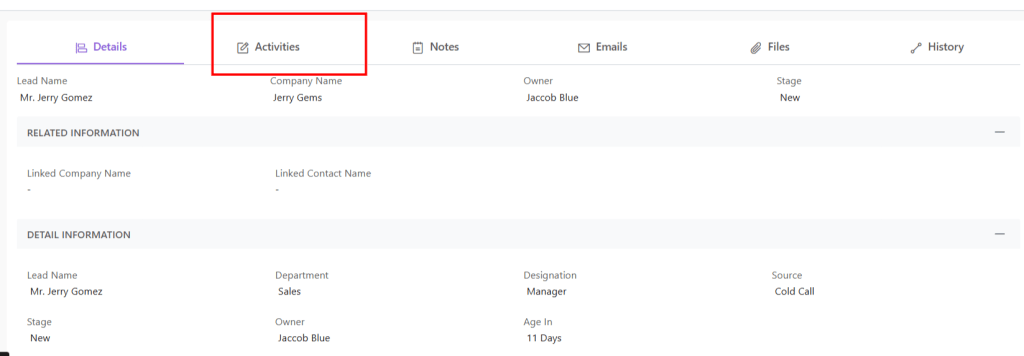
Here, there are several activity tabs.
Details
Here, you can find the details of the lead.
Activities
You will find a list of Activities related to the lead.
You can also add Activities and Calls from here directly.
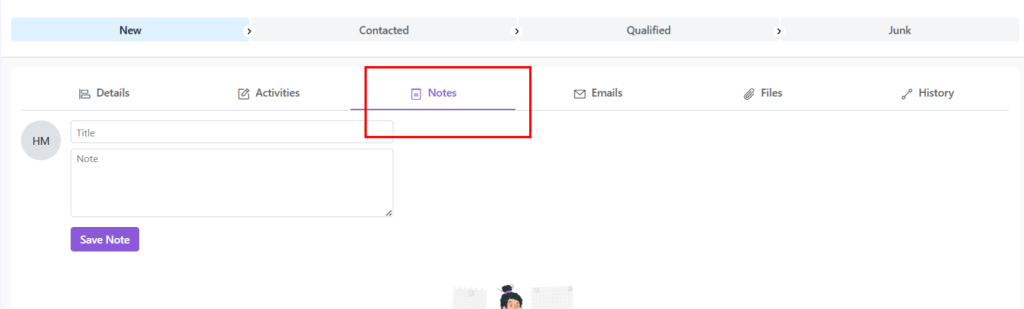
Notes
You will find a list of Notes related to the lead.
You can also add Notes from here directly.
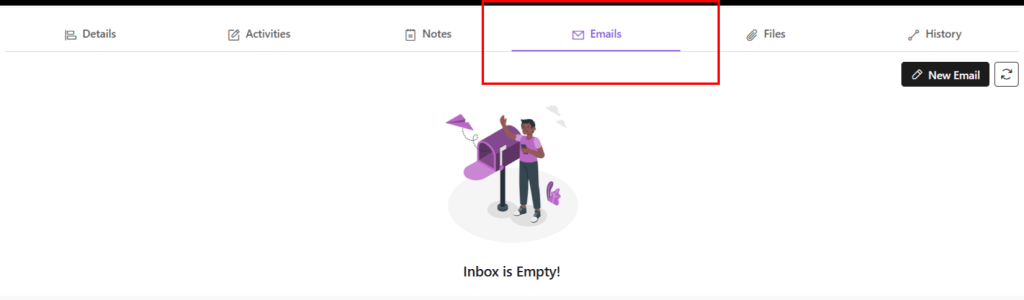
Emails
All E-mails sent vis-a-vis this Lead will be visible here.
You can also send new E-mails from here directly.
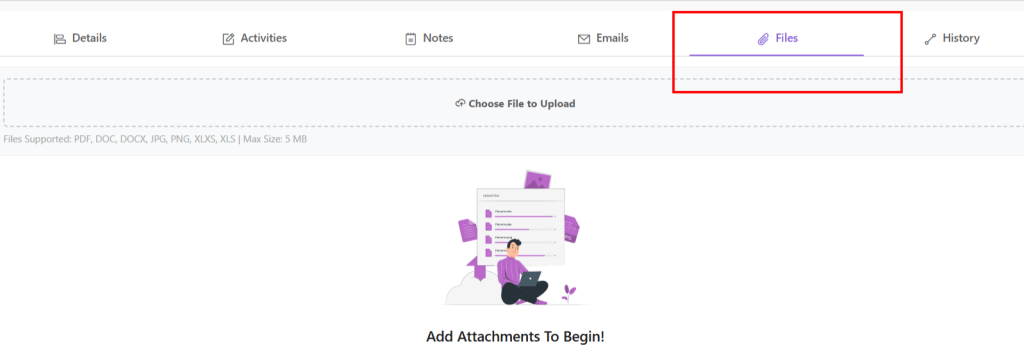
Files
All Files attached to this Lead will be visible here.
You can also attach new Files from here directly.
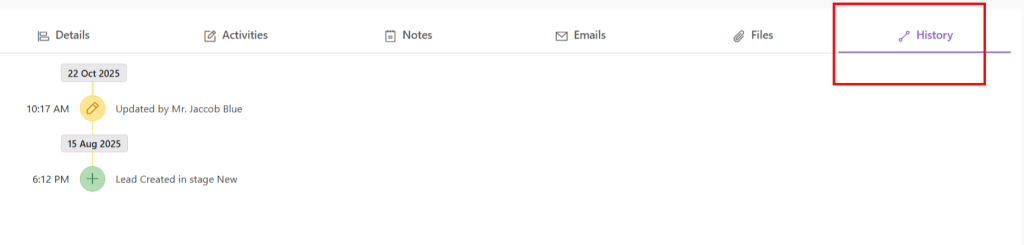
History
Check the timeline of the Lead under the History tab.
Discover how Zhylar can streamline your sales and elevate your business processes. Visit our website or book a demo today to experience the difference!