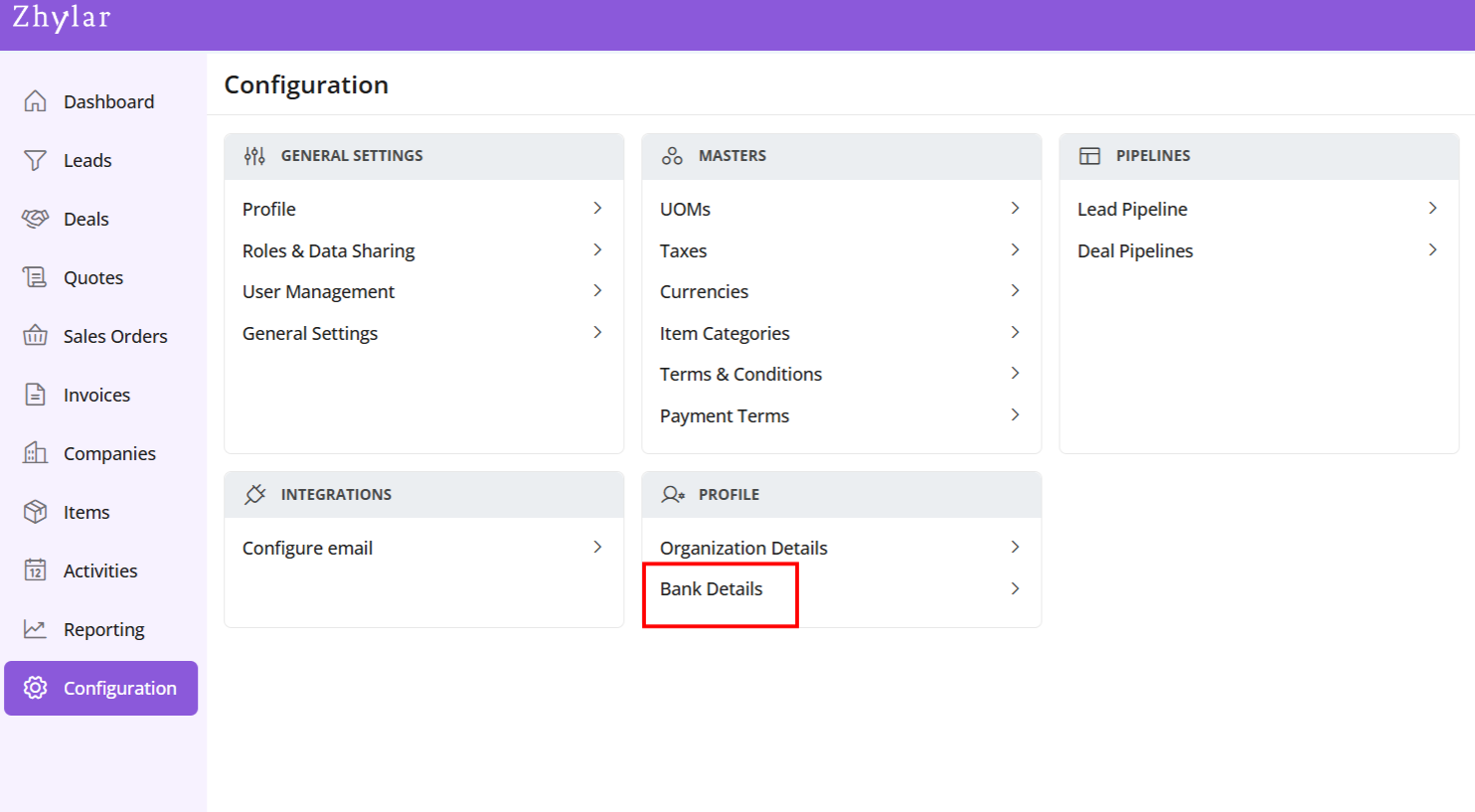
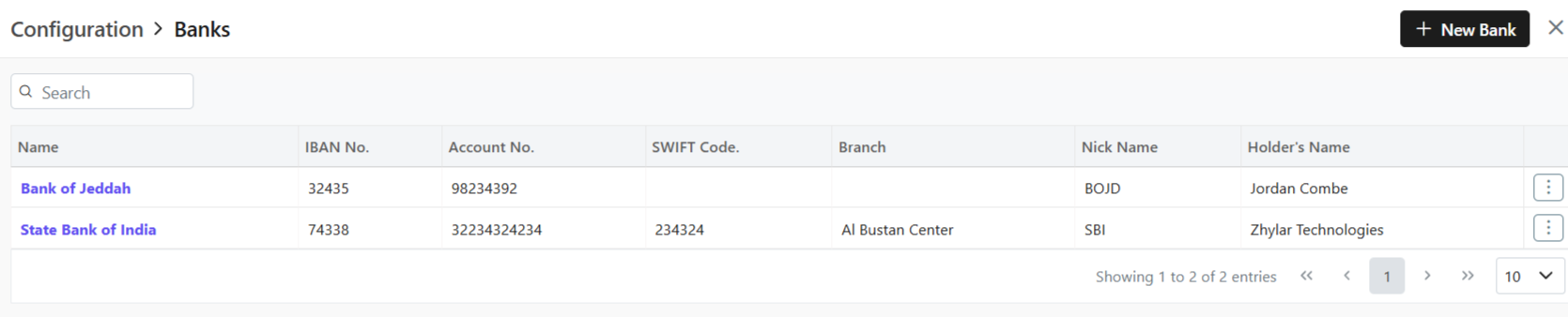
In a CRM system, bank details refer to the financial information of customers, vendors, or partners. This information is utilized for billing, invoicing, refunds, and financial transactions within the platform.
In Zhylar CRM, a primary bank is the default account managing payments, refunds, and transactions.
This bank will be loaded by default in all the Add Invoice forms.
You can switch the Bank in the document if required.
Add New Bank
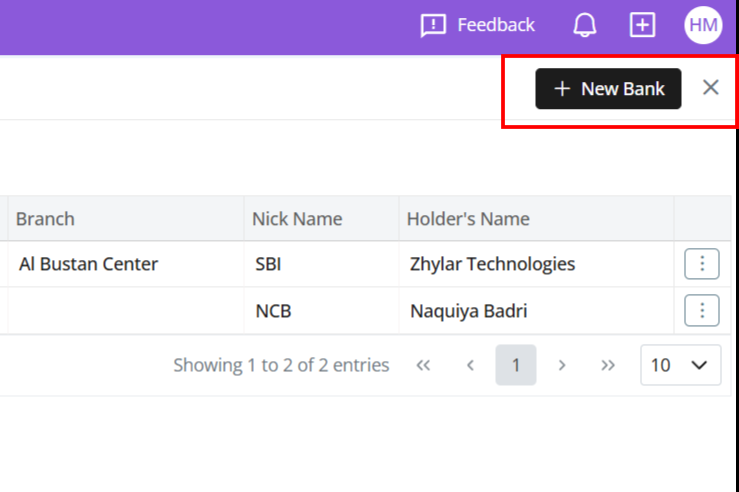
Click + New Bank.
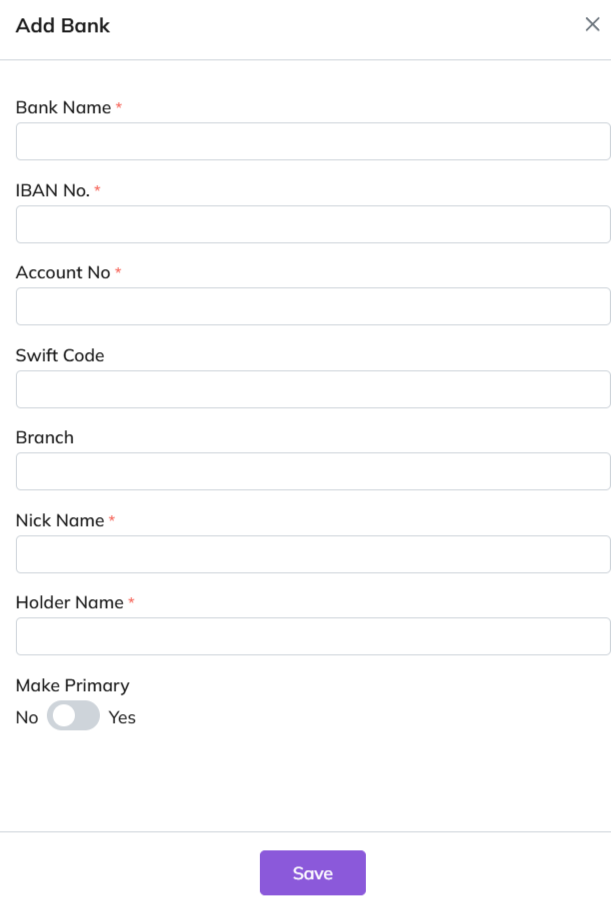
Fill out the details.
Fill required data.
Click Save.
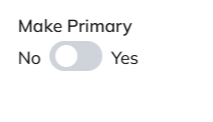
Primary Bank
Toggle to mark as primary.
Only one primary bank allowed.
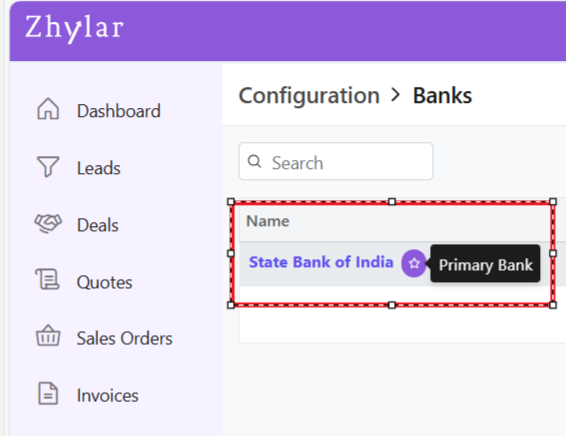
Primary bank denoted by a white star in a purple circle.
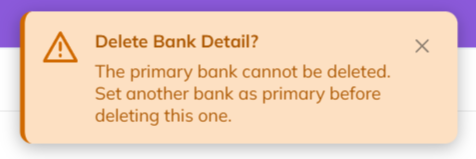
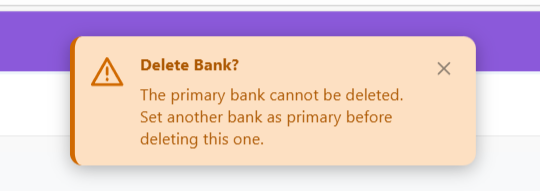
A primary bank cannot be deleted.
Bank Nick Name
When a bank is added to any document, the field drop down will carry the bank’s nick name.
E.g., Dubai National Bank- Al-Nahda branch -> Nickname: DNB Al-Nahda
Thus drop down will show “DNB Al-Nahada” as an option.
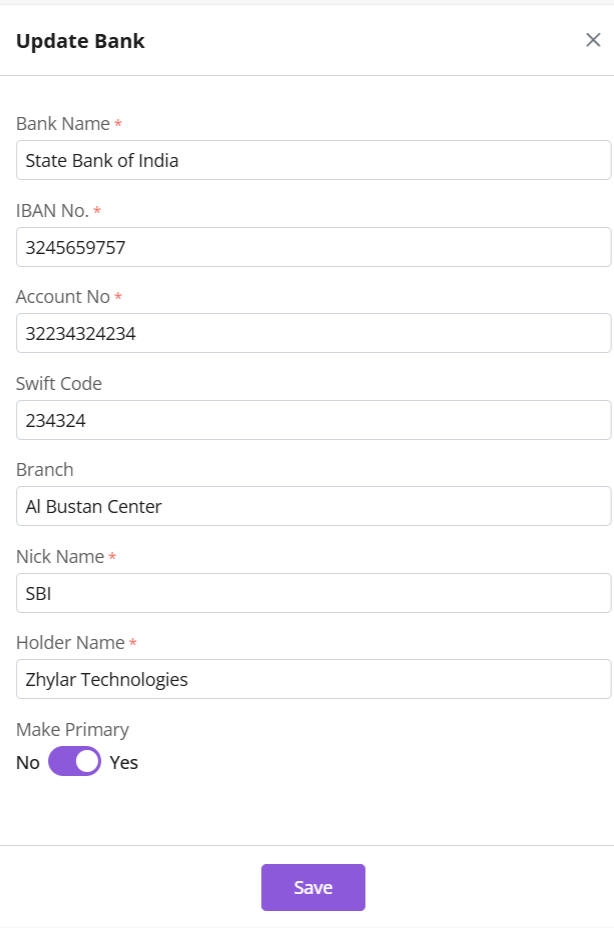
Update Bank
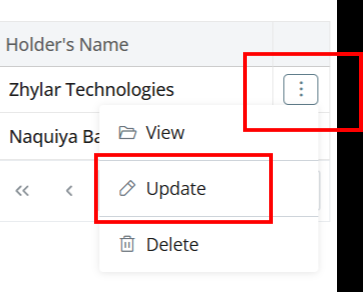
Click ⋮ 3 dots
Select Update.
Edit details.
Save changes.
Delete Bank
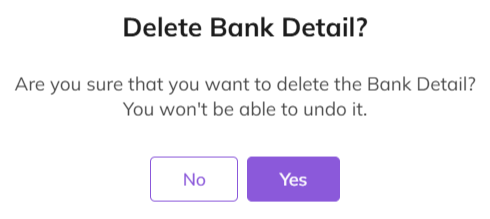
Click ⋮ > Delete.
Confirm with Yes.
Note:
Action cannot be undone.
A bank marked as primary cannot be deleted.
Two banks can not have the same Nick Name.
Payment Receipt
Navigate to Invoice
Go to Dashboard
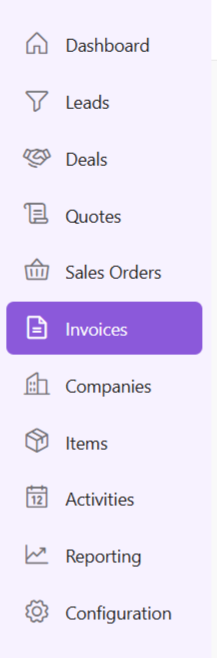
From the left-hand navigation panel, go to Invoices
Select Invoice:
Open the relevant invoice.
Invoice must be in Sent status or any of the successive stages.
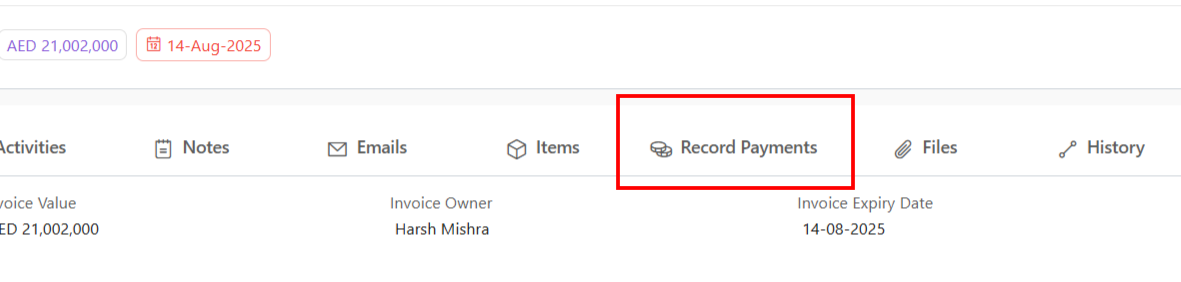
Record Payment:
Click “Record Payment”
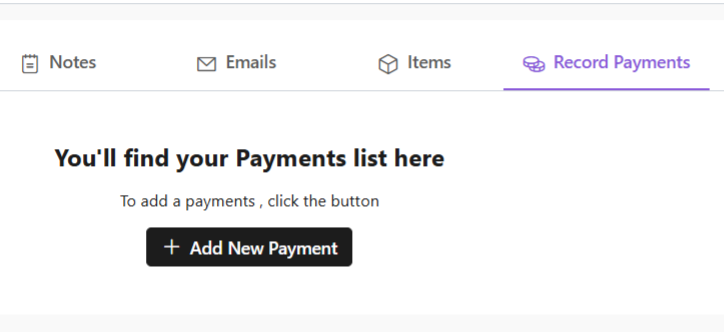
You’ll find your Payments list.
Add New Payment:
Click “+ Add New Payment”
Fill required details.
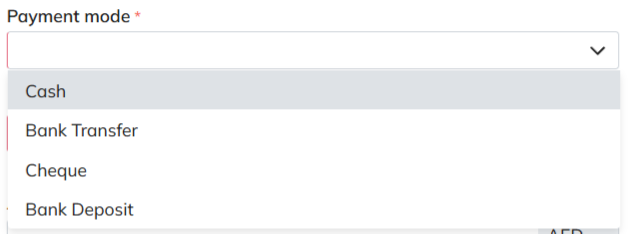
When selecting mode of payment, except cash, all other payment modes will require you to add a bank.
Under “deposit to” field, add your bank.
If payment is being made in cash, you will not have to add a bank.
Fill data and click “Add Payment”.
Your payment receipt will be added.
Discover how Zhylar can streamline your sales and elevate your business processes. Visit our website or book a demo today to experience the difference!