
What is a Deal?
In CRM, a deal is a sales opportunity — a chance to sell your product or service and earn revenue.
A deal record stores key details like:
- Deal value (how much it’s worth)
- Expected close date (when you aim to win it)
- Linked contacts (people you’re selling to)
- Products or services offered
Tracking deals in the CRM helps sales teams stay organized. It ensures they follow up on time. It also moves opportunities forward until they’re won or lost.
What is a Deal Pipeline?
In Zhylar, a deal pipeline is a visual framework. It maps each stage of your sales process, from opportunity creation to closure. Pipeline management empowers you to track progress, identify stalled deals, and forecast revenue accurately.
Deals View
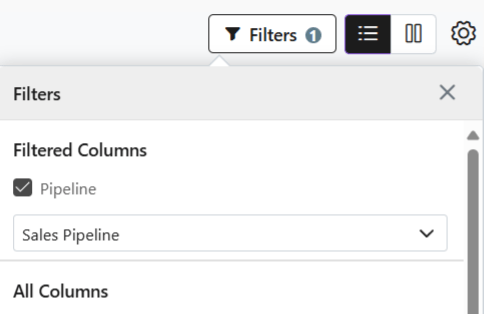
When viewing the deals added to the system, the list will show deals in one particular pipeline at a time.
- Switch between pipelines to check deals.
- Click on Filters
- Select Pipeline
- Select the required pipeline
Kanban View
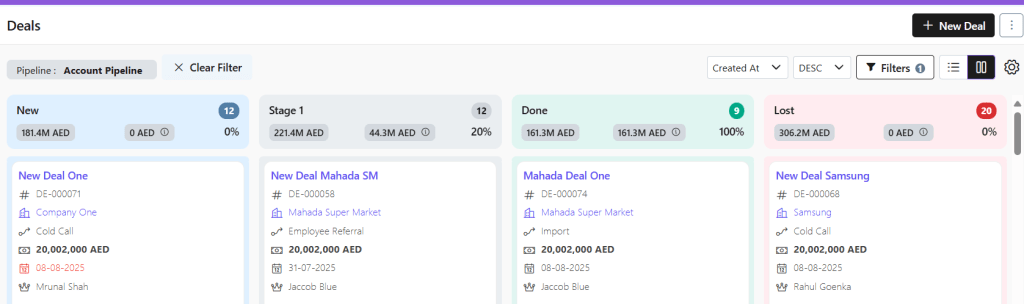
- Visual Pipeline Tracking – See deal stages at a glance with color-coded cards
- Drag-and-Drop Simplicity – Move deals between stages instantly
- Quick Status Checks – Identify bottlenecks or stalled deals visually
List View
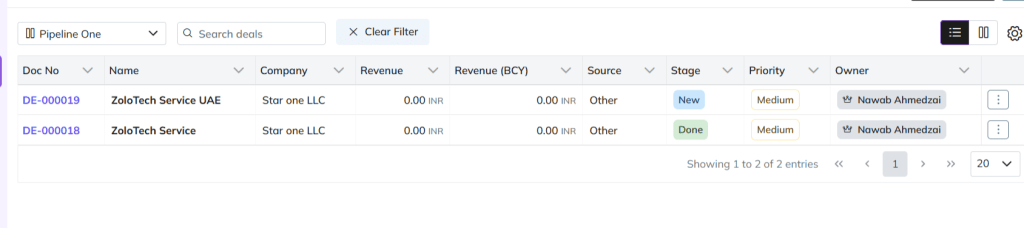
Switch to list view if required.
- Detailed Data Overview – View all deal info (value, dates, contacts) in one table
- Sorting & Filtering – Organize by amount, close date, or custom fields
Add New Deal
There are three ways to add a new deal to Zhylar.
Shortcut
- Click + New Deal (top-right)
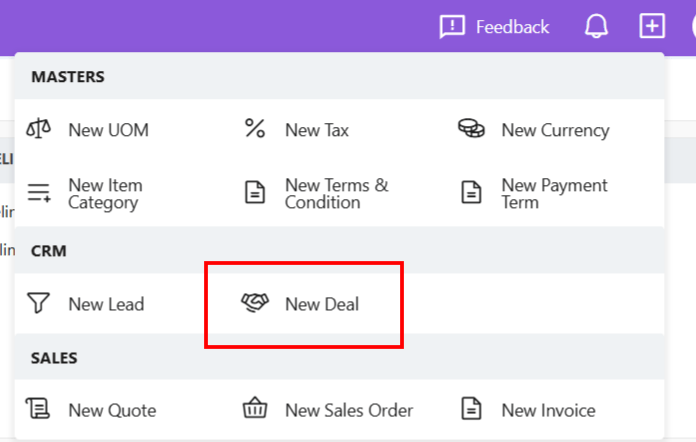
- Fill details
- Click Add Deal
Deals Module
- Go to Dashboard
- From the left-hand panel, go to Deals

- Click + New Deal
- Fill details.
- Save.
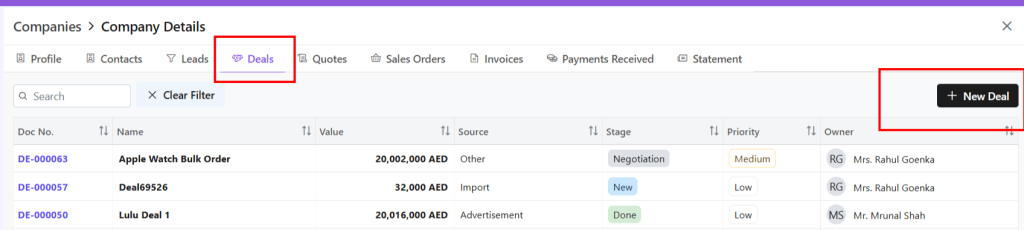
From Companies
- From the left-hand panel, go to Companies
- Go to Company Details
- Click on the Deals tab
- Select + New Deal
Deal Details
Deal Actions
When you click open a deal, you can;
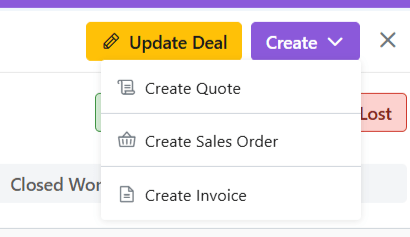
- View deal details
- Edit deal– Make required changes
- Email deal– The deal can be mailed to client
- View Company– Get a wholistic view of the company linked to this deal with one click.
- Create Quote– Generate a quote for this deal
- Create SO– Create a sales order from this deal
- Create Invoice- Generate an invoice for this deal
Deal PDF View
For any deal, you can track the following:

- Details- Details of the deal
- Activities– Tasks, calls, events- Add/Edit activities
- Notes– Add and/ or check notes
- Emails– Send and check emails related to the deal
- Items– Details of the items added to the deal
- Documents- See all documents associated with this deal
- Files– Any attachments added to the deal
- History- A record audit of the deal
Stages- Check if and how the deal has moved stages within the pipeline.

Deal Management
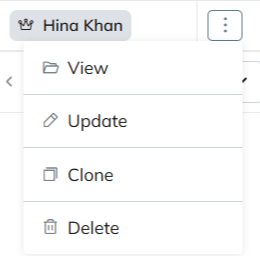
View Deal
- Click ⋮ 3 dots
- Select View
- The deal details will be visible.
Update Deal
- Click ⋮ 3 dots
- Select Update.
- Make required changes.
- Save.
Clone Deal
- Click ⋮ 3 dots
- Select Clone
Delete Deal
- Click ⋮ 3 dots
- Selecy Delete
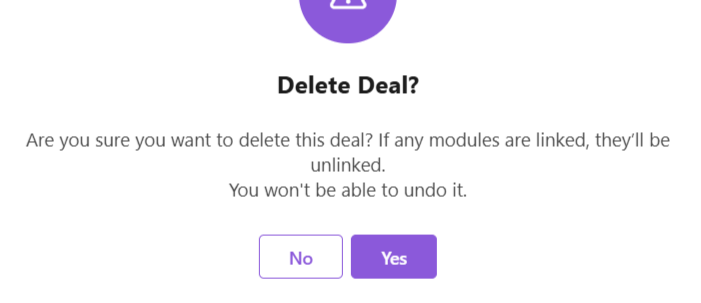
- Provide confirmation.
- Deal deleted successfully.
 Zhylar Blog
Leave a comment