What is Currency in a CRM system?
Currency defines the monetary unit used for transactions within the CRM. Zhylar supports multi-currency operations, enabling businesses to handle global deals efficiently. This feature is essential for accurate pricing, reporting, and financial consistency across international markets.
Managing Currencies
Currencies List View
- Log in to Zhylar.
- Go to Left-hand panel
- Click on Configuration
- Under Masters, click on Currencies
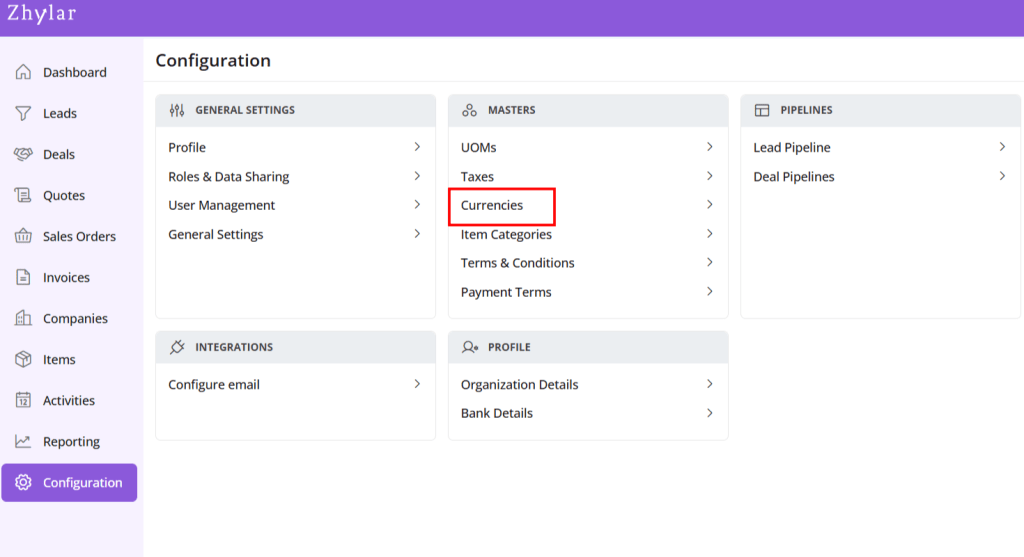
- You will be redirected to a new page.
- All currencies added to the system will be listed.

Organization Base Currency
The base currency is the default monetary unit used for all financial records, reports, and conversions in a CRM system. It serves as the reference point for converting other currencies.
- It ensures consistency in revenue tracking.
- Aids in financial analysis across multi-currency operations.
- Base Currency is selected at the time of organization onboarding.
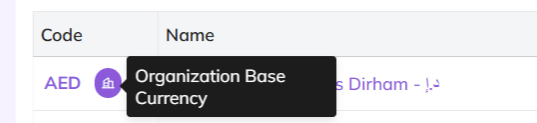
- Base currency marked in purple.
- This currency cannot be changed/deleted.
- It cannot be marked inactive.
Add New Currency
- Click + New Currency
- A side sheet will open.
- Fill out the details
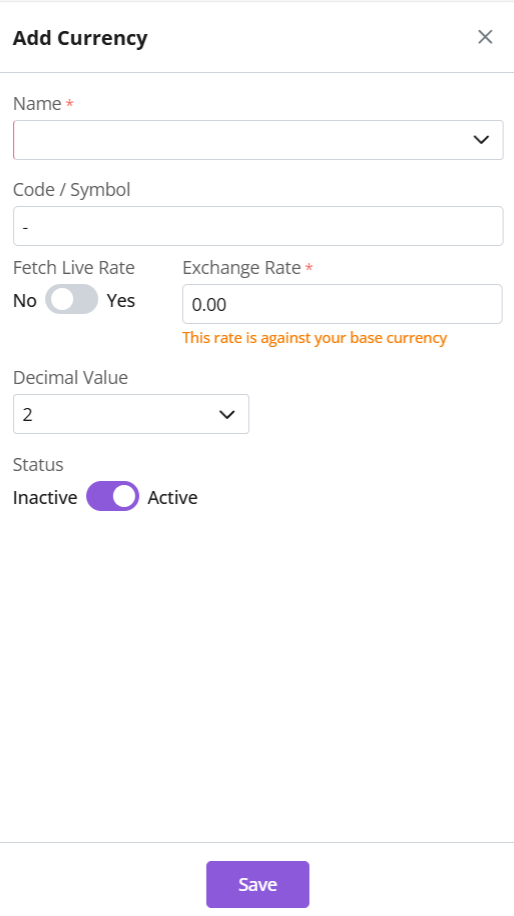
- Name: Select currency name, e.g., United States Dollar
- Currency code and symbol will be auto-selected, e.g., USD-$
- Fetch Live Rate– The system API will generate the current exchange rate. This rate is between the organization’s base currency and the selected currency.
- Decimals– Determines how many decimal points to be taken when writing amount. E.g., USD 300.25
- Click Save
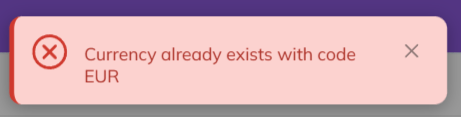
Note: Each currency must carry a unique name/code. Duplicates are not permissible in the system.
This means, one currency can only be added to the system only once.
Fetch Live Rate
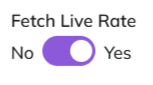
- Conversion rate of the currency added vis-a-vis the base currency.
- If Fetch Live Rate is on, system API will do the calculations for exchange rate automatically.
- If Fetch Live Rate is off, an exchange rate can be entered manually.
Update
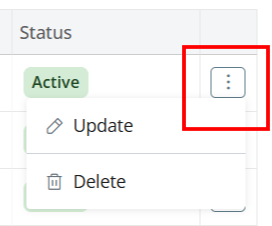
- Click ⋮ 3 dots >
- Select Update
- Make changes
- Toggle active/inactive status.
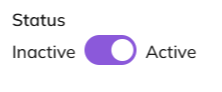
- To mark inactive, currency must not be in use with any companies.
- If marked inactive, fetch live rate is automatically turned off.
- Click Save.
Delete Currency
- Click ⋮ 3 dots > Delete
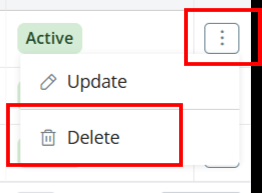
- Type “DELETE” to provide confirmation.
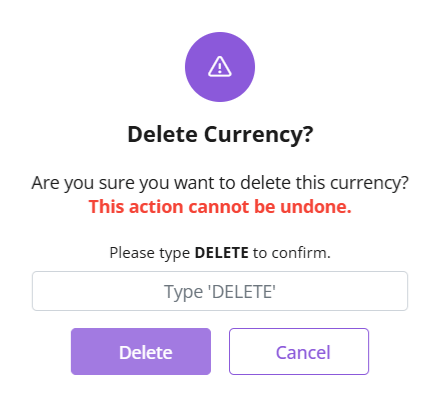
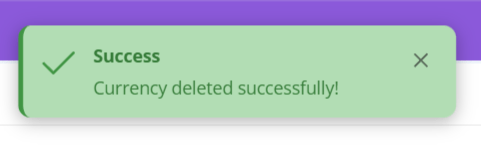
- The currency will be deleted.
- If currency is associated with some Companies, you will receive an error message.
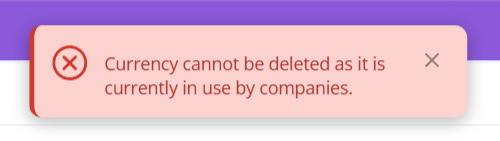
- Make requisite changes to proceed.
Discover how Zhylar can streamline your sales and elevate your business processes. Visit our website or book a demo today to experience the difference!
 Zhylar Blog
Leave a comment