
Email templates in Zhylar offer pre-designed formats for quick communication, consistency and ensuring accuracy. These templates can be customized for brand alignment.
Getting Started
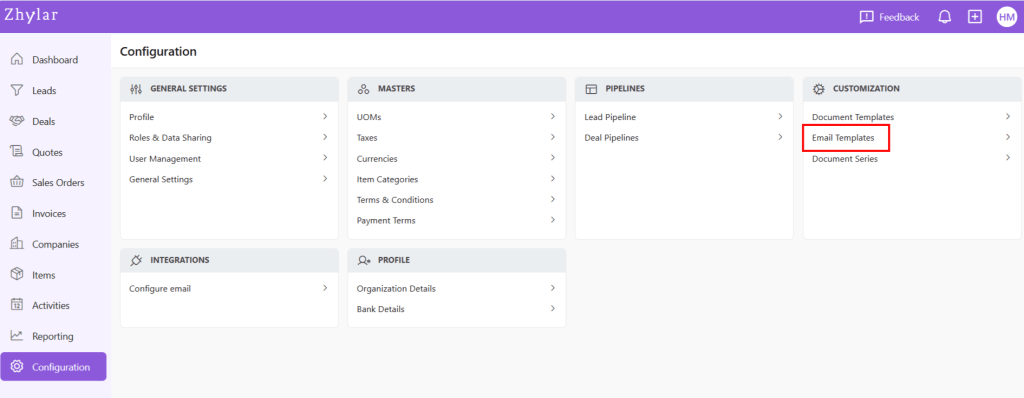
- Log in to Zhylar
- Go to Left-hand navigation panel
- Click on Configuration
- Under Configuration tab, select Email Template.
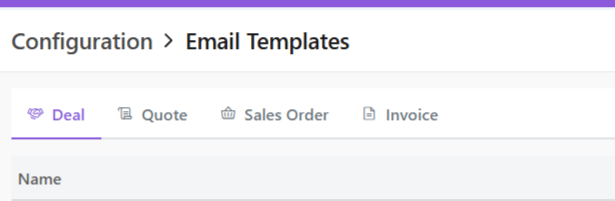
- Create templates for:
- Deal
- Quote
- Sales Order
- Invoice
- If Zhylar email is used, the email will be marked as a no-reply email.
- If email is sent from an integrated personal email ID, replies can be sent to the email.
Add New Template
- Navigate to desired tab
- Click + New Template.
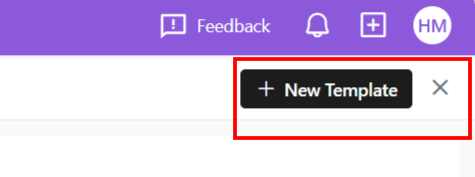
- A side sheet will open.
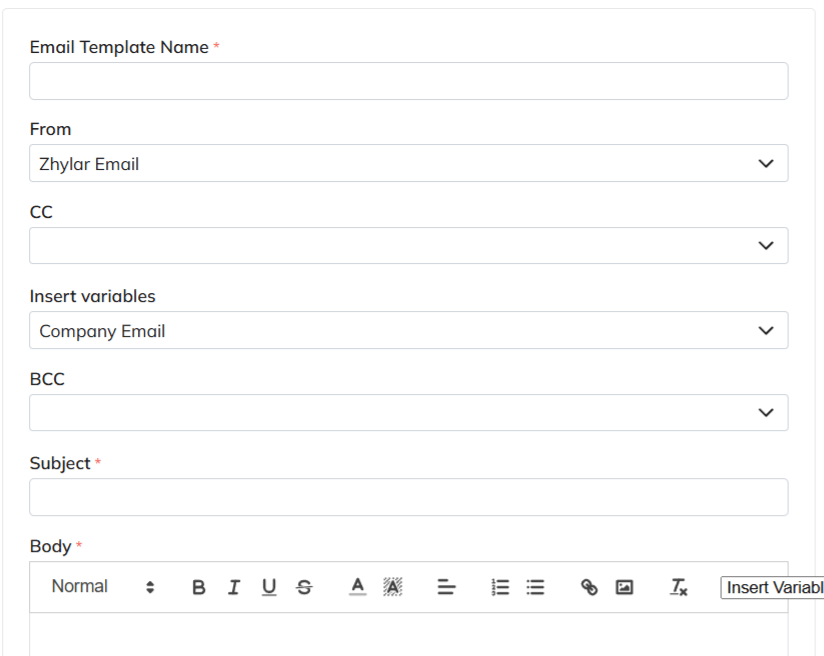
- Enter template name
- Note: Two templates cannot have the same name in the same module. The system will not allow duplicates.
- Fill out remaining fields
- Insert variables if required to customize your template. Variables are placeholders used to dynamically insert specific data—such as a customer’s name, deal value, or due date—into templates, emails, or documents
- List of variables differ from module to module.
The image below represents the variables presented in the Sales Order module:
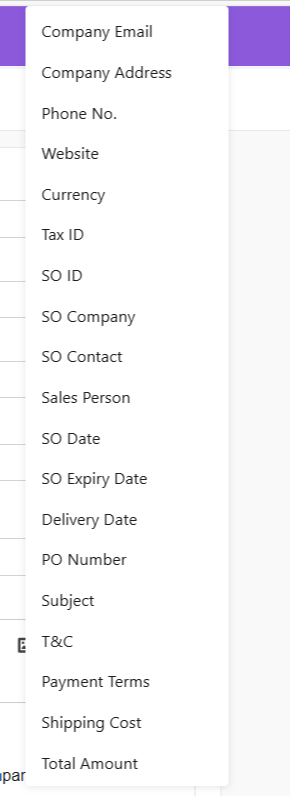
- For example, if SO Expiry Date is selected, the system will automatically pick the expiry date added from the sales order.
- Or, Contact Name is selected, the name willl be picked directly from the name added to the SO.
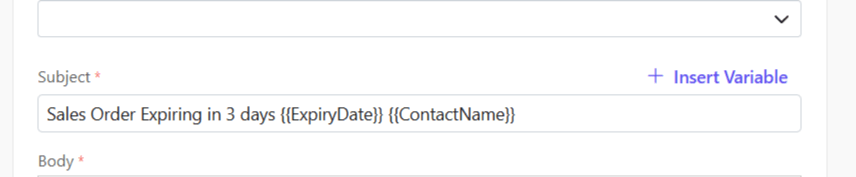
- if Click Save.
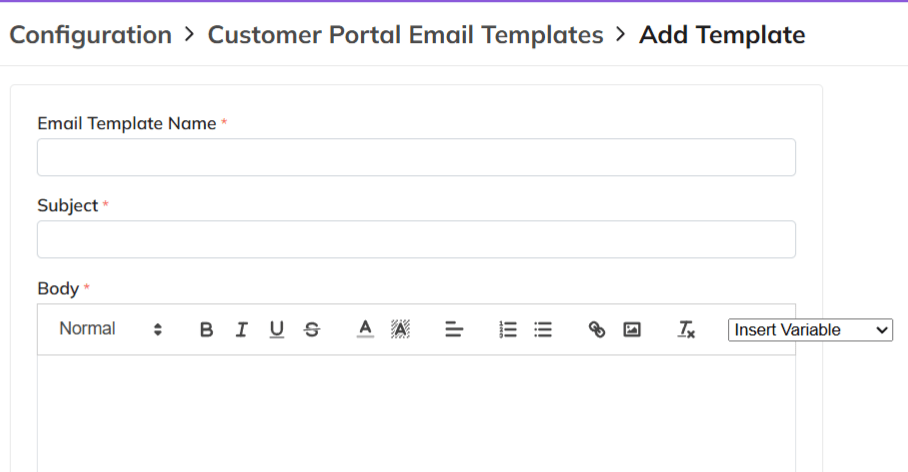
- The field options in all templates are the same except in customer portal. Here, only a Template Name, Subject and Body can be added.
AI Email Generator
- Are you stuck whilst writing your emails?
- At a loss for words?
- Not sure how to write a message that will surely make an impact on your clients?
No reason to worry at all because Zhylar offers an AI email generator.
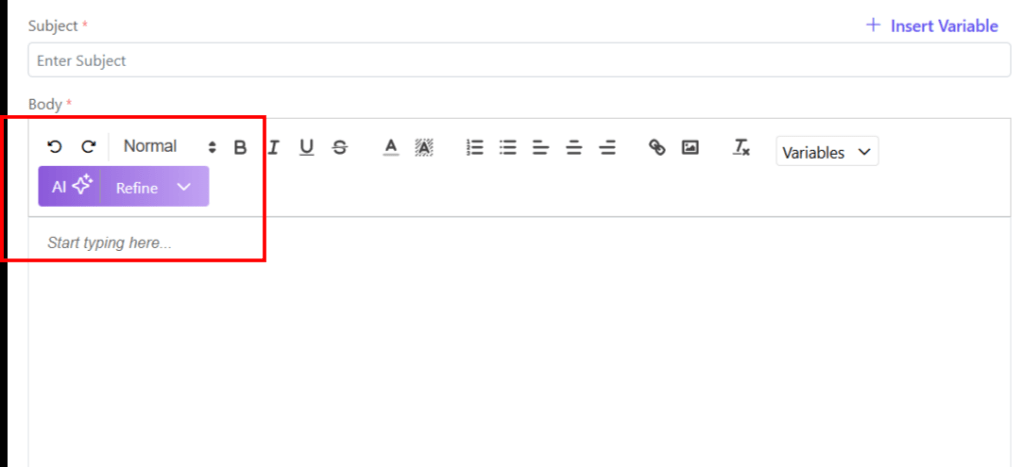
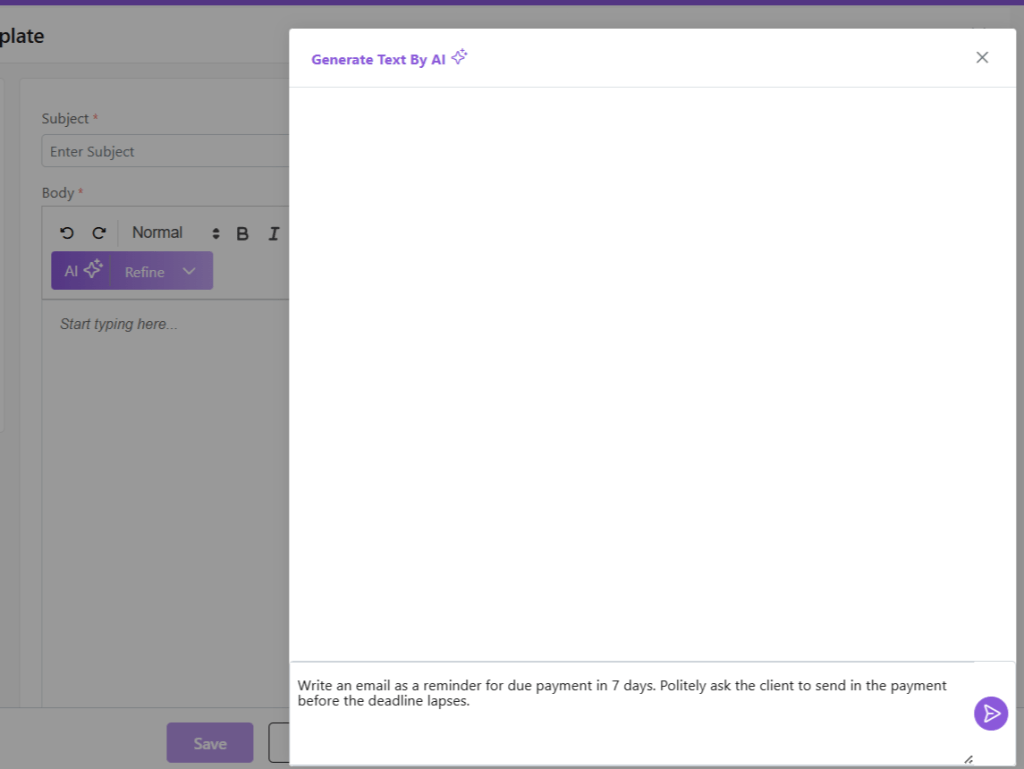
- Click on AI ✨
- Provide a prompt for the nature of your email.
- The AI Email generator has generated email content.
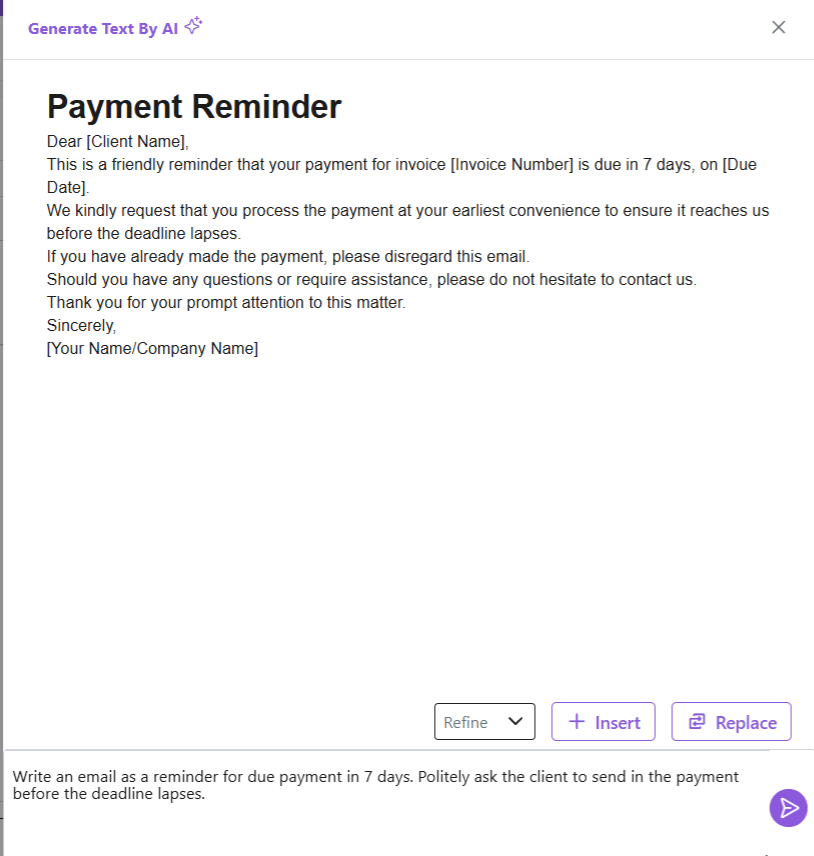
- Once the text is generated, you can:
- Refine: Based on your preference, you can ask the AI email generator to refine the text.
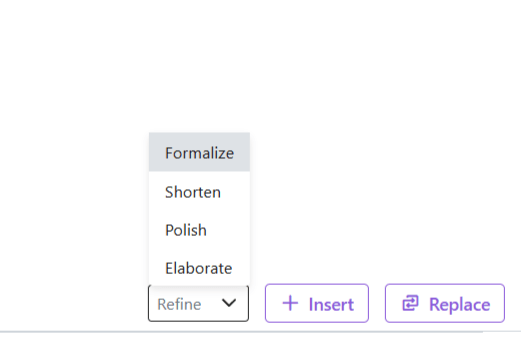
- Insert: Add documents or files
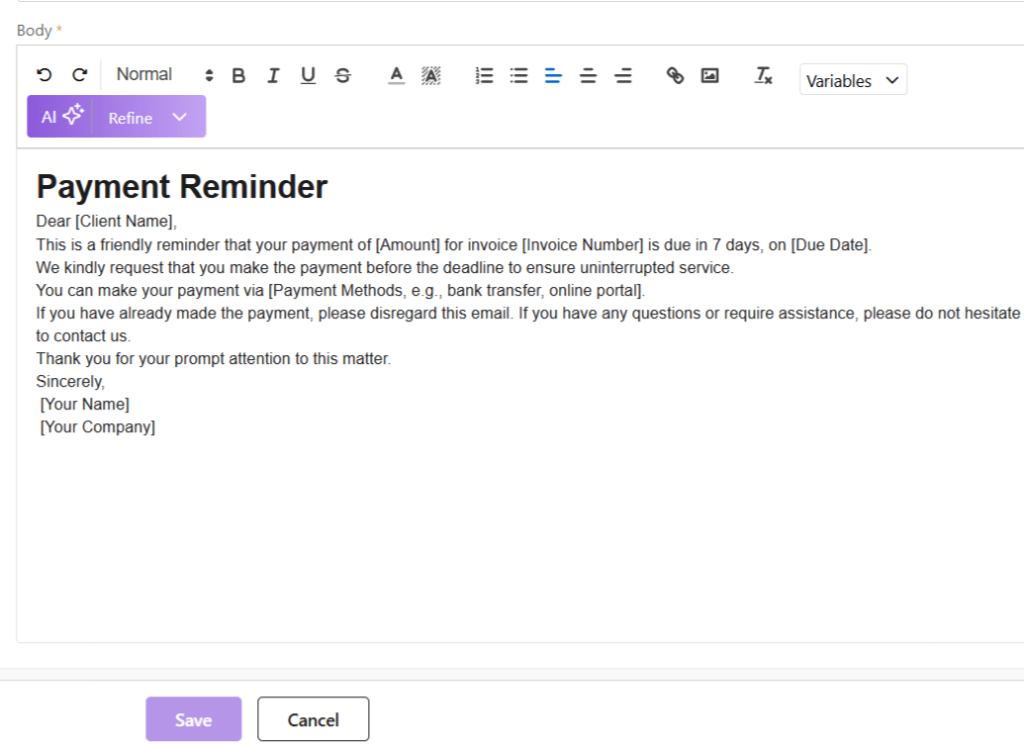
- Replace: Click on Replace to add this text by removing the existing text in the email (if any)
- Once done, click on Save to save your AI-generated email template.
Default Template
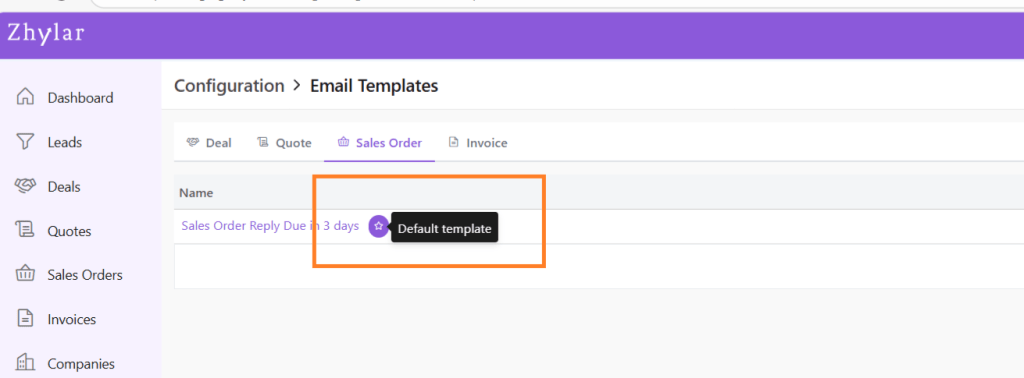
- Marked by a white star in a purple circle.
- First template created under any tab will be automatically marked as default.
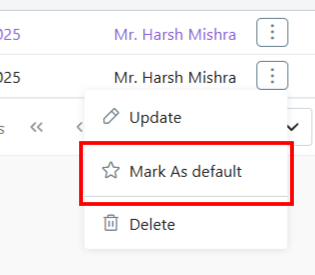
- To Change default template, go to List View
- Click ⋮ 3 dots
- Select Mark as Default.
- If there is only one template in the system, the existing template will be marked as default automatically.
Update Template
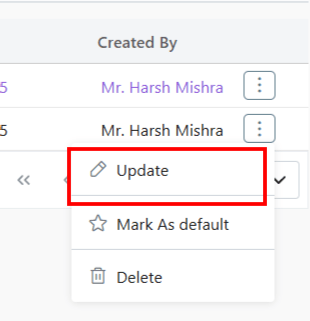
To update a template,
- Click ⋮ 3 dots
- Select Update
- Make your changes.
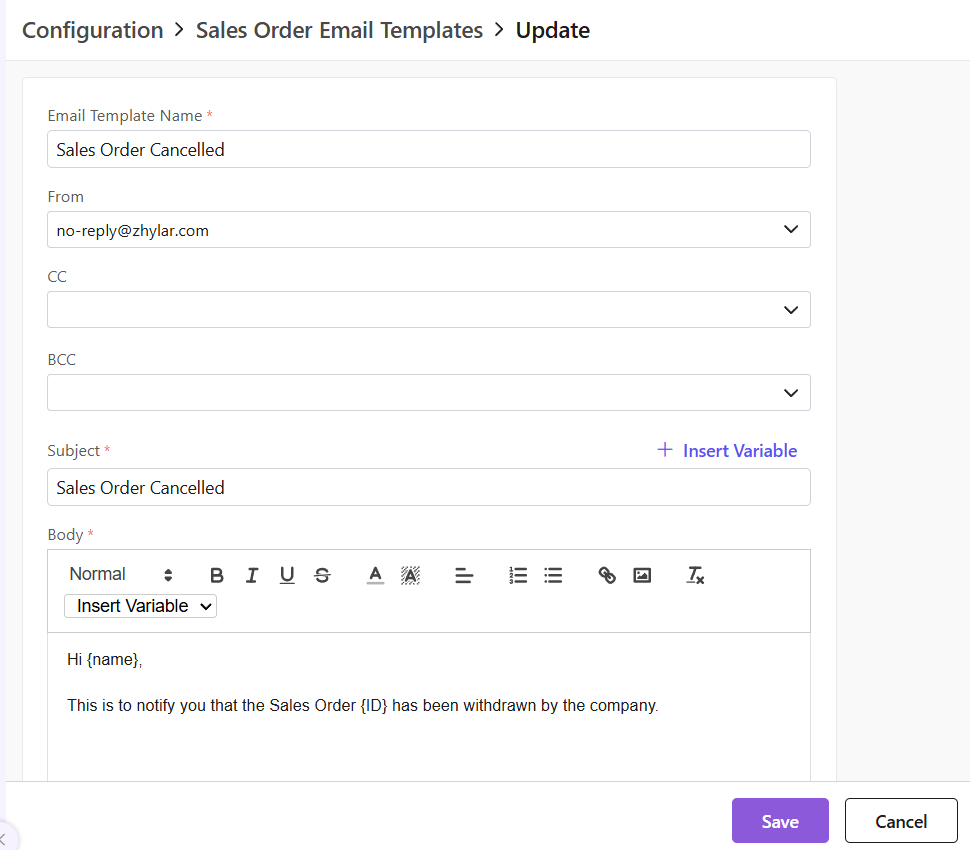
- Click Save.
Delete Template
To delete a template,
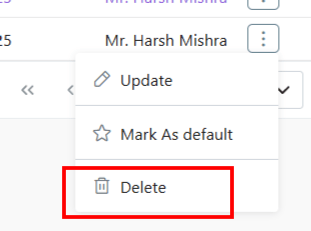
- Click ⋮ 3 dots
- Select Delete
- Provide confirmation.
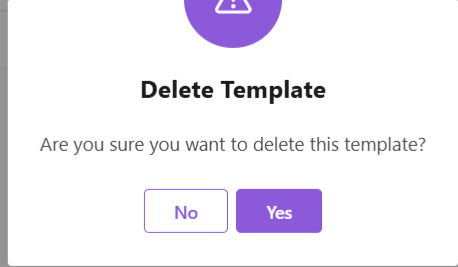
Note: A template marked as Default Template cannot be deleted.
Discover how Zhylar can streamline your sales and elevate your business processes. Visit our website or book a demo today to experience the difference!
 Zhylar Blog
Leave a comment